
Set up GeekProxy in Binom
Binom is the one tracker on our list with a real proxy form, and it is narrower than people expect. Only Binom v1 has it, and only for the Facebook account integration: the tracker's own API calls to Facebook go through the proxy you attach. Visitor clicks never do. Binom v2 has no outgoing proxy at all, but it does have Binom Protect, which tags VPN and datacenter traffic, and that changes how you test your own funnel. This guide covers both.
You'll need: an active GeekProxy plan, the proxy credentials from your dashboard, and a Binom install (v1 for the Facebook part). About fifteen minutes.
Get proxies1 Before you start
Two versions, two different stories. Binom still sells v1 next to v2 because v1 has the Facebook and Google Ads integrations that v2 lacks. The 2.34.00 changelog from May 2026 lists a v2 Facebook integration, but in closed beta. The proxy form lives in v1, under Traffic Sources, Accounts, Proxies. It exists for one reason, and the docs state it plainly.
- By default Binom sends its queries to Facebook from the server it is installed on. Facebook sees those queries as logging in
- If logins come from different devices, Facebook may consider it suspicious and change the access token. Binom's advice: use a proxy. Using one is not obligatory
So in v1 the proxy carries cost sync and comment management for your linked ad accounts. That is server to proxy to Graph API, nothing to do with your visitors. In v2 there is no outgoing proxy setting anywhere. The word "proxy" appears only on the detection side: VPN/Proxy Detection, free in any campaign since 2.27.00, and the Binom Protect module with its tag list. For v2 the realistic job is different. A browser goes through a GeekProxy exit and opens your own campaign URL from the target geo. Your job is to make sure Protect does not throw that click onto the white page.
What you'll need
- Active GeekProxy plan (ISP for the Facebook proxies, ISP or residential for browser checks)
- Proxy credentials from your dashboard: Host, Port, Username, Password
- For section 3: Binom v1 with a Facebook account you plan to link
- For sections 4 and 5: any Binom with a campaign, plus Chrome, Firefox or an anti-detect profile
- Field Where it comes from
- Protocol HTTP / SOCKS5
- Host IP or gateway hostname from the dashboard
- Port from the dashboard
- Username from the dashboard
- Password from the dashboard
2 Where to get your credentials
- Log in to your GeekProxy dashboard
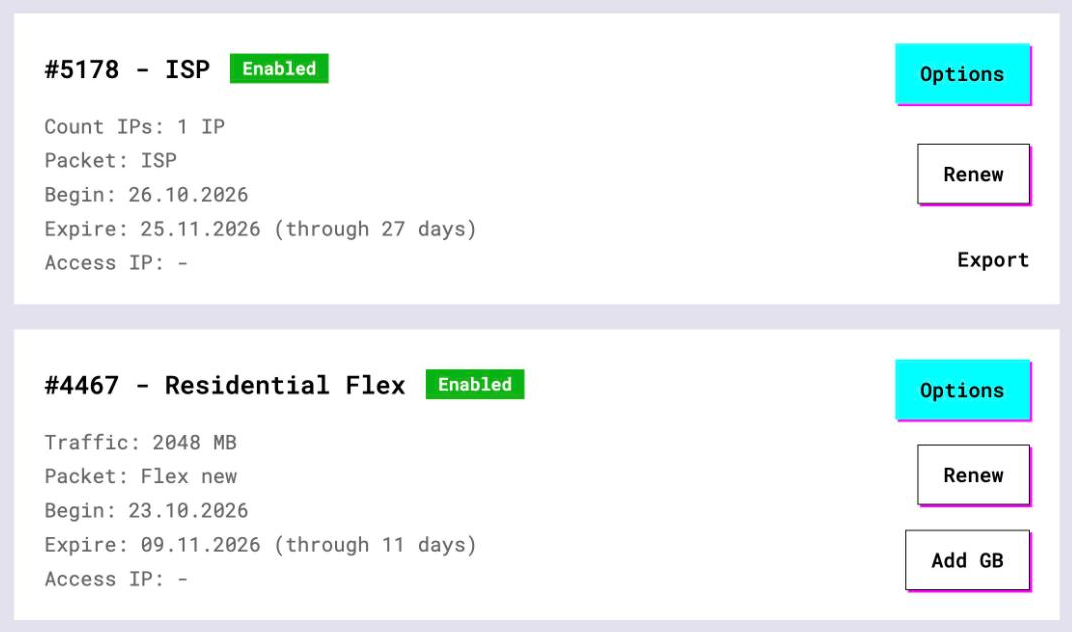
- Open the plan. For per-IP plans (ISP, datacenter) the IP list, ports, login and password sit right on the card, and Export hands you the whole list as text
- For residential plans click Options. The Proxy Configuration panel builds the login string with your country, city and session settings. Copy the finished line from the Proxy List
For the Facebook proxies take ISP addresses, one per account or account group, and keep them. For browser checks pick the exit country to match the offer.
3 Binom v1: proxies for Facebook accounts
The official path is short. Go to Traffic Sources, then Accounts, then Proxies, and specify your proxy settings. Save the proxy, then attach it to a Facebook account profile, and attach that account to a campaign under Integrations. One proxy can serve several accounts.
- Open Traffic Sources, switch to Accounts, open Proxies and create a new entry
- Fill in the host
IP, portPORT, loginLOGINand passwordPASSWORD, and pick the protocol your plan uses. HTTP and SOCKS5 with login and password both work here, because the client is Binom's server, not a browser - Create or edit the Facebook account and select this proxy in the account's proxy field
- In the campaign open Integrations and attach the account

Two details from the Facebook integration page matter more than the form itself. First, register the Facebook developer app through the same proxy you will later specify in the tracker, so the app is born on the IP it will live on. Second, mobile proxies carry two extra timeouts: the IP change time and the minimum interval between change URL calls. That caps how many accounts one mobile proxy can serve, and if you pass the cap Binom may not get through all the accounts in time. A static ISP IP has neither timeout.
The whole point of the feature is a stable device in Facebook's eyes. A rotating exit would recreate the "logging in from different devices" problem the proxy was meant to solve. Static, one per account group, left alone.
4 Binom v2: test the funnel through a proxy
With no proxy field in v2, the proxy lives in your browser. Set it up once in a dedicated profile following our Chrome or Firefox guide, or in an anti-detect profile. Short version: HTTP proxy, host and port in the settings, login and password in the prompt on first load.
Chrome and Firefox never send SOCKS5 credentials. In those browsers use HTTP with login and password, or SOCKS5 with the GeekProxy plan switched to IP whitelist.
Then the test itself. Copy the campaign URL from Binom, open it in the proxied browser, follow the redirect to the lander and on to the offer. Check language, currency and price for that geo. Back in Binom, find the click and read what the tracker decided about it.
5 Binom Protect and your own test clicks
This is where a datacenter exit bites. Binom Protect lists what it blocks, and the list includes VPN and proxies, residential ones among them, spy services such as AdPlexity, and anti-detect browsers with mobile profiles. Its server-side methods are named TLS, TCP, APP, BOT, CORP, CRAWL, DC, FAKE, FB, FIRST, RATE and VPN/ABUSE, with a second set of JS methods on top. You switch it on in the campaign settings, pick the tags you want, and add a rule with the Bot criterion.
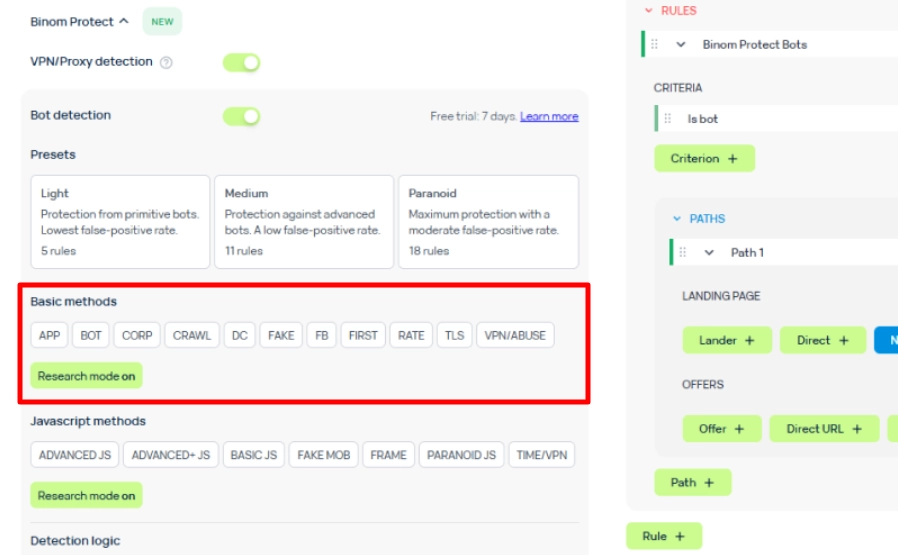
Read the method names again. DC is a datacenter check, VPN/ABUSE is a VPN check. A test click from a hosting range gets the DC tag, your Bot rule fires, and you land on the white page wondering why the lander is gone. A residential or ISP exit comes from a consumer network and does not trip DC. Protect also has a Research mode that analyses traffic without blocking it. Turn that on while you test, read the tags your click collected, and only then switch to blocking. Cheaper than guessing.
6 Verify it works
For the v1 Facebook proxies: save the proxy, link the account, and watch the next cost update arrive. If costs sync and the token survives a few days, the proxy is doing its job. Use the form's check button with some suspicion, see the issues below.
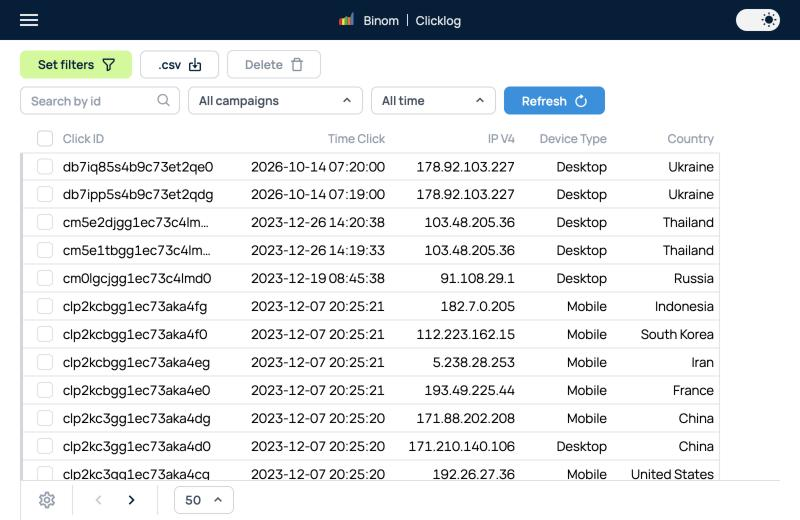
For browser checks, three steps. Open https://ipinfo.io/json in the proxied browser and confirm the proxy IP. Open the campaign URL and walk to the offer. Then find the click in Binom and confirm the country matches your exit and the click carries no VPN or DC tags.
7 Which GeekProxy product fits
For the v1 Facebook proxies, ISP static, one IP per account group. It is the exact shape of the problem: Facebook wants to see the same device every time, and a static ISP address is one device forever. Mobile works too, but the documented timeouts cap accounts per proxy, and a sticky residential session may expire between two sync runs. For browser checks against v2 with Protect on, Residential Flex or ISP static: consumer network, no DC tag, country chosen per session. Keep datacenter IPv4 for jobs where nobody classifies the exit, such as scripts against Binom's own API.
8 Common issues
I cannot find the proxy form in Binom
You are on v2. The Traffic Sources, Accounts, Proxies path exists in v1 only. In v2 there is nothing to fill in; put the proxy in your browser instead.
Facebook keeps resetting the access token
The tracker reaches Facebook from changing addresses: no proxy attached, a rotating proxy, or the app was registered from a different IP. Attach one static ISP proxy, re-register the app through it, and leave it there.
My test click lands on the white page
Protect tagged your exit as DC or VPN and your Bot rule did what you told it. Test from a residential or ISP exit, or switch Protect to Research mode while you work.
The Check button says the proxy is inactive but it works
Reported in the v1 demo by third parties. Trust a real cost sync over the button.
Not enough time to go through all accounts
Too many accounts on one mobile proxy with its change timeouts. Spread them across several static IPs.
Get proxies for Binom
Static ISP IPs for Facebook accounts, residential exits for funnel checks, HTTP and SOCKS5.
Place an order