
Set up GeekProxy in Incogniton
Incogniton keeps proxies in a Proxy Library and attaches one to each browser profile. It validates the proxy against a geo database you can switch, then fills timezone, geolocation and the WebRTC public IP from it. This guide covers the library form, the one-line paste, attaching to a profile, and the toggles to flip when the auto-fill goes wrong.
You'll need: an active GeekProxy plan and the proxy credentials from your dashboard. First profile takes about three minutes.
Get proxies1 Before you start
Incogniton ships for Windows 10 and 11 (64-bit) and macOS on Apple Silicon and Intel. No Linux build. The free Starter plan gives 10 profiles for the first 2 months, then drops to 3, no credit card asked. Free has no API or Selenium access and no team features, which doesn't matter for proxy setup.
The Proxy Library form offers two connection types, HTTPS and SOCKS5. Both take a username and password, and the troubleshooting page says IP authorization works too, as long as it matches what your provider expects. For a GeekProxy HTTP port pick HTTPS, for the SOCKS5 port pick SOCKS5.
What you'll need
- Active GeekProxy plan (ISP, datacenter, residential or mobile)
- Proxy credentials from your dashboard: Host, Port, Username, Password
- Incogniton installed and signed in, free plan is fine
- FieldWhere it comes from
- ProtocolHTTP (type HTTPS in Incogniton) / SOCKS5
- HostIP or gateway hostname from the dashboard
- Portfrom the dashboard
- Usernamefrom the dashboard
- Passwordfrom the dashboard
2 Where to get your credentials
- Log in to your GeekProxy dashboard
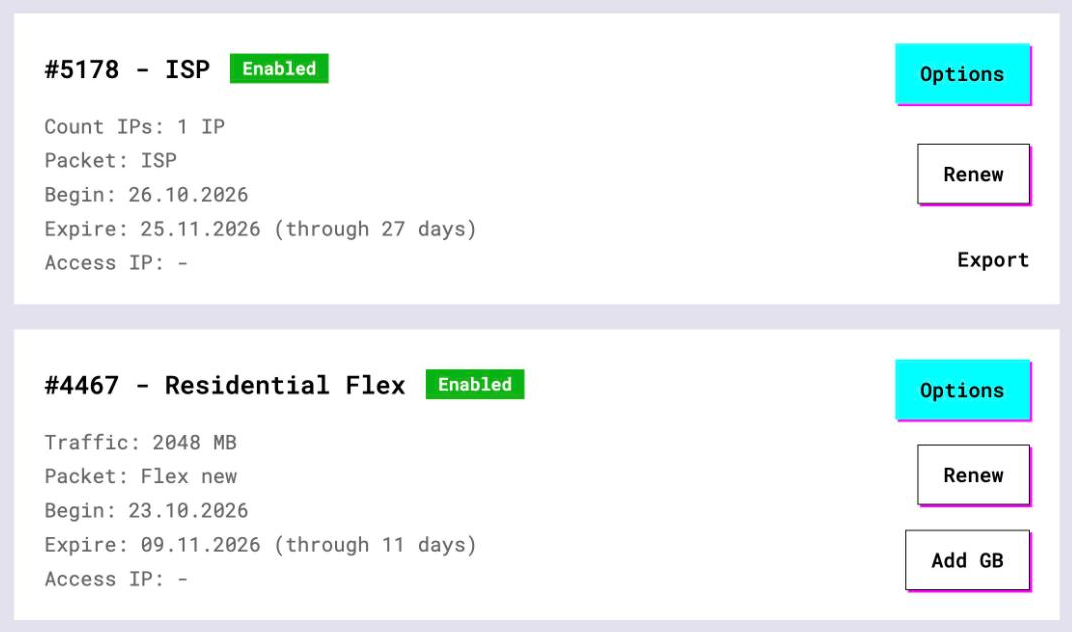
- Open the plan. For per-IP plans (ISP, datacenter) the IPs, ports, login and password are listed right there. Export gives you the whole list as text, which Incogniton's Bulk add reads line by line
- For residential and mobile plans click Options. The Proxy Configuration panel builds the login string with your country, city and sticky session. Copy one line per profile from the Proxy List
3 Add a proxy to the Proxy Library
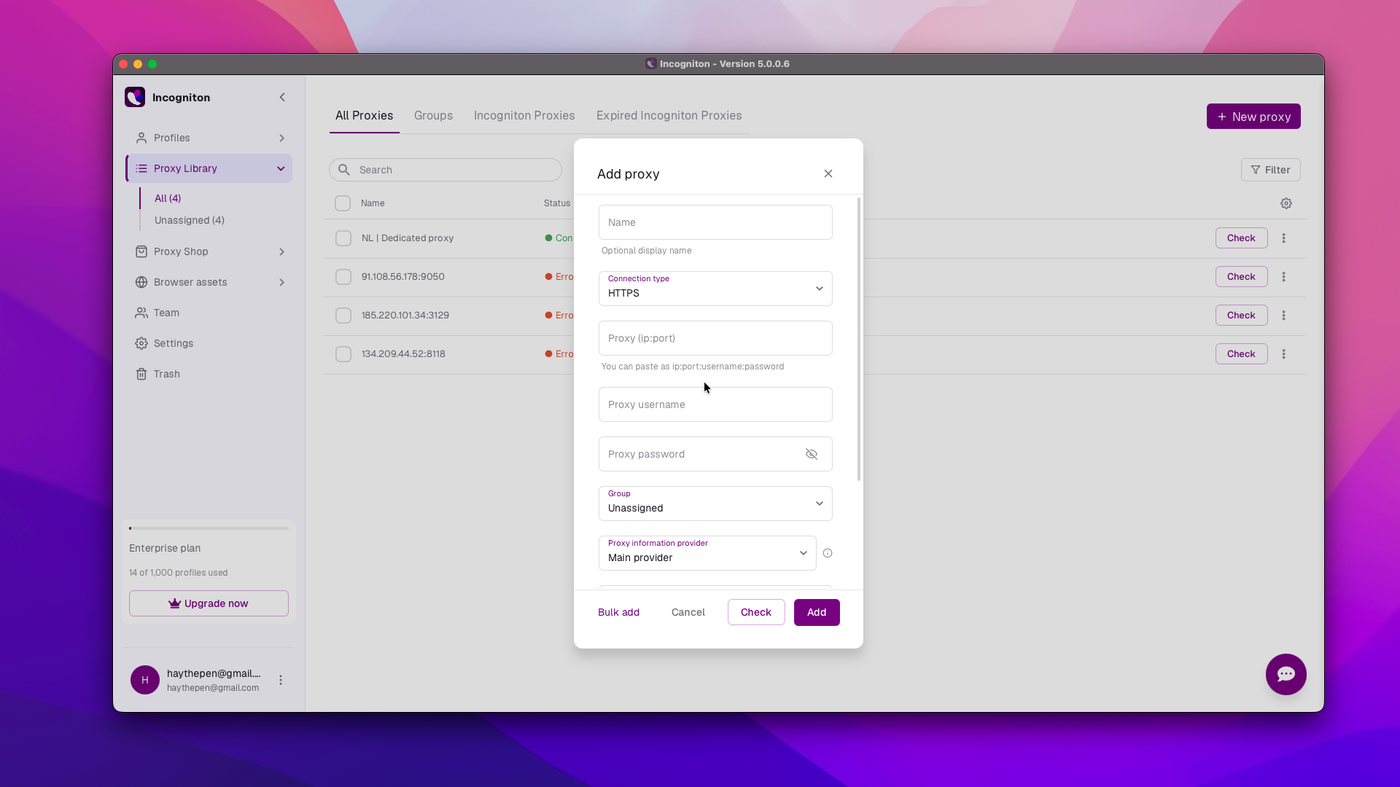
In the left menu open Proxy Library and click + New proxy. The form has more fields than most, so here they are in order:
- A display name, optional, but name it after the account it will serve
- Connection type: HTTPS or SOCKS5
- Proxy (ip:port). Paste the whole line
ip:port:username:passwordhere and the username and password fields fill themselves - Proxy username and Proxy password, in case you'd rather type them
- Group, or leave it Unassigned
- Proxy provider: which geo database validates the proxy. Main provider is IPstack by default, with a Backup and a Second backup
- Notes
- Rotating proxy toggle, which asks for a Proxy rotation API url. Leave it off for ISP addresses and sticky sessions
IP:PORT:LOGIN:PASSWORD
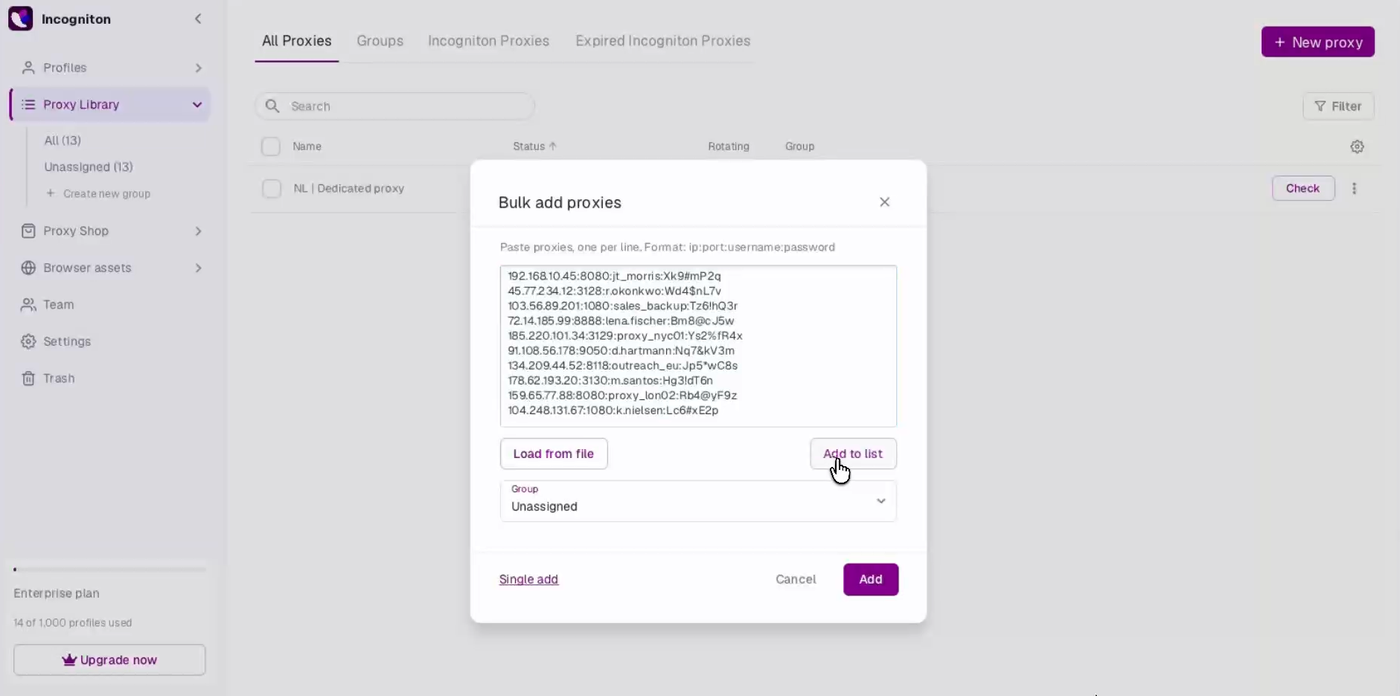
Press Check. Incogniton connects through the proxy and shows the IP and country it found. Then Add saves it, or Add to list if you're queuing several. The Bulk add button in the bottom left takes one ip:port:username:password per line, or a CSV through Load from file. That's where the dashboard export goes.
4 Attach it to a profile
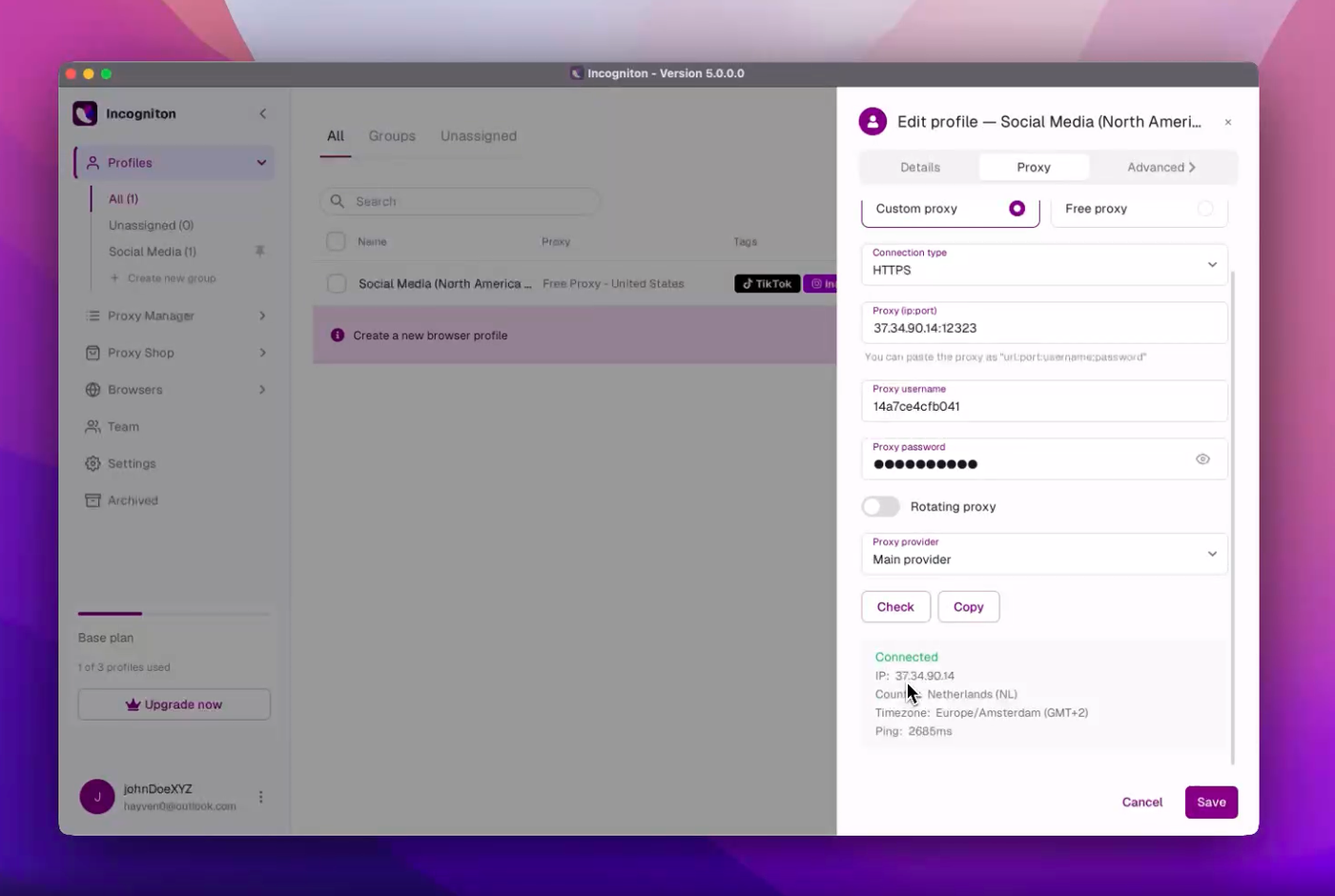
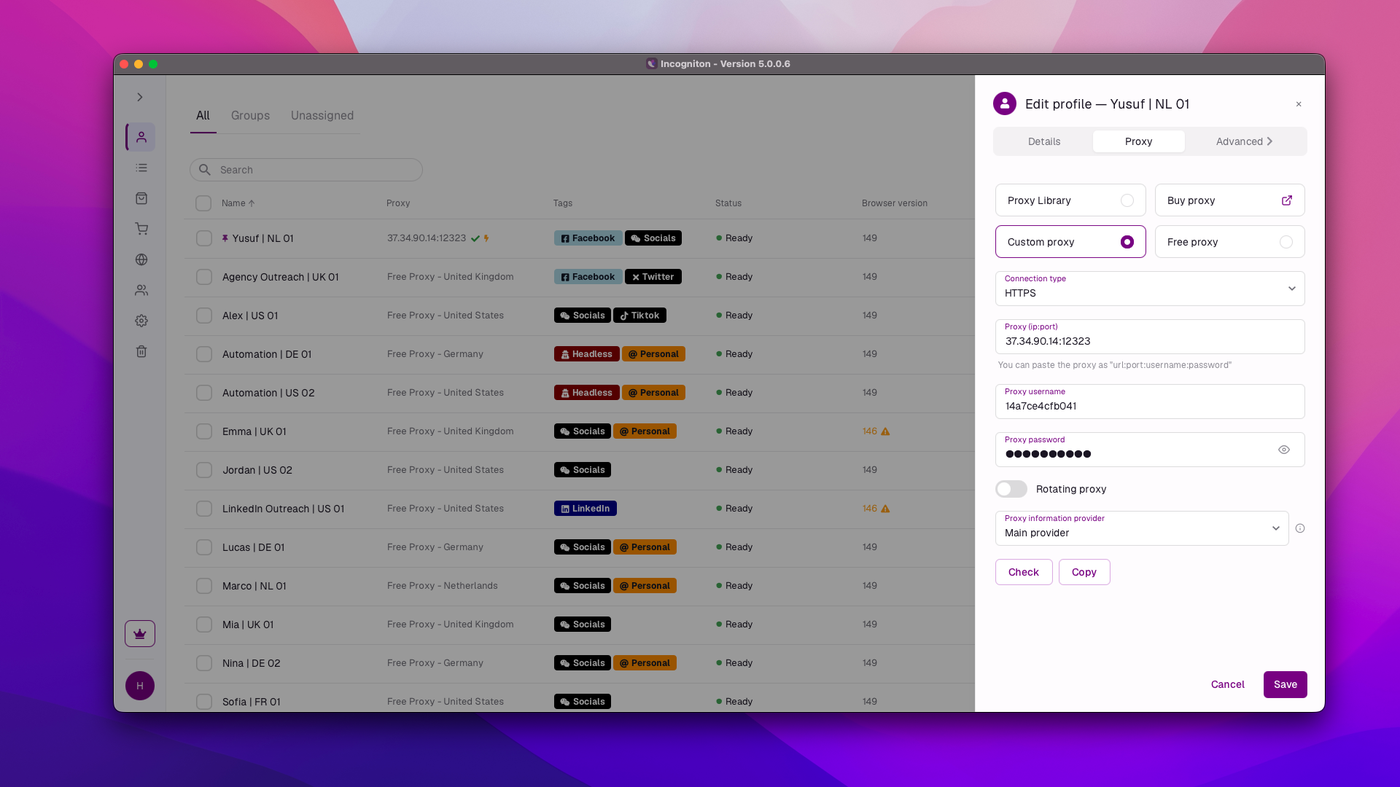
Open a profile in the editor and go to the Proxy tab. Depending on the version, the options read Proxy Library, Buy proxy, Custom proxy and Free proxy, or Pre-saved proxy, Custom proxy, Rotating proxy, Free proxy and Buy proxy. Two of them matter to us:
- Select from Proxy Library picks the row you just saved. This is the tidy way, and it's the only way to reuse one entry across settings
- Custom proxy takes the connection type and the details right there, with Check and Save. Quick for a one-off profile
After saving, the profile row in the list shows the proxy in its Proxy column, so you can see at a glance which profiles still run without one.
5 Timezone, location and WebRTC from the IP
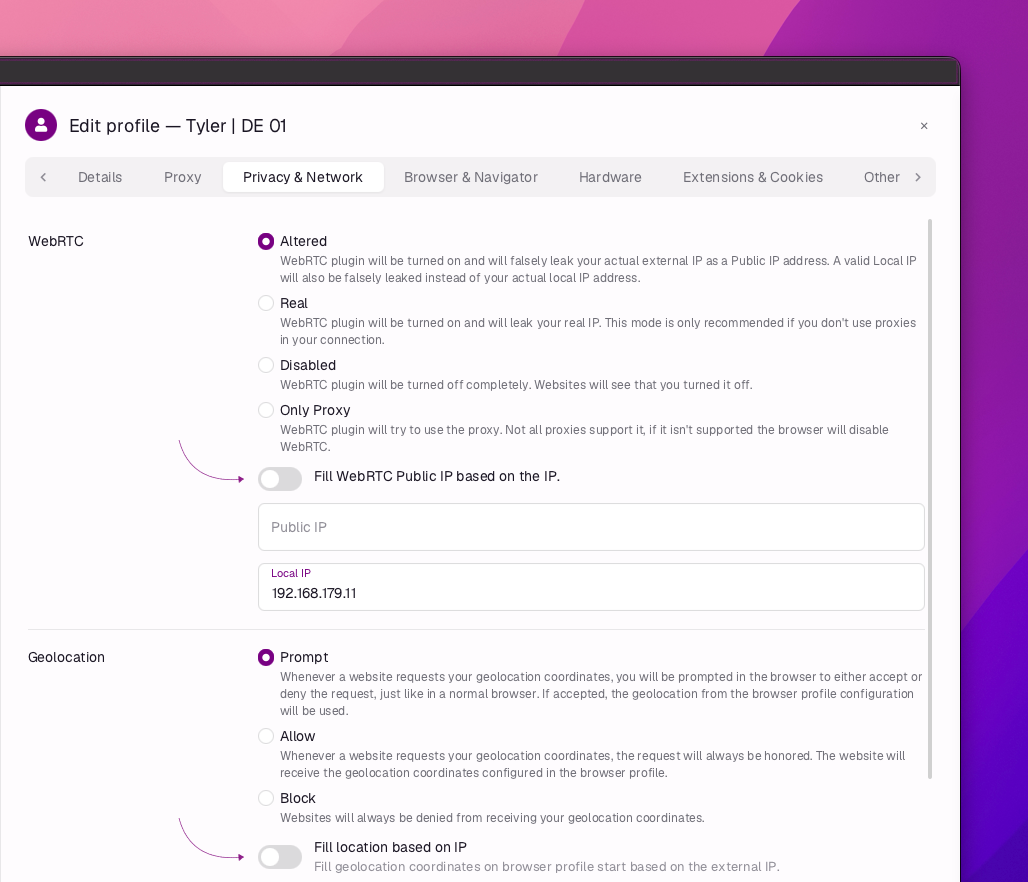
With a proxy attached, Incogniton fills three things from its IP: the timezone, the geolocation and the WebRTC public IP. Language is filled from the IP as well, and the docs say to keep that one on. When the check passes, you do nothing. When the check fails or the location is wrong, the docs give manual overrides:
- Browser & Navigator: turn off Fill timezone based on IP and set the zone yourself
- Privacy & Network: turn off Fill WebRTC Public IP based on the IP, or set WebRTC to Disabled
- Same tab: turn off Fill location based on IP, or set geolocation to Block
Before you override anything, try the cheaper fix. A proxy that validates to the wrong location is often a database problem. The Proxy provider dropdown in the library form lets you switch from IPstack to a backup provider and re-check.
6 Verify it works
Launch the profile and open https://ipinfo.io/json. The ip field must show the proxy address, not your own. On an ISP or datacenter plan that is the address from your dashboard, on Residential or Turbo it is an address from the pool in the country you picked. Compare the timezone field with the profile's Browser & Navigator setting. On a sticky residential session, reload a few times. The IP should stay. If it changes on every load, the login string has no session part, or the Rotating proxy toggle is on by mistake.
7 Which GeekProxy product fits
Incogniton profiles are long-term containers for accounts, so each one should sit on an IP that won't move. ISP static is the obvious match: one fixed residential-network IP per profile, no traffic counter, 25 countries. When you need more locations, Residential Turbo in sticky mode gives each profile its own session string, held for up to 1440 minutes, pasted as host:port:user:pass with the Rotating toggle off. Choose HTTPS as the connection type for the GeekProxy HTTP port, or SOCKS5 for the SOCKS5 port, both with login and password. Mobile is for platforms that want carrier IPs and is the one case where the rotation API url might come into play.
8 Common issues
Check fails right away
Incogniton's own checklist: the connection type must match the provider (HTTPS or SOCKS5), the address must include the port in ip:port form, and the authentication method must match. A GeekProxy plan in whitelist mode wants empty credentials and your IP on the list; a login-mode plan wants both fields filled.
The proxy validates to the wrong location
Switch the Proxy provider in the library form from the Main provider to a backup and re-check. Databases disagree on fresh IPs. If the browser's own IP page shows the right country, the proxy is fine.
Sites don't load through an IPv6 proxy
From the docs: IPv6 proxies only work on sites that support IPv6. Use an IPv4 address for general browsing.
The IP changes between sessions on a free proxy
Incogniton's free proxies are shared, fixed to a location, and the IP may change between sessions. That's by design. A profile that needs the same address every day needs its own proxy.
Timezone or WebRTC IP don't match the proxy
Re-run the check in the library. If it still fails, set the values by hand through the overrides in section 5, and keep Fill language based on IP enabled.
Get proxies for Incogniton
Static ISP IPs or sticky residential sessions per profile, HTTP and SOCKS5 with login and password.
Place an order