
Set up GeekProxy in Indigo X
Indigo X attaches a proxy to each browser profile in the Custom section of the profile settings. One button checks it, and the result fills the timezone and geolocation of the fingerprint. This guide covers the paste format that fills every field at once, the check, and proxy lists for quick profiles.
You'll need: an active GeekProxy plan and the proxy credentials from your dashboard. One profile takes about two minutes.
Get proxies1 Before you start
Indigo's current product is Indigo X, released on 1 May 2025. It's a desktop app plus a web interface, with cloud and local profiles. The older Indigo 6 was desktop only and cloud only. This guide is about Indigo X. If your screens look different, you are probably still on 6.
On a Mac you need macOS 14 Sonoma or newer, builds exist for Apple silicon and Intel. macOS 13 and older are not supported, full stop. New accounts get a 10-day trial with 50 profiles in cloud or local storage, after which the plans are PRO 10, PRO 50, PRO 100 and BUSINESS 300.
For proxies the Proxy section of a profile offers two choices: Indigo (the built-in service) and Custom. We use Custom. It accepts HTTP, HTTPS and SOCKS5 with login and password, which means both GeekProxy protocols work without the whitelist workaround that plain browsers need.
What you'll need
- Active GeekProxy plan (ISP, datacenter, residential or mobile)
- Proxy credentials from your dashboard: Host, Port, Username, Password
- Indigo X with the desktop agent installed and the web interface signed in
- FieldWhere it comes from
- ProtocolHTTP / SOCKS5
- HostIP or gateway hostname from the dashboard
- Portfrom the dashboard
- Usernamefrom the dashboard
- Passwordfrom the dashboard
2 Where to get your credentials
- Log in to your GeekProxy dashboard
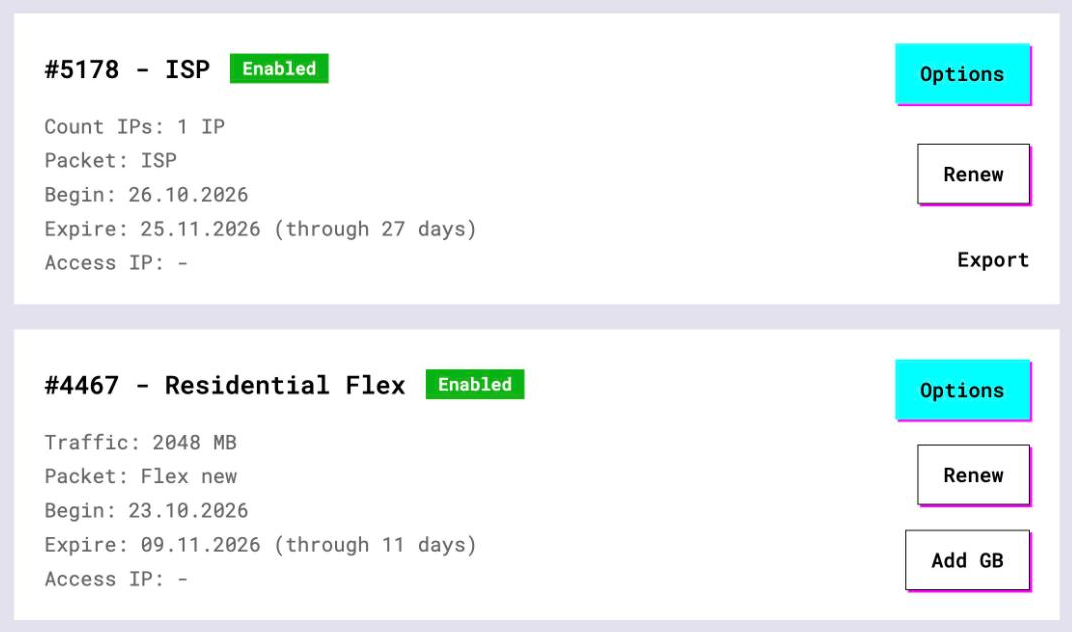
- Open the plan. For per-IP plans (ISP, datacenter) the IPs, ports, login and password are listed right there. Export gives the whole list as text, which is exactly what a proxy list for quick profiles wants
- For residential and mobile plans click Options. The Proxy Configuration panel builds the login string with your country, city and sticky session. Copy one finished line per profile from the Proxy List
3 Add a custom proxy to a profile
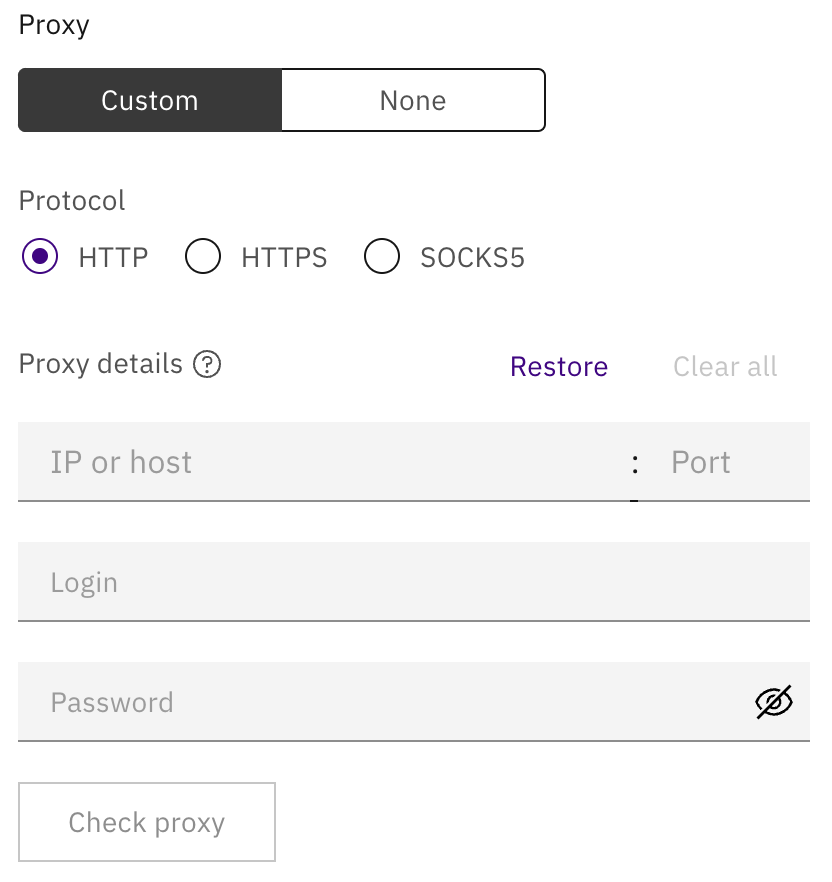
Indigo's own docs give the path in one line: Profile settings, then the Proxy section, then Custom, choose the protocol, enter the details. In practice:
- Open the profile settings and scroll to Proxy
- Pick Custom
- Choose the protocol: HTTP, HTTPS or SOCKS5. Match it to the port you took from the dashboard
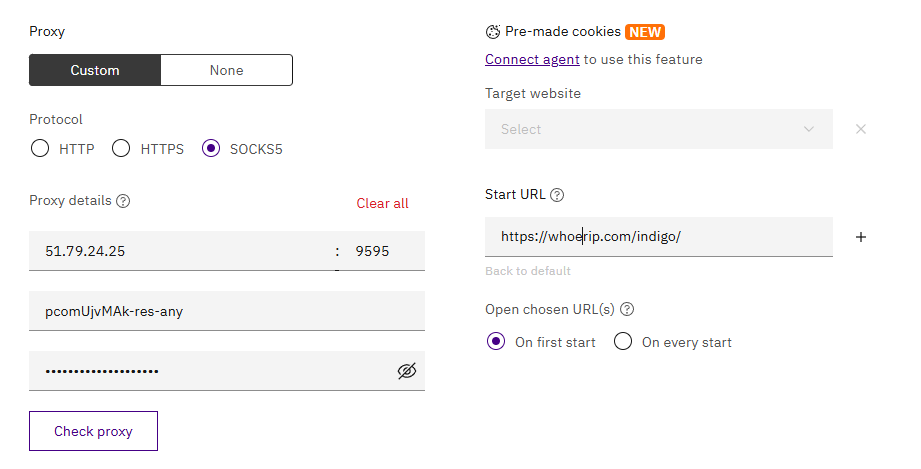
- Paste the whole line into IP or host in the form
IP:port:login:password. The docs say the other fields auto-populate, so Login and Password fill themselves
IP:PORT:LOGIN:PASSWORD
One paste, four fields. If a field stays empty, type it by hand, the fields are plain text boxes.
For IP authentication the docs are explicit: leave Login and Password empty, and make sure your local IP address is whitelisted in your proxy provider's control panel. In GeekProxy that's the whitelist setting of the plan. Remember that the IP to whitelist is the one of the machine running the Indigo agent.
4 Check proxy and the fingerprint
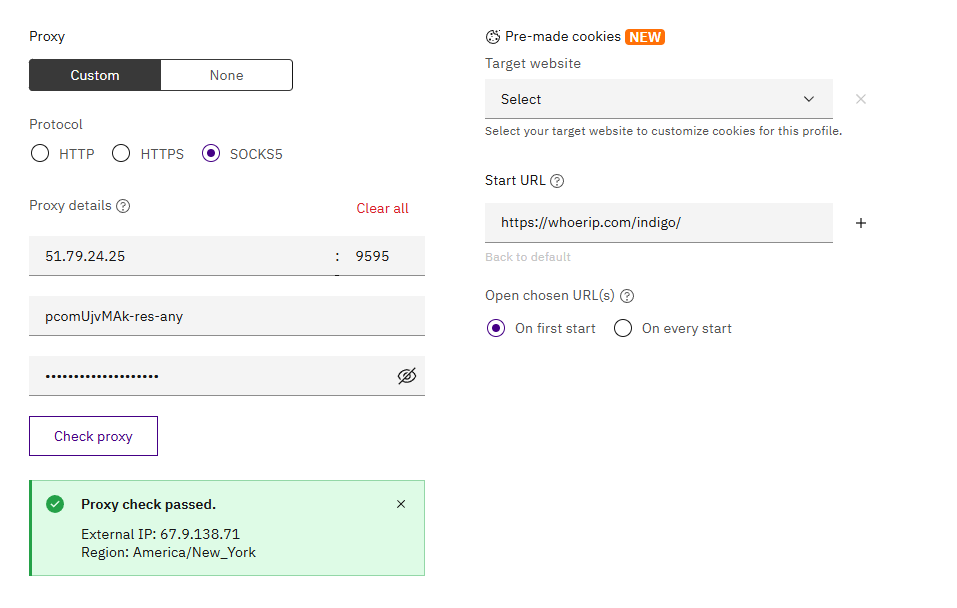
Press Check proxy. Two possible answers:
- Proxy check passed. Indigo connected to the proxy and received the IP-dependent data
- Proxy check failed, with a link to the troubleshooting page
The phrase "IP-dependent data" is the important bit. The check isn't just a ping. It's how Indigo learns the timezone and geolocation to put into the fingerprint, so a profile saved on a failed check runs with location fields that don't match the proxy. Don't skip the button, and don't save a red result.
The same Proxy section also shows the built-in Indigo service with its own rotation options (keep IP, custom seconds, get new IP). Those controls belong to Indigo's proxy, not to Custom. With a GeekProxy sticky session the IP lifetime is set in the login string, not here.
5 Proxy lists for quick profiles
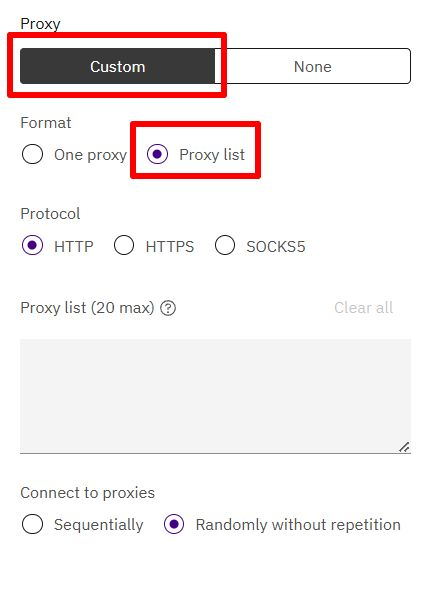
Quick profiles are Indigo's throwaway profiles, and they can take proxies in bulk. The dialog offers Single Custom Proxy or Proxy List, and the list holds up to 20 proxies. Two orders are available: Sequential, top to bottom, and Random, random order without repetition.
Export from the GeekProxy dashboard, paste up to 20 lines, pick Sequential if you want to know which profile got which IP. That's it. For more than 20, split the list or use normal profiles with the per-profile proxy from section 3.
6 Verify it works
Start the profile and open https://ipinfo.io/json. The ip field must show the proxy address, not your own. On an ISP or datacenter plan that is the address from your dashboard, on Residential or Turbo it is an address from the pool in the country you picked. Compare the timezone field with the one in the profile's fingerprint. If Indigo's check passed, they agree. With a Residential Turbo sticky session, reload a few times. The IP should stay put for the whole session length you set in the dashboard.
7 Which GeekProxy product fits
Indigo profiles are meant to live for months, so give each one an address that doesn't move. ISP static is the plain answer: one fixed IP from a residential network per profile, no traffic counter, 25 countries. When you need many more locations than you have ISP addresses, Residential Turbo in sticky mode does the same job from a bigger pool. One session string per profile, held for up to 1440 minutes, over HTTP or SOCKS5. Mobile is for the platforms that insist on carrier IPs. Rotating residential makes little sense here, because a profile whose IP jumps every request is exactly what the fingerprint is trying to avoid.
8 Common issues
Proxy check failed
Start with the protocol. An HTTP port with SOCKS5 selected fails, and the other way round. Then look at the login fields: empty ones mean IP authentication, so the agent's IP has to be whitelisted in the GeekProxy dashboard. Finally, check that the plan hasn't expired.
Login and Password didn't auto-fill
The pasted line probably had a scheme prefix or spaces. Indigo documents the bare IP:port:login:password form. Strip anything else and paste again, or type the fields by hand.
Indigo X won't install on my Mac
macOS 14 is the minimum. On Ventura or older, use a Windows machine or upgrade. There is no workaround.
Proxy List only takes part of my export
Quick profiles accept 20 proxies per list. Split the export into chunks of 20.
Location in the fingerprint doesn't match the proxy
The profile was saved while the check was failing or before it ran. Open the profile settings, press Check proxy again, wait for the passed banner, save.
Get proxies for Indigo X
Static ISP addresses or sticky residential sessions per profile, HTTP and SOCKS5 with login and password.
Place an order