
Set up GeekProxy with Keitaro
Keitaro has no outgoing proxy setting. The tracker sits on your server, takes the click and redirects it, and nothing you own is in that path. A proxy enters on your side of the screen: a browser that opens the campaign URL from the target country. This guide covers that workflow, the filters that react to it, and the one place in Keitaro where a static IP matters.
You'll need: an active GeekProxy plan, the proxy credentials from your dashboard, and a running Keitaro install. The first test click takes about ten minutes.
Get proxies1 Before you start
Let's get the honest part out of the way. Open the Keitaro Settings page and read the fields: local landing pages directory, currency, S2S postback timeout, Dashboard accessible by IP, tracking cookies. No proxy. The word shows up in exactly two places, and neither is a proxy client.
- A flow filter named Proxy in the "Network and visitor" group, next to IP, IPv6, Mobile operator, ISP, Connection type, Bot and Uniqueness. It sorts visitors, it does not route your traffic
- A Cloudflare proxy checkbox on the Domains tab. That is Cloudflare in front of your tracker, unrelated to anything in this guide
So what is there to set up? The part Keitaro cannot do for you. If your offer is geo-locked to Germany, the only way to see the German lander, price and redirect chain is to arrive as a German visitor. That is a browser with a GeekProxy exit in Germany, and that is what we set up below.
What you'll need
- Active GeekProxy plan (ISP or residential; section 7 explains why not datacenter)
- Proxy credentials from your dashboard: Host, Port, Username, Password
- Chrome or Firefox with a dedicated profile, or an anti-detect profile
- A Keitaro campaign with a flow and a lander or offer attached
- Field Where it comes from
- Protocol HTTP (SOCKS5 only with IP whitelist)
- Host IP or gateway hostname from the dashboard
- Port from the dashboard
- Username from the dashboard
- Password from the dashboard
2 Where to get your credentials
- Log in to your GeekProxy dashboard
- Open the plan. For per-IP plans (ISP, datacenter) the IP list, ports, login and password sit right on the card, and Export hands you the whole list as text
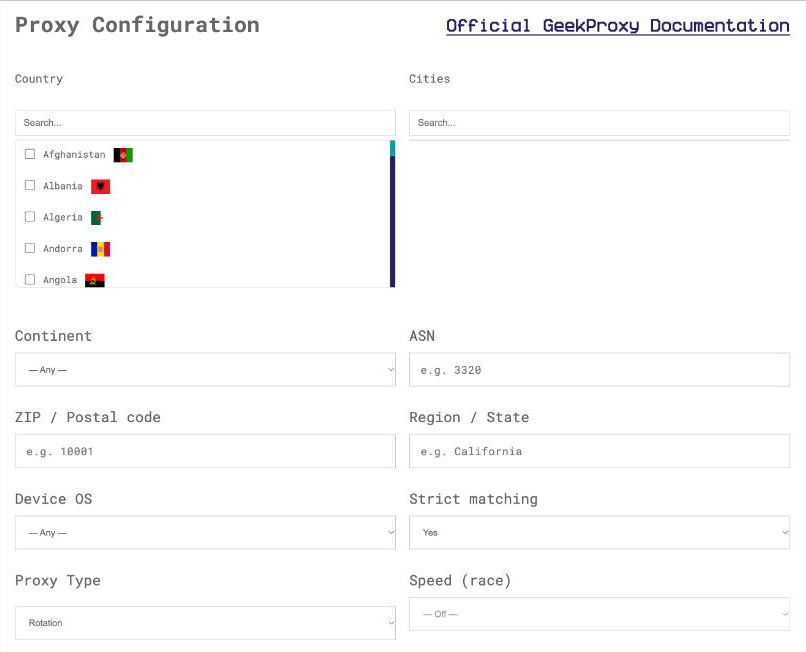
- For residential plans click Options. The Proxy Configuration panel builds the login string with the country, city and session length you pick. Copy the finished line from the Proxy List
Pick the country of the offer, not the country you live in. One exit per geo you buy traffic for.
3 Put a browser behind the proxy
Keitaro does not care which browser you use. The tracker sees an IP, headers and a user agent, nothing else. Browser setup is covered step by step in our Google Chrome and Firefox guides, so here is the short version.
- Create a separate browser profile for tracker tests. Your main profile carries cookies from earlier visits, and Keitaro's Uniqueness filter will treat you as a returning visitor
- Enter host
IPand portPORTas an HTTP proxy. On the first page load the browser asks forLOGINandPASSWORD - Open
https://ipinfo.io/jsonand confirm the IP is the proxy, not your home line
SOCKS5 with a login and password does not work in Chrome, Edge, Opera or Firefox. Those browsers never send SOCKS credentials. Use HTTP with login and password, or switch the GeekProxy plan to IP whitelist and use SOCKS5 without auth.
Anti-detect browsers take the same four values per profile and usually accept SOCKS5 with auth. The rest of the guide is identical either way.
4 Walk the campaign and read the filters
Now the actual test. Copy the campaign URL from Keitaro, paste it into the proxied browser and follow the chain: campaign link, lander, offer. Check the language, the currency, the price. Then go back to the tracker and find your click in the click log.
What you are reading there is how the "Network and visitor" filters treated that click. Each has a dependency worth knowing.
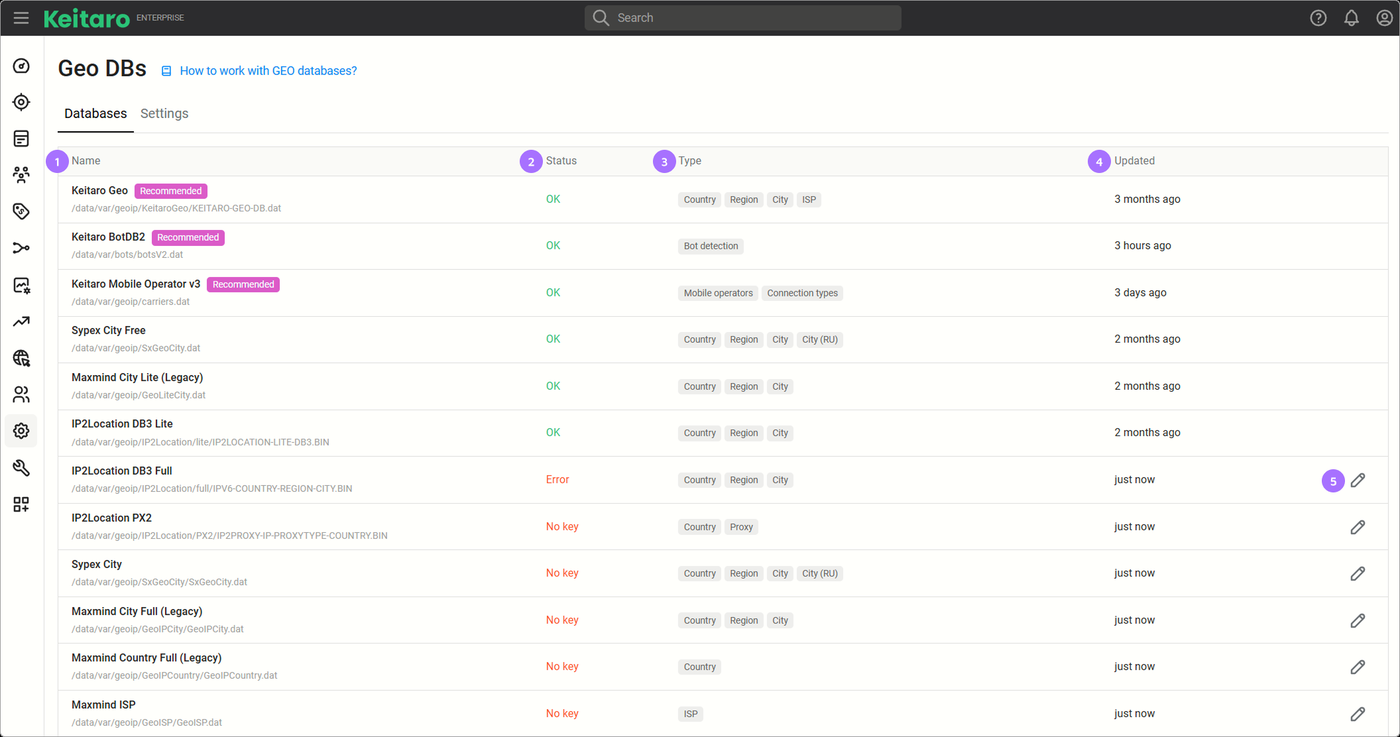
- ISP works if you have the Keitaro Geo database (default since version 10) or IP2Location ISP. MaxMind is no longer supported
- Connection type without a database offers only "mobile network" and "wifi". Since 11.4 the filter hides types it cannot detect
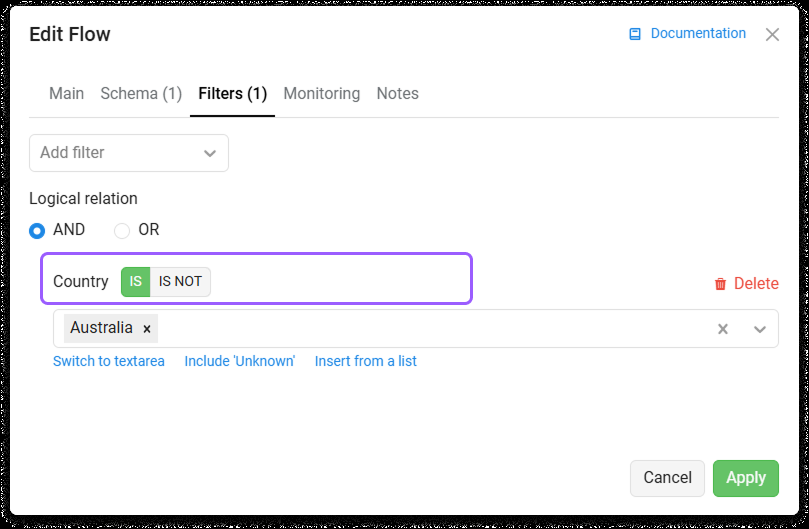
- Proxy is the interesting one. Per the docs, checking occurs using HTTP headers. The docs admit not every proxy can be identified that way and recommend the IP2Location PX2 database
- Bot uses the tracker's bot database and the lists under Settings, Bot lists. Proxy and hosting traffic is not treated as bot here
Why the exit type decides the result
Two checks run against your test click. The header check looks for things like Via or X-Forwarded-For, which transparent corporate proxies add and a clean residential or ISP exit does not. The database check, if you installed PX2, looks the IP up by class. PX2 knows VPN, TOR, PUB for public proxies, WEB and SES for crawlers, and DCH for data center and hosting ranges. Residential addresses are not in PX2 at all.
Put those together. A datacenter exit lands in a hosting range, PX2 says DCH, and the Proxy filter routes your test click wherever you told it to route proxy traffic. A residential or ISP exit adds no headers and sits outside the PX2 lists, so the same filter lets it through as an ordinary visitor. That is not a trick. It is the logic the filter applies to your paid traffic, which is why you test with the kind of IP your real visitors have.
5 Traffic simulation and the admin IP list
Two built-in features sit next to this workflow. People mix them up.
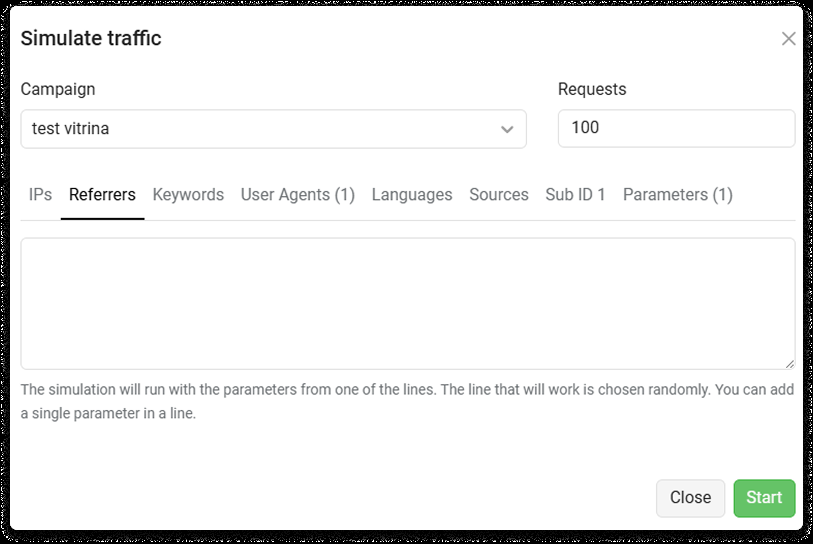
Traffic simulation takes a campaign, a queries count and "Data for flow filters": IPs, referrers, keywords, user agents, languages, sources, SubID 1 to 30 and parameters. It fires fake requests at the flows and tells you which flow caught each one. Good for checking a Country filter against 50 IPs in a minute. Useless for seeing what the lander renders, because no browser is involved and no proxy either. Simulation for filter logic, the proxied browser for the real page.
Dashboard accessible by IP is a field on the Settings page. Fill it in and the admin panel answers only to the addresses you listed. The catch is your own address: home lines change IP, hotel Wi-Fi changes it daily, and the moment it changes you are locked out. The usual fix is to route the admin browser through one static GeekProxy ISP IP and whitelist that. Travel all you want, the panel sees the same address.
6 Verify it works
Three checks, in order.
- In the proxied browser open
https://ipinfo.io/json. It must return the proxy IP. If it shows your home IP, stop and fix the browser first - Open the campaign URL, then find the click in the Keitaro click log. Country and ISP should match the exit you picked in the dashboard
- Confirm the click ended up in the flow you expected, not in the one your Proxy or Bot filter points to
Repeat for every geo you buy. Not just the first one. Page load through a proxy is slower than for a visitor who is really in the country, so ignore timing here.
7 Which GeekProxy product fits
For looking at landers and offers as a visitor, Residential Flex or ISP static. Both give you an address from a consumer network, add no headers, and sit outside the PX2 hosting lists. Flex is TCP only, which a browser never notices, and lets you pick the country per session. For the admin whitelist you want one address that never moves: ISP static, one IP per operator. Datacenter IPv4 is the wrong tool on the visitor side. PX2 classes hosting ranges as DCH, so a Proxy filter with PX2 installed sends your test click down the proxy path every time. Mobile earns its place only when a flow filters on Connection type or Mobile operator and you need to see that branch.
8 Common issues
My test click lands in the "proxy" flow
You came through a datacenter exit and PX2 flagged it as DCH, or the exit adds forwarding headers. Switch to a residential or ISP exit and click again.
The ISP filter shows nothing useful, Connection type only has two values
No geo database with ISP data is installed. Keitaro Geo is the default from version 10, IP2Location ISP is the alternative. Without one, Connection type offers only "mobile network" and "wifi".
Locked out after setting "Dashboard accessible by IP"
Your IP changed. Route the admin browser through a static ISP proxy and whitelist that address instead of your home line. Until then you need server access to clear the field.
The browser never asks for the proxy password
You configured SOCKS5. Chrome and Firefox do not send SOCKS5 credentials. Use HTTP with login and password, or switch the plan to IP whitelist.
Get proxies for Keitaro checks
Residential and ISP exits in the countries you buy traffic for, HTTP and SOCKS5, ready in seconds.
Place an order