
Set up GeekProxy with MailerLite
MailerLite has no proxy field. Not in the app, not in the API. What it does have is an IP allowlist on API tokens. That is where a fixed GeekProxy address earns its keep: your scripts call the API from one static IP and the token refuses everything else. This guide covers curl, Python requests, the official SDK, and running several client accounts from separate browser profiles.
You'll need: an active GeekProxy plan with a static IP and the proxy credentials from your dashboard. Setup takes about 10 minutes.
Get proxies1 Before you start
Let's be clear about what a proxy can and cannot do here. MailerLite sends your campaigns from its own servers, so no proxy on your side changes the sending IP. The proxy sits in front of your traffic to MailerLite. That leaves three realistic jobs for it:
- A script or server that calls
connect.mailerlite.comand must always come from the same address, because the API token is restricted to that address - Your browser session when you log in to a client's own MailerLite account from a dedicated IP
- Checking a landing page or a form from another country. Nothing MailerLite-specific about that one
The first job is the important one. If a token says "only these IPs", a rotating residential exit will fail on the second request. You want an IP that does not move.
What you'll need
- Active GeekProxy plan with a static IP (ISP or datacenter)
- Proxy credentials from your dashboard: Host, Port, Username, Password
- A MailerLite account that has passed onboarding. New accounts go through an approval step before the API is useful
- curl, or Python 3.8 or newer with
requests
- Field Where it comes from
- Protocol HTTP / SOCKS5
- Host IP or gateway hostname from the dashboard
- Port from the dashboard
- Username from the dashboard
- Password from the dashboard
2 Where to get your credentials
- Log in to your GeekProxy dashboard
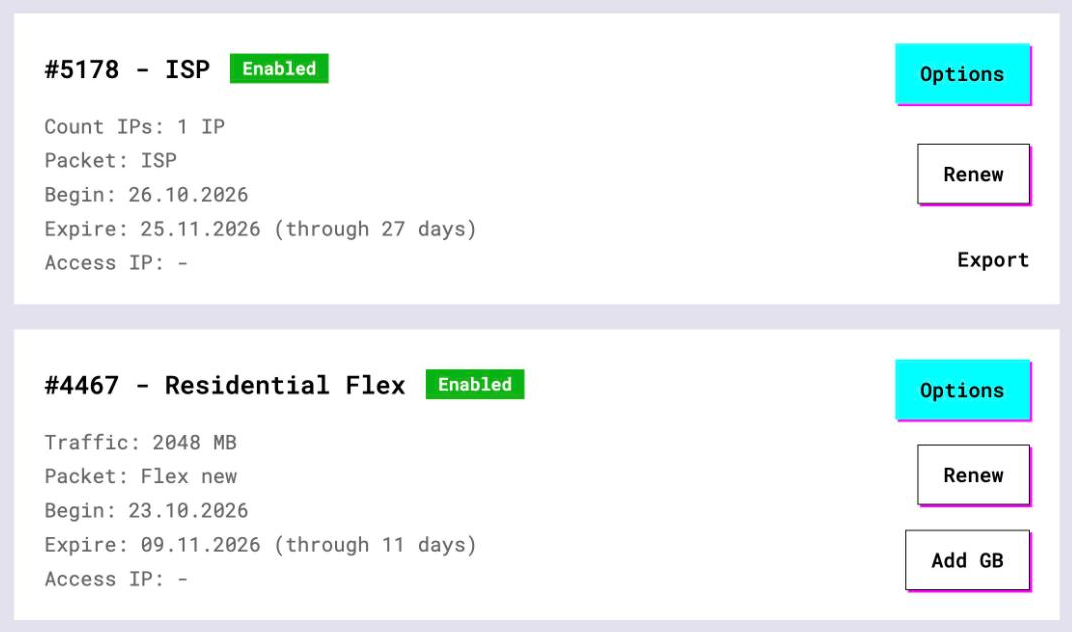
- Open the plan. For per-IP plans (ISP, datacenter) the IP list, port, login and password sit right on the card, and Export hands you the whole list as text
- Write down the exit IP itself. On a static plan the host you connect to is the address the world sees, and that is the address you will type into MailerLite
Residential plans show a gateway host and build the login string under Options. They work for the browser scenario, but the exit changes over time, which is exactly what an allowlist cannot tolerate.
3 Create a token with IP restrictions
Tokens live on the Integrations page. The path, as MailerLite's help centre describes it:
- Open Integrations in the left sidebar
- Under MailerLite API click Use
- Click Generate new token and give it a name
- In Choose IP restrictions pick the allowlist option and enter your GeekProxy static IP. The dialog explains it in one line: "Only requests coming from these specified IP addresses will be accepted."
- Click Create token, then copy the key or click Download. You will not see it again
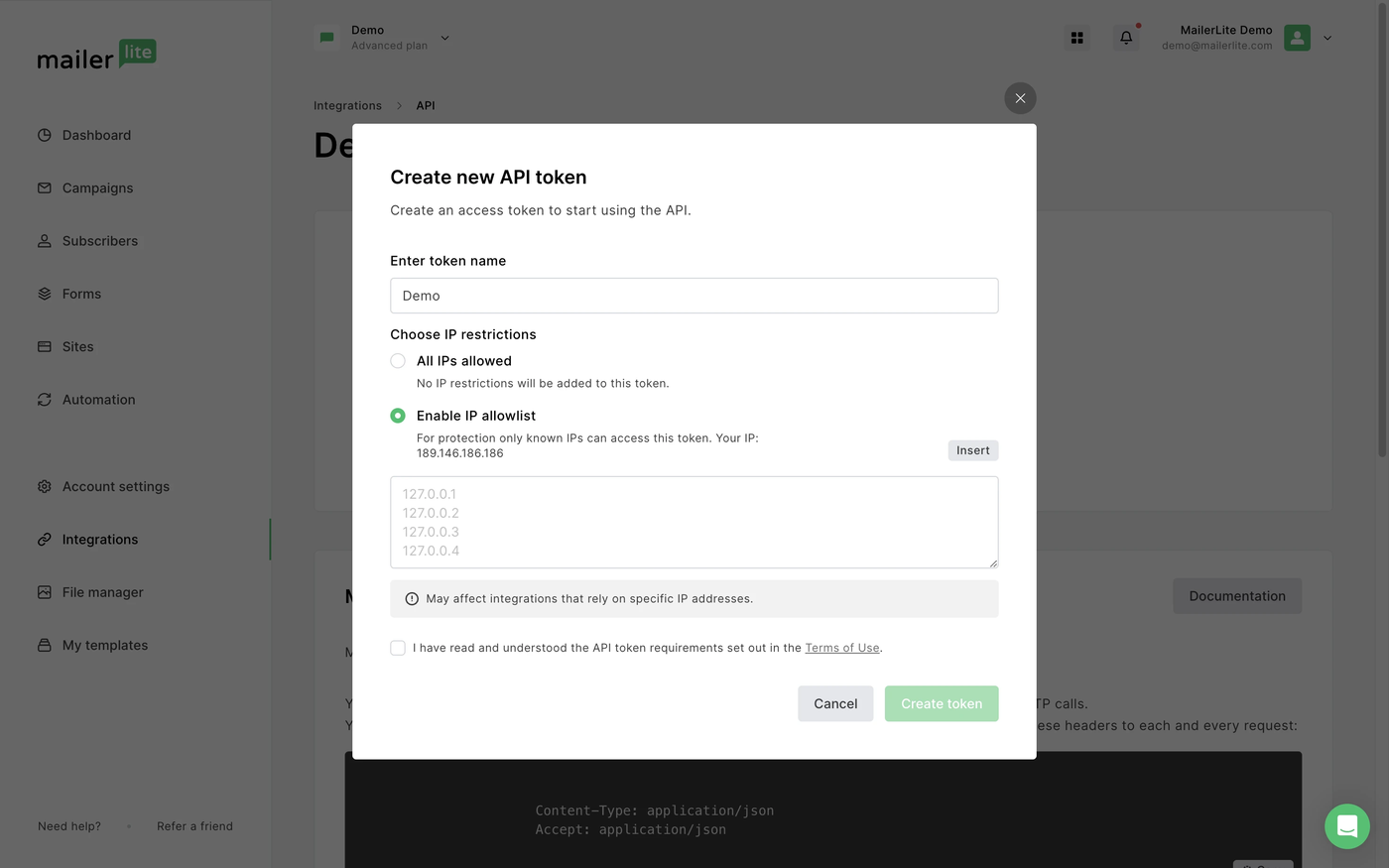
Enter the IP the proxy exits from, not the IP of your office. If you restrict the token first and route the script through the proxy second, the first call will be rejected and you'll spend ten minutes blaming the code.
4 Call the API through the proxy
The base URL is https://connect.mailerlite.com/api and auth is a Bearer token in the Authorization header. With curl, one flag routes the call through GeekProxy:
curl -x http://LOGIN:PASSWORD@IP:PORT \
     -H "Authorization: Bearer $MAILERLITE_TOKEN" \
     https://connect.mailerlite.com/api/subscribers
Prefer SOCKS5? Change the scheme to socks5h:// so the proxy resolves the hostname. With plain socks5:// your own DNS does the lookup, which rarely matters here but is one more thing to get wrong.
Python requests
Pass a proxies dictionary on every call. Do not rely on session.proxies: the requests docs warn that environment proxies overwrite it, and a stray https_proxy on a server will silently send your calls elsewhere.
import os, requests

PROXY = "http://LOGIN:PASSWORD@IP:PORT"
proxies = {"http": PROXY, "https": PROXY}
headers = {"Authorization": f"Bearer {os.environ['MAILERLITE_TOKEN']}"}

r = requests.get("https://connect.mailerlite.com/api/subscribers",
                 headers=headers, proxies=proxies, timeout=(5, 30))
print(r.status_code)
if r.status_code == 429:
    print("rate limited, retry after", r.headers.get("Retry-After"), "seconds")
That 429 branch is not decoration. MailerLite's global limit is 120 requests per minute, import endpoints get 5 per minute, and the answer to overflow is HTTP 429 with a Retry-After header. A proxy does not change any of that.
The official Python SDK
The SDK (python -m pip install mailerlite) documents no proxy option at all. Its README mentions requests.HTTPError and "the standard requests exceptions", so the transport is requests, and requests reads HTTPS_PROXY from the environment whenever no proxies argument is given. Export the variable, then use the client as usual:
export HTTPS_PROXY="http://LOGIN:PASSWORD@IP:PORT"
python -m pip install mailerlite
import mailerlite as MailerLite

client = MailerLite.Client({'api_key': 'your-api-key'})
# every call now leaves through the GeekProxy static IP
5 Several client accounts, separate profiles
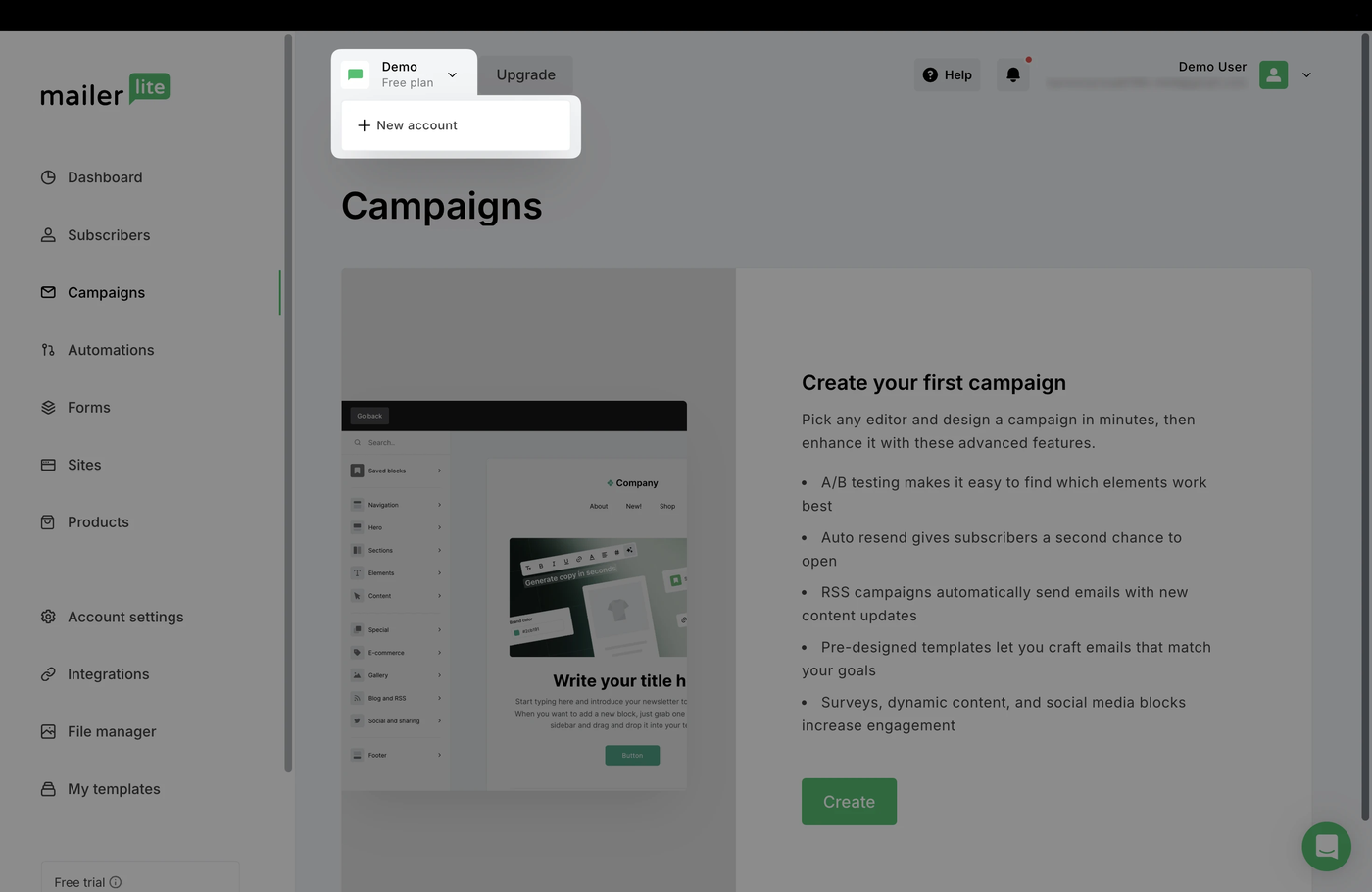
First, the official route. Agencies do not need separate IPs to manage several MailerLite accounts. Click the arrow next to the account name in the upper left, choose Switch account or New account, name it, save. A client can also add you as a user with the same email you log in with, and that account shows up on your Switch account page. Each account keeps its own plan and billing.
Separate IPs come into play when the logins are not linked. Think of a freelancer who was handed a client's credentials instead of being added as a user. Each session should then come from a consistent, country-appropriate address. Then the recipe is one browser profile per client, each with its own GeekProxy static IP.
- Firefox keeps proxy settings per profile and supports SOCKS with remote DNS, so a profile per client is the simplest setup
- Chrome follows the OS proxy by default. A separate proxy per window means launching it with
--proxy-server="http://IP:PORT"and a separate user data directory - SOCKS5 with login and password does not work in Chromium browsers or Firefox. Use HTTP with login:password, or SOCKS5 with IP whitelist auth enabled in your GeekProxy plan
6 Verify it works
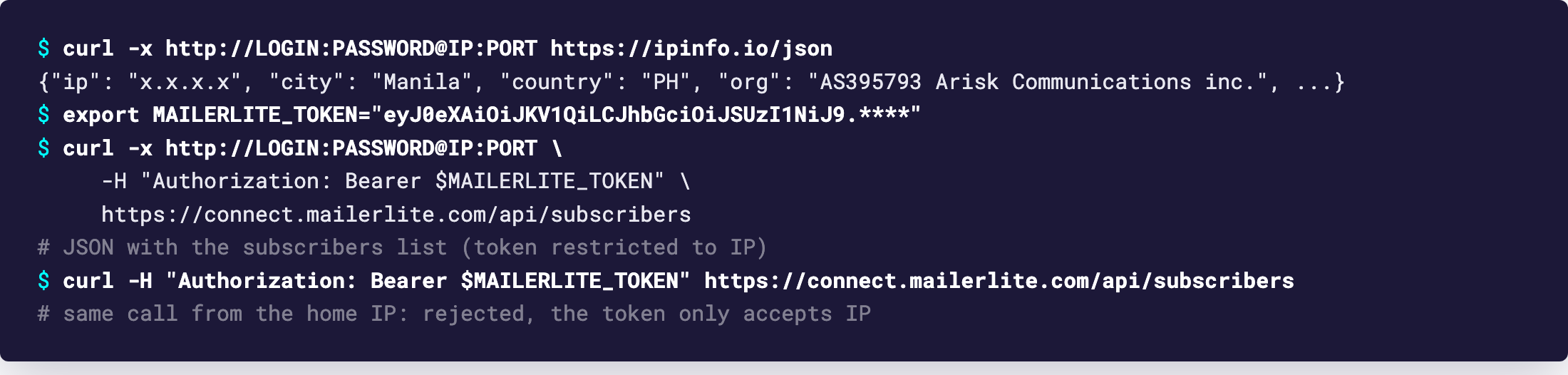
Two calls, in this order. First curl -x http://LOGIN:PASSWORD@IP:PORT https://ipinfo.io/json. The JSON must show the proxy IP, the same one you typed into the token dialog. Then repeat the subscribers call from section 4. A 200 with a JSON body means the token, the IP and the proxy agree.
Now run the same subscribers call without -x. It should be rejected. If it succeeds from your home IP, the restriction was never saved.
7 Which GeekProxy product fits
Anything that touches an IP-restricted token wants ISP static or a dedicated datacenter IPv4: one address, fixed for the life of the plan, no traffic counter on JSON calls. Browser sessions per client lean the same way, ISP static if you want a residential-looking network behind each login. Residential Turbo and Residential Flex rotate by design, and a Flex sticky session tops out at 120 minutes, too short for a workday on one account. Mail ports are irrelevant here, MailerLite sends from its own servers.
8 Common issues
Calls rejected right after I added IP restrictions
The IP in the token is not the IP the proxy exits from. Check with https://ipinfo.io/json through the proxy and compare character by character. On a residential plan this is expected: the exit moved.
HTTP 429
Rate limit, 120 requests per minute across the account. Read Retry-After and sleep that long. A second proxy does not buy a second quota, the limit is on the token's account.
requests ignores my proxy
You set session.proxies and an environment variable won. Pass proxies= on each call, or set trust_env = False on the session.
The SDK has no place to put a proxy
Correct, and it does not need one. Export HTTPS_PROXY before starting Python. Scheme included: http:// in front, or requests will complain that proxy URLs must include the scheme.
Account under review
MailerLite lists the triggers: many bounces, spam complaints or unsubscribes, lists that look bought or scraped, an import that tripped an internal safeguard, odd payment activity. None of them is "logged in from a new IP". If they ask for information, reply within 30 days.
Get a static IP for MailerLite
ISP and datacenter addresses that stay put, HTTP and SOCKS5, ready in seconds.
Place an order