
Set up GeekProxy in Netpeak Spider
Netpeak Spider crawls a site from a list of HTTP proxies and sends every next request from the next address in the list. This guide covers the Proxy tab in the Windows version 3.x: the list format, the built-in check, how rotation interacts with threads, and the API toggle most people never notice.
You'll need: an active GeekProxy plan and the proxy credentials from your dashboard. Setup takes about 5 minutes.
Get proxies1 Before you start
Netpeak's own FAQ says it first: for most SEO tasks inside Spider, proxies aren't necessary. They become necessary when the site you crawl rate-limits or blocks a single IP, or when you want the crawl to come from a particular country. That is the scenario below.
- This guide describes the Windows line, version 3.x (3.12 at the time of writing). The macOS app is a separate 1.x line, and its changelog and help articles do not document proxy settings. We can't confirm the Proxy tab exists there
- The setting is global for the program, not per project. One list serves every crawl
- Only HTTP proxies are mentioned in the help centre. Don't plan on SOCKS
- The Host or IP field accepts IPv4 addresses only. That rules out hostname gateways and IPv6, so use a per-IP plan with plain IPv4 addresses
- Trial: three days free, then a monthly subscription. The Proxy tab is part of the normal settings
What you'll need
- Active GeekProxy plan with IPv4 addresses (datacenter or ISP)
- Proxy credentials from your dashboard: Host, Port, Username, Password
- Netpeak Spider 3.x for Windows, trial or paid
- Field Where it comes from
- Protocol HTTP
- Host IP or gateway hostname from the dashboard
- Port from the dashboard
- Username from the dashboard
- Password from the dashboard
2 Where to get your credentials
- Log in to your GeekProxy dashboard
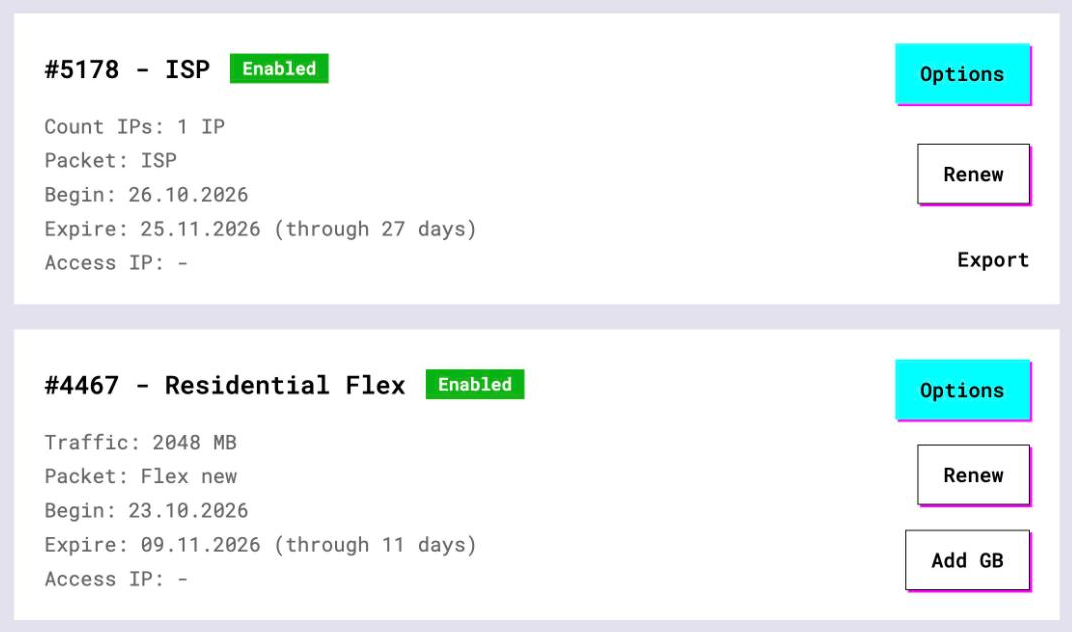
- Open the plan. For per-IP plans (datacenter, ISP) the IP list, ports, login and password sit right on the card, and Export hands you the whole list as text
- For residential and mobile plans click Options. The Proxy Configuration panel builds the login string with your country, city and session settings. Copy the finished line from the Proxy List
For Spider you want the per-IP export. Each line must end up as Host:Port:Login:Password, four fields separated by colons, with the credentials last. If your export uses a different order, fix it in a text editor before pasting.
3 Add the list in Settings → Proxy
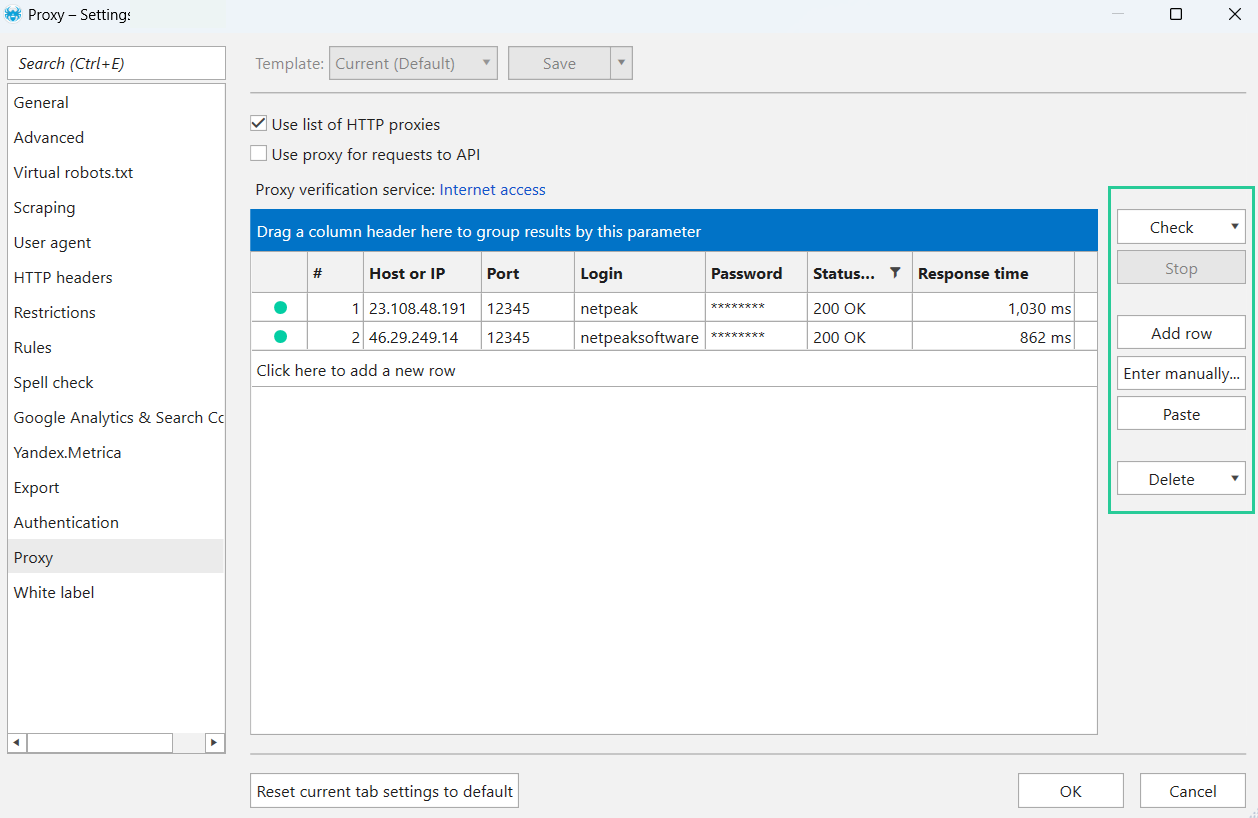
Open Settings and pick the Proxy tab. It sits in the same list as General, Advanced, User Agent, Restrictions, Authentication and the rest. Tick Use a list of HTTP proxies. Until that box is ticked the grid is decoration.
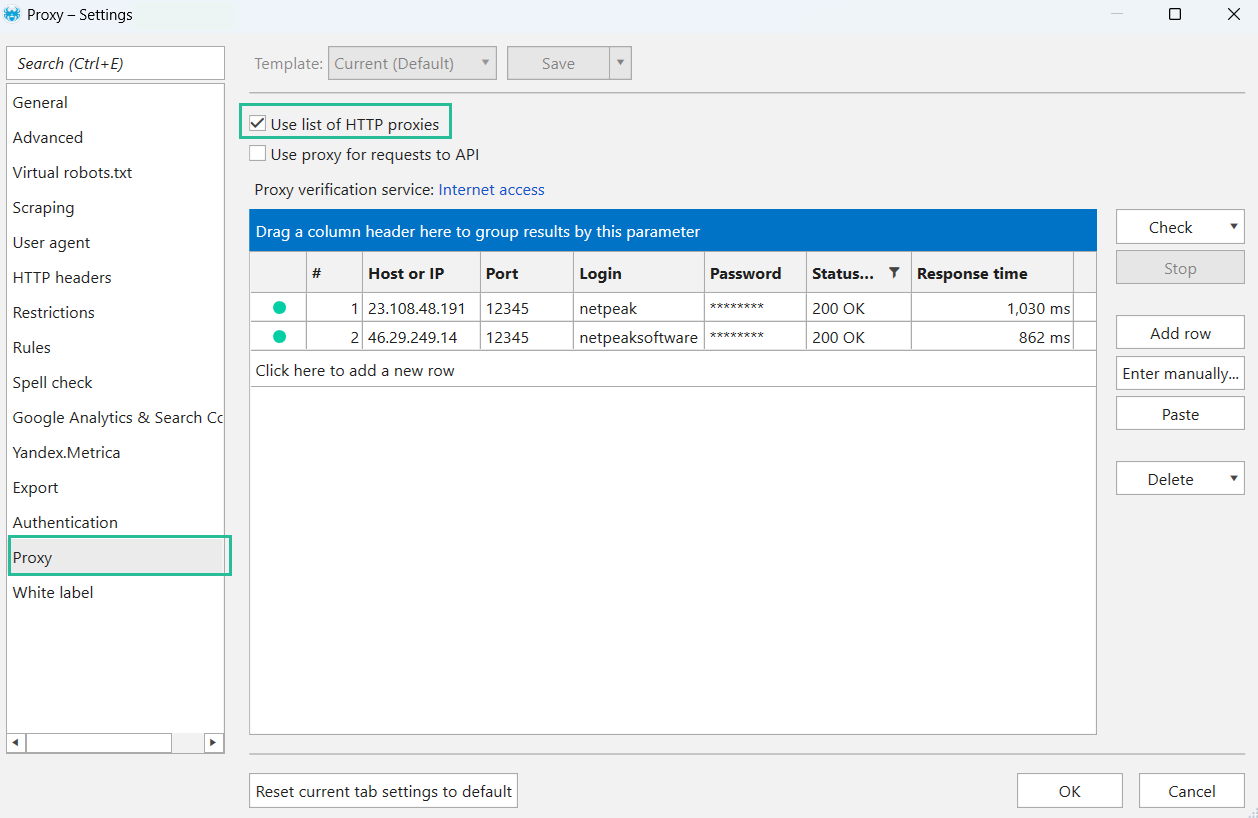
There are three ways to fill the grid. Enter manually (Ctrl+D) opens a box where you paste one proxy per line. Add row (Ctrl+N) creates an empty row to type into. And a plain Ctrl+V, or the Paste button, drops whatever is in the clipboard straight into the table. For a GeekProxy plan with ten or more addresses the first option is the sane one.
IP:PORT:LOGIN:PASSWORD
185.123.45.68:PORT:LOGIN:PASSWORD
185.123.45.69:PORT:LOGIN:PASSWORD
The two-field form Host:Port is also accepted. Use it when your GeekProxy plan is switched to IP whitelist and no login is needed. Port defaults to 80 if you leave it out, which is almost never what you want, so write the port every time.
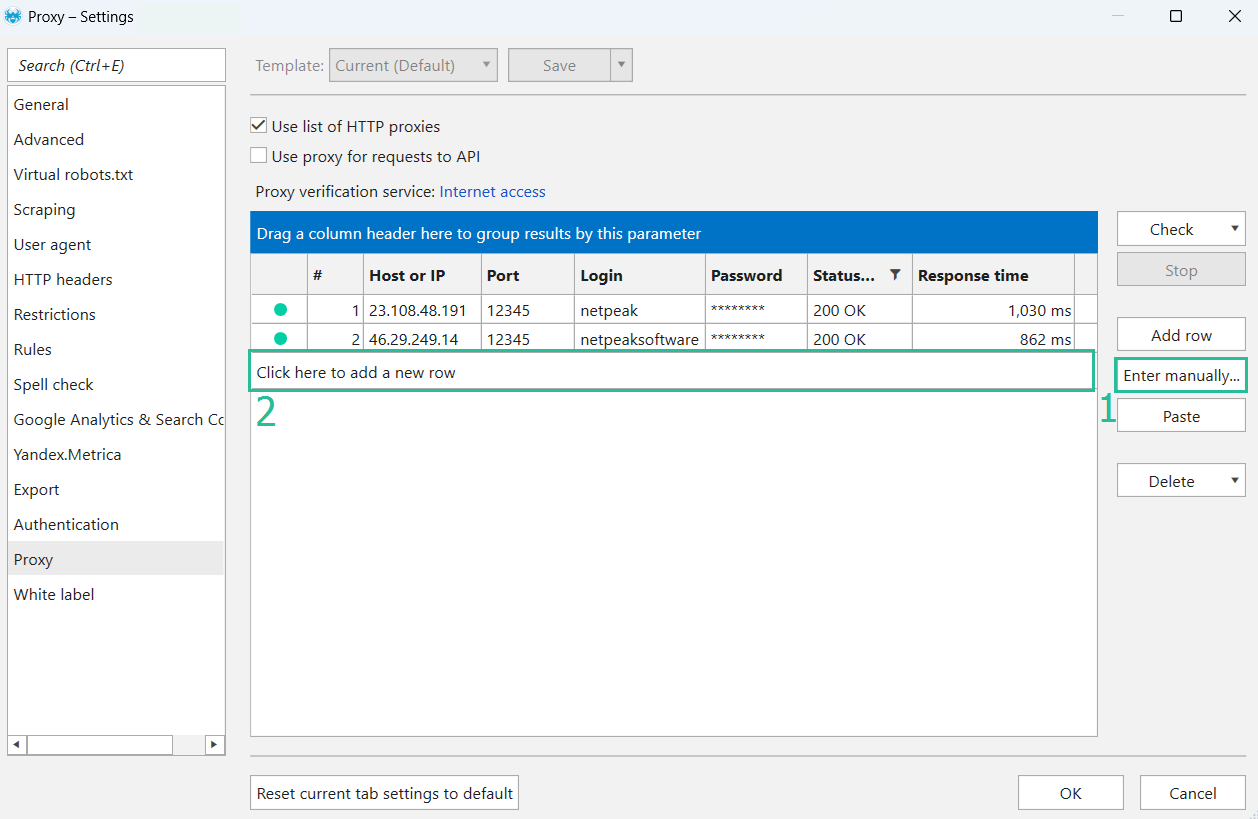
Only IPv4 goes into the Host or IP column. A hostname like a residential gateway is not documented as supported, and neither is IPv6. Stick to the numeric addresses from a datacenter or ISP plan.
4 Check the list and drop dead rows
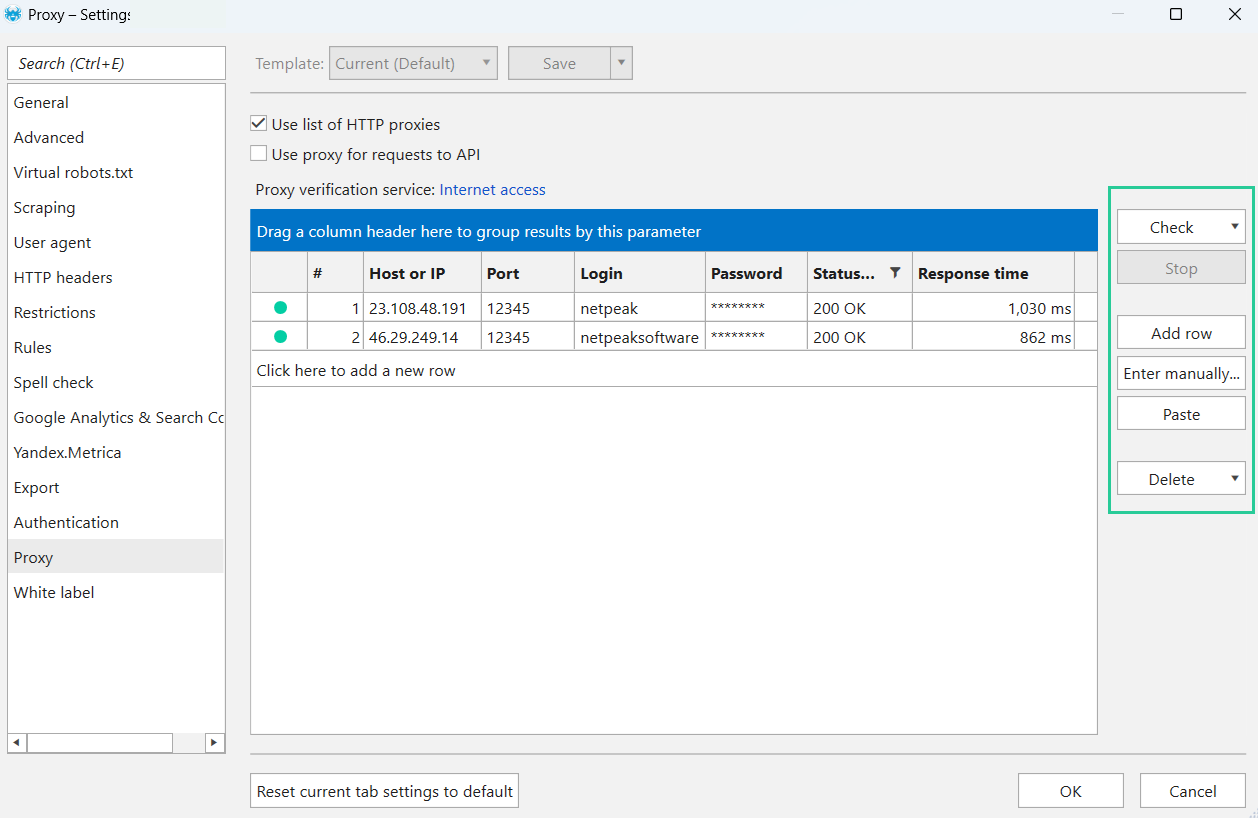
Spider checks proxies on its own the moment they are added. Each row gets a Status Code and a Response Time. Read the codes like HTTP: 200 is fine, 403 means the proxy refused access, 407 means authentication is required or the login and password are wrong.
To run the test again, press Check and choose what to test against: Internet access, Google, Bing, Yahoo or Yandex. The search engine options matter if you crawl SERPs; a proxy can be alive and still be banned by Google. Stop halts a running check. Delete removes all rows, the selected rows, or only the dead ones. Delete dead once before a long crawl and save yourself the retries.
5 Threads, rotation and API traffic
Rotation is round-robin and you don't configure it. With one thread, each request goes out from the next proxy in the list, and at the end of the list the loop starts over. With several threads, requests leave at the same time from different proxies. There is no sticky mode and no per-site assignment. The thread count lives on the General tab, so the Proxy tab alone doesn't tell you how hard each address is hit.
A quick calculation helps. Twenty proxies and ten threads means every address sends a request roughly every other round. Twenty proxies and forty threads means two parallel requests per address at any moment. Keep threads at or below the proxy count if the target site is touchy.
The same tab also has Use proxy for requests to API, added in version 3.7. It routes Spider's calls to third-party APIs through the list as well. Leave it off unless you have a reason; API providers tend to care which IP calls them.
6 Verify it works
The grid already told you the proxies answer. The second question is whether the crawl uses them. Crawl a site whose access log you can read, your own is ideal, and look at the client addresses in the log. Every hit should come from a proxy address, not from your office IP. With several proxies in the list the addresses alternate line by line, which is the round-robin at work.
No log at hand? Then at least confirm each address outside Spider with a one-liner:
curl -x http://LOGIN:PASSWORD@IP:PORT https://ipinfo.io/json
7 Which GeekProxy product fits
Spider wants a list of IPv4 HTTP proxies with optional login and password, rotated per request. That is a datacenter IPv4 list almost by definition: many distinct addresses, HTTP, no traffic counter, cheap enough to load fifty of them. When the target site blocks datacenter ranges, switch the list to ISP static addresses, which look like home connections to the site and still come as plain IPv4. Rotating residential plans are reached through a hostname gateway, and the Host or IP field documents IPv4 only, so we don't recommend them for this tool.
8 Common issues
Status Code 407 on every row
The login or password is wrong, or they are missing. Check the line order: host, port, login, password. If the plan is in IP-whitelist mode, your current IP must be on the list in the dashboard.
Status Code 403
The proxy refused access. On a GeekProxy plan that usually means an expired plan or a whitelist mismatch. Open the dashboard and look at the plan status first.
The proxy line won't paste
A hostname or an IPv6 address in the first field. Spider only takes IPv4 there. Replace the line with a numeric address from a per-IP plan.
I'm on macOS and can't find the Proxy tab
The macOS app is a separate 1.x line and its documentation does not cover proxies. We can't confirm the tab is there. Run the Windows version if a proxy list is a must.
Cloudflare still blocks the crawl
Netpeak's own article on Cloudflare recommends asking the site owner to whitelist the Spider user agent instead of hiding behind proxies. For your own sites that is the cleaner fix.
Get proxies for Netpeak Spider
Datacenter and ISP IPv4 lists over HTTP with login and password, no traffic counter, ready in seconds.
Place an order