
Set up GeekProxy in Octo Browser
Octo Browser keeps proxies in a Proxy Manager, attaches one to each profile, and its checker is the only one in this category that tells you whether UDP goes through. This guide covers the paste formats Octo splits for you, the check, bulk import, and which GeekProxy product earns the UDP badge.
You'll need: an active GeekProxy plan and the proxy credentials from your dashboard. One profile takes about two minutes.
Get proxies1 Before you start
Octo runs on Windows, macOS (Intel and M series) and Linux, with separate Android and iOS apps. There is no permanent free tier. Plans start at Lite for €10 a month with 3 profiles, then Starter at €29 with 30 profiles. Starter has a 2-day free trial that new users activate once with the promo code TRIAL. Proxy counts are capped per plan, and the Proxy Manager shows the counter.
Supported proxy types are HTTP, HTTPS, SOCKS5 and SSH. No SOCKS4. Login and password work for all of them inside Octo's own browser, so a GeekProxy SOCKS5 port with credentials is fine here.
By default a new profile has no proxy and uses your real IP, or the IP of a VPN running on the OS. Octo warns that a VPN and a proxy together slow things down. Pick one.
What you'll need
- Active GeekProxy plan (ISP, datacenter, residential or mobile)
- Proxy credentials from your dashboard: Host, Port, Username, Password
- Octo Browser with an active plan or the trial
- FieldWhere it comes from
- ProtocolHTTP / SOCKS5
- HostIP or gateway hostname from the dashboard
- Portfrom the dashboard
- Usernamefrom the dashboard
- Passwordfrom the dashboard
2 Where to get your credentials
- Log in to your GeekProxy dashboard
- Open the plan. For per-IP plans (ISP, datacenter) the IPs, ports, login and password are listed right there. Export gives you the whole list as text, ready for Octo's Bulk Add
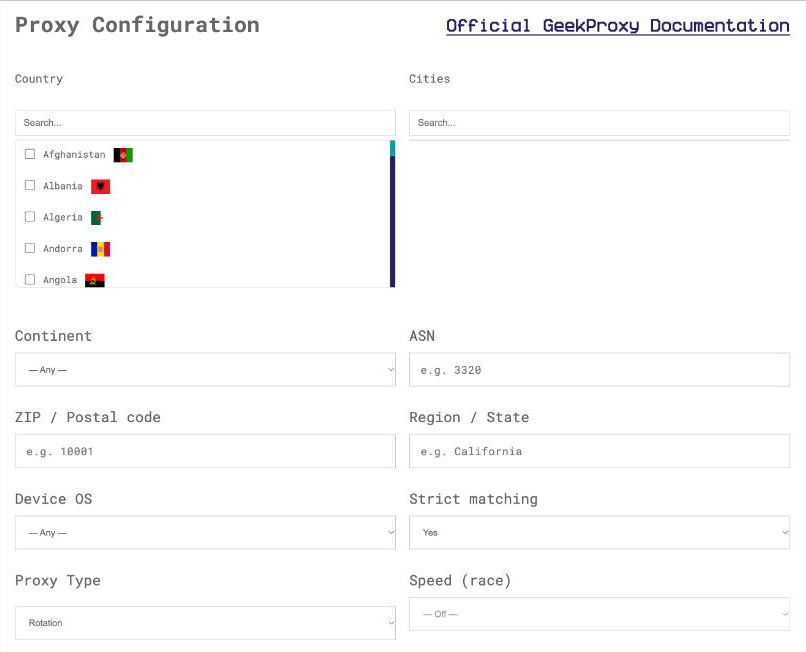
- For residential and mobile plans click Options. The Proxy Configuration panel builds the login string with your country, city and sticky session. Copy one line per profile from the Proxy List
3 Set a proxy in the profile
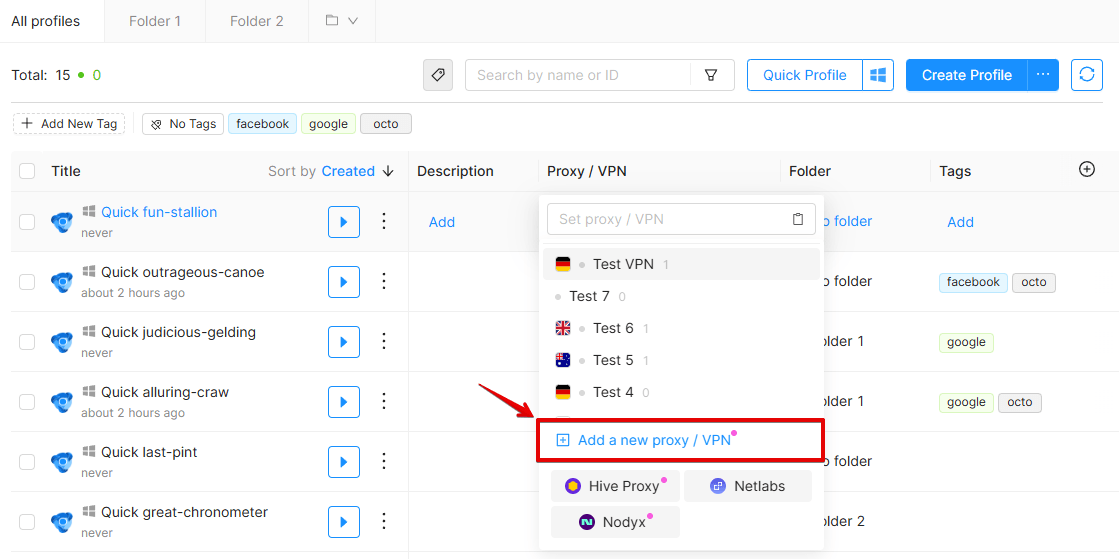
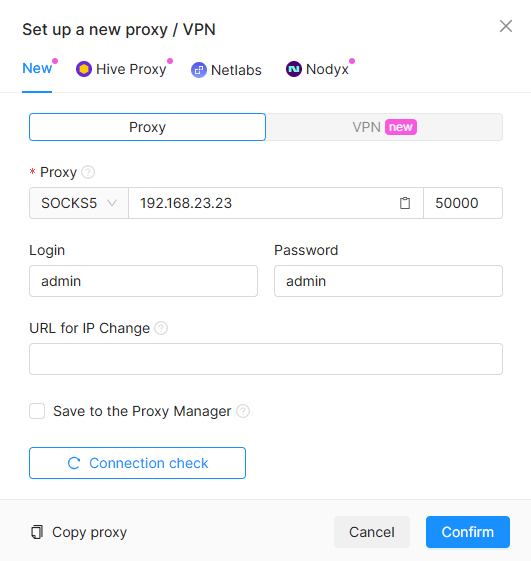
Open the profile's General Settings and find the field Set proxy / VPN. The dropdown lists every proxy already saved in the Proxy Manager. At the bottom sits Set a new proxy/VPN, which opens the new-connection window. Paste your GeekProxy line into the host field (the docs call it Enter IP or domain on the profile page and Host elsewhere). Octo splits it into type, host, port, login and password by itself. Four IPv4 shapes are documented:
http://LOGIN:PASSWORD@IP:PORT
LOGIN:PASSWORD@IP:PORT
socks5://IP:PORT:LOGIN:PASSWORD
IP:PORT:LOGIN:PASSWORD
IPv6 hosts go in square brackets, as in LOGIN:PASSWORD@[host]:PORT. The profile-settings page adds that the delimiters ;, ,, @ and space are accepted in any order, which is generous, though we'd stick to the forms above. Put the scheme in front when you can. Without it, look at the type selector before saving, so a SOCKS5 port doesn't get saved as HTTP.
Three more things in that window:
- Save to the Proxy Manager (also labelled Save to the list). Tick it, otherwise the proxy lives only in this profile
- URL for IP Change, for rotating proxies with a refresh link. Leave it empty for ISP addresses and sticky sessions
- Check proxy, with Stop Checking and Copy Proxy next to it. Copy Proxy hands back the line as
protocol://login:password@host:port
4 The check and the UDP badge
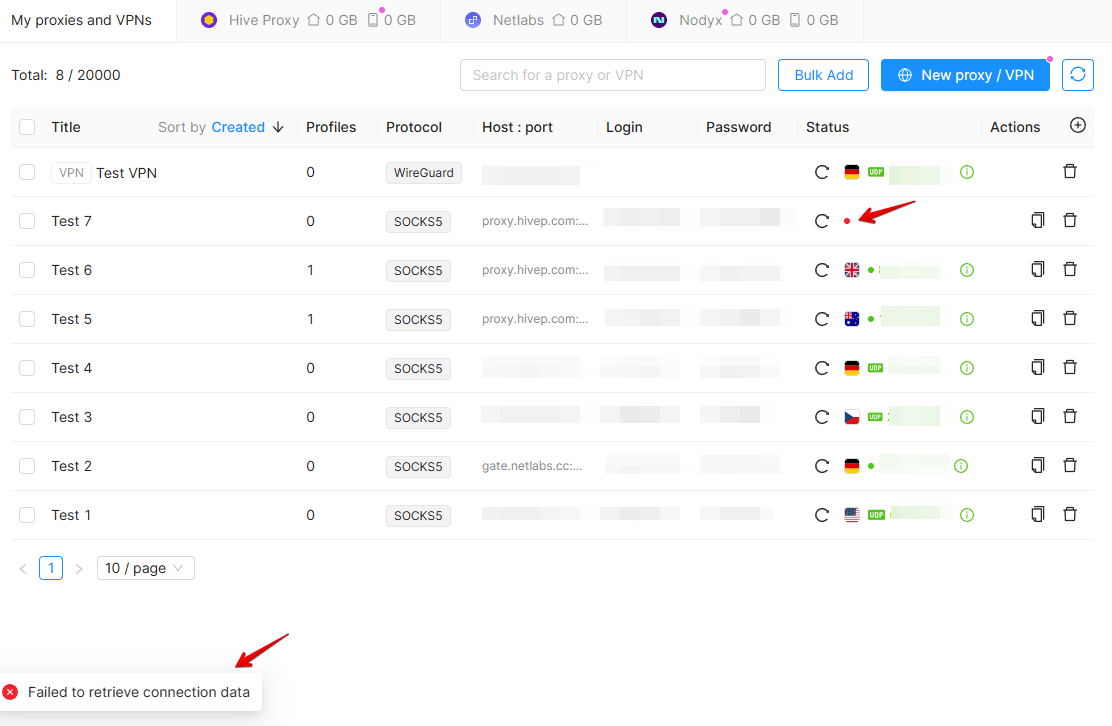
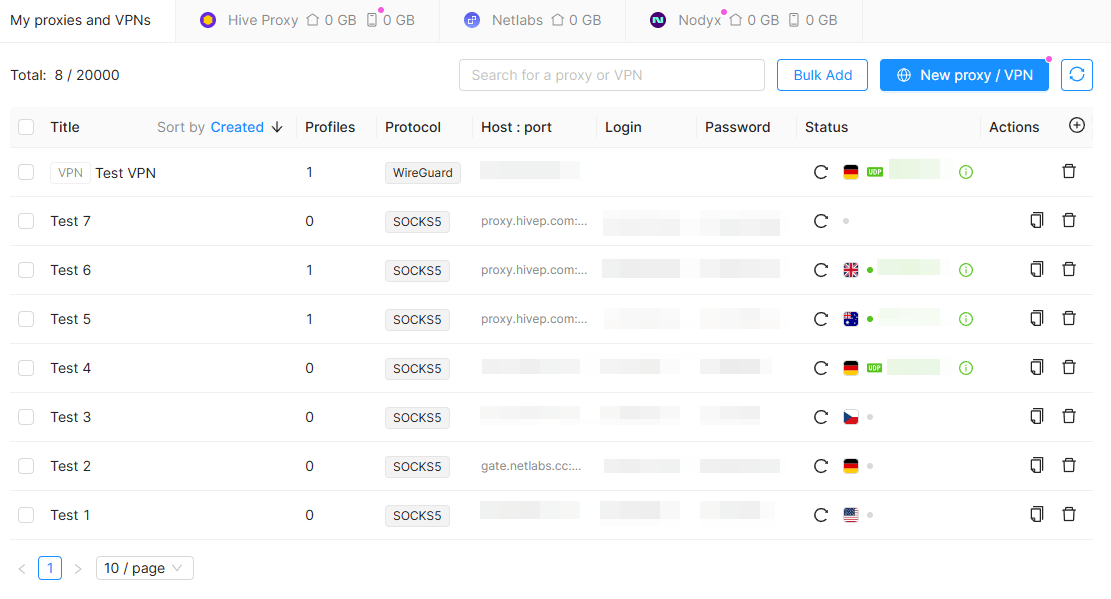
Press Check proxy. A working proxy shows a green Available with a country flag and ISO code; a dead one shows red Unavailable. Then the detail that sets Octo apart: a UDP icon appears beside the status if UDP traffic goes through the proxy. Octo tests that explicitly. No icon means TCP only, which is fine for ordinary browsing but matters for WebRTC-heavy sites.
The fingerprint follows the proxy. Languages, Timezone and Geolocation default to match the external IP, and WebRTC in the Based on IP mode replaces your address with the proxy's external IP. With the defaults untouched, a passed check is all it takes for the profile to look like it lives where the proxy does.
5 Proxy Manager and Bulk Add
The Proxy Manager opens the window "My proxies and VPN". The counter at the top shows how many proxies you have against the plan limit, in the docs' example 110/1200. Columns include protocol, address, login, password, country and status, plus the advanced proxy information block with IP, ISP, connection type, network fingerprint, location and timezone. Each row has its own change-IP and check buttons, and you can check or delete in bulk.
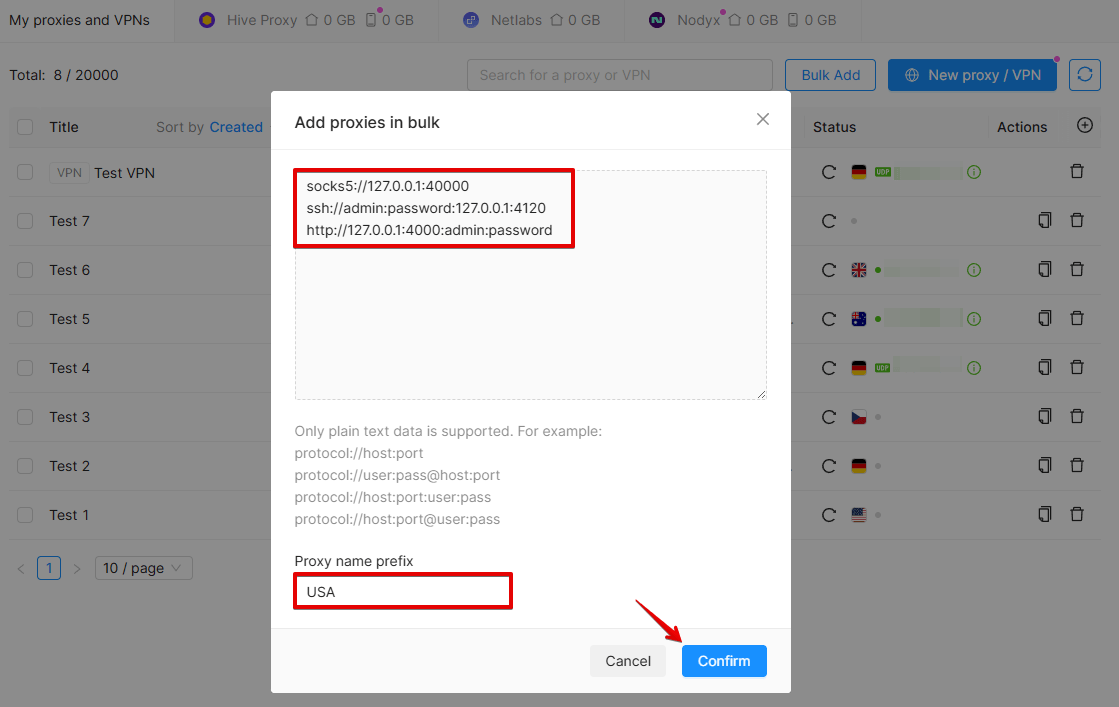
Bulk Add takes a pasted list or a dragged file. Each line is one proxy in one of these forms:
http://IP:PORT
http://LOGIN:PASSWORD:IP:PORT
http://LOGIN:PASSWORD@IP:PORT
http://IP:PORT:LOGIN:PASSWORD
Give the batch a name prefix and the rows come out as "prefix #number". Lines Octo can't parse are marked ERROR, so a bad paste doesn't go unnoticed. The first line without credentials is for a plan in IP whitelist mode.
6 Verify it works
Start the profile and open https://ipinfo.io/json. The ip field must show the proxy address, not your own. On an ISP or datacenter plan that is the address from your dashboard, on Residential or Turbo it is an address from the pool in the country you picked. Compare the country and timezone fields with what the Proxy Manager shows in the advanced columns. For a sticky residential session, reload a few times, the IP should not move. If you care about UDP, trust the badge: Octo checked it against the real proxy.
7 Which GeekProxy product fits
Octo is the one browser here that shows you UDP, so use that. Residential Turbo carries UDP over SOCKS5, opens all ports and holds a sticky session for up to 1440 minutes. A Turbo session per profile gets the UDP badge and keeps WebRTC consistent. For accounts that must keep the same address for months, ISP static gives each profile a fixed IP on a residential network with no traffic counter. Mobile is the pick for platforms that want carrier IPs, and it's the one case where the URL for IP Change field is useful. Residential Flex works too, but it's TCP only, so don't expect the badge.
8 Common issues
Unavailable, but the proxy works elsewhere
Octo's docs point at the local network: an ISP may block the URL the checker uses. Switch to another connection or VPN for the check, then switch back. Also re-read the type selector, a SOCKS5 port saved as HTTP fails every time.
No UDP icon
The proxy is TCP only. Datacenter, ISP and Flex ports don't carry UDP; Residential Turbo over SOCKS5 does. Re-add with the Turbo host and the SOCKS5 port.
Custom DNS doesn't apply
With an SSH proxy, custom profile DNS settings are not applied. That's documented. Use HTTP or SOCKS5 if DNS matters.
Everything is slow
A VPN on the OS plus a proxy in the profile doubles the path. Octo says so. Turn the VPN off while profiles run.
Bulk Add rejects lines with ERROR
The line doesn't match one of the four documented forms. Check for a missing port, stray spaces, or a password containing a colon that confuses the login:password:ip:port form. Use the @ form for those.
Can't add more proxies
The plan's proxy limit is reached, see the counter in the Proxy Manager. Delete unused rows or move up a plan.
Get proxies for Octo Browser
Sticky residential sessions with UDP, static ISP IPs, HTTP and SOCKS5 with login and password.
Place an order