
Set up GeekProxy in Opera
Opera has no proxy dialog of its own. The button in its settings opens the proxy screen of Windows or macOS, and whatever you enter there applies to Opera and to every other app that follows system settings. This guide walks that route and explains which GeekProxy credentials work in it.
You'll need: an active GeekProxy plan and the proxy credentials from your dashboard. Setup takes about five minutes.
Get proxies1 Before you start
Let's be honest about the tool first. Current Opera (Windows, macOS, Linux) is a Chromium browser, and like Chrome it hands proxy configuration to the operating system. There is no per-profile proxy, no proxy list, no built-in checker. One proxy, system wide, until you switch it off again.
That has consequences for which GeekProxy credentials you can use:
- An HTTP or HTTPS proxy with login and password works. Opera asks for the login and password in a prompt when the first page loads
- SOCKS5 with login and password does not work. The Chromium network stack has no SOCKS5 authentication at all, and credentials typed into the proxy string are ignored
- SOCKS5 works only when your GeekProxy plan is switched to IP whitelist, so the proxy accepts you by your home IP and never asks for a password
Opera 12 and older had their own proxy dialog. If you still run one of those, this page isn't for you.
What you'll need
- Active GeekProxy plan (ISP, datacenter or residential)
- Proxy credentials from your dashboard: Host, Port, Username, Password
- Admin rights on the computer may be required to change system proxy settings
- FieldWhere it comes from
- ProtocolHTTP (SOCKS5 only with IP whitelist)
- HostIP or gateway hostname from the dashboard
- Portfrom the dashboard
- Usernamefrom the dashboard
- Passwordfrom the dashboard
2 Where to get your credentials
- Log in to your GeekProxy dashboard
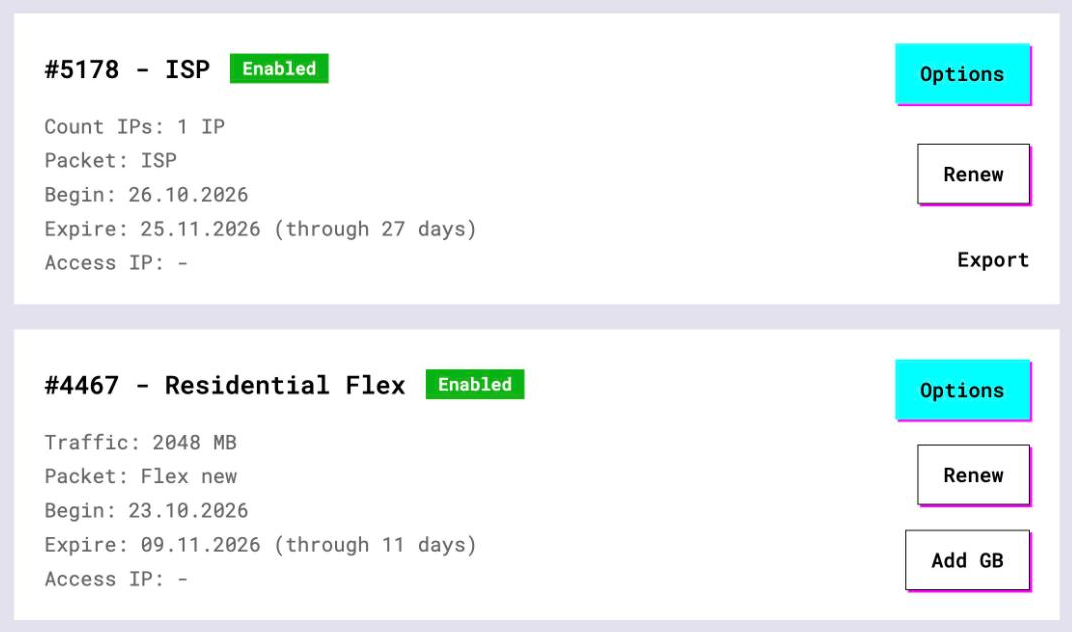
- Open the plan. For per-IP plans (ISP, datacenter) the address, port, login and password sit right on the card. Export copies the full list as text
- For residential plans click Options. The Proxy Configuration panel builds a login string with your country and session settings. Copy the host, port and that login from the Proxy List
Since Opera uses one proxy for everything, pick one address from the list and stick with it. The other addresses in the plan can serve other machines.
3 Find the proxy button in Opera
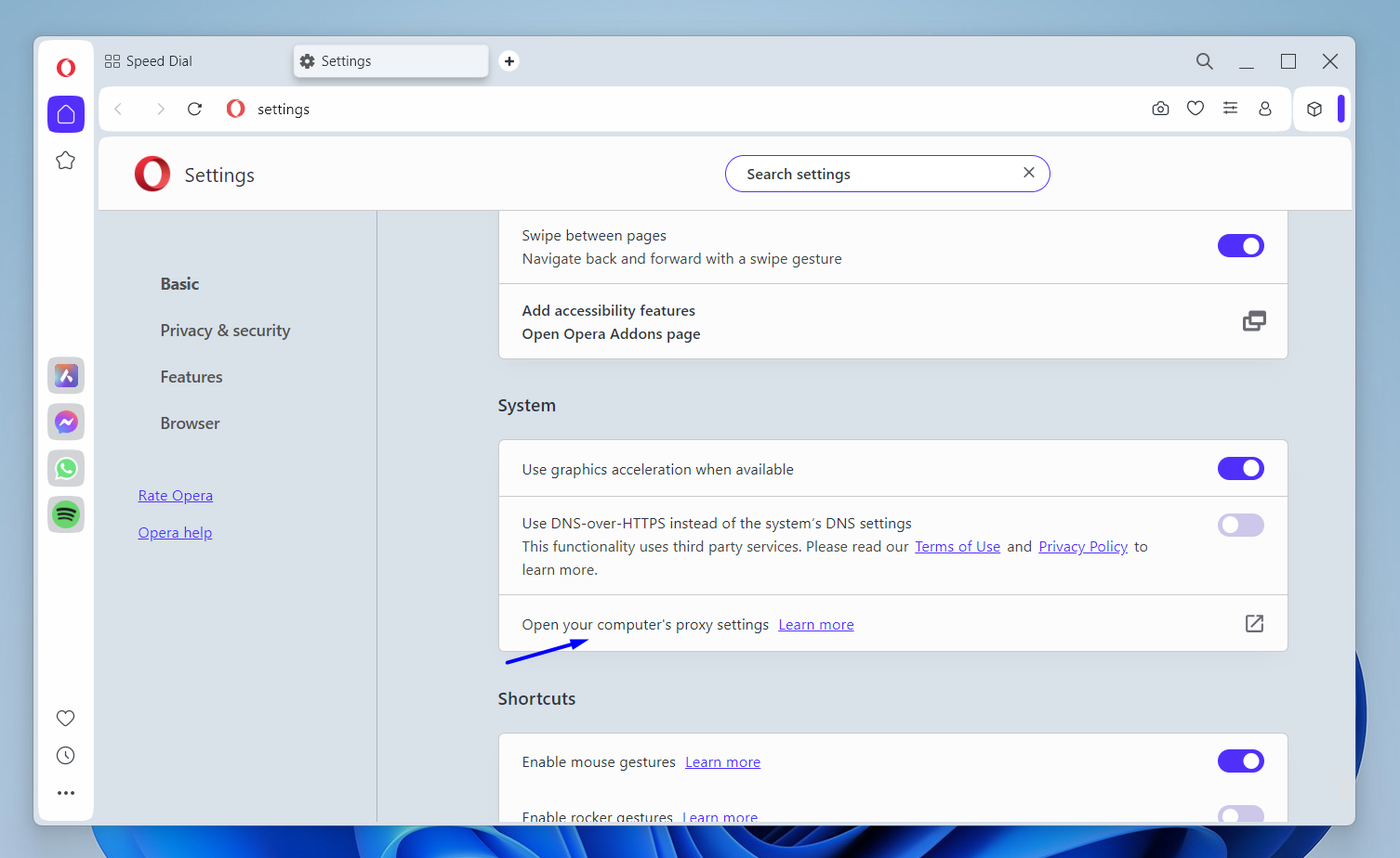
The path from Opera's own help page:
- Open Settings
- Click Advanced in the left sidebar, then Browser
- Scroll to the System block and click Open your computer's proxy settings
That's the whole Opera part. The button launches the operating system dialog and Opera steps aside. Opera's help even says where the values come from: your proxy provider. That's us, in this case.
Opera also ships a built-in VPN under Settings > Features. It's a separate thing. We have no official word on how it behaves next to a system proxy, so keep it switched off while you test, then you know which exit you're looking at.
4 Fill in the Windows or macOS dialog
Both dialogs are covered with screenshots in our Google Chrome guide, because Chrome lands on exactly the same screens. The short version is below.
Windows 10 and 11
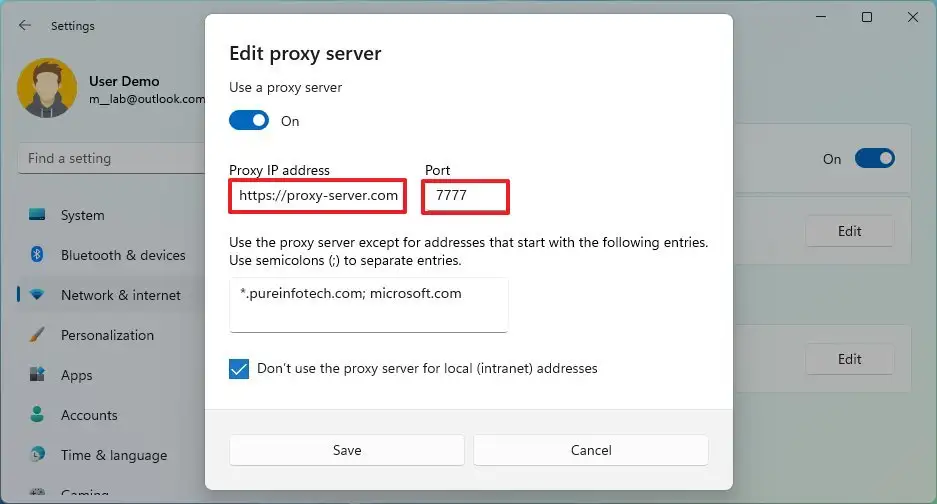
- The button drops you in Settings > Network & internet > Proxy
- Under Manual proxy setup, next to Use a proxy server, click Set up
- In the Edit proxy server window turn on Use a proxy server, enter the proxy IP in Proxy IP address and the port in Port
- Leave the exceptions box as is, keep Don't use the proxy server for local (intranet) addresses ticked, press Save
Windows takes one host and port here and uses it as an HTTP proxy. No login field exists on this screen. That's fine, Opera will ask.
macOS
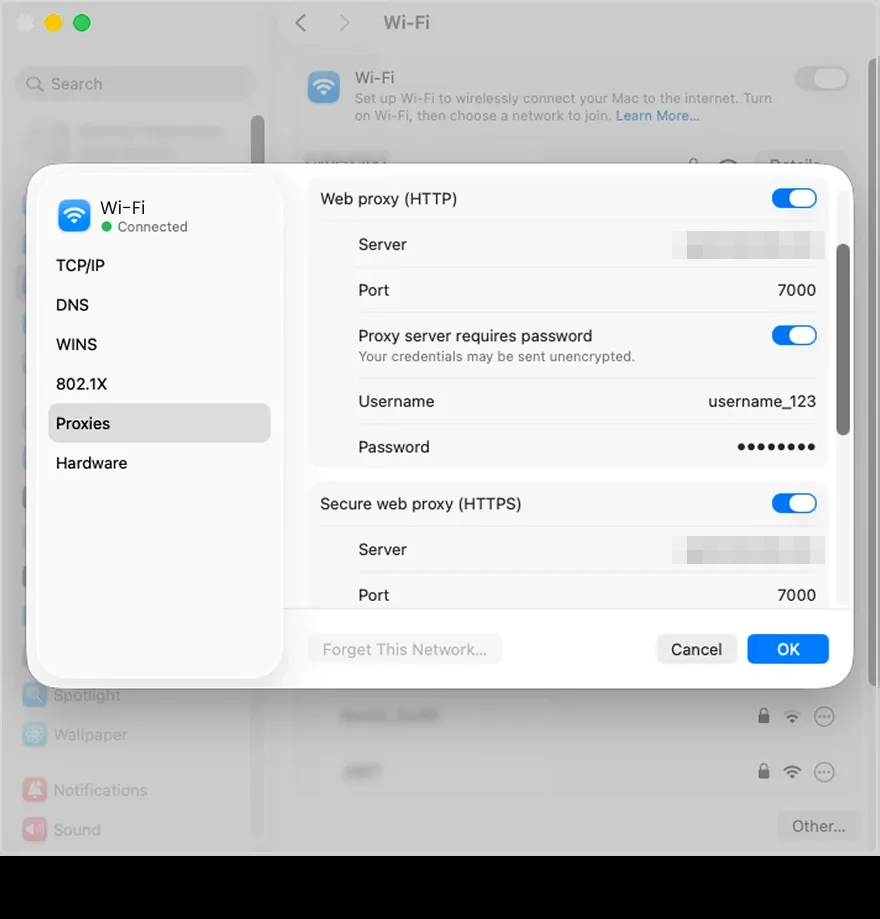
- Open System Settings > Network, pick the active connection (Wi-Fi or Ethernet), click Details
- Switch to the Proxies tab
- Turn on the web proxy (HTTP) and the secure web proxy (HTTPS). Enter the proxy IP and port in both
- If the pane offers a password option for the proxy, you can fill the login and password there. Otherwise Opera will prompt
- Press OK, then Apply
macOS keeps separate rows for HTTP, HTTPS and SOCKS. Fill HTTP and HTTPS. Leave the SOCKS row alone unless your plan runs on IP whitelist.
5 First page load and the password prompt
Go back to Opera and open any site. The proxy answers with 407, and Opera shows a sign-in box for the proxy. Type the login and password. Chromium supports Basic, Digest, Negotiate and NTLM here, so our plain login and password go through without ceremony.
Two things catch people. First, the prompt comes from the browser, not from the site, so the dialog names the proxy address. Second, if your plan is on IP whitelist, there is no prompt at all. Pages just load. Fewer clicks, which is why many Opera users pick whitelist mode.
Don't paste LOGIN:PASSWORD@IP into the host field. Chromium documents that credentials embedded in the proxy string are ignored, and the dialog will reject the address with the @ in it.
6 Verify it works
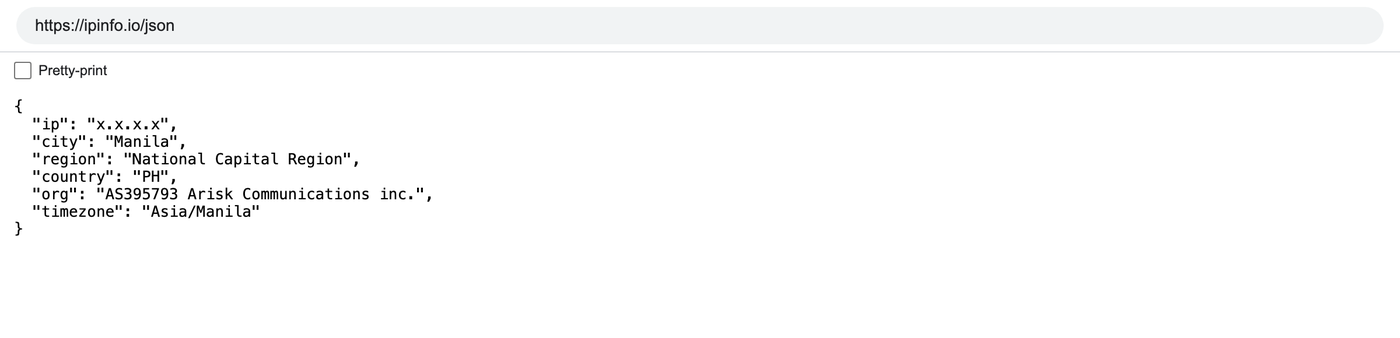
Open https://ipinfo.io/json in Opera. The ip field must show the proxy address, not your own. On an ISP or datacenter plan that is the address from your dashboard, on Residential or Turbo it is an address from the pool in the country you picked. The country and org fields should match what the dashboard says about that plan.
One more check that matters for a system-wide proxy: open the same page in another browser, or run curl https://ipinfo.io/json in a terminal. If those show the proxy IP too, you have confirmed that the setting is global. Remember that when you later wonder why your mail client slowed down.
7 Which GeekProxy product fits
Opera runs one identity through one system-wide proxy, so rotation buys you nothing. A static address does. ISP static gives you a clean residential-network IP that stays the same for weeks, which is what logged-in accounts like. Datacenter IPv4 is the cheaper pick when the sites don't care where the IP lives. Both work over HTTP with login and password or over SOCKS5 with IP whitelist. Residential Turbo makes sense only if you want a residential exit you can change on demand. Put a sticky session into the login string. When you need a new IP, change the session name and re-enter it in the prompt.
8 Common issues
SOCKS5 proxy connects but every page fails
The plan is in login and password mode. Chromium cannot authenticate to SOCKS5, so the proxy drops the connection. Switch the plan to IP whitelist in the dashboard, or use the HTTP port of the same proxy.
The password prompt keeps coming back
Either a typo in the login, or the plan is in whitelist mode and your current IP isn't on the list. Compare with the dashboard. Home connections change IP after a router reboot, which is the usual cause.
Other apps slowed down or stopped working
Expected. The proxy sits in the OS, and anything that follows system settings now goes through it. Add the hosts you don't want proxied to the exceptions list in the same dialog, or switch the proxy off when you're done.
A site still sees my real location
WebRTC and other UDP traffic don't pass through an HTTP proxy. Check the IP page first. If the page shows the proxy IP, the leak is WebRTC, and the fix is a WebRTC-limiting extension or a browser built for multiple identities (see our anti-detect guides).
The proxy settings are greyed out
A company policy or a parental control manages the network on this machine. Opera can't override that. Ask the administrator, or use a different computer.
Get proxies for Opera
Static ISP and datacenter IPs over HTTP or SOCKS5, delivered in seconds.
Place an order