
Set up GeekProxy with RedTrack
RedTrack runs in the cloud, does all the server-side work for you, and has no proxy setting of its own. What it does have is a funnel filter called Proxy types, which sorts every click into Anonymous, Transparent or Hosting. That filter judges your own test clicks the same way it judges paid traffic. So the proxy goes into your browser and you open the campaign URL as a visitor from the target geo. This guide shows you how to read what RedTrack did with that visit.
You'll need: an active GeekProxy plan, the proxy credentials from your dashboard, and a RedTrack campaign with a funnel. About ten minutes.
Get proxies1 Before you start
RedTrack's own FAQ explains why the Proxy types filter exists: some offers do not pay for so-called proxy users, who are often associated with fraud. Fair enough. The side effect is that the tracker has an opinion about every IP that touches a campaign link, including yours. The three classes, in RedTrack's words:
- Anonymous Proxy hides identifying information about the client's computer. The FAQ adds that VPNs and spy tools can be classified here
- Transparent Proxy does not hide identifying information about the client's computer
- Hosting Proxy, in the FAQ's odd wording, displays the IP addresses of users on the internal network. In practice this is the class a datacenter exit gets
Next to Proxy types sit three more network filters: Fraud check, Connection types and ISP. Set any of them to Exclude, and a click that matches goes to the forbidden page, the fallback URL, or another funnel. A test click from the wrong kind of exit ends up there too. There is no "ignore my own clicks" switch, so the honest workflow is to arrive with the kind of IP your paying visitors have.
What you'll need
- Active GeekProxy plan (residential or ISP; section 7 explains why not datacenter)
- Proxy credentials from your dashboard: Host, Port, Username, Password
- Chrome or Firefox with a dedicated profile, or an anti-detect profile
- A RedTrack campaign on redirect tracking, with a funnel, a lander and an offer
- Field Where it comes from
- Protocol HTTP (SOCKS5 only with IP whitelist)
- Host IP or gateway hostname from the dashboard
- Port from the dashboard
- Username from the dashboard
- Password from the dashboard
2 Where to get your credentials
- Log in to your GeekProxy dashboard
- Open the plan. For per-IP plans (ISP, datacenter) the IP list, ports, login and password sit right on the card, and Export hands you the whole list as text
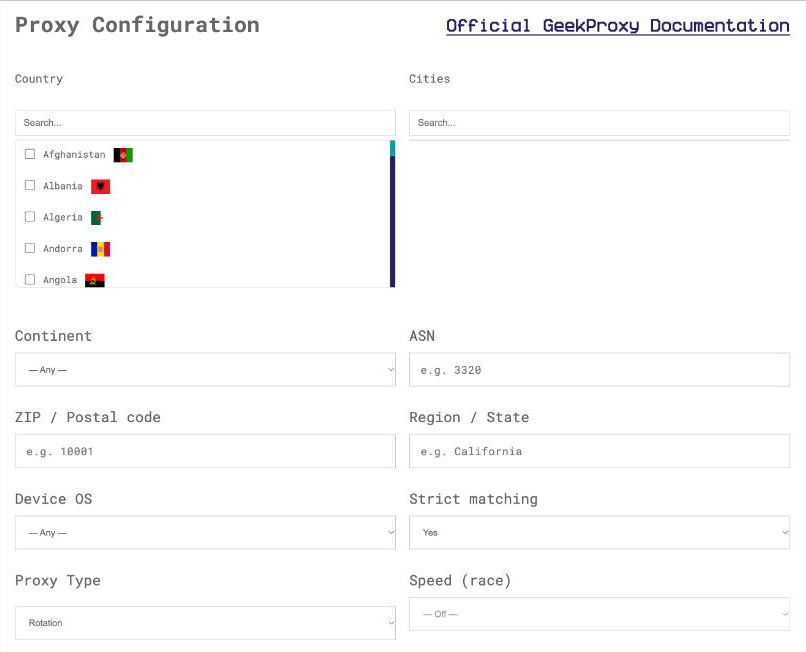
- For residential plans click Options. The Proxy Configuration panel builds the login string with your country, city and session settings. Copy the finished line from the Proxy List
Match the exit to the offer: country always, city when your funnel filters on Regions or Cities. One exit per geo you buy.
3 Put a browser behind the proxy
RedTrack sees an IP, a user agent and the sub-values in the link. Which browser produced them does not matter. Full setup steps are in our Google Chrome and Firefox guides; the short version fits in three lines.
- Make a separate browser profile for tracker tests, so cookies from your last visit do not turn you into a repeat visitor
- Enter
IPand portPORTas an HTTP proxy. The browser asks forLOGINandPASSWORDon the first page load - Open
https://ipinfo.io/jsonand confirm you see the proxy address
Chrome, Edge, Opera and Firefox never send SOCKS5 credentials. For those browsers use HTTP with login and password, or SOCKS5 with the GeekProxy plan switched to IP whitelist. Anti-detect browsers accept either.
4 Open the campaign URL as a visitor
Copy the campaign URL from RedTrack and paste it into the proxied browser. Follow the chain: redirect, lander, click-through, offer page. Read the lander in the visitor's language, check the currency and the price, and note whether the offer page itself lets you in. Offer owners run their own geo checks, separate from the tracker.
One condition from the docs matters before anything else: filtering only works with redirect tracking. If the campaign uses direct or no-redirect tracking, the Proxy types filter is not applied at all, and this whole test tells you nothing about filtering. Landing page protection has the same requirement, and its token lets a visitor stay on the lander for five minutes only. Poke around longer than that and the lander will refuse you for a reason unrelated to the proxy.
5 Proxy types, presets and the bot blacklist
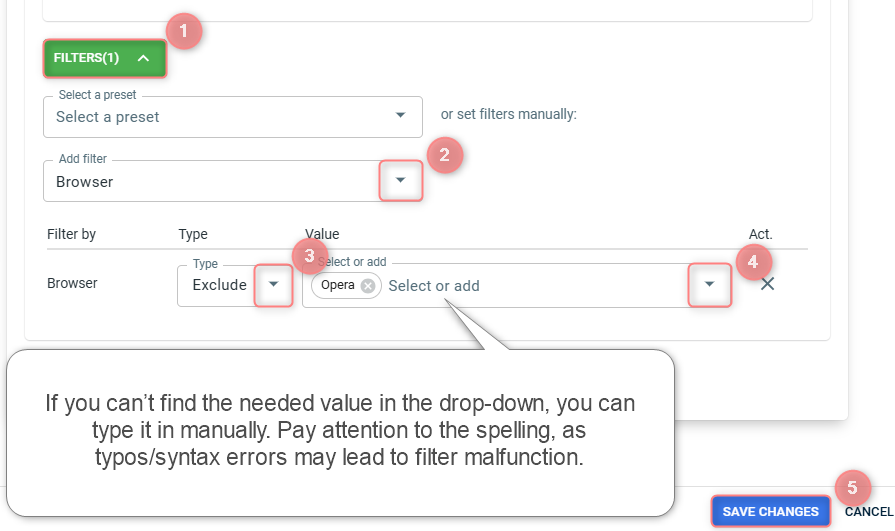
Now the part that reacts to your exit. Open Campaigns, edit the campaign, go to Funnels, then Filters, and click Add filter. Pick a Type and a Value, then Save changes. The type list is long. Time of day, Day of week, Countries, Regions, Cities, ISP, Browser, OS, Device brand and model, IP, Sub-values, Languages, Referrer. Then Device type, Connection types, Proxy types, Fraud check and a few more. Each filter runs in one of four modes, Include, Exclude, Contains or No contains.
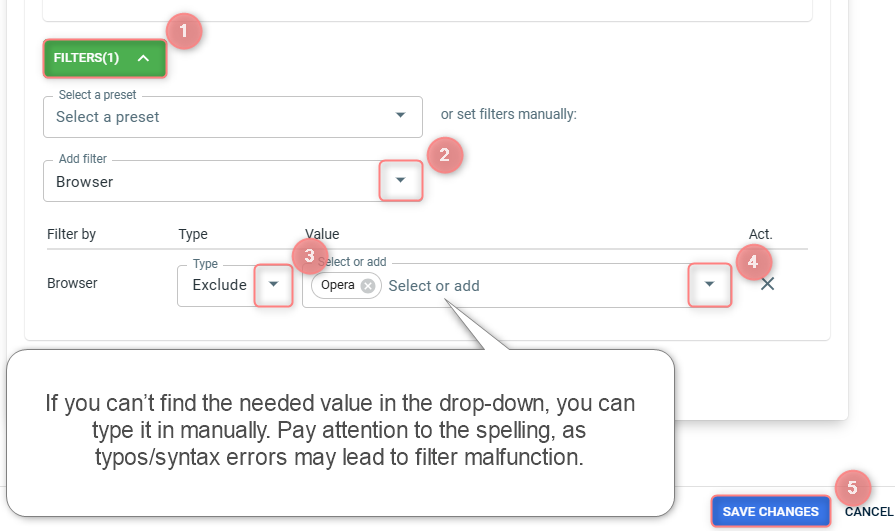
With Proxy types set to Exclude Hosting and Anonymous, a datacenter test click goes to the fallback. A residential or ISP exit does not match either class and passes into the funnel like everyone else. Same logic, same database, no special treatment. That is the point of testing with a consumer-network IP: you see the path your buyers see.
Three related tools are worth knowing. Tools, Filter presets, Create new preset saves a filter set you can select in any funnel instead of rebuilding it. Tools, Blacklist bots, New takes IP addresses, IP ranges or a user agent, and blocked traffic does not count toward your event limit. And Settings, General has a softer switch that removes known bots and crawlers, identified by user agent, from the data. None of these will flag a GeekProxy residential exit, since there is nothing in its user agent or address to match.
Fraud check is switched on per campaign as a Fraud report. It has its own pricing and plan requirements, so read the current terms in your account before relying on it in a test.
6 Verify it works
- In the proxied browser open
https://ipinfo.io/json. The IP must be the proxy - Open the campaign URL and walk to the offer
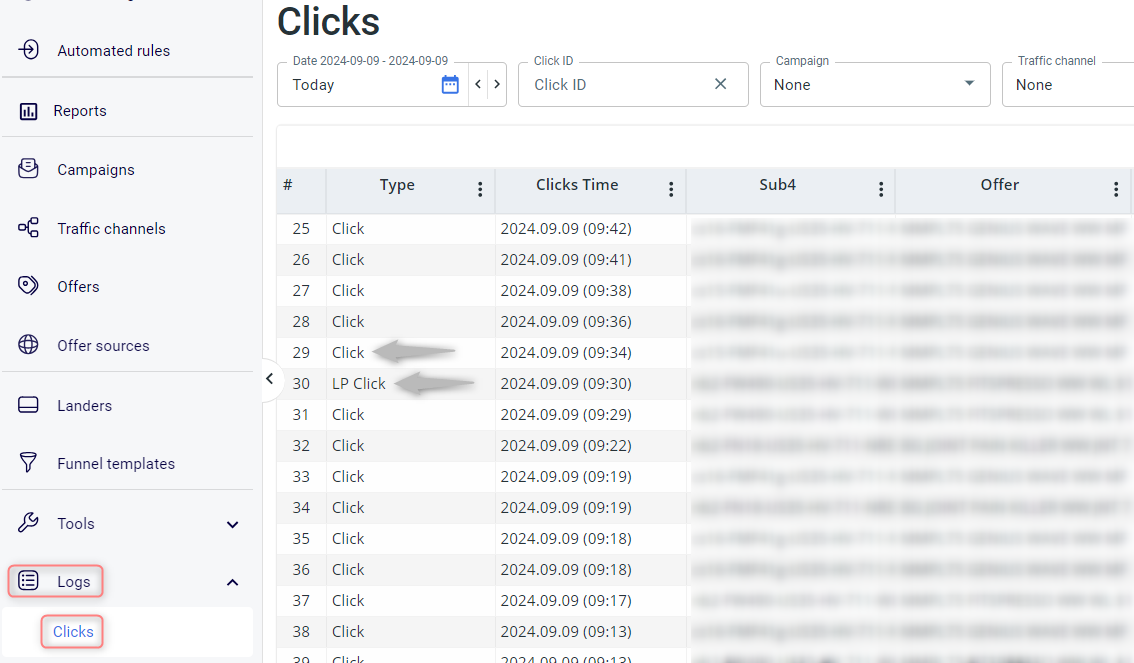
- Find the click in a RedTrack report. The country and ISP should match the exit you picked
- With a Proxy types Exclude filter on the funnel, the click should still have reached the lander, not the fallback
Repeat for each geo. Five countries means five exits and five walk-throughs. Boring, and it catches the one offer that quietly redirects German traffic to an English page.
7 Which GeekProxy product fits
Residential Flex or ISP static for the browser checks. Both are consumer-network addresses, which is exactly the class RedTrack's Proxy types filter does not match, and neither injects headers. Flex is TCP only, which browsing never notices, and lets you change country per session; ISP static keeps one address for as long as you pay for it. Mobile is the way to test a Connection types = mobile branch or a carrier-targeted offer. Datacenter IPv4 is classed Hosting Proxy on the visitor side, so save it for scripts against RedTrack's reporting API, where nobody classifies the exit.
8 Common issues
My test click lands on the fallback page
An Exclude filter matched: Proxy types on a datacenter exit, or Countries on an exit in the wrong country. Switch to a residential or ISP exit in the offer's geo and try again. Check Tools, Fallback URL to see where you were sent.
The filter does nothing
The campaign is not on redirect tracking. Filtering only works with redirect tracking; direct tracking skips it.
The lander worked, then refused me
Landing page protection. Its token is valid for five minutes. Open the campaign URL again for a fresh one.
The browser never asks for the proxy password
You configured SOCKS5. Chrome and Firefox do not send SOCKS5 credentials. Use HTTP with login and password, or an IP-whitelisted plan.
Get proxies for RedTrack checks
Residential, ISP and mobile exits per geo, HTTP and SOCKS5, ready in seconds.
Place an order