
Set up GeekProxy in SMMplanner
SMMplanner can route each Instagram account through its own proxy. The setting is per account, lives in the web app, and applies only to Instagram profiles connected with login and password through SMMplanner's extended API. This guide covers adding a GeekProxy server there, attaching it to an account, and getting past the built-in check.
You'll need: an active GeekProxy plan with a static IPv4 address and login/password auth, plus the credentials from your dashboard. Setup takes about 10 minutes, and SMMplanner's own check adds a few more.
Get proxies1 Before you start
One thing first. Everything below about the SMMplanner side comes from the vendor's own blog articles of January and December 2021. The current user manual does not mention proxies at all. So before you order anything, open «Настройки» in your SMMplanner account and check that «Управление прокси» is there on your plan.
If the section is missing, ask [email protected]. In 2021 the add-on cost 100 roubles a month regardless of the number of accounts and came free with PRO. Support also switched it on at no charge for people whose Instagram profile refused to connect. Current terms may differ.
What the proxy covers is narrow. SMMplanner's servers open an Instagram session for the account on a virtual device, and that session goes through your proxy: the login and every post published after it. Nothing else does. Your own browser tab with SMMplanner stays on your IP, and networks connected through OAuth have no proxy option at all.
The vendor names two cases where it pays off. An Instagram profile that will not connect to SMMplanner, which the vendor puts at roughly one profile in ten. And anyone running more than two profiles.
Vendor requirements for the proxy
The January 2021 article lists them, and adds that a proxy failing any of these will not connect:
- No restrictions on incoming IP. The connection comes from SMMplanner's servers, so an IP whitelist cannot work. Login and password only
- IPv4. IPv6 proxies do not connect
- HTTP and HTTPS support. SOCKS is not mentioned anywhere in the vendor docs
- Anonymity
- Response time under 5 seconds
- The httpbin test server must open through the proxy
What you'll need
- Active GeekProxy plan with a static IPv4 address: ISP first, or Mobile where the vendor suggests mobile
- Proxy credentials from your dashboard: IP, Port, Username, Password
- An SMMplanner account on a plan that shows «Управление прокси», plus the Instagram login and password for the profile
- Field Where it comes from
- Protocol HTTP(S)
- IP IP or gateway hostname from the dashboard
- Port from the dashboard
- Username from the dashboard
- Password from the dashboard
2 Where to get your credentials
- Log in to your GeekProxy dashboard
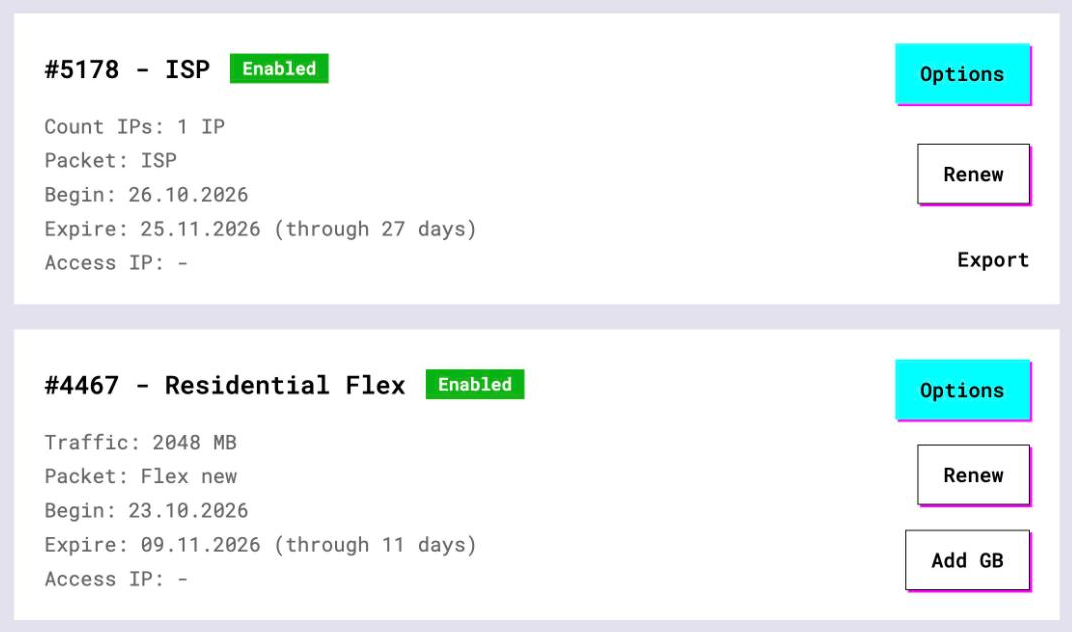
- Open the ISP plan. The IP list, port, login and password sit right on the card, and Export hands you the whole list as text
- Keep the plan in login/password mode. IP whitelist is useless here, because the requests come from SMMplanner's servers, not from your office
- Pick one IP per Instagram account and write down which is which. You will want that list later
On a Mobile plan click Options. The Proxy Configuration panel builds the login string with your country and session settings; copy the result from the Proxy List and set the longest session the plan allows. One catch. The SMMplanner field is called «IP», and the vendor describes it as digits with dots. Whether it accepts a gateway hostname is not documented, so run the built-in check before you rely on it.
3 Add the server in SMMplanner
The web app is in Russian, so the labels below are the vendor's own, with a translation in brackets. The path from the December 2021 article:
- Click your email in the upper-right corner
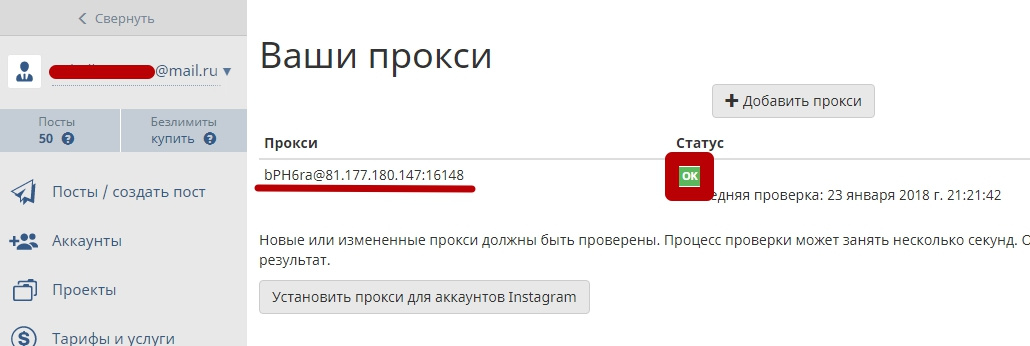
- Open «Настройки» (settings), then «Управление прокси» (proxy management)
- Click «Добавить сервер» (add server). The January 2021 article shows the same button as «Добавить» in the right-hand menu, so the exact label depends on the version you see
- Fill the four fields. «IP» takes the digits with dots before the colon in your proxy address, «Порт» the number after it, «Логин» and «Пароль» the GeekProxy username and password
- Save. SMMplanner now tests the proxy, which takes a few minutes. A checkmark next to the server means it passed
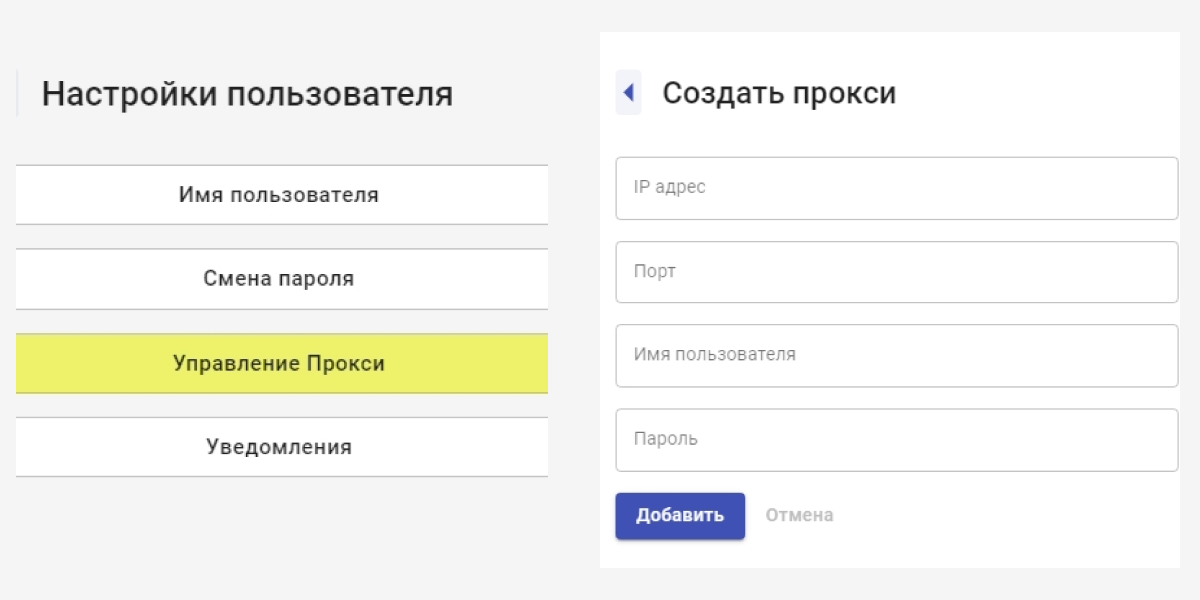
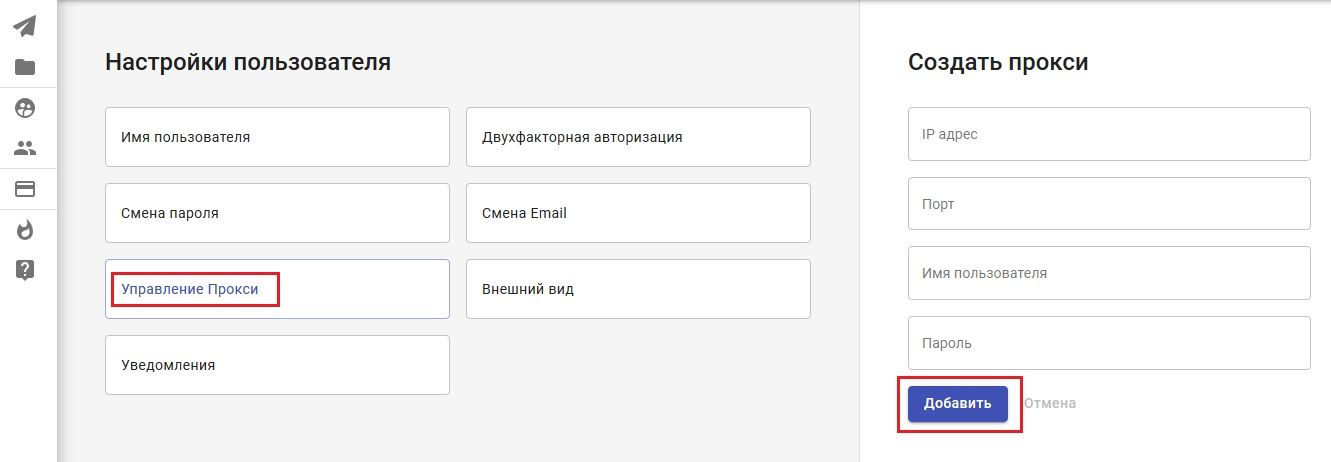
Paste the numeric IP, not a hostname, and paste the password from the dashboard instead of retyping it. A typo in one of those two fields is the boring reason most checks fail.
4 Attach it to an Instagram account
Adding a server does nothing on its own. The proxy has to be bound to a specific Instagram account.
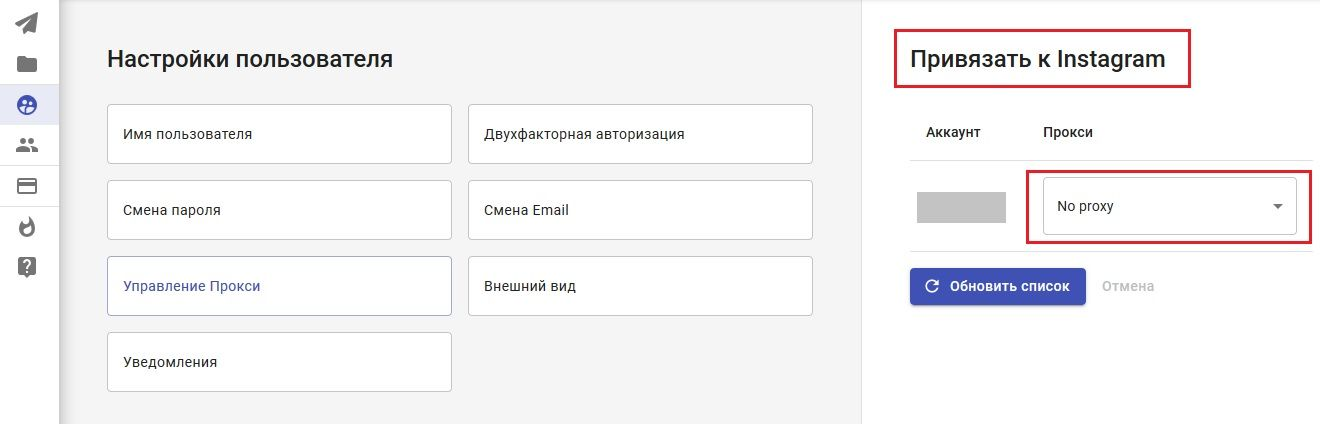
- In «Управление прокси» click «Привязать к Инстаграм*» (attach to Instagram) next to the server that passed the check. The asterisk is the vendor's, not ours
- In the proxy dropdown next to the account name pick the server you just added
- Connecting a new profile? The connection dialog for the extended API has a proxy field of its own. Choose the server there, or leave it empty if this profile runs without one
Two pieces of vendor advice worth repeating. Do not rotate several proxies on one profile; SMMplanner expects one fixed address per account. And if the same account is used in any other tool, point that tool at the same proxy, so Instagram sees one address for one profile.
5 Verify it works
The checkmark in SMMplanner is the main signal, and it only appears after the check finishes. Give it a few minutes before touching anything.
When the check fails, a quick test from your own laptop narrows the search. The vendor's checker opens httpbin through the proxy, so do the same with curl:
curl -x http://LOGIN:PASSWORD@IP:PORT https://httpbin.org/ip
The reply must show the proxy IP. If it does, the address, port, login and password are right and the proxy answers HTTP. What remains is the SMMplanner side: response time from their servers, or the add-on not being active on your plan.
Then schedule a short test post for that account. Published post, no login warnings from Instagram, you're done.
6 Which GeekProxy product fits
SMMplanner wants one fixed IPv4 address per Instagram account, HTTP with login and password, and a fast answer. That is ISP static: the address stays yours for the life of the plan, there is no traffic counter, and 25 countries let you match the account's region. The vendor's own articles recommend mobile proxies, and Mobile fits when you run the check first, since it is a gateway with a session rather than a bare IP. Residential Turbo and Residential Flex rotate by design, which is exactly what the vendor tells you not to do with a profile. Datacenter IPv4 passes the technical checks, but Instagram trusts those networks less, so keep it for tests.
7 Common issues
The server never gets a checkmark
Go through the vendor's list. An IPv6 address, a SOCKS-only proxy, a plan in IP-whitelist mode or a response slower than 5 seconds all fail. GeekProxy ISP plans are IPv4 and HTTP, so the usual culprit is the auth mode: switch the plan to login and password.
There is no «Управление прокси» in my settings
The add-on is not active on your plan, or the interface changed since the 2021 articles. Write to [email protected] and say which profile you cannot connect. Do not buy a proxy until the section is there.
No proxy option for other networks
Correct. The proxy exists only for Instagram profiles connected through the extended API with login and password. Other networks go through OAuth, and SMMplanner never asks for their passwords.
Instagram still refuses to connect
The vendor says roughly one profile in ten has trouble connecting, and a proxy is their first suggestion. If it is attached, checked, and the profile still fails, the cause sits on Instagram's side of the login. Make sure the same proxy is used wherever else this account logs in, then ask SMMplanner support.
Trouble after swapping the proxy on a profile
Expected. The vendor advises against changing proxies under a connected profile. Pick one address per account and leave it alone; ISP plans make that easy because the IP does not move.
Get proxies for SMMplanner
Static ISP IPv4 with login and password, one address per Instagram account, ready in seconds.
Place an order