
Set up GeekProxy in the Telegram app and in bot libraries
First the Telegram client itself: it has its own proxy setting on Windows, macOS, Android and iPhone, and a link format that fills every field for you. Then the bots. A bot talks HTTPS to api.telegram.org and nothing else, so all it needs is one outbound tunnel: the proxy parameter in python-telegram-bot 22, aiogram 3, Telethon, grammY and Telegraf, plus the MTProto confusion cleared up on the way.
You'll need: an active GeekProxy plan and the proxy credentials from your dashboard. Setup takes about five minutes per library.
Get proxies1 Proxy inside the Telegram app itself
Bots are not the only thing that can go through a proxy. The Telegram client on a computer or a phone has its own proxy setting, separate from the system one. It takes SOCKS5 and MTProto, and recent desktop builds also offer HTTP. For a GeekProxy plan pick SOCKS5 and use the login and password from your dashboard. HTTP on desktop works the same way.
Desktop (Windows, macOS, Linux): Settings, Advanced, Connection type, Use custom proxy, Add proxy. Choose SOCKS5, put the host into Hostname and the port into Port, then the login and password under Credentials. Save. The proxy applies to this Telegram only, other programs keep their own route.
Android: Settings, Data and Storage, Proxy Settings, Add Proxy, SOCKS5. iPhone: Settings, Data and Storage, Proxy, Add Proxy, SOCKS5. The same four fields: server, port, username, password. A working proxy shows a green connected status in the list.
The fastest way on any device is a link. Telegram documents the format: https://t.me/socks?server=IP&port=PORT&user=LOGIN&pass=PASSWORD. Open it on the device and Telegram offers to add the proxy with every field filled. The MTProto variant (t.me/proxy?…&secret=) needs an MTProxy server, which GeekProxy does not run.
The dialog warns that a proxy may display a sponsored channel. That is a feature of MTProto proxies. A SOCKS5 or HTTP proxy with your own login adds nothing to the chat list.

For a personal account the natural fit is an ISP static address: one IP for months, nothing rotates under a logged-in session. For many accounts in separate clients use Residential Turbo with a sticky session, one session per account.
2 Before you start
Every Bot API call is an HTTPS request to https://api.telegram.org/bot<token>/METHOD. Telegram requires HTTPS there. So the proxy has one job: carry a CONNECT tunnel or a SOCKS5 connection to api.telegram.org on port 443. Nothing else about it matters to Telegram.
One thing to clear up first. MTProto proxies are a different mechanism: Telegram's own transport, a 16-byte secret, tg://proxy?server=...&port=...&secret=... links. Only MTProto clients can use them, meaning the Telegram apps and Telethon. python-telegram-bot, aiogram, grammY and Telegraf cannot, because they speak plain HTTPS to the Bot API. GeekProxy sells HTTP and SOCKS5 proxies, not MTProto ones. That is exactly what these libraries take.
- Only the library's own requests go through the proxy. Other processes on the machine are untouched
- In webhook mode Telegram connects to your server. The proxy plays no part in receiving updates then; it only carries your outgoing calls
What you'll need
- Active GeekProxy plan (datacenter, ISP or residential)
- Proxy credentials from your dashboard: Host, Port, Username, Password
- Python 3 for python-telegram-bot, aiogram and Telethon; Node.js for grammY and Telegraf
- A bot token from @BotFather. It's free
- Field Where it comes from
- Protocol HTTP / SOCKS5
- Host IP or gateway hostname from the dashboard
- Port from the dashboard
- Username from the dashboard
- Password from the dashboard
3 Where to get your credentials
- Log in to your GeekProxy dashboard
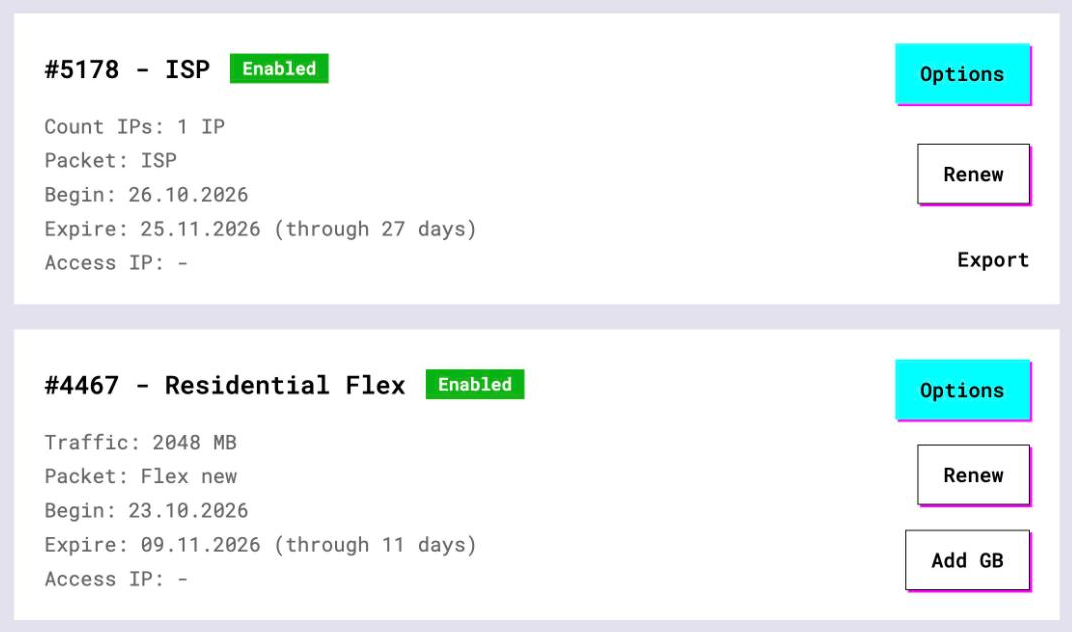
- Open the plan. For per-IP plans (datacenter, ISP) the IP list, ports, login and password sit right on the card, and Export hands you the whole list as text
- For residential and mobile plans click Options. The Proxy Configuration panel builds the login string with your country, city and session settings. Copy the finished line from the Proxy List
A bot that lives on a server for months can also pull its proxy from the GeekProxy API at start-up, see the automation guide.
4 python-telegram-bot
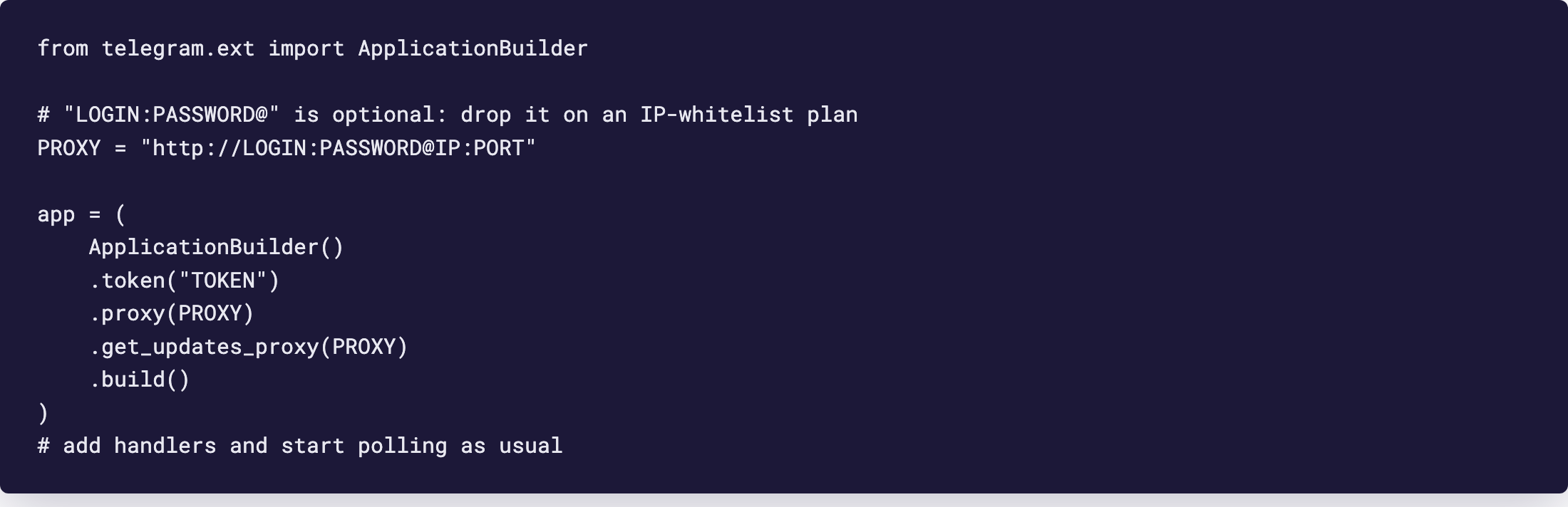
Version 22 runs on httpx through the HTTPXRequest class, and the proxy is a plain parameter there: proxy, which takes a string, an httpx.Proxy or an httpx.URL. You rarely touch the class directly. ApplicationBuilder exposes the same thing as two methods.
.proxy(url)sets the proxy for every Bot method call: sendMessage, getFile, all of it.get_updates_proxy(url)applies only togetUpdates, the long polling request
The official wiki says you don't have to set both. In practice you want both, otherwise polling goes out directly while replies go through GeekProxy. Half a bot behind a proxy is a confusing thing to debug.
from telegram.ext import ApplicationBuilder

# "LOGIN:PASSWORD@" is optional: drop it on an IP-whitelist plan
PROXY = "http://LOGIN:PASSWORD@IP:PORT"

app = (
    ApplicationBuilder()
    .token("TOKEN")
    .proxy(PROXY)
    .get_updates_proxy(PROXY)
    .build()
)
# add handlers and start polling as usual
SOCKS5 and environment variables
For SOCKS5 install the extra and change the scheme. The documented command is pip install python-telegram-bot[socks], and the proxy string becomes socks5://LOGIN:PASSWORD@IP:PORT. Without a programmatic setting, PTB falls back to the HTTP_PROXY, HTTPS_PROXY and ALL_PROXY environment variables, in that order after the code. There is a catch. The docs state that SOCKS5 proxies cannot be set via environment variables at all. Put SOCKS in code or use HTTP.
Older tutorials pass proxy_url=. That parameter was removed in version 22.0, so the snippet raises an error on a current install. The replacement is proxy, both in HTTPXRequest and on the builder.
One more default: HTTPXRequest waits connect_timeout=5.0 and read_timeout=5.0 seconds. A residential exit on a bad day can exceed that.
5 aiogram 3 and Telethon
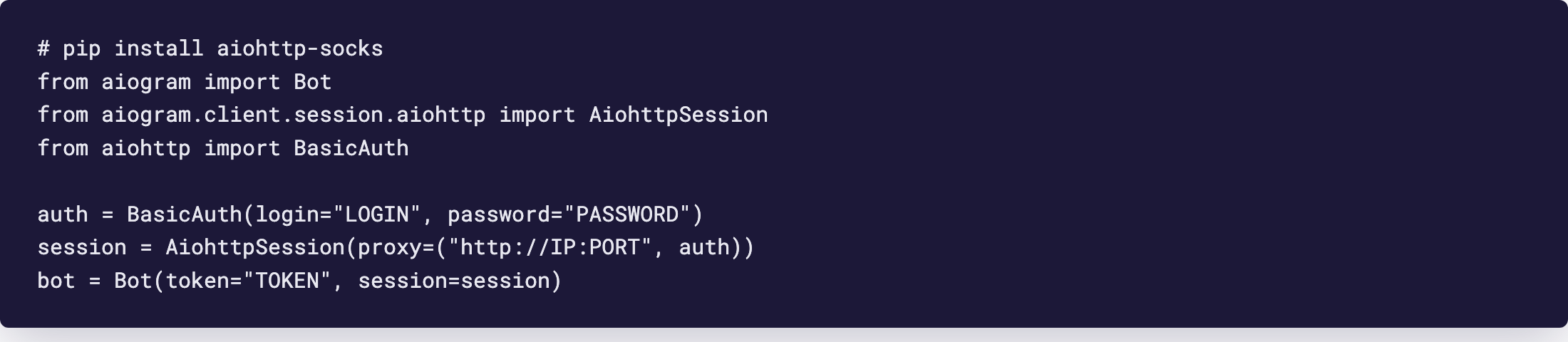
aiogram 3 puts the proxy on the session object: AiohttpSession(proxy=...), handed to Bot(token, session=session). The docs ask you to install aiohttp-socks for the proxy connector and list the protocols: http as a tunnel, socks4 and socks4a, socks5. The proxy argument accepts three shapes.
- A URL string with credentials inside:
"http://LOGIN:PASSWORD@IP:PORT" - A tuple of URL and
aiohttp.BasicAuth, handy when the password has characters that break URLs - A list of either, which builds a proxy chain
# pip install aiohttp-socks
from aiogram import Bot
from aiogram.client.session.aiohttp import AiohttpSession
from aiohttp import BasicAuth

auth = BasicAuth(login="LOGIN", password="PASSWORD")
session = AiohttpSession(proxy=("http://IP:PORT", auth))
bot = Bot(token="TOKEN", session=session)
If you pass both a URL with credentials and a BasicAuth object, the docs are clear about who wins: aiogram prefers BasicAuth.
Telethon
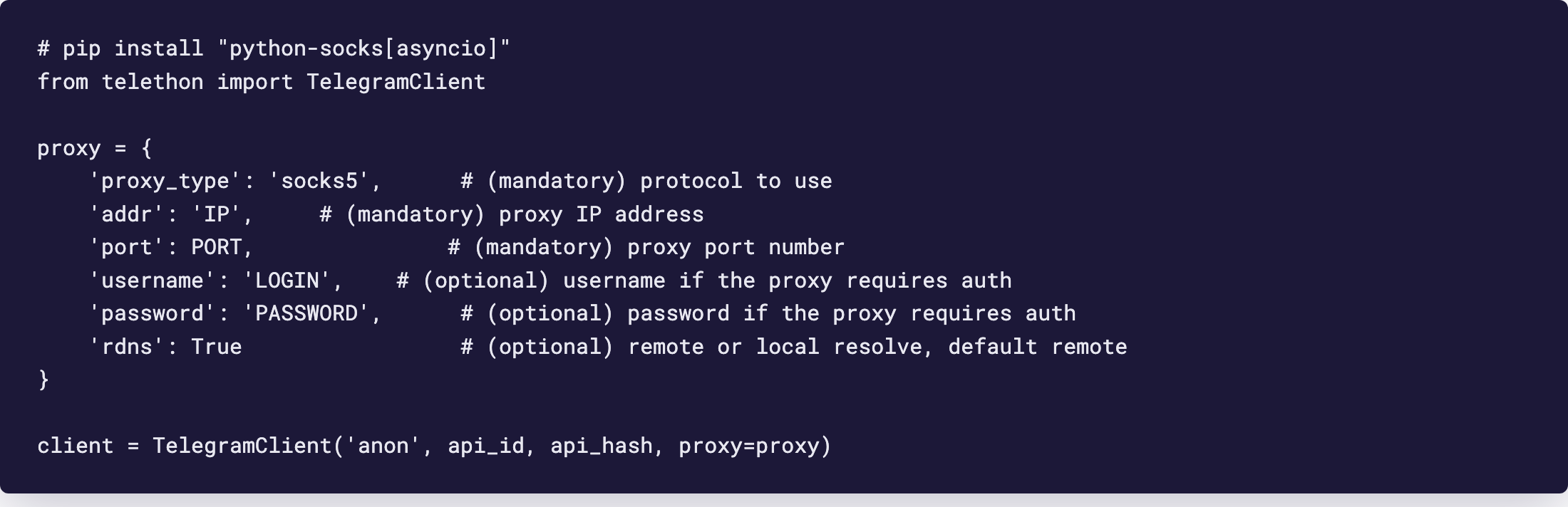
Telethon is not a Bot API library. It speaks MTProto to Telegram's data centres, which is why it serves userbots and bot-token logins alike. The proxy still goes in as a normal SOCKS5 or HTTP proxy. Install python-socks[asyncio] first, otherwise Telethon warns and connects without it. Then pass a dict.
# pip install "python-socks[asyncio]"
from telethon import TelegramClient

proxy = {
    'proxy_type': 'socks5',      # (mandatory) protocol to use
    'addr': 'IP',     # (mandatory) proxy IP address
    'port': PORT,               # (mandatory) proxy port number
    'username': 'LOGIN',    # (optional) username if the proxy requires auth
    'password': 'PASSWORD',    # (optional) password if the proxy requires auth
    'rdns': True                 # (optional) remote or local resolve, default remote
}

client = TelegramClient('anon', api_id, api_hash, proxy=proxy)
rdns defaults to remote resolution, so DNS happens on the proxy side. Good default, leave it. The Telethon page spells out only 'socks5' for proxy_type; python-socks also does HTTP CONNECT, the exact value is in its README. And yes, this is the one library here that can take an MTProto proxy: a tuple of host, port and secret plus an explicit connection= class. Nothing to do with the dict above.
6 grammY and Telegraf
Both Node.js libraries use the same idea: you give the HTTP client an agent, and the agent knows about the proxy. grammY has an official page for it. Telegraf has a typed option and no example, so its snippet below is built from the option types.
grammY
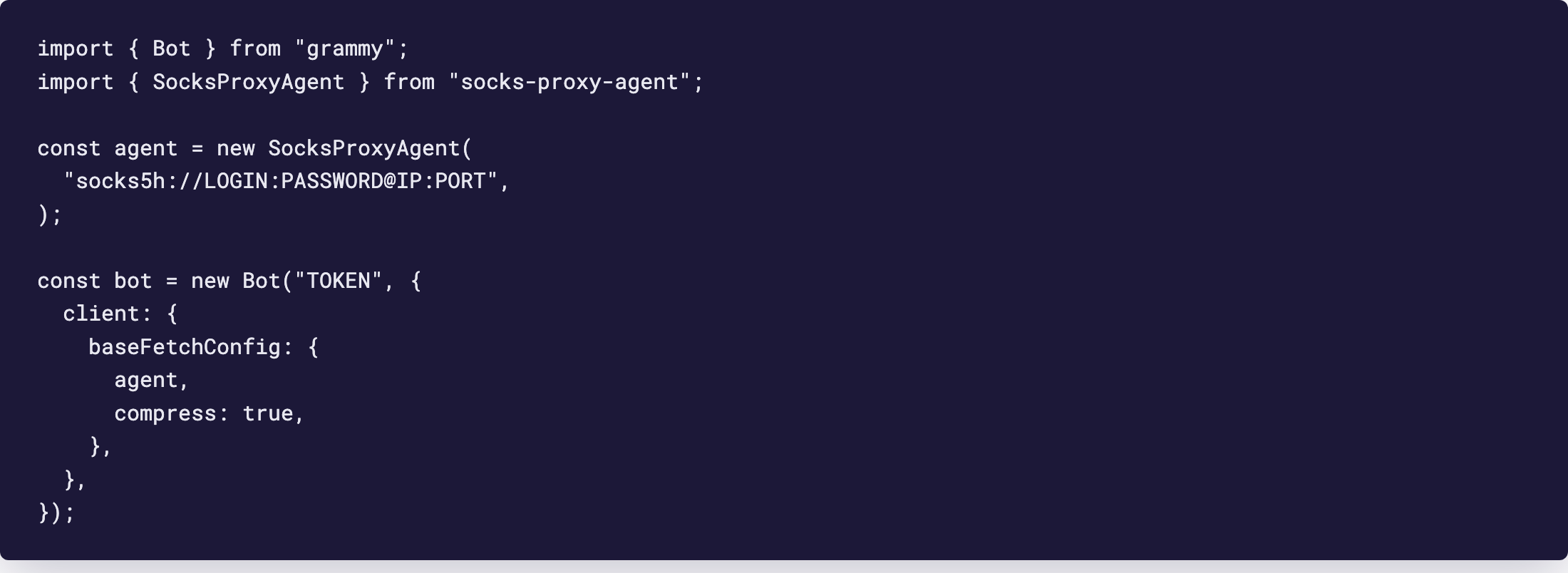
The documented path is socks-proxy-agent dropped into client.baseFetchConfig.agent. grammY's page builds the agent from a hostname and port object; the agent's own README takes a URL with the login inside, which is what you want with credentials. Encode an @ in the username as %40.
import { Bot } from "grammy";
import { SocksProxyAgent } from "socks-proxy-agent";

const agent = new SocksProxyAgent(
  "socks5h://LOGIN:PASSWORD@IP:PORT",
);

const bot = new Bot("TOKEN", {
  client: {
    baseFetchConfig: {
      agent,
      compress: true,
    },
  },
});
Two notes from the official page. Set the agent's timeout option: grammY's own 500-second request timeout cannot close a dead socket, the agent can. And keep compress: true, it belongs to the default fetch config you are overriding. On the scheme: socks5h:// and plain socks:// let the proxy resolve hostnames, socks5:// resolves them on your machine. For an HTTP proxy the same agent field takes an HttpsProxyAgent, built as in the Telegraf example below.
Telegraf
Telegraf's constructor takes { telegram: { agent } }, the agent for communicating with the bot API. Create it once at start-up. The default agent is keep-alive, and a source comment warns that a new agent per request probably breaks that.
const { Telegraf } = require('telegraf');
const { HttpsProxyAgent } = require('https-proxy-agent');   // or SocksProxyAgent

const agent = new HttpsProxyAgent('http://LOGIN:PASSWORD@IP:PORT');
const bot = new Telegraf(process.env.BOT_TOKEN, { telegram: { agent } });
Telegraf drops the agent when apiRoot starts with http://. Attachments fetched by URL use a separate attachmentAgent option, so set that one too if your bot forwards files from the web.
7 Verify it works
Check the proxy before you blame the library. Run curl -x http://LOGIN:PASSWORD@IP:PORT https://ipinfo.io/json from the same machine. The endpoint is public and returns the IP it sees. It must be the proxy, not your server.
Then start the bot with logging at INFO level and send it a message. You should see the getUpdates request complete and your handler fire. A wrong port shows up within seconds as a connection error on the first call. Proxy fine in curl but the bot fails? The library setting is wrong. Both fail? Credentials or the plan.
8 Which GeekProxy product fits
A bot needs one stable outbound tunnel, around the clock, with tiny traffic and no rotation. That is a per-IP plan: datacenter IPv4 is the cheapest way to get it, and the per-IP plans have no traffic counter, so long polling can run forever. ISP static is the pick when a Telethon userbot should show a residential-looking login location to the account owner. Residential Turbo and Residential Flex are metered per gigabyte and rotate by default. A sticky session works: Turbo holds one IP up to 1440 minutes, Flex up to 120. But a Bot API call gains nothing from a home IP, and an open polling connection quietly spends traffic. Flex is TCP only, which the Bot API never notices. Mobile brings nothing to Bot API traffic either.
9 Common issues
The bot sends replies but never receives messages
python-telegram-bot with .proxy() set and .get_updates_proxy() missing. Replies go through GeekProxy, polling goes out directly, and if the direct route is blocked, no update ever lands. Set both.
TypeError: unexpected keyword argument 'proxy_url'
You are on python-telegram-bot 22 and the snippet is older. proxy_url is gone since 22.0. Rename it to proxy.
HTTPS_PROXY=socks5://... is ignored
By design in python-telegram-bot: SOCKS5 cannot be configured through environment variables. Pass the SOCKS URL to .proxy() in code, or switch the variable to an HTTP proxy URL.
aiogram authenticates with the wrong login
You passed credentials in the URL and a BasicAuth object at the same time. The BasicAuth wins. Also check that aiohttp-socks is installed in the interpreter that runs the bot.
Telethon warns that python-socks is missing
The proxy dict is set but the dependency isn't there, so Telethon connects without a proxy. Run pip install "python-socks[asyncio]" and restart.
Timeouts on a residential exit
python-telegram-bot waits five seconds to connect and five to read by default. Raise connect_timeout and read_timeout in HTTPXRequest, or move the bot to a datacenter or ISP IP.
Get proxies for your Telegram bot
Datacenter and ISP IPs with no traffic limit, HTTP and SOCKS5, ready in seconds.
Place an order