
Set up GeekProxy in ZennoPoster
ZennoPoster runs browser projects in many threads, and each thread can sit behind its own proxy. A proxy enters the picture in three places. The Set proxy action in a project, the built-in ProxyChecker that stores and tests your list, and the Get proxy action that hands one proxy to one thread. This guide covers all three for ZennoPoster 7.x.
You'll need: an active GeekProxy plan and the proxy credentials from your dashboard. Setup takes about 15 minutes.
Get proxies1 Before you start
ZennoPoster is Windows only: Windows 10 x64 or later, 16 GB of RAM recommended. The edition matters more than usual here. The free LITE edition runs one thread and a slower proxy checker, but it does use proxies. The 14-day Demo does not. Its limits page says it outright: proxy usage is disabled. On Demo, nothing in this guide will work.
- Protocols: http, socks4 and socks5. The proxy is a string,
protocol://login:password@ip:port, orprotocol://ip:portfor IP-whitelist plans. Leave the protocol out and ZennoPoster assumes http - A proxy is set per browser instance, so per thread. Two threads can run two different proxies at the same time
- The built-in ProxyChecker stores the list, tests it and hands proxies to projects by rules. It cannot export the list back out; that is reserved for the standalone paid checker
- Set proxy can also emulate geolocation, time zone and WebRTC to match the proxy IP, one checkbox each
What you'll need
- Active GeekProxy plan (residential, ISP, datacenter or mobile)
- Proxy credentials from your dashboard: Host, Port, Username, Password
- ZennoPoster 7.x, LITE or PRO, with ProjectMaker for editing projects
- Field Where it comes from
- Protocol HTTP / SOCKS5
- Host IP or gateway hostname from the dashboard
- Port from the dashboard
- Username from the dashboard
- Password from the dashboard
2 Where to get your credentials
- Log in to your GeekProxy dashboard
- Open the plan. For per-IP plans (datacenter, ISP) the IP list, ports, login and password sit right on the card, and Export hands you the whole list as text
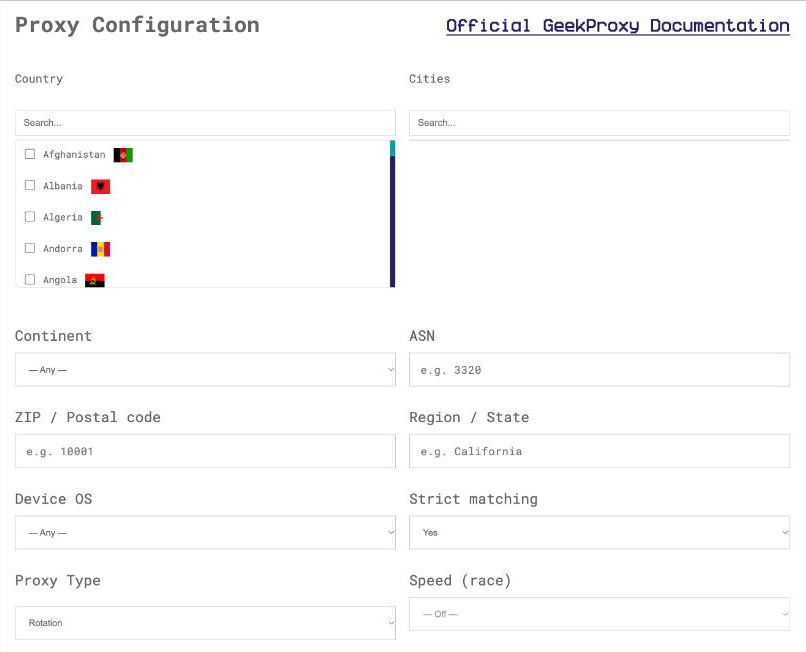
- For residential and mobile plans click Options. The Proxy Configuration panel builds the login string with your country, city and session settings. Copy the finished line from the Proxy List
For a residential plan, build a sticky session in Options if your project logs into accounts. Each thread then holds one exit IP for the session length, which is what account work needs. A per-IP export goes straight into the ProxyChecker as a file source (section 4).
3 Set proxy in a project
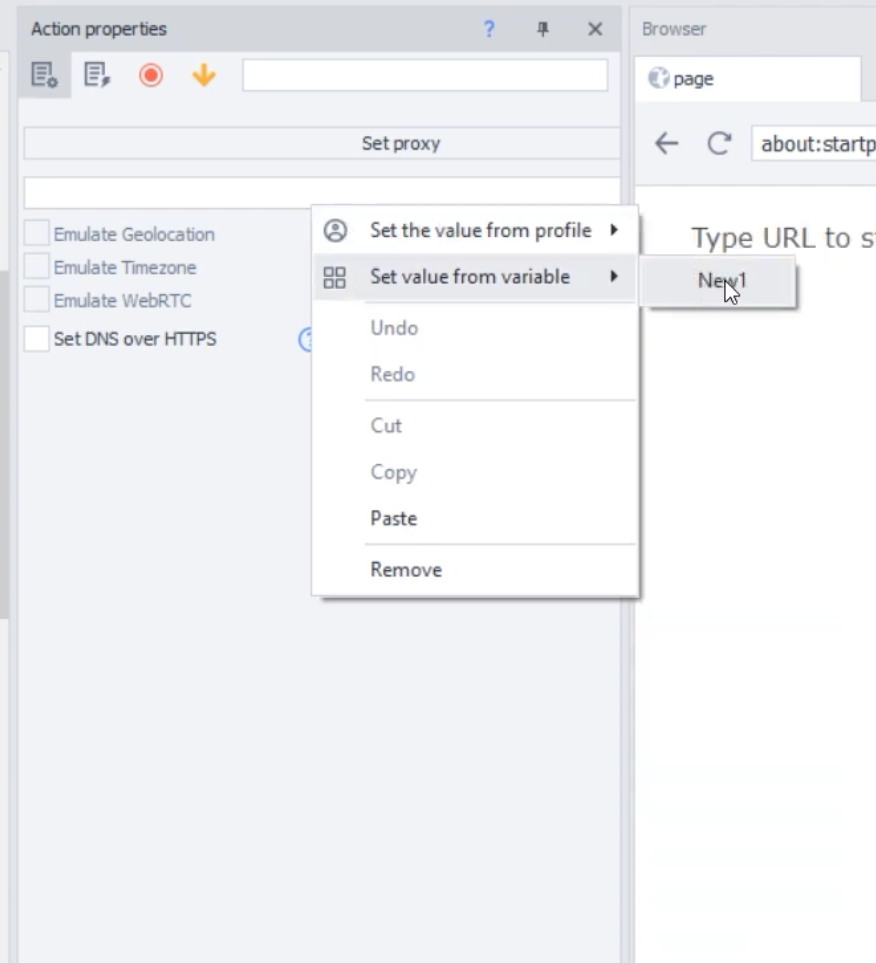
The simplest case is one proxy hard-wired into a project. In ProjectMaker right-click the canvas and choose Add action → Browser → Settings. The Browser settings action appears; open its Set proxy section and type the proxy string, or point it at a variable that holds one.
socks5://LOGIN:PASSWORD@IP:PORT
http://LOGIN:PASSWORD@IP:PORT
http://IP:PORT
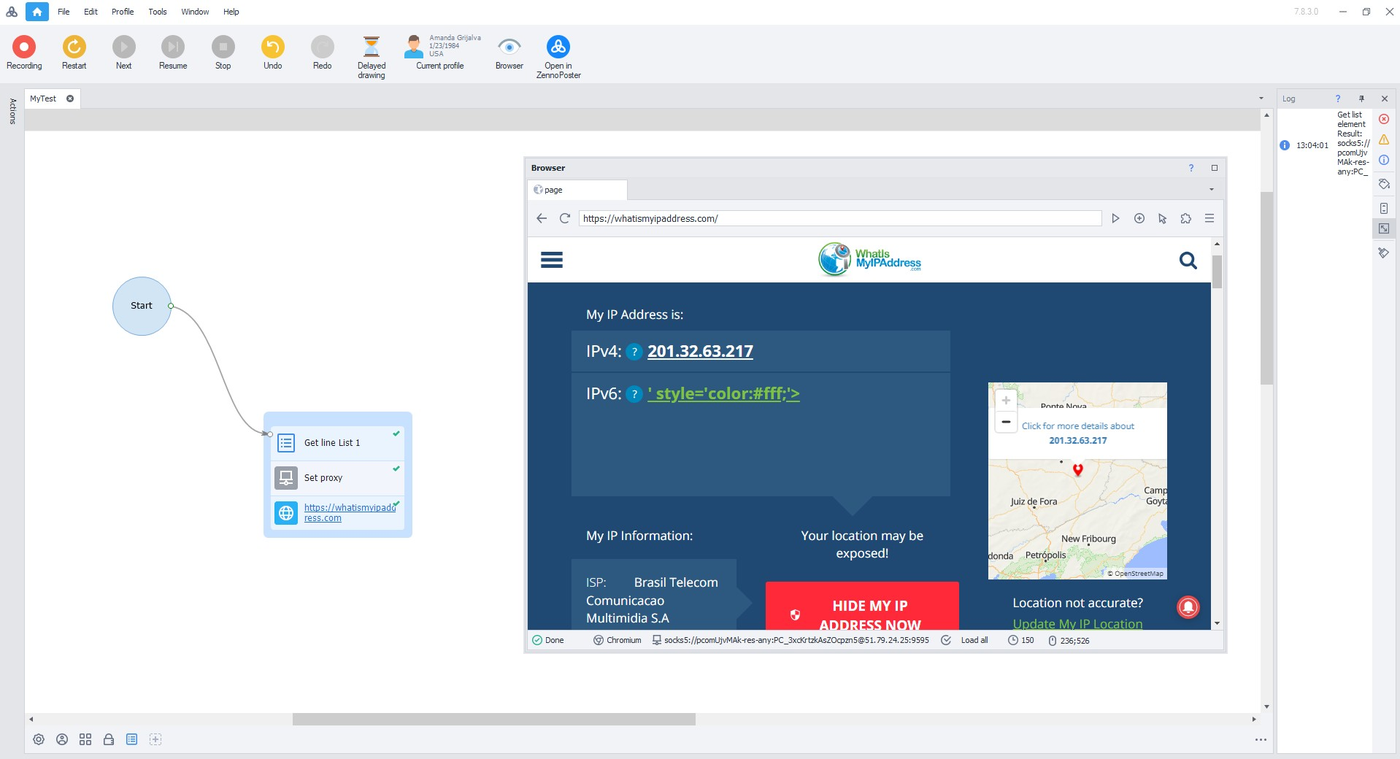
The third line is the IP-whitelist form. Below the field sit the emulation checkboxes. Tick them and ZennoPoster sets the browser's geolocation, time zone and WebRTC to match the proxy's IP the moment the proxy is applied. For account work that is the difference between a quiet login and a verification wall, so we tick all three. Once the action runs, the active proxy is shown at the very bottom of the browser window.
The official page prints the format with a stray space after the colon in the login part. There is no space. login:password@ip:port, all in one piece.
4 Load the list into ProxyChecker
A hard-wired proxy does not scale past one thread. For real work the list lives in the built-in ProxyChecker, found in the ZennoPoster Settings under its own tab. On the Sources tab there are two ways in:
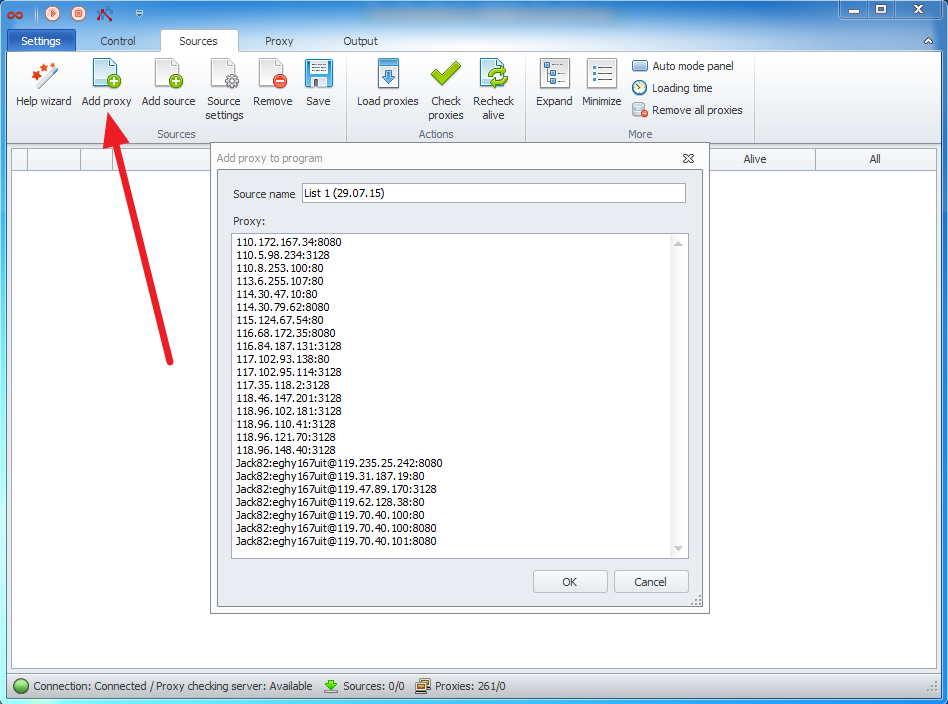
- Add proxy: paste lines by hand,
ip:portfor plain proxies andusername:password@ip:portfor authorised ones. The GeekProxy export fits once you reorder the fields - Add source: a file path or a web page URL with a proxy list. Save your dashboard export as a text file and point here. Per source you can also fix the format as
protocol://login:password@ip:port
Then open Source settings → Proxy checking settings. Set Checking mode to Check proxies, or to Consider all proxies as live if you trust the list and want to skip the test. Set Protocol to HTTP, SOCKS5, or Determine automatically. Tick Check HTTPS; most of your targets are HTTPS. Check POST matters for projects that submit forms. The rest (Check speed, Check for ban in Google, Check in blacklists, custom URL rules) is optional and slows the check down.
Two things in the main settings deserve a look. Consider non-anonymous proxies as dead is on by default, and GeekProxy proxies pass it. Delete proxies when the program is closed decides whether the live list survives a restart; with a file source it does not matter much, since the file is re-read. Changing the checker's thread count needs a program restart.
5 One proxy per thread with Get proxy
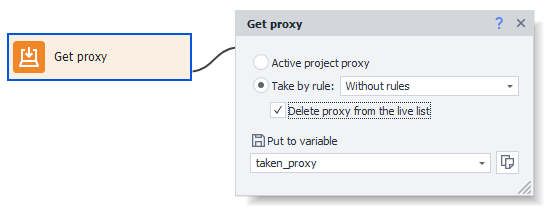
Now connect the list to the project. Add Add action → Proxychecker → Get proxy near the start of the project. The action has a few modes:
- Active project proxy reads the proxy the project already has into a variable, for example
{-Variable.taken_proxy-} - Take by rule picks a proxy that matches a ProxyChecker rule from the dropdown. Rules are edited in the checker and filter by anonymity, minimum speed, delay, countries, test URL and labels
- Without rules takes proxies in sequence, no filtering
- Delete proxy from the live list makes the proxy single-use, handy for registration flows
Get proxy only fetches. The documentation is explicit that the result must then be installed through the Browser settings action. So the pattern is Get proxy into a variable, then Set proxy from that variable. Every thread executes both actions for itself, which is how each thread ends up on its own IP.
There is a shortcut. Project settings → Proxychecker settings lets you choose a rule once, and the project takes a proxy by that rule at start without a Get proxy action. Project settings also has a Use Proxifier option for people who route traffic through an external proxifier instead.
6 Verify it works
Three checks, cheapest first. The ProxyChecker's live list shows which proxies passed. The bottom of the project's browser window shows the proxy currently applied. And a Go to page action to https://ipinfo.io/json shows the address the target sees. Run the project in two threads: on a rotating or sticky plan the two windows should print two different IPs.
To rule ZennoPoster out of a problem, test the same string from a terminal:
curl -x socks5h://LOGIN:PASSWORD@IP:PORT https://ipinfo.io/json
7 Which GeekProxy product fits
ZennoPoster is a multi-threaded browser bot that wants a different, believable IP per thread and emulates geolocation and WebRTC from it. Residential Turbo is the default. Sticky sessions give each thread its own home IP for the length of a login flow, and both http and socks5 strings work. UDP on SOCKS5 lets the WebRTC emulation go through the proxy too. Residential Flex adds a Windows or Android exit filter and US ZIP targeting. It is TCP only, so WebRTC traffic will not travel through it; know that before ticking the box. For long-lived accounts that must keep one address for months, load an ISP static export as a file source; for bulk parsing projects, a datacenter IPv4 list. Mobile uses the same string format and suits social and ad-account scenarios.
8 Common issues
The proxy is set but the browser ignores it
You are on the Demo edition. Proxy usage is disabled there by design. Switch to LITE, which is free, or PRO.
Get proxy returns nothing
The live list is empty. Either the check failed every proxy (look at the protocol setting and the login part of the string) or the rule you selected matches none of them. Try Without rules once to separate the two cases.
Changes to Proxy services or the checker's threads don't apply
Both need a program restart. The docs say so for Proxy services in as many words.
The string is rejected
Check the shape: protocol://login:password@ip:port, no spaces. The colon-separated host:port:login:password form found in some vendor blogs is not in the official docs. If a gateway hostname is refused on an older build, update ZennoPoster or use an IP address from a per-IP plan.
Accounts still get flagged
Check that the geolocation, time zone and WebRTC boxes in Set proxy are ticked, and that the proxy is SOCKS5 with UDP if you rely on WebRTC emulation. On a TCP-only plan, leave WebRTC emulation off and treat the leak as a known gap.
Get proxies for ZennoPoster
Sticky residential sessions per thread, or static ISP and datacenter lists for the ProxyChecker, HTTP and SOCKS5.
Place an order