
Set up GeekProxy with Postmypost
Postmypost has no proxy setting. The help centre says so in plain words: the service publishes through the official social network APIs from its own European servers, and proxies are not supported. So this guide does not pretend there is a dialog to fill in. It covers the one place a proxy still matters for a Postmypost operator: the browser session where you log into a client's social accounts to grant access.
You'll need: an active GeekProxy plan with static IPs, the credentials from your dashboard, and a browser that can hold one profile per client. Setup takes about 10 minutes per client.
Get proxies1 Before you start
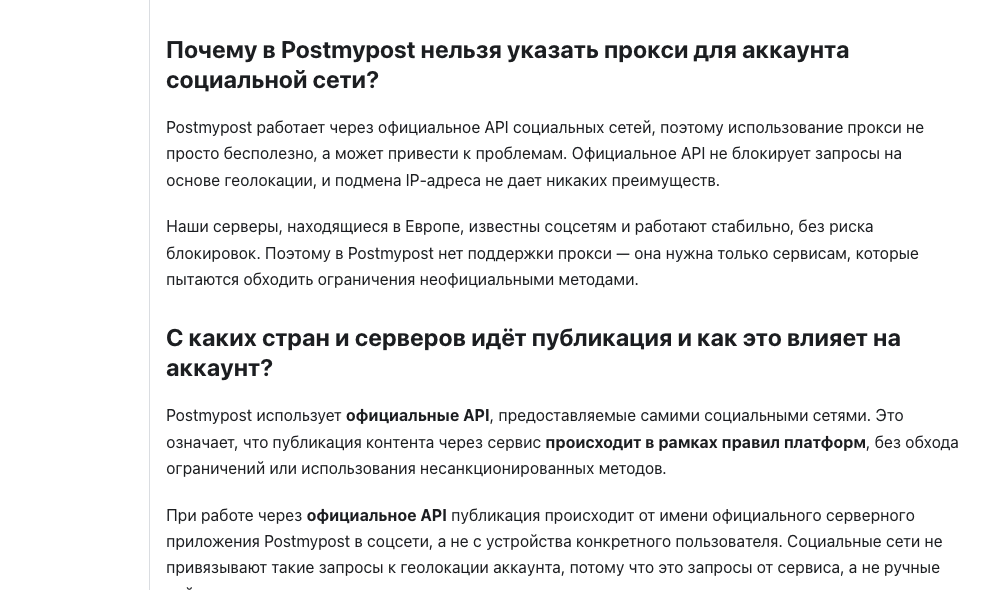
Start with what Postmypost says about itself. The "Safety" page of the help centre has a question with the title "Why can't you specify a proxy for a social media account in Postmypost?" and answers it. Shortened: the service works through the official API, and the API does not block by geolocation. The servers sit in Europe and are known to the networks, so proxies are not supported. The same page adds that publishing happens on behalf of Postmypost's own server application, not from your device, and that using Postmypost does not change your social media geolocation.
Take that at face value. A proxy on your side changes nothing about how posts go out.
What it does change is the IP your browser shows when you connect an account. Postmypost links Instagram and the other networks through OAuth: you are logged into the social network in your browser, and you grant access in a consent window. That login is the sensitive part. An agency operator who logs into ten clients' Instagram accounts from one home IP, then tomorrow from a hotel, is doing the thing social networks dislike. A fixed address per client, kept in a separate browser profile, removes that noise.
You may find a Postmypost blog post from April 2022 announcing "own proxies" for accounts. The current help centre contradicts it, and the personal settings page lists no such field. Treat the post as history.
What you'll need
- Active GeekProxy plan with static IPs (ISP or datacenter), one address per client
- Proxy credentials from your dashboard: Host, Port, Username, Password
- Chrome, Firefox, or an anti-detect browser such as AdsPower
- A Postmypost account. The trial is 7 days, no card required
- Field Where it comes from
- Protocol HTTP (or SOCKS5 with IP whitelist)
- Host IP or gateway hostname from the dashboard
- Port from the dashboard
- Username from the dashboard
- Password from the dashboard
2 Where to get your credentials
- Log in to your GeekProxy dashboard
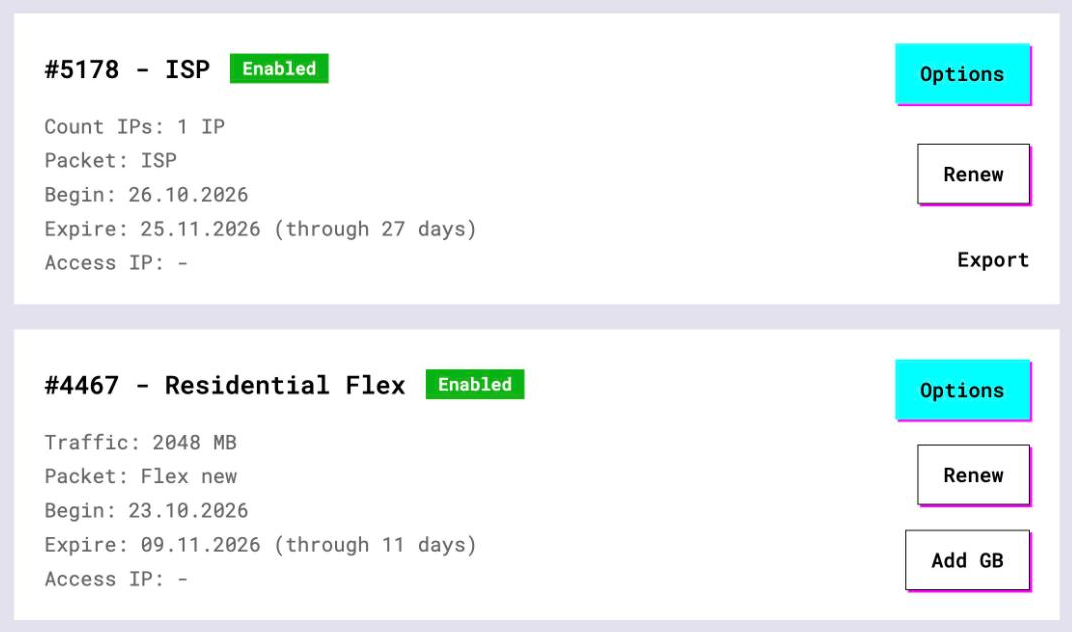
- Open the plan. For per-IP plans (ISP, datacenter) the IP list, port, login and password sit right on the card, and Export hands you the whole list as text
- Assign one IP to each client and keep a note of it. On a static plan the host you connect to is also the address the social network sees
- Decide on the auth mode. Browsers cannot send a password to a SOCKS5 proxy, so use HTTP with login and password, or SOCKS5 with IP whitelist enabled on the plan
3 One browser profile per client
The idea is simple. Each client gets a browser profile that always leaves through the same GeekProxy IP, and every login for that client happens inside it. Three ways to build one, each with its own guide:
- Google Chrome: launch it with a separate user data directory and the
--proxy-serverflag. Chrome follows the system proxy otherwise, so the flag is what pins one window to one IP - Firefox: proxy settings are stored per profile, so a profile per client is the whole trick
- AdsPower or another anti-detect browser: one profile per client with the proxy in the profile card. This is what those tools are built for once the client count grows past a handful
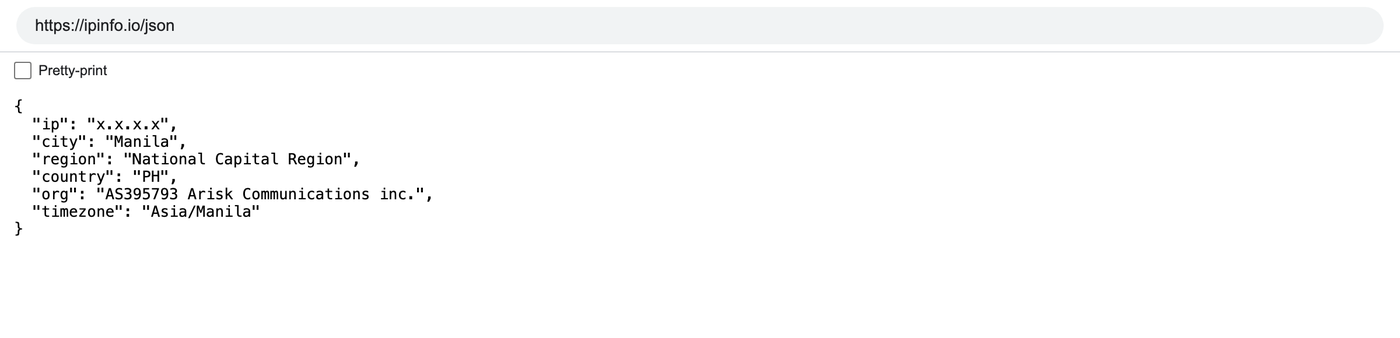
Whatever you choose, the first page that profile should load is https://ipinfo.io/json. If it shows the GeekProxy address, log in to the client's Instagram or Facebook there and nowhere else.
SOCKS5 with login and password does not work in Chromium browsers or in Firefox. Use HTTP with login:password, or SOCKS5 with IP whitelist auth enabled in your GeekProxy plan.
4 Connect the account from that profile
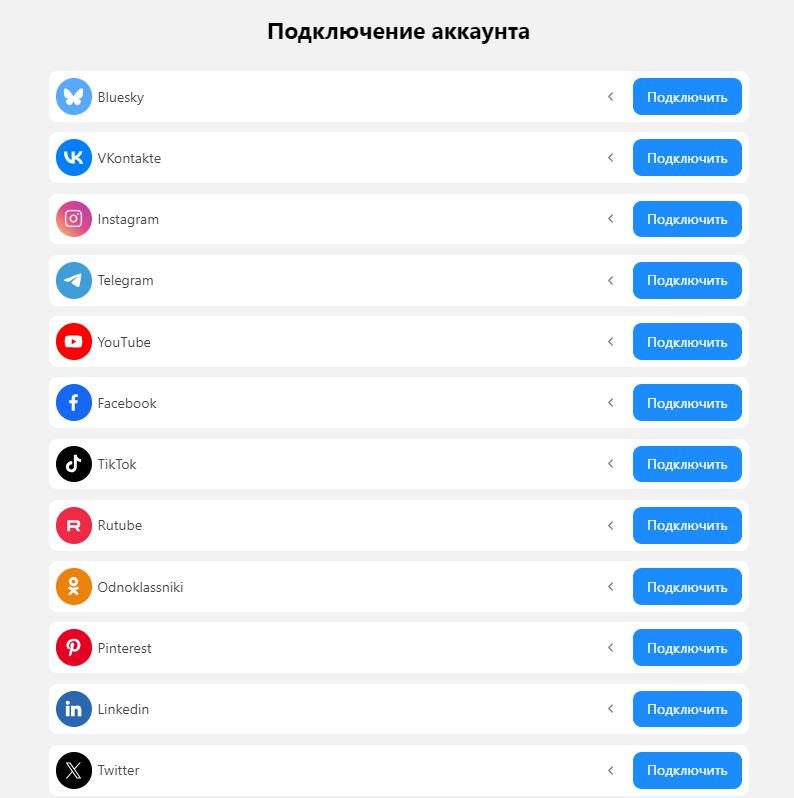
Now the Postmypost part, done inside the client's profile. The steps are the vendor's, from the help centre page on connecting Instagram:
- Open app.postmypost.io and go to the Accounts section
- Click Connect, then Connect next to Instagram
- Instagram opens a consent window. Click Allow
- Select the accounts you want and click Connect
No password is typed into Postmypost at any point. The consent window reuses the Instagram session already open in the browser, which is why the browser profile matters and the Postmypost settings do not. Other networks follow the same OAuth pattern.
From here on, scheduling and publishing happen on Postmypost's servers. You can open the Postmypost dashboard from any network you like. The proxy profile is for the social network logins, and for the moments when a network asks you to confirm access again.
Postmypost says using the service needs no VPN regardless of your location, and offers postmypost.ru when the .io domain is unreachable on your network. That is their answer to blocked domains. A proxy is not required for it.
5 Verify it works
Three checks, all in the client's browser profile. First, https://ipinfo.io/json returns the GeekProxy IP. Second, after connecting, the account shows up in Postmypost's Accounts list without an error. Third, come back the next day in the same profile and open the client's Instagram. No new-device prompt, no login code request: the fixed IP is doing its job.
And one negative check. Open https://ipinfo.io/json in your everyday browser. It should show your own IP. If both show the proxy, you set it at OS level, and every client now shares one address.
6 Which GeekProxy product fits
This is a static-IP job. ISP static gives each client one IPv4 address that does not move, on a residential-looking network, in 25 countries, so you can match the client's country. Datacenter IPv4 is the cheaper version of the same idea for accounts where network reputation matters less. The rotating products, Residential Turbo and Residential Flex, point the other way: a new exit on a new connection is the last thing you want under an OAuth login. And nothing here needs Mobile traffic by the gigabyte. The browser session is light.
7 Common issues
I can't find the proxy field in Postmypost
There is none. The help centre says proxies are not supported, and the personal settings page has only name, email, phone, interface, nearest data center and the password and delete-account actions. The 2022 blog post is outdated. Per-client IPs live in your browser profiles.
Posts still come from Postmypost's location
By design. Publishing goes through European data centers on behalf of Postmypost's official server application, and the vendor states outright that your social media geolocation does not change. No proxy on your side can alter that.
The browser asks for a proxy password and then fails
That is SOCKS5 with login and password in Chrome or Firefox, which does not work. Switch the profile to HTTP with login:password, or turn on IP whitelist for the plan and use SOCKS5 without credentials.
A client's network asks to confirm the login again
Usually the account was opened outside its profile, or the profile lost its proxy, for example Chrome launched without the flag. Check https://ipinfo.io/json in that profile first, then log in again from there.
postmypost.io does not open on my network
Use the postmypost.ru mirror the vendor offers. Do not route your own Postmypost dashboard through a client's proxy profile; keep that profile for that client's logins only.
Get static IPs for Postmypost clients
ISP and datacenter addresses that stay put, one per client, HTTP and SOCKS5, ready in seconds.
Place an order