
Set up GeekProxy in Selenium, Puppeteer and Playwright
Browser automation through a proxy hits one wall right away: the proxy asks for a login, and the browser shows a dialog that no driver can click. This guide covers the honest answers in Selenium, Puppeteer and Playwright, including one proxy per browser context where the tool supports it.
You'll need: an active GeekProxy plan and the proxy credentials from your dashboard. Setup takes about ten minutes.
Get proxies1 Before you start
All three tools drive a real browser, and the proxy applies to everything that browser loads: navigation, XHR and fetch, websockets, media. The control channel between your script and the browser stays local. Your own Python or Node code outside the browser is not covered either; for that see the requests and curl guide.
The hard part is authentication. When a proxy answers 407 Proxy Authentication Required, Chrome pops a credentials dialog. Puppeteer and Playwright have an API that answers it. Selenium has none, so with Selenium the realistic path is an IP whitelist on the GeekProxy side and a proxy string without credentials. Two more limits apply to all three, because they share the browser engines.
- SOCKS5 with a username and password is not supported. A Playwright maintainer put it plainly: socks5 with authentication is not supported by our browsers, and socks4 has no authentication at all. Use HTTP with login:password, or SOCKS5 with an IP whitelist
- None of the three adjusts locale, timezone or geolocation to the proxy IP on its own
What you'll need
- Active GeekProxy plan (residential, ISP or datacenter)
- Proxy credentials from your dashboard: Host, Port, Username, Password
- Selenium 4 with Chrome, Puppeteer (docs version 25.16.0 used here) or Playwright for Node or Python
- Field Where it comes from
- Protocol HTTP (SOCKS5 only with IP whitelist)
- Host IP or gateway hostname from the dashboard
- Port from the dashboard
- Username from the dashboard
- Password from the dashboard
2 Where to get your credentials
- Log in to your GeekProxy dashboard
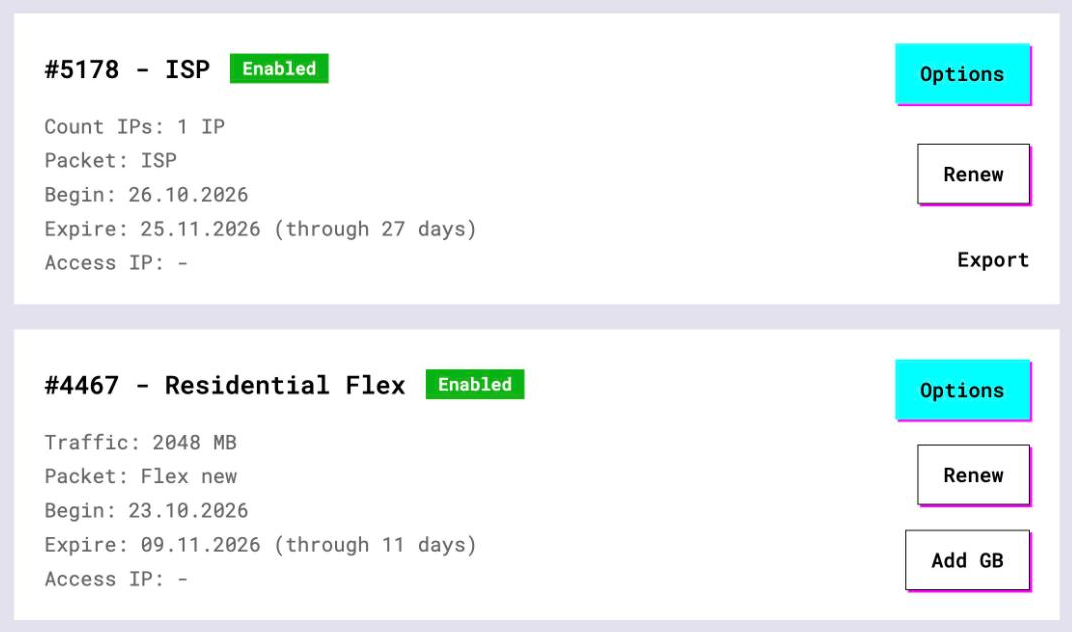
- Open the plan. For per-IP plans (datacenter, ISP) the IP list, ports, login and password sit right on the card, and Export hands you the whole list as text
- For residential and mobile plans click Options. The Proxy Configuration panel builds the login string with your country, city and session settings. Copy the finished line from the Proxy List
For Selenium you also want the whitelist. Find the public IP of the machine that runs the browser with curl https://ipinfo.io/json, then add it to the plan. The GeekProxy API does this in one call: POST /api/proxy/update-options with allowed_ip for per-IP datacenter plans, POST /api/resident-proxy/allowed-ips/add for the residential and mobile family. After that the proxy string is just IP:PORT, no login at all.
3 Selenium
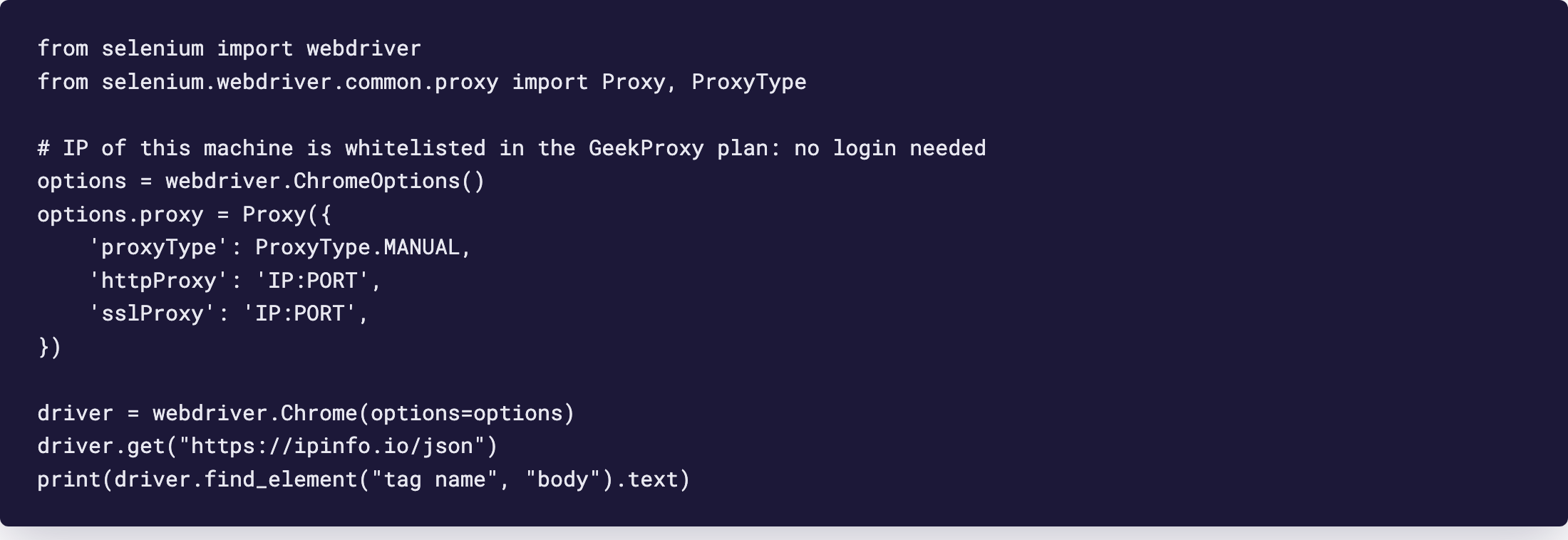
Selenium passes the proxy to the browser through the W3C proxy capability. The keys are proxyType, httpProxy, sslProxy, socksProxy, socksVersion and noProxy, and the host format is host:port without a scheme. In Python it looks like this, with the IP already whitelisted.
from selenium import webdriver
from selenium.webdriver.common.proxy import Proxy, ProxyType

options = webdriver.ChromeOptions()
options.proxy = Proxy({
    'proxyType': ProxyType.MANUAL,
    'httpProxy': 'IP:PORT',
    'sslProxy': 'IP:PORT',
})

driver = webdriver.Chrome(options=options)
driver.get("https://ipinfo.io/json")
print(driver.find_element("tag name", "body").text)
Java is the same idea: proxy.setHttpProxy("host:port") followed by options.setCapability("proxy", proxy). The alternative is Chrome's own switch, options.add_argument("--proxy-server=http://IP:PORT"). The Chromium syntax has no credential field. For SOCKS it is --proxy-server=socks5://IP:PORT, and Chromium recommends adding --host-resolver-rules="MAP * ~NOTFOUND , EXCLUDE IP" so the DNS prefetcher stops resolving names locally. --proxy-bypass-list keeps localhost off the proxy.
If you cannot whitelist: an extension
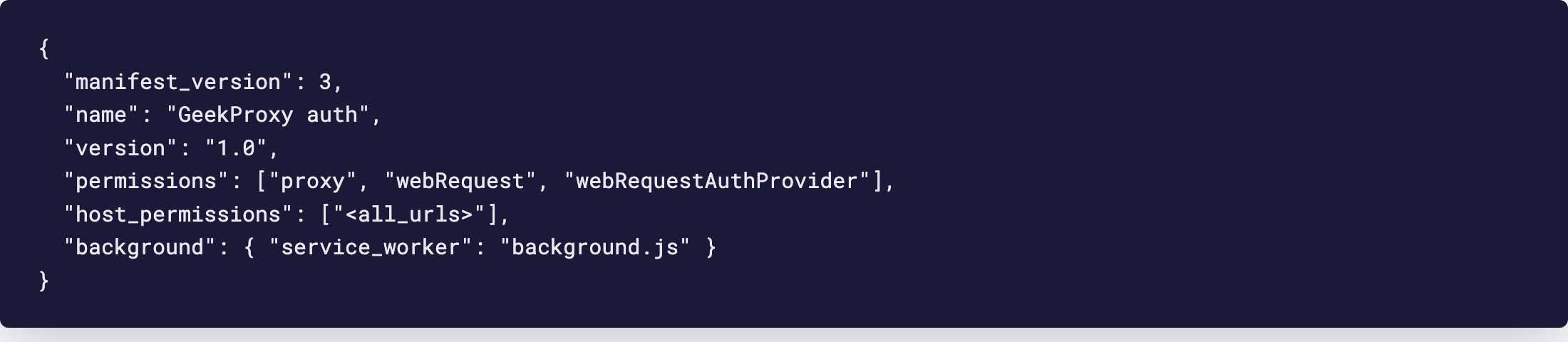
A shared runner with a changing IP cannot be whitelisted. The workaround is a tiny Chrome extension that sets the proxy and answers the login prompt itself. Manifest V3 needs the permissions proxy, webRequest and webRequestAuthProvider, the last one being required for onAuthRequired. The listener runs with asyncBlocking, since the old blocking permission is gone for ordinary extensions in V3.
// manifest.json
{
  "manifest_version": 3,
  "name": "GeekProxy auth",
  "version": "1.0",
  "permissions": ["proxy", "webRequest", "webRequestAuthProvider"],
  "host_permissions": ["<all_urls>"],
  "background": { "service_worker": "background.js" }
}

// background.js
chrome.proxy.settings.set({
  value: {
    mode: "fixed_servers",
    rules: { singleProxy: { scheme: "http", host: "IP", port: PORT } }
  }
});

chrome.webRequest.onAuthRequired.addListener(
  (details, callback) => {
    callback({ authCredentials: { username: "LOGIN", password: "PASSWORD" } });
  },
  { urls: ["<all_urls>"] },
  ["asyncBlocking"]
);
Pack the folder as a .crx and load it with options.add_extension("proxy-auth.crx"). Test it headful first; whether extensions load under the new headless mode is something to confirm on your own Chrome build.
You will also find selenium-wire in older answers. The project says it is no longer maintained; the repository was archived on 3 January 2024. It works by running a local intercepting proxy with its own CA, so sites see a different TLS fingerprint. Legacy only.
4 Puppeteer
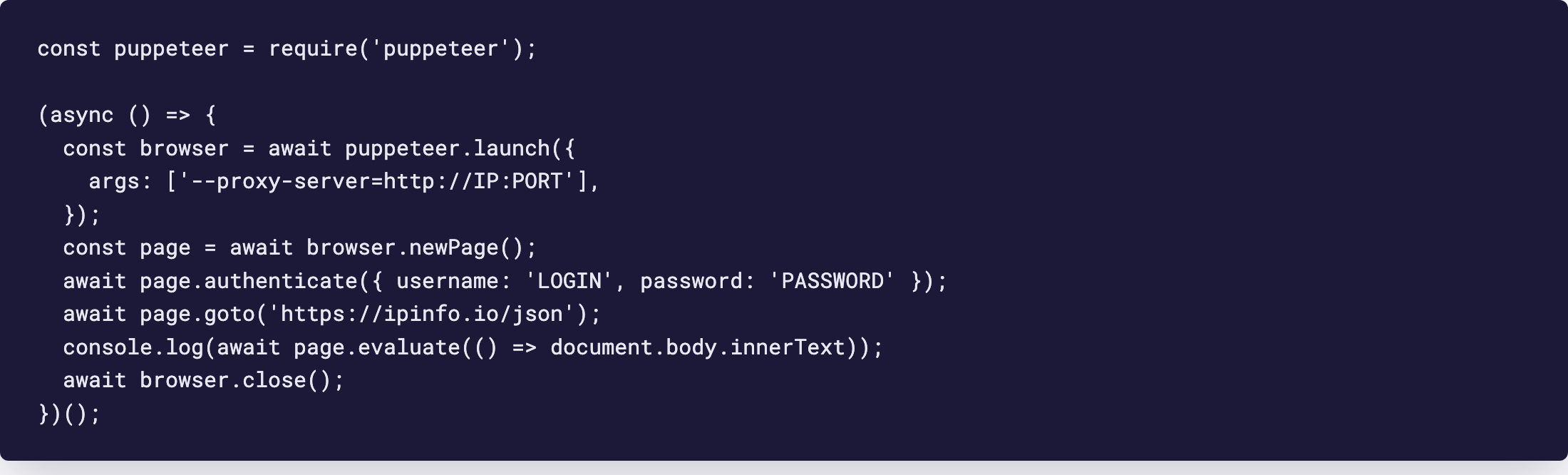
Puppeteer passes the proxy to Chromium through args and answers the login through page.authenticate(). The method takes { username, password }, has to run on every page before navigation, and turns request interception on behind the scenes, which the docs flag as a performance cost. Pass null to switch it off again.
const puppeteer = require('puppeteer');

(async () => {
  const browser = await puppeteer.launch({
    args: ['--proxy-server=http://IP:PORT'],
  });
  const page = await browser.newPage();
  await page.authenticate({ username: 'LOGIN', password: 'PASSWORD' });
  await page.goto('https://ipinfo.io/json');
  console.log(await page.evaluate(() => document.body.innerText));
  await browser.close();
})();
One browser process can also hold several proxies. browser.createBrowserContext({ proxyServer, proxyBypassList }) gives each context its own proxy server and bypass list; username and password still go through page.authenticate on each page of that context. That is the cheap way to run five accounts on five GeekProxy sessions without launching five Chromes.
5 Playwright
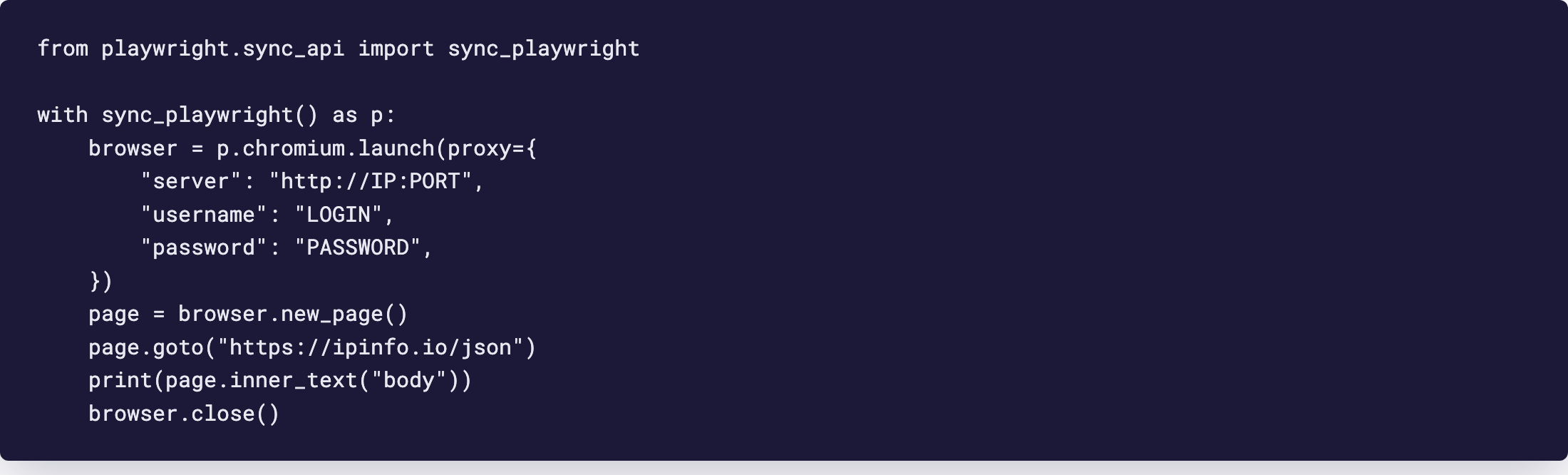
Playwright is the tidiest of the three. The proxy option has four fields: server, username, password and bypass, and the docs say outright that you can set username and password for an HTTP(S) proxy. server takes http://host:port or socks5://host:port; the short form host:port is treated as HTTP. The option goes either on the browser at launch or on each context.
# Python
from playwright.sync_api import sync_playwright

with sync_playwright() as p:
    browser = p.chromium.launch(proxy={
        "server": "http://IP:PORT",
        "username": "LOGIN",
        "password": "PASSWORD",
    })
    page = browser.new_page()
    page.goto("https://ipinfo.io/json")
    print(page.inner_text("body"))
    browser.close()
// Node, one proxy per context
const browser = await chromium.launch();
const context = await browser.newContext({
  proxy: {
    server: 'http://IP:PORT',
    username: 'LOGIN',
    password: 'PASSWORD',
    bypass: 'localhost, 127.0.0.1',
  },
});
The Python equivalent is browser.new_context(proxy={...}). Per-context proxies are the natural fit for GeekProxy sticky sessions: one context per session string, each with its own cookies and its own exit IP.
6 Verify it works
Every snippet above opens https://ipinfo.io/json and prints the body. Compare the ip field with the same page opened without a proxy on the same machine. Different IP, you're through.
Running several contexts? Open the same URL in each and read the bodies side by side. Two different IPs confirm that the per-context proxy took effect. If both show the same address, the proxy was set on the browser rather than the context, or both contexts use the same session string.
7 Which GeekProxy product fits
A browser session needs the same exit IP for the life of its cookies, usually minutes to hours, plus a reputation that consumer sites accept. That points to Residential Turbo with a sticky session of 1 to 1440 minutes, over HTTP or SOCKS5, or Residential Flex with a static session of 1 to 120 minutes, TCP only, with the Windows or Android exit filter for per-task runs. Accounts that must keep one IP for weeks belong on ISP static or datacenter IPv4. For Puppeteer and Playwright take the HTTP strings with login and password. For Selenium pair the plan with an IP whitelist, which also lets you use SOCKS5 there. Mobile is for targets that insist on a carrier network.
8 Common issues
Chrome shows a proxy login dialog, or the page fails with a proxy error
Selenium cannot answer the 407. Whitelist the runner's IP and drop the credentials from the proxy string, or load the extension from section 3.
SOCKS5 with a password never connects
Chromium has no SOCKS5 authentication, and Playwright's maintainers say the same for their browsers. Switch to HTTP with login and password, or keep SOCKS5 and whitelist the IP.
Puppeteer gets 407 on the first page
page.authenticate() ran after goto(), or on a different page. Call it on every new page before the first navigation, including pages inside a context created with proxyServer.
Local dev server stops responding
Requests to localhost are going out through the proxy. Add bypass in Playwright, proxyBypassList in Puppeteer or --proxy-bypass-list in Chrome.
DNS queries leak with a SOCKS proxy in Chrome
Chrome's DNS prefetcher resolves names locally regardless of --proxy-server. Add --host-resolver-rules="MAP * ~NOTFOUND , EXCLUDE IP" as Chromium suggests.
A site still sees my real IP
Usually WebRTC. None of the three proxy options covers it, so disable or test WebRTC separately before trusting a session.
Get proxies for browser automation
Sticky residential sessions over HTTP, or static ISP and datacenter IPs, ready in seconds.
Place an order