
Set up GeekProxy in Android
Android has a built-in proxy field, but it sits inside a Wi-Fi network's settings, takes no password and is honoured mainly by the browser. For everything else there are VPN-style apps that push all traffic through a SOCKS5 or HTTP proxy. This guide covers the Wi-Fi field, ProxyDroid and NekoBox, and says a word about SocksDroid.
You'll need: an active GeekProxy plan and the proxy credentials from your dashboard. The Wi-Fi field takes a minute, an app about five.
Get proxies1 Before you start
Pick the route first, because the two routes want different lines from your dashboard.
The Wi-Fi proxy field is part of one saved Wi-Fi network. It is HTTP only, and there is no username or password anywhere. Android itself warns in the settings UI that the HTTP proxy "is used by the browser but may not be used by the other apps". The system API behind it, ProxyInfo.buildDirectProxy, takes a host, a port and an exclusion list. Nothing else. So this route needs a plan in IP whitelist mode, and only the browser is guaranteed to use it.
Proxy apps built on Android's VpnService take the other path. They register as a VPN, catch all TCP traffic of all apps, and forward it to a SOCKS5 or HTTP proxy with a login and password. ProxyDroid 3.4.0 and NekoBox 1.4.2 are the two we describe. SocksDroid is the old favourite, SOCKS5 only, and its own README says the project is in maintenance mode with no new features planned, so we mention it and move on.
What you'll need
- Active GeekProxy plan (ISP, datacenter or residential)
- Proxy credentials from your dashboard: Host, Port, Username, Password
- For the Wi-Fi route: the plan switched to IP whitelist mode. For the app route: ProxyDroid from Google Play (package org.proxydroid) or NekoBox from GitHub Releases
- FieldWhere it comes from
- ProtocolHTTP for the Wi-Fi field, SOCKS5 or HTTP in the apps
- HostIP or gateway hostname from the dashboard
- Portfrom the dashboard
- Usernamefrom the dashboard (apps only)
- Passwordfrom the dashboard (apps only)
2 Where to get your credentials
- Log in to your GeekProxy dashboard
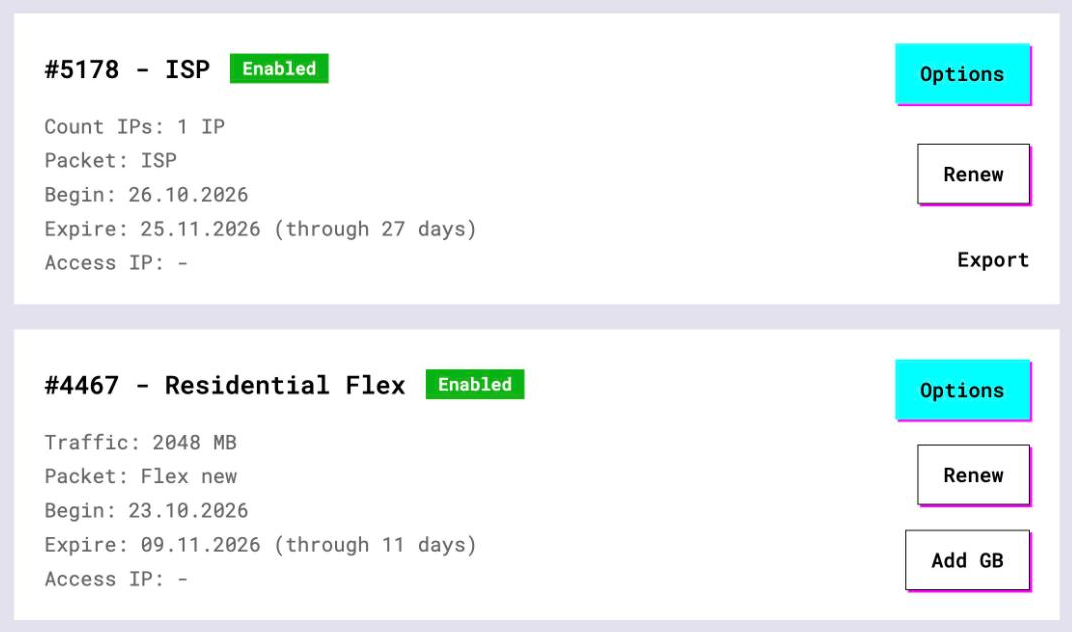
- Open the plan. For per-IP plans (ISP, datacenter) the address, port, login and password are on the card, and Export gives you the whole list as text
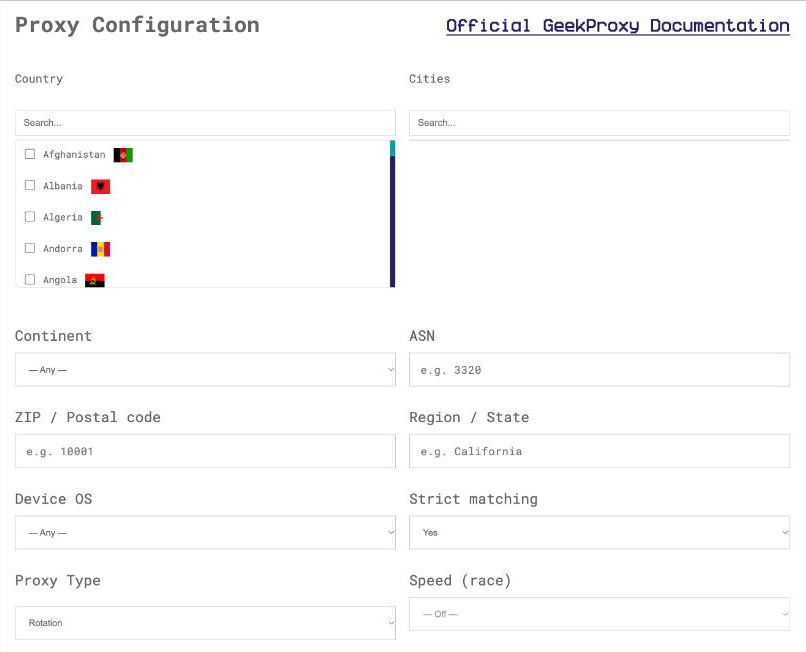
- For residential plans click Options. The Proxy Configuration panel builds a login string with your country, device OS and session settings. Copy host, port and the login from the Proxy List
3 The Wi-Fi proxy field
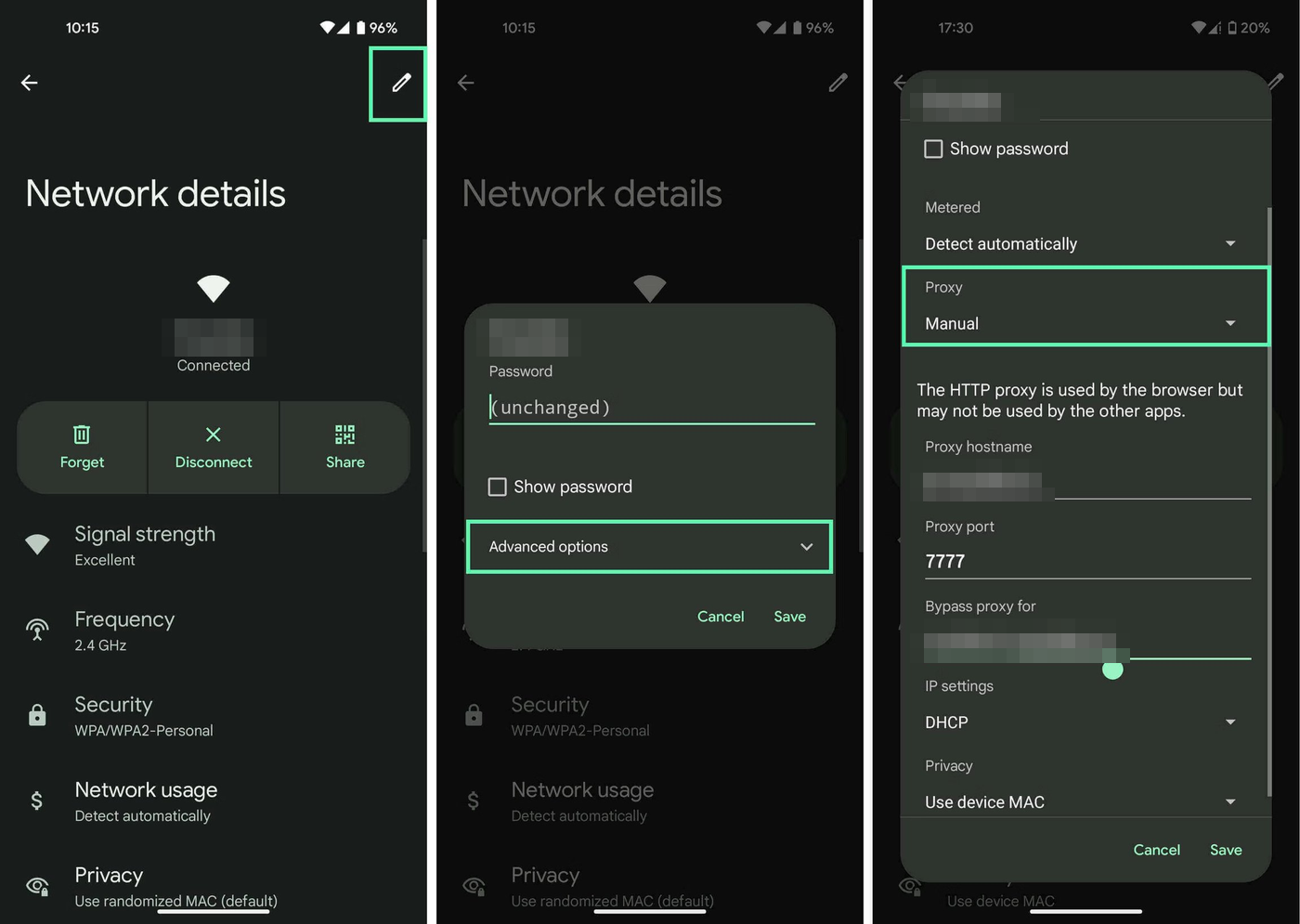
Open the Wi-Fi settings and open the saved network you are connected to for editing. Among its options is a section called Proxy with three choices: None, Manual and Proxy Auto-Config. The labels here are stock Android. Samsung and other manufacturers reword their settings apps, so look for the same meaning rather than the same words.
- Set Proxy to Manual
- Proxy hostname: the host from your dashboard
- Proxy port: the HTTP port
- Bypass proxy for: optional, hosts that should go direct
- Save the network
Because there is no credential field, the plan must be in IP whitelist mode, and the whitelisted address is the public IP of that Wi-Fi network. Mobile hotspots and home lines change address often enough that this route is for a fixed office or home Wi-Fi, not for a phone on the move.
The Wi-Fi proxy is tied to that one saved network. Join a different Wi-Fi and the proxy is not there. Apps with their own network stack may skip it even on the configured network, as Android's own warning says.
4 ProxyDroid
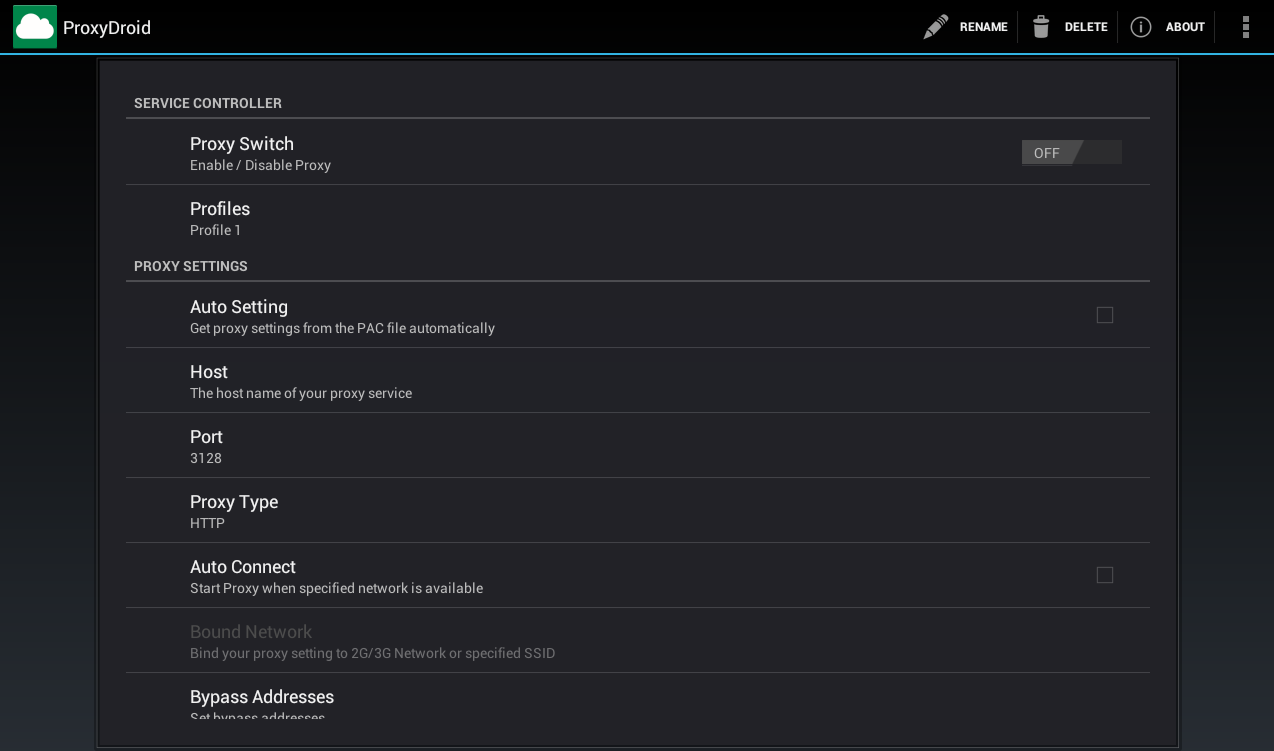
ProxyDroid is free and GPLv3. Version 3.4.0 from February 2026 rewrote the app in Kotlin and added a rootless VPN mode on Android's VpnService API, switched on by default. The README names two upstream types: SOCKS5 with optional username and password, and HTTP CONNECT with optional Basic auth. Selected apps can be kept out of the tunnel.
- Proxy Type: SOCKS5 (HTTP also works with a GeekProxy HTTP port)
- Host: the host from your dashboard, Port: the matching port
- Turn on Enable Authentication and fill User and Password
- Keep VPN Mode on. The description reads "Use VPN-based proxy (no ROOT required)"
- Start the proxy and accept the VPN connection request from Android
The app's string list still carries older root-only options such as Global Proxy and Individual Proxy, both marked as needing ROOT and iptables. Ignore them on a normal phone. There is a DNS Proxy switch whose own description says to turn it on only if you know what it is. We take the hint and leave it off.
5 NekoBox
NekoBox for Android is a sing-box front end, GPL-3.0, and the developers call it a node-debugging tool for users with some background. Install it from GitHub Releases only. The README states that the Google Play version has been controlled by a third party since May 2024 and is not open source. The latest release is 1.4.2 from February 2026.
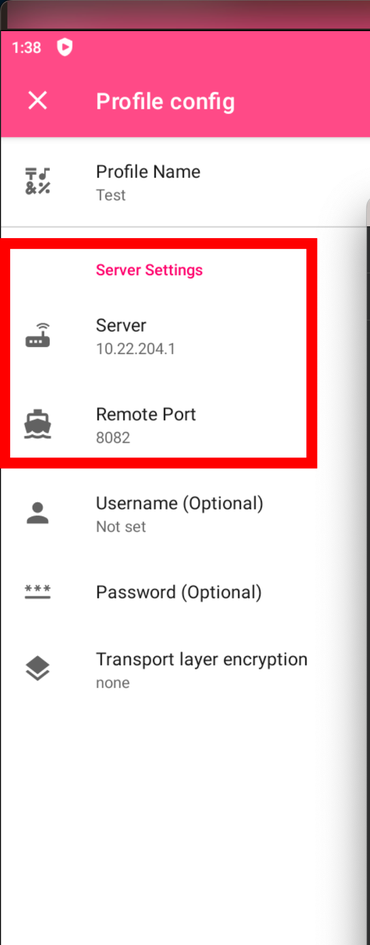
- Tap Add Profile, then Manual Settings, and pick the SOCKS or HTTP type
- Server: the host from your dashboard, Remote Port: the port
- Username and Password: from the dashboard
- In Settings set Service Mode to VPN. "Proxy only" just opens a local port and catches nothing by itself
- Select the profile and start. Accept the VPN request
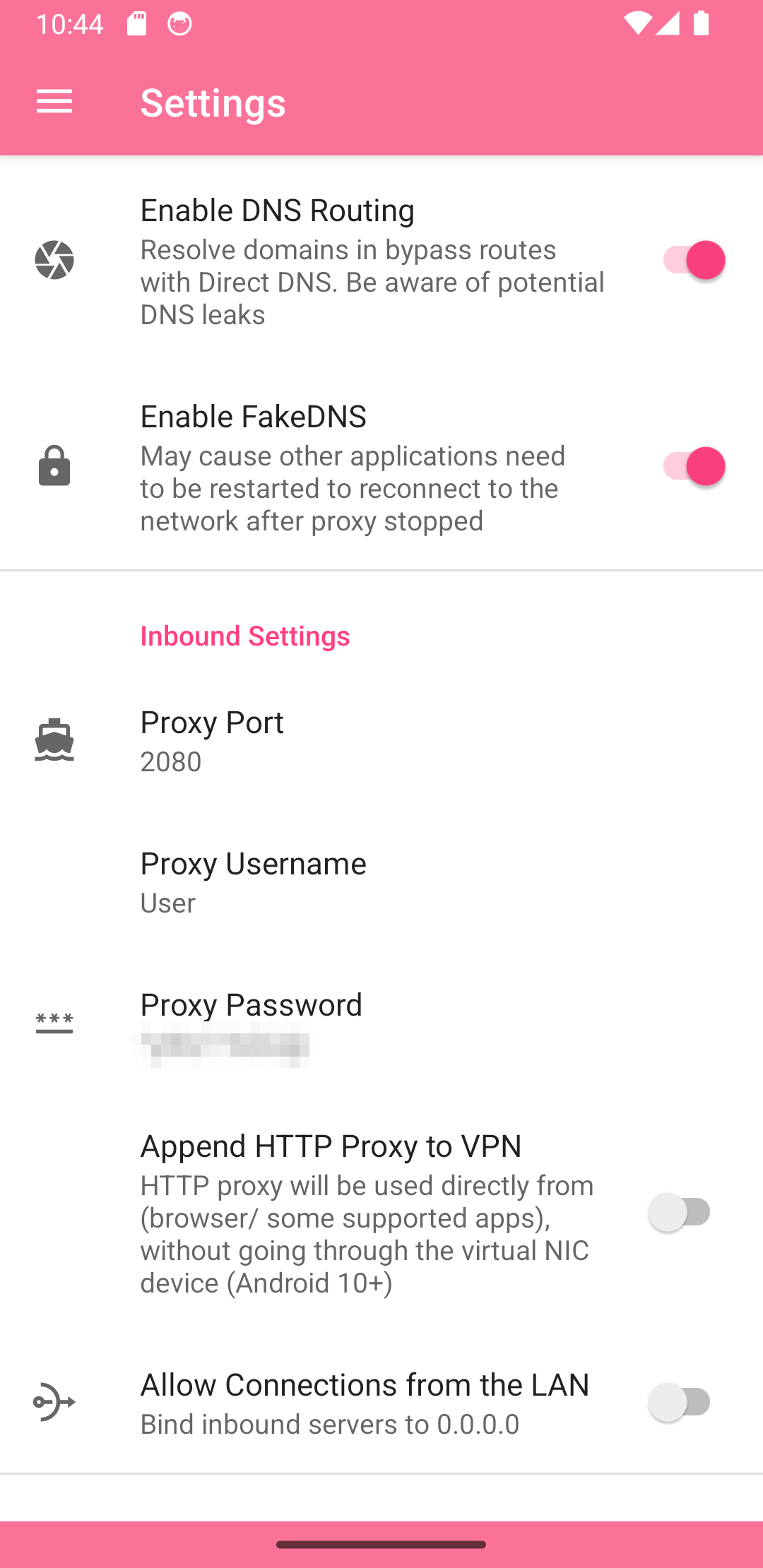
DNS deserves a minute. With Enable DNS Routing off, the docs say all DNS goes to the Remote DNS, which travels through the proxy. With it on, Direct DNS handles the bypass-rule domains. The docs also advise switching off Android's Private DNS, since DNS over TLS can loop around the app's routing. Per-app rules (Apps VPN mode, Bypass) work only in VPN mode.
SocksDroid still works for a plain SOCKS5 line: Server IP, Server Port, the Username & Password Authentication toggle, done. Leave UDP Forwarding off. It relies on a helper that must run on the proxy server, which a commercial proxy does not provide.
6 Verify it works
Open https://ipinfo.io/json in Chrome. The ip field must show the proxy address, not your own. On an ISP or datacenter plan that is the address from your dashboard, on Residential or Turbo it is an address from the pool in the country you picked. With the Wi-Fi route that proves the browser. With an app in VPN mode, open any other app that shows its connection details and check it too, since the tunnel should cover everything.
7 Which GeekProxy product fits
For the Wi-Fi field take an ISP static or datacenter IPv4 HTTP port in IP whitelist mode, and only on a Wi-Fi whose public address doesn't wander. In ProxyDroid or NekoBox the login and password route opens everything up: the same ISP and datacenter lines over SOCKS5, Residential Turbo with the gateway hostname in the Server field and a sticky session in the username, or Residential Flex on euf, usf or asf.geekproxy.net port 8888 with the Android exit filter, which pairs nicely with a phone. Flex is TCP only. The Mobile product works like any other line in these apps, with UDP only after support approval.
8 Common issues
Wi-Fi proxy is set but pages don't load
The plan is on login and password, and the Wi-Fi field has nowhere to put them. Switch the plan to IP whitelist in the dashboard and add the Wi-Fi network's public address.
Only Chrome goes through the Wi-Fi proxy
That is the documented behaviour: the HTTP proxy is used by the browser and may not be used by other apps. For all apps use ProxyDroid or NekoBox in VPN mode.
The proxy stopped after switching Wi-Fi
The field belongs to one saved network. Set it again on the new one, and remember the whitelist now needs the new network's address.
NekoBox connects but some sites resolve wrong
Android Private DNS is bypassing the app. Turn it off, and check that Remote DNS is set and DNS Routing matches what you want.
Voice calls and games still show my real location
Those are UDP. The Wi-Fi proxy never carries UDP, and SocksDroid can't forward it through a commercial SOCKS5 proxy. Treat these apps as TCP tunnels.
Get proxies for Android
Residential Flex with an Android exit filter, Turbo sticky sessions, ISP and datacenter IPs over SOCKS5 or HTTP.
Place an order