
Set up GeekProxy in GeeLark
GeeLark runs Android cloud phones on its own servers, and the proxy you attach to a phone carries the whole device's traffic, apps included. That makes it a handy way to test an app from another country, check localisation or look at a market from a local address. This guide covers the Proxies list, the bulk add, the Proxy settings of a new profile and which GeekProxy product suits a phone that stays signed in.
You'll need: an active GeekProxy plan and the proxy credentials from your dashboard. One phone takes about three minutes.
Get proxies1 Before you start
The desktop client exists for macOS (Apple Silicon and Intel, with builds back to 10.15), Windows 10 x64 and Ubuntu 22.04, and there is a web login as well. The phone itself is a server-side Android device, versions 9 to 16. The free tier gives 2 profiles and every new account gets 30 minutes of cloud phone time. After that a running phone costs $0.007 per minute with a daily cap of $1.2 per device. Billing runs until you shut the phone down, so don't leave one idling.
GeeLark's help center says it supports static and dynamic HTTP, HTTPS and SOCKS5 proxies, with username and password. Because the exit of a cloud phone is GeeLark's own server, not your computer, an IP whitelist is awkward: you'd have to know that server's address. Login and password is the practical way in.
What you'll need
- Active GeekProxy plan (mobile, ISP, residential or datacenter)
- Proxy credentials from your dashboard: Host, Port, Username, Password
- A GeeLark account with free minutes or a paid plan
- FieldWhere it comes from
- ProtocolHTTP / SOCKS5
- HostIP or gateway hostname from the dashboard
- Portfrom the dashboard
- Usernamefrom the dashboard
- Passwordfrom the dashboard
2 Where to get your credentials
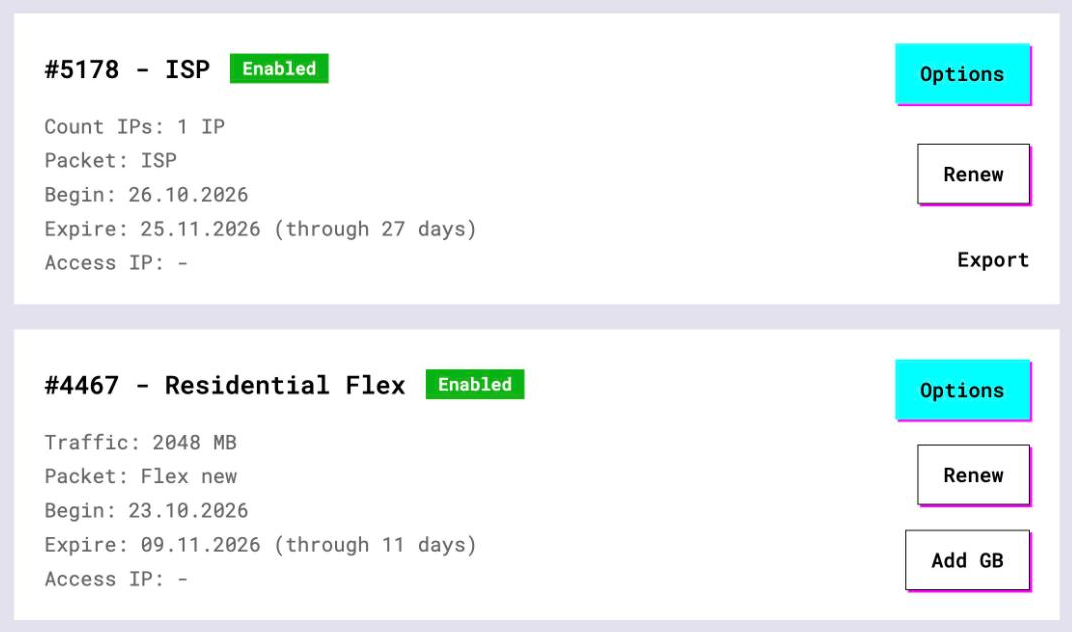
- Log in to your GeekProxy dashboard and open Subscriptions
- Open the plan. For per-IP plans (ISP, datacenter) the IPs, ports, login and password are listed right there. Export gives you the whole list as text, ready for Bulk add
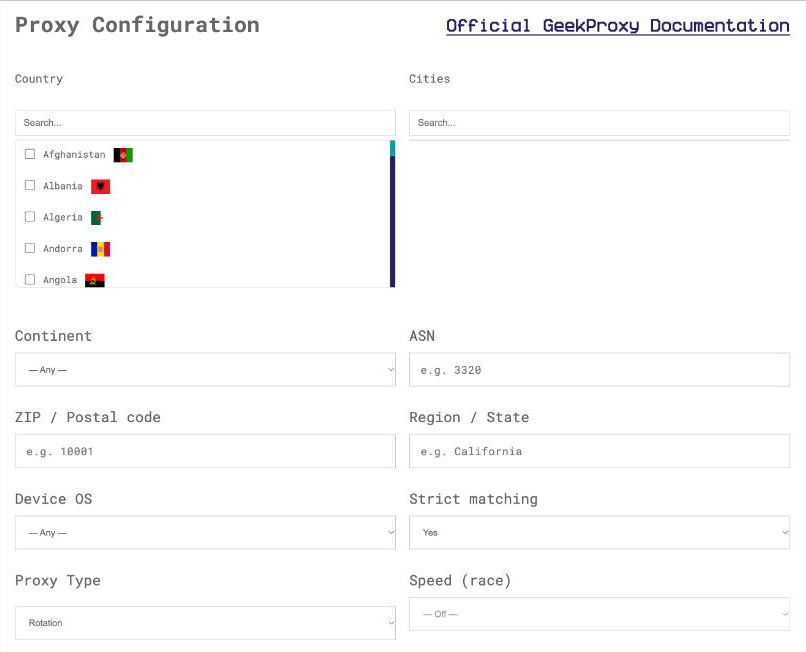
- For residential and mobile plans click Options. The Proxy Configuration panel builds the login string with your country, city and a long sticky session. Copy one line per phone from the Proxy List
3 Add proxies to the Proxies list
In the left sidebar open Proxies and click Add Proxy. Select the proxy type and a group, then fill in host, port, username and password. There is also an IP query channel field, which picks the geo lookup used to label the country. The help center says the default is usually fine. Press Check Proxy. The help center is strict here: save the proxy only once the check succeeds, and a proxy that fails the check cannot be saved at all.
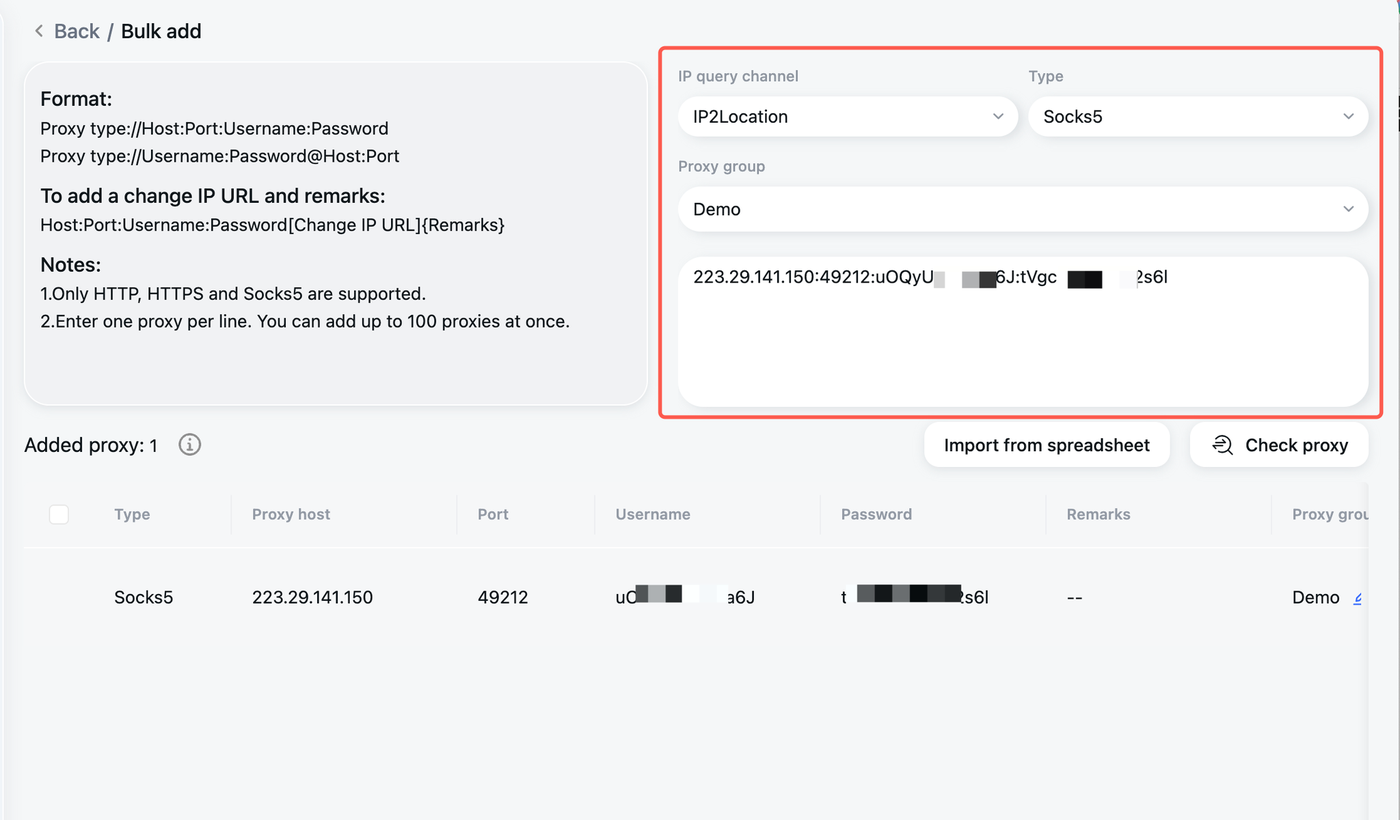
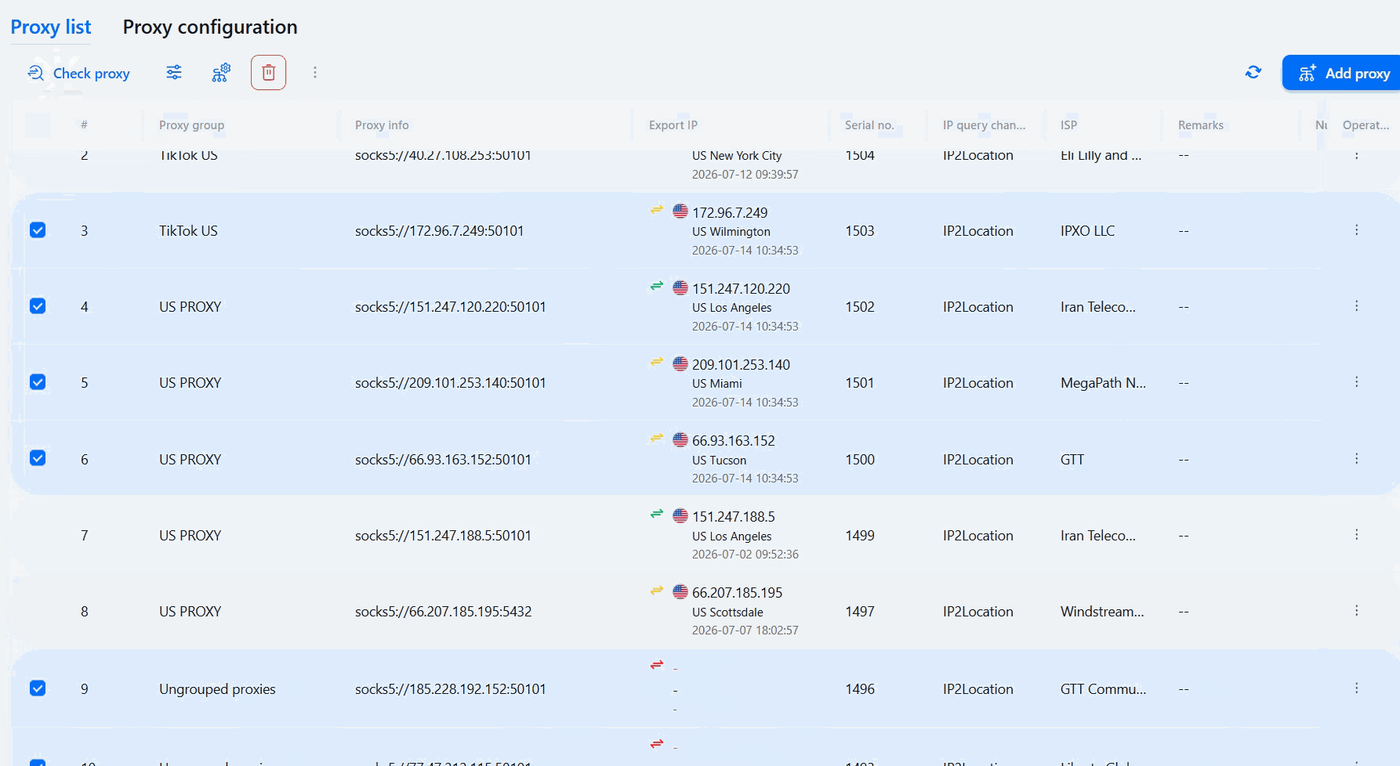
For a list, click Add proxy and choose Bulk add. Pick the type, for instance SOCKS5, choose or create a proxy group, and paste one proxy per line. GeeLark parses each line into host, port, username and password rows. Documented shapes:
IP:PORT:LOGIN:PASSWORD
socks5://IP:PORT:LOGIN:PASSWORD
IP:PORT@LOGIN:PASSWORD
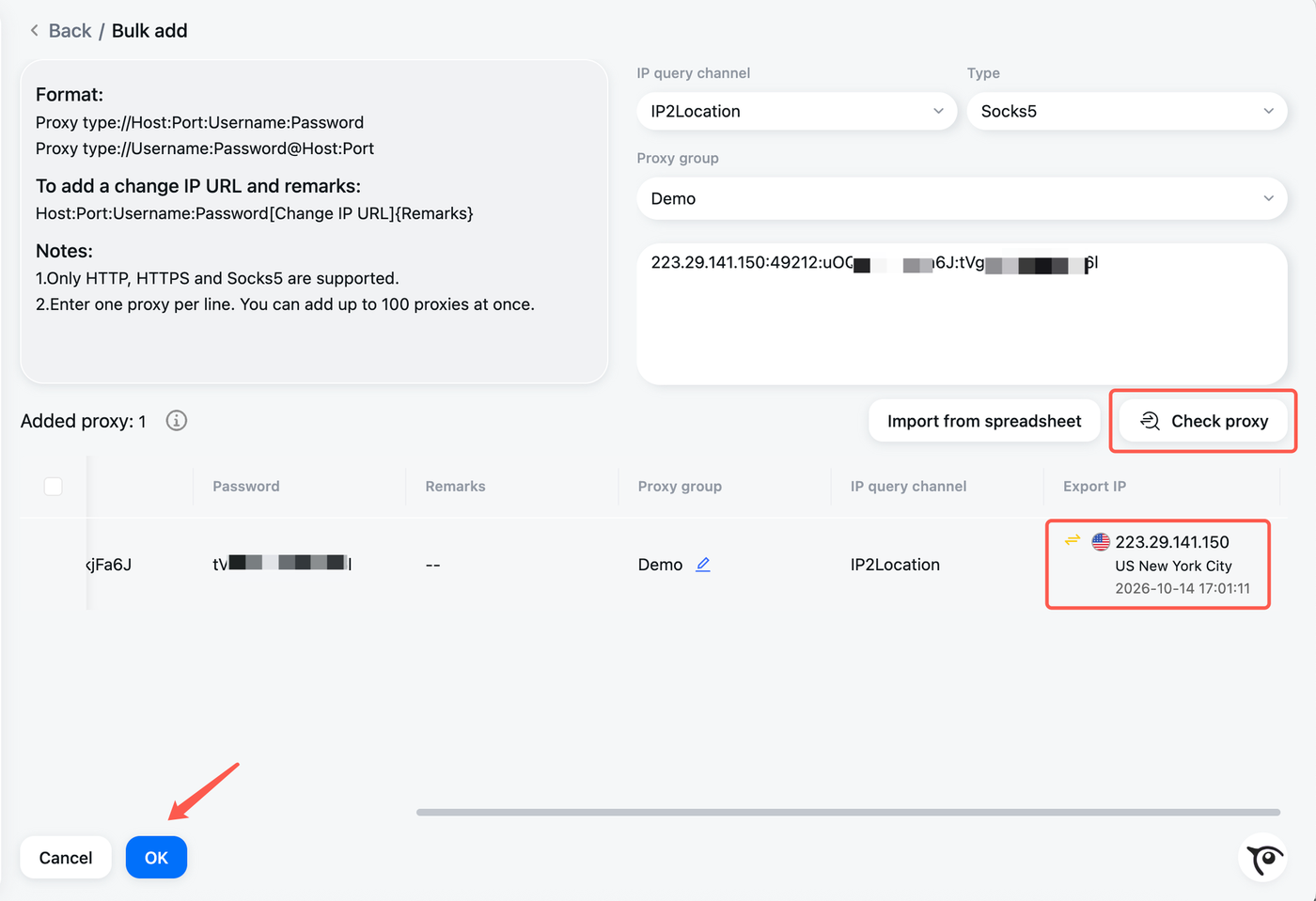
The third shape may carry a remark in parentheses at the end. Click Check proxy. For every working line the Export IP column fills with the exit IP, country or region, city and the check time. Then OK. The same list later shows how many cloud phones use each proxy and your remarks.
4 Attach a proxy to a cloud phone
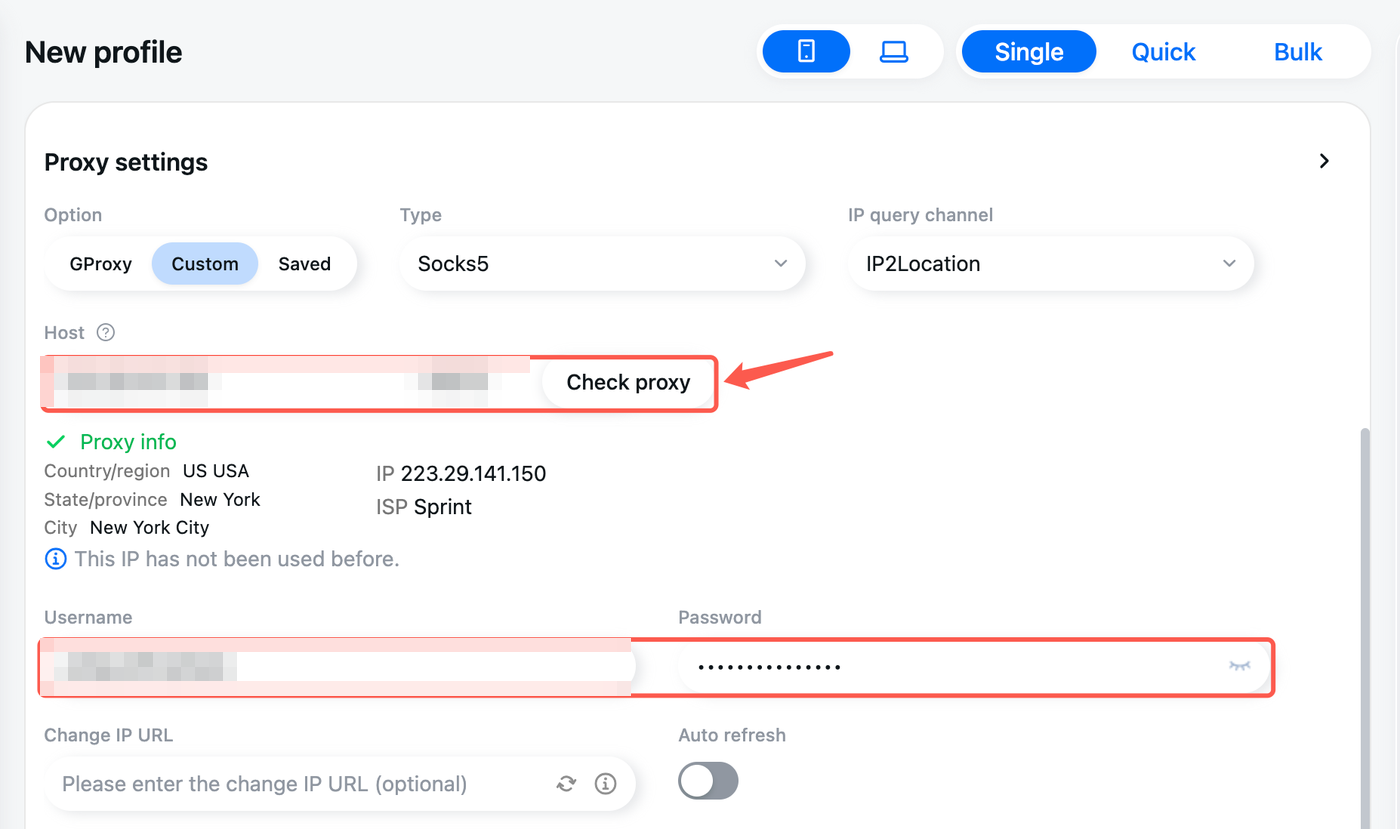
Open Profiles and click New Profile. Under Proxy settings there are three sources: a purchased GProxy, a custom proxy, or a saved proxy from the Proxies list. With Custom you enter Proxy type, Host, Port, Username, Password and an optional Change IP URL. With Saved you pick one of your imported proxies, and the list shows its country, your remarks and how many profiles already use it. Either way press Check Proxy and confirm the connection works and the location is right.
Two settings in the same form decide how the phone presents itself. Region should stay on Base on IP, the help center's own recommendation; a custom setting requires you to name a region. Language defaults to English, and Base on IP switches it to the language of the proxy country. For a localisation test that is the whole point, so set both to Base on IP.
Later changes go through the three-dot menu of a profile and Change proxy. With several profiles selected you can give them the Same proxy or Different proxies. The Random from saved option takes a proxy group and assigns a different saved proxy to each phone. Leave Change IP URL empty for GeekProxy, there is nothing to call.
5 Verify it works
Start the phone and open https://ipinfo.io/json in its browser. The ip field must show the proxy address, not your own. On an ISP or datacenter plan that is the address from your dashboard, on Residential or Turbo it is an address from the pool in the country you picked. Compare it with the Export IP column in the Proxies list. Then open the app you came to test and see whether it serves the local version. Shut the phone down when you're done, the meter runs until you do.
6 Which GeekProxy product fits
A cloud phone behaves like a handset that stays signed in, and GeeLark's own blog warns against per-request rotation on such devices. So the exit must hold for the life of the profile. Mobile gives the phone a carrier IP, which is what an Android device is expected to have. ISP static gives one fixed IP for the rental period with no traffic counter. Residential Turbo sticky sessions are the cheaper per-phone exit, and over SOCKS5 they also carry the UDP that apps use; set the session long. Residential Flex with the Android exit filter works for TCP-only app traffic, but its session lives for minutes, so re-check the phone after it expires. Rotating Turbo and shared datacenter IPs are for short tasks only.
7 Common issues
The proxy can't be saved
The check failed, and GeeLark refuses to save a failed proxy. Match the type to the port, re-paste the line in one of the three shapes, and check again.
Country in Export IP is wrong
Change the IP query channel in the proxy and check again. Different lookup sources label the same IP differently. The country from https://ipinfo.io/json inside the phone is the tie-breaker.
The app still shows the wrong language
Region and Language are on a custom value. Set both to Base on IP, then restart the phone so the location is re-matched.
The balance keeps dropping
A phone that is still running bills per minute up to the daily cap. Shut it down from the profile list when the test is over.
Session changed mid-test
A rotating line or a Flex session that expired. Use a sticky Turbo string with a long session, or a mobile or ISP address, and re-check the phone.
Get proxies for GeeLark
Mobile carrier IPs, static ISP addresses and long sticky residential sessions, HTTP and SOCKS5 with login and password.
Place an order