
Set up GeekProxy in Ghost Browser
Ghost Browser is a Chromium browser that splits one window into Identities and Workspaces, each with its own cookies. Proxies come through the Ghost Proxy Control extension, which pins an address to a tab, an Identity or a whole Workspace. This guide covers adding GeekProxy entries, the three assignment levels and their pecking order, and the auto-assign rotation.
You'll need: an active GeekProxy plan and the proxy credentials from your dashboard. Setup takes about ten minutes.
Get proxies1 Before you start
Ghost Browser runs on Windows, macOS and Linux. The Free Version needs no account, gives up to three Identities and, per the pricing page, includes Ghost Proxy Control for assigning a proxy by Workspace or Identity. Per-tab assignment is a Pro Plan feature. The Basic Plan has no proxy control at all. One caveat: the support article from August 2024 still calls the extension a Pro-only product, so check what your build shows before you count on the free tier.
- Accepted types: http, https, IPv6 and SOCKS5. A SOCKS5 entry needs the scheme in the Host field,
socks5://IP - Hostnames are fine. The Host hint itself names a
subdomain.yourproxyprovider.netshape next to a plain address - Username and Password are optional fields. On an IP-whitelist plan leave them empty
- Pecking order: a tab beats a Temporary Identity, a Temporary Identity beats a Workspace, and anything set under Override connection for beats Auto-Assign
What you'll need
- Active GeekProxy plan (ISP, residential, mobile or datacenter)
- Proxy credentials from your dashboard: Host, Port, Username, Password
- Ghost Browser with the Ghost Proxy Control icon in the extension bar
- Field Where it comes from
- Protocol HTTP / SOCKS5
- Host IP or gateway hostname from the dashboard
- Port from the dashboard
- Username from the dashboard
- Password from the dashboard
2 Where to get your credentials
- Log in to your GeekProxy dashboard
- Open the plan. For per-IP plans (datacenter, ISP) the IP list, ports, login and password sit right on the card, and Export hands you the whole list as text
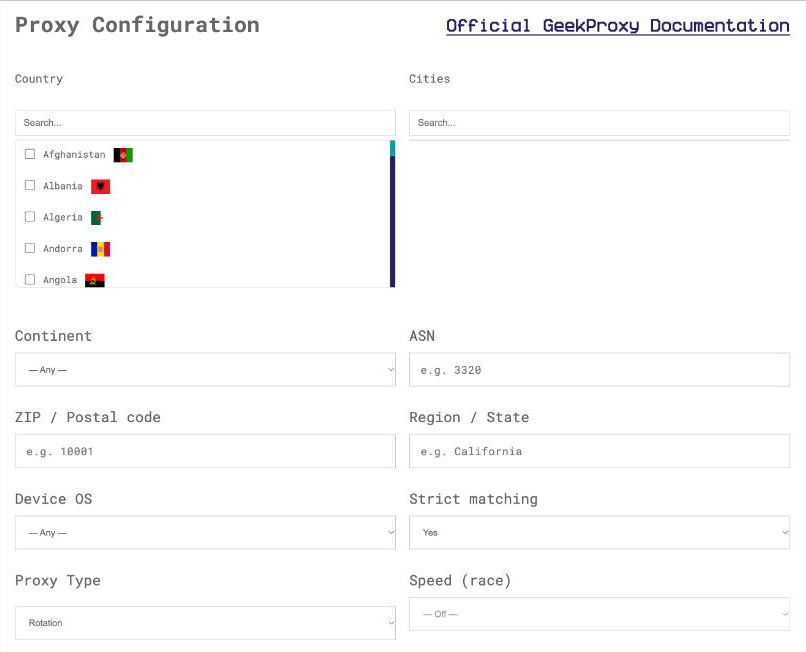
- For residential and mobile plans click Options. The Proxy Configuration panel builds the login string with your country, city and session settings. Copy the finished line from the Proxy List
Each Identity gets its own entry in the extension, so a residential plan means one sticky-session login per Identity. Build them in Options one after another and the session part of the username keeps each Identity on its own exit.
3 Add proxies to Ghost Proxy Control
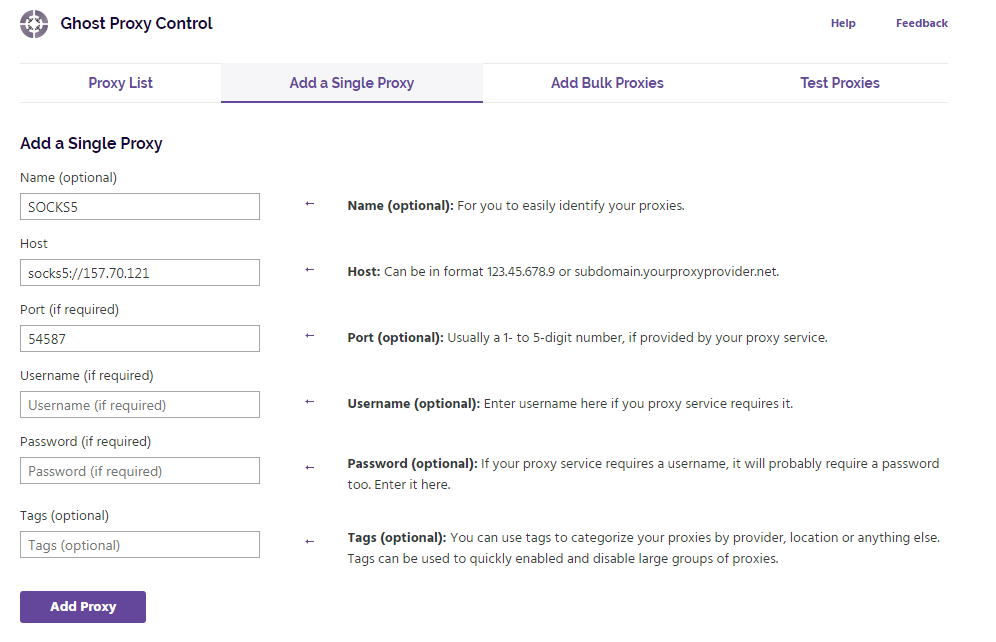
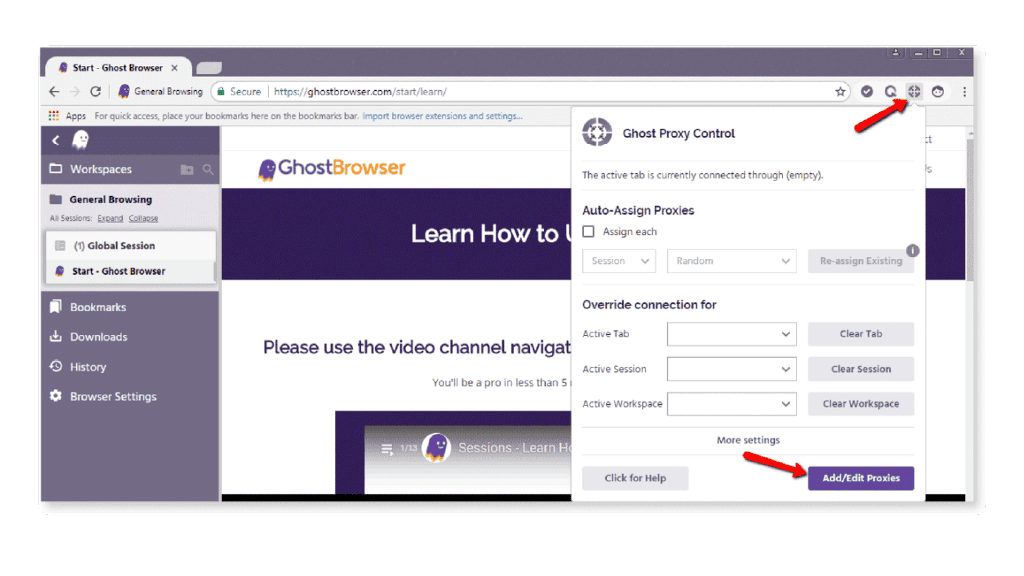
Click the Ghost Proxy Control icon in the extension bar and choose Add/Edit Proxies from the dropdown. A settings tab opens with five tabs of its own: Proxy List, Add a Single Proxy, Add Bulk Proxies, Bypass Proxies and Test Proxies. Start on Add a Single Proxy. Fill Name (optional), Host, Port (if required), Username (if required), Password (if required) and Tags (optional), then press Add Proxy. Tags are worth a second of thought: they switch large groups of proxies on and off at once, so tag by plan or by client.
For a whole list use Add Bulk Proxies. Press Export Proxy List first: it downloads a pre-formatted CSV, and the help asks you not to add or rename columns. Fill the rows from your GeekProxy export. The Custom Name column is required but may stay blank, in which case the proxies are numbered for you. Then press Import Proxy List.
For SOCKS5, type socks5://IP in the Host field, the port in Port, and the login and password in their fields if the plan uses them.
Chromium itself cannot send a login and password to a SOCKS5 proxy. The extension's help describes username and password fields for socks5 entries. If the Test fails on such an entry, switch to HTTP with login and password, or to SOCKS5 with IP whitelist. Both are one click in the dashboard.
4 Assign a proxy to a tab, Identity or Workspace
Click the extension icon again. The popup has a section called Override connection for with three dropdowns: Active Tab, Active Identity and Active Workspace, each with its own Clear button. Pick your entry in the dropdown that matches the scope you want, then press Reload. The same dropdowns offer Direct (no proxy), which routes traffic back through your own connection, and System Proxy.
The hierarchy from the help, in one breath: a proxy on a tab overrides the Temporary Identity and the Workspace, a proxy on a Temporary Identity overrides the Workspace. Whatever you set here also overrides Auto-Assign. When a result looks wrong, walk up that ladder.
Permanent Identities
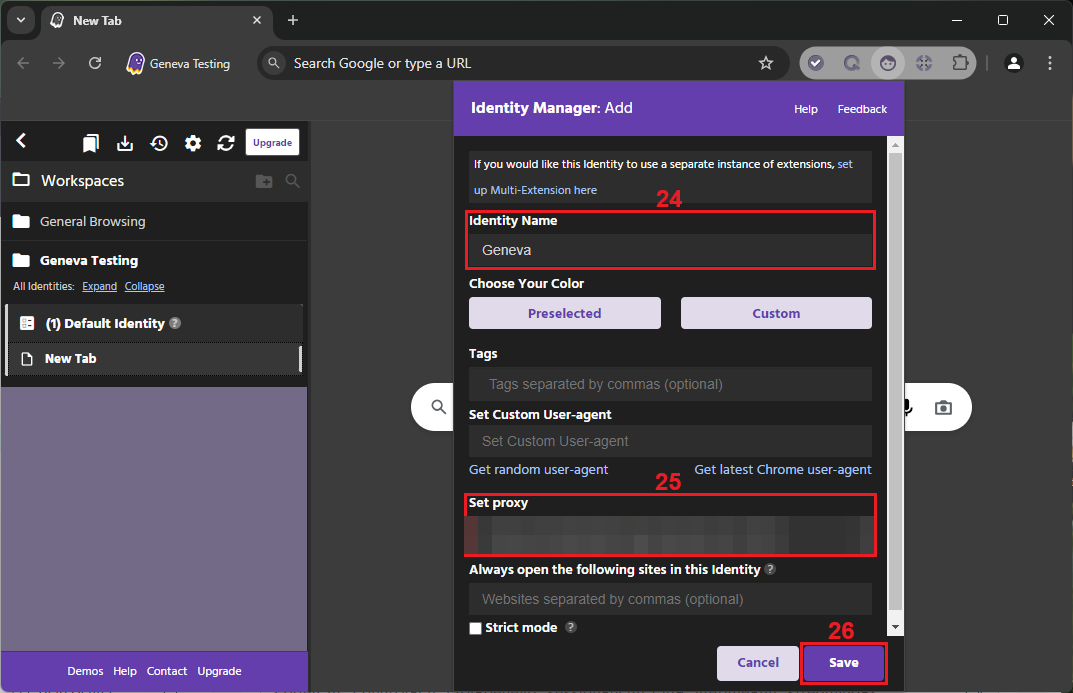
A Temporary Identity forgets its proxy the moment its tab closes. A permanent Identity keeps it. Open the Identities icon and click the Set Proxy link under the Identity, then pick the entry. New Identities can be born with one: the Identity Manager: Add dialog has a Set proxy dropdown right next to Set Custom User-agent. Resetting an Identity keeps its initial properties, the proxy assignment included.
5 Auto-assign and rotation
The lower half of the popup is Auto-Assign Proxies. Tick Assign each and choose tab or Tmp. Identity in the dropdown beside it. Every new tab or Temporary Identity then takes a proxy from the list by the mode you pick: Random, Random (no repeat) or Next proxy in list. Re-assign Existing re-rotates all open Temporary Identities in one go. Tags decide which entries take part, so an export of ten ISP addresses under one tag becomes a ten-slot rotation.
Remember the order of precedence. If a tab or Identity already has an override, auto-assign does not touch it. If this section is greyed out in the free version, that is a plan limit, not a bug.
6 Verify it works
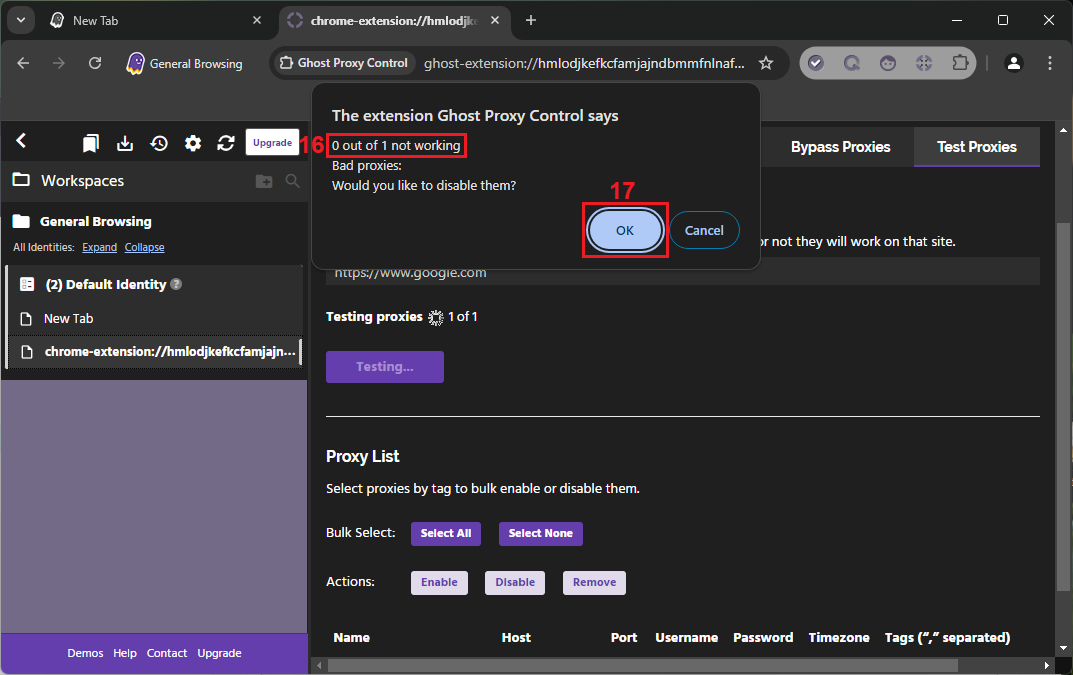
Three checks, cheapest first. The Test Proxies tab, or the Test button next to an entry, tells you whether the extension can reach the proxy. A right-click in any tab shows the current IP toward the bottom of the context menu, which is the quickest way to confirm the assignment. And https://ipinfo.io/json in the tab shows what the site sees.
The ip field must show the proxy address, not your own. On an ISP or datacenter plan that is the address from your dashboard, on Residential or Turbo it is an address from the pool in the country you picked. From a terminal, the same test in one line:
curl -x http://LOGIN:PASSWORD@IP:PORT https://ipinfo.io/json
7 Which GeekProxy product fits
One Identity, one address, kept for months: that is ISP static, HTTP or SOCKS5, login or whitelist, and it is the default here. Mobile suits Identities that must look like a phone. When you need many Identities cheaply, Residential Turbo sticky sessions give one login per Identity, and Next proxy in list rotates across them. Residential Flex is TCP only, but its Windows or Android exit filter lets the exit OS match the custom user agent you set per Identity. Datacenter IPv4 is for QA and geo testing of your own sites, nothing more.
8 Common issues
The tab uses a different proxy than I assigned
Something higher up the ladder is set. A tab override beats the Identity, an Identity override beats the Workspace, and any override beats Auto-Assign. Press the Clear buttons from the top down and reload.
The proxy vanished after I reopened the tab
It was a Temporary Identity, and the help says that relationship is lost when the tab closes. Use a permanent Identity and its Set Proxy link.
Clearing one Identity dropped the proxy in all its tabs
By design. Clearing an Identity or Workspace removes the proxy from every tab under it. Assign per tab (Pro) if you need exceptions.
SOCKS5 with login fails the Test
Chromium's proxy stack has no SOCKS5 authentication. Use http with login and password, or keep SOCKS5 and switch the plan to IP whitelist in the dashboard.
I cannot assign per tab
Per-tab assignment is on the Pro Plan. The free version assigns by Workspace or Identity only.
Get proxies for Ghost Browser
One static ISP or mobile address per Identity, or sticky residential sessions for rotation, HTTP and SOCKS5.
Place an order