
Set up GeekProxy on iPhone and iPad
iOS has exactly one proxy setting of its own: a manual HTTP proxy inside each Wi-Fi network, with a username and password. SOCKS5 and Shadowsocks need an app from the App Store. This guide walks through the built-in setting and lists five apps with what each one accepts.
You'll need: an active GeekProxy plan and the proxy credentials from your dashboard. The Wi-Fi setting takes two minutes.
Get proxies1 Before you start
Three things about iOS before you type anything. The Wi-Fi proxy is HTTP only. Apple's deployment guide describes the same setting as the Global HTTP Proxy payload. It has a manual mode "for proxies that require authentication", fields for the proxy server hostname, port, username and password, and it carries all HTTP traffic. SOCKS is not in that dialog at all.
Second, the setting belongs to one Wi-Fi network. Join a different network, and the proxy stays behind on the old one. Third, every app in section 4 registers as a VPN on the device. On first start iOS asks you to allow a VPN configuration, and until you accept, nothing connects.
What you'll need
- Active GeekProxy plan (ISP, datacenter or residential)
- Proxy credentials from your dashboard: Host, Port, Username, Password
- An iPhone or iPad on Wi-Fi. For the apps, iOS 13 to 17 depending on the app, see section 4
- FieldWhere it comes from
- ProtocolHTTP in the Wi-Fi setting; SOCKS5 or Shadowsocks only inside an app
- HostIP or gateway hostname from the dashboard
- Portfrom the dashboard
- Usernamefrom the dashboard
- Passwordfrom the dashboard
2 Where to get your credentials
- Log in to your GeekProxy dashboard
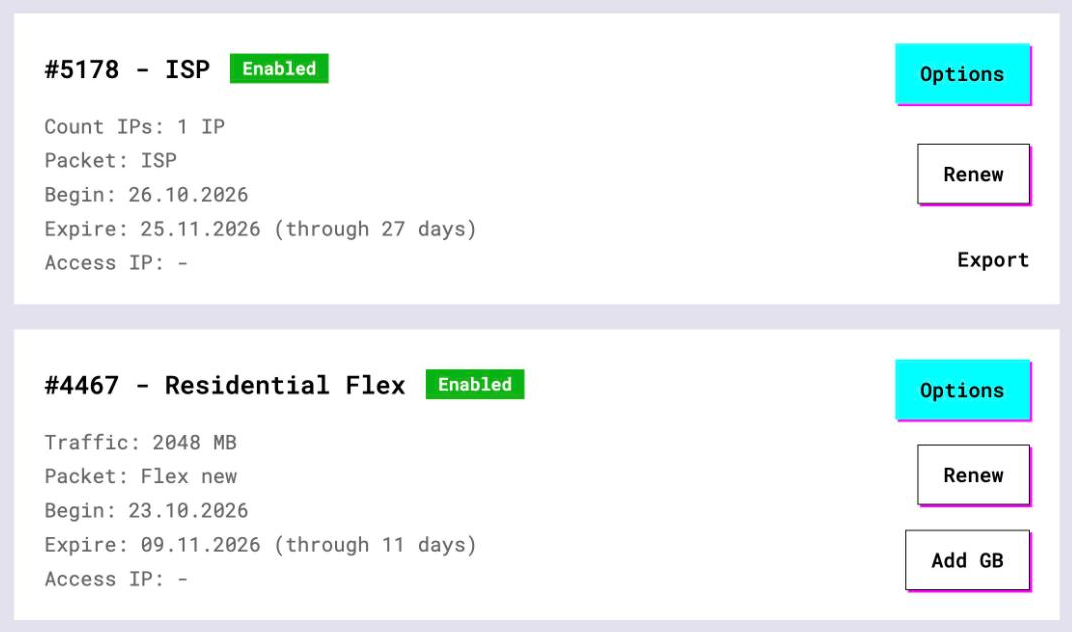
- Open the plan. For per-IP plans (ISP, datacenter) the address, port, login and password are on the card, and Export gives you the whole list as text
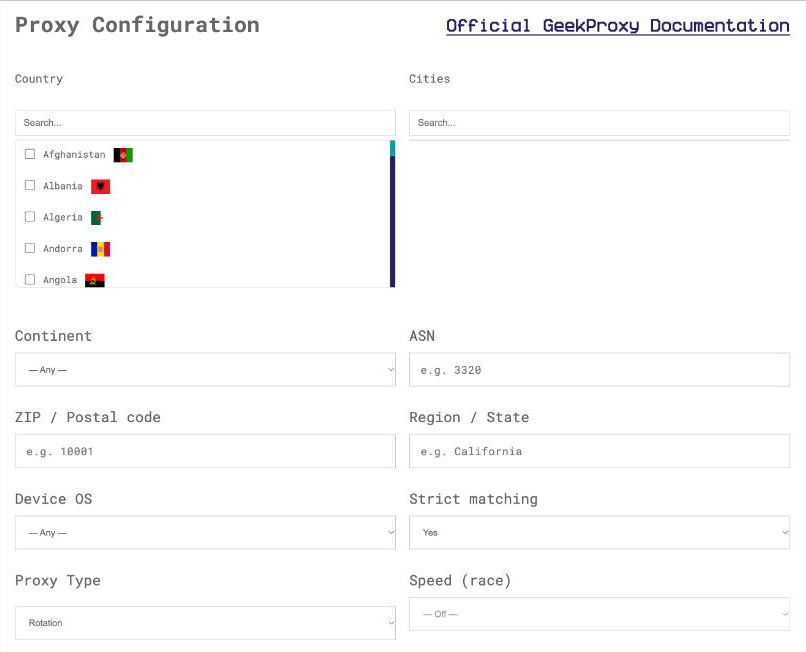
- For residential plans click Options. The Proxy Configuration panel builds a login string with your country and session settings. Copy host, port and the login from the Proxy List
Typing a long residential login on a phone keyboard is no fun. Send the line to yourself through Notes or iCloud and paste it.
3 The Wi-Fi HTTP proxy
This is the route for a GeekProxy HTTP port with login and password. No app, no VPN prompt, nothing to install.
- Open Settings > Wi-Fi and tap the ⓘ next to the network you are connected to
- Scroll down to the HTTP Proxy section and tap Configure Proxy
- Choose Manual. Two fields appear: Server and Port
- Server takes the IP or the gateway hostname from your dashboard, Port the port number
- Turn on Authentication and fill in Username and Password
- Go back to the network page. Open any site in Safari to check that pages load
If your GeekProxy plan runs in IP whitelist mode, leave Authentication off. Be aware that a phone changes its public IP every time it changes networks, so login and password is the calmer option here.
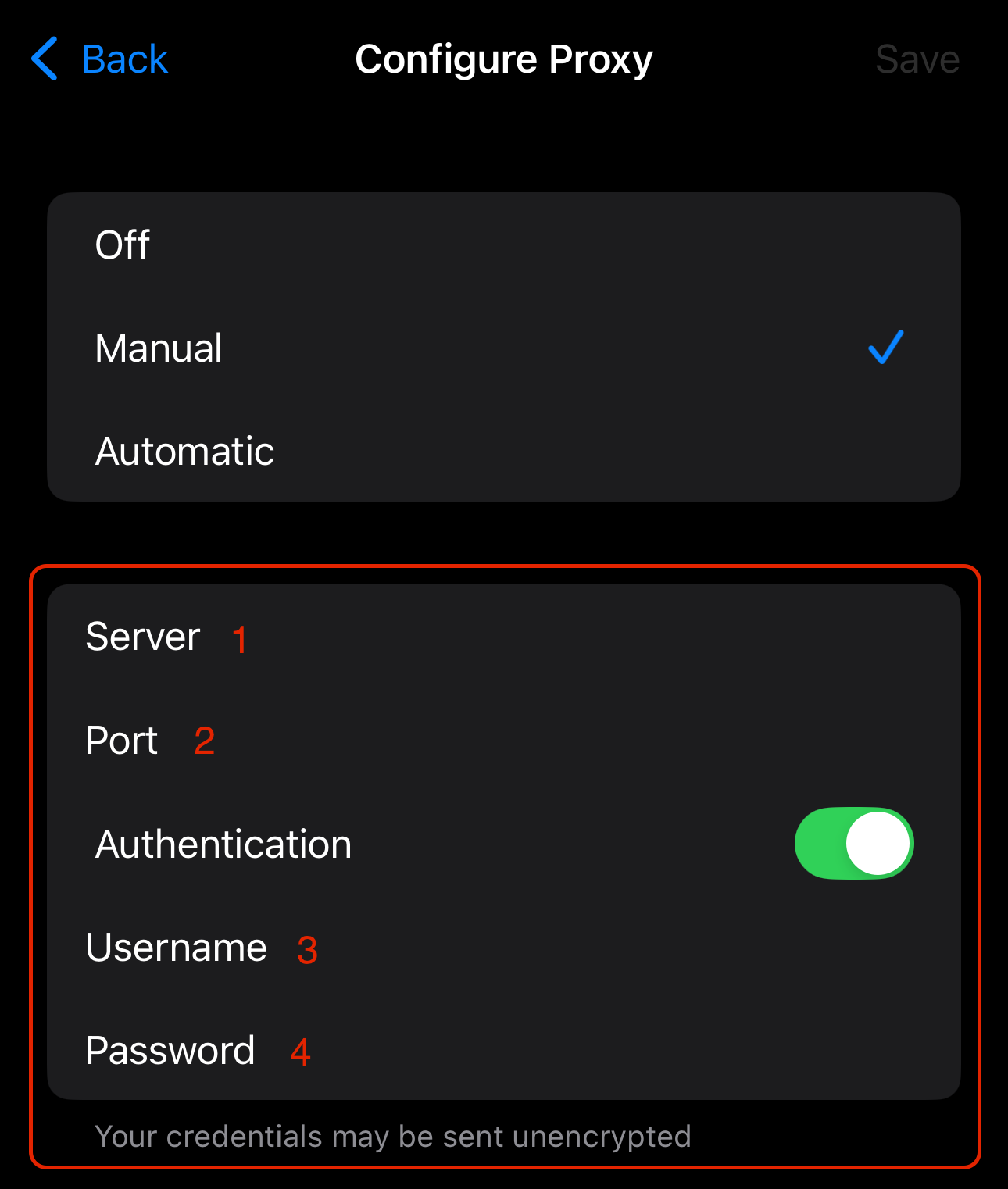
On a residential plan the Server field gets the gateway hostname and the Username field gets the full login string with country and session from the Proxy Configuration panel. The phone does not care how long it is.
4 Apps for SOCKS5 and Shadowsocks
The Wi-Fi setting covers HTTP traffic on one network. SOCKS5, Shadowsocks, cellular data and rule-based routing all need an app that registers as a VPN. Below are five from the App Store with what their listings state. We have not walked through their add-server screens in this guide, so take field names from the app itself.
Shadowrocket
$2.99 one-time, seller Shadow Launch Technology Limited, iOS and iPadOS 13 or later, also listed for Mac, visionOS and tvOS. The listing calls it a rule-based proxy client that captures all HTTP, HTTPS and TCP traffic from any app and redirects it to the proxy server. Rules by domain, domain suffix, keyword, CIDR range or GeoIP. Works on cellular. The version history names Shadowsocks among the supported protocols.
Streisand
Free, seller ARCADIA ODYSSEY INC., iOS 15 or later and Apple silicon Macs. Interface in English, Russian and Simplified Chinese. The listing promises rule-based proxy setup, custom DNS, and these protocols: VLESS, VMess, Trojan, Shadowsocks, SOCKS, SSH, Hysteria v2, TUIC and WireGuard.
Hiddify
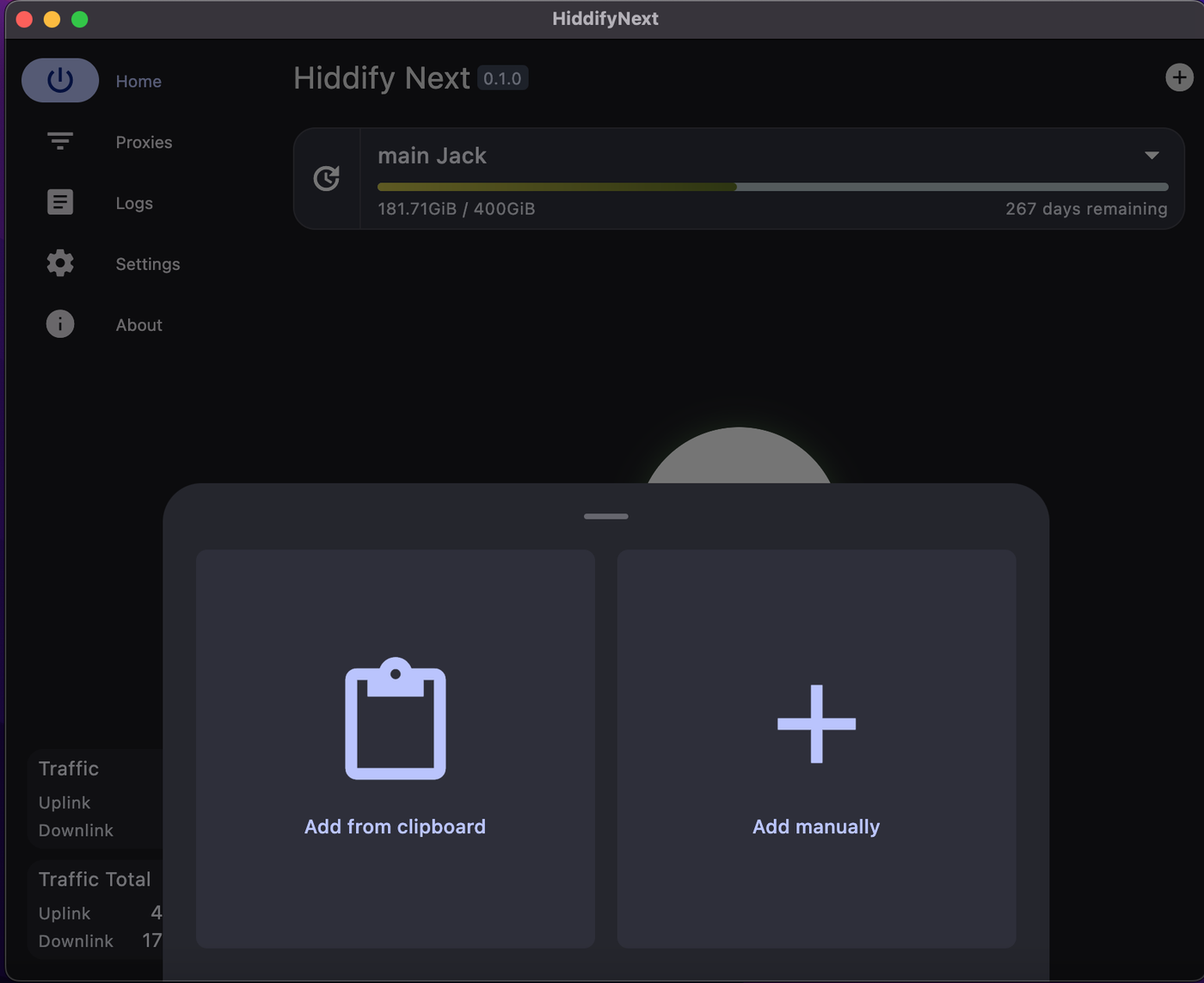
Free and open source, iOS 15 or later. Servers come in through the + button, then Add from clipboard or Add manually, and it imports Shadowsocks links as well as V2Ray, Clash and sing-box profile links. It routes all device traffic through the VPN permission. A plain SOCKS5 or HTTP upstream is not on the listing.
V2Box
Free with advertising, seller techlaim, iOS 15 or later, version 10.1.9. Custom servers cover Shadowsocks, V2Ray, Trojan, VLESS, VMess, SSH, Hysteria2, Ping Tunnel and WireGuard. SOCKS appears in the general protocol list but not among the custom server types, so count on it for Shadowsocks and not for a bare SOCKS5 login. Imports subscriptions, share links and password-protected .v2box files.
Potatso
Free with a Pro tier ($1.99 a month, $14.99 a year, $44.99 lifetime), iOS and iPadOS 17 or later, version 3.0.5. The listing describes it as a Mihomo (Clash) compatible proxy tool with Shadowsocks, HTTP(S), SOCKS5 including TLS, VLESS, VMess, Trojan, Hysteria2 and more. Servers are added manually or through links, files and QR codes. Routing modes Rule, Global and Direct. Pro adds several profiles and latency tests, and the listing says plainly that Potatso does not provide proxy servers.
Our short version. For SOCKS5 with a GeekProxy login, Potatso is the one whose listing says so in plain words. For a Shadowsocks key from the Flawless plan, all five accept the protocol, and Potatso, Hiddify and V2Box state link import explicitly.
5 Verify it works
Open https://ipinfo.io/json in Safari. The ip field must show the proxy address, not your own. On an ISP or datacenter plan that is the address from your dashboard, on Residential or Turbo it is an address from the pool in the country you picked. The country and org fields describe the proxy network.
With an app, connect first, then run the same check. Then switch Wi-Fi off and reload on cellular. Same proxy IP means the app does its job on mobile data too.
6 Which GeekProxy product fits
For the Wi-Fi setting, take anything with an HTTP port and a login: ISP static or datacenter IPv4 for one permanent address, Residential Flex when a home exit matters (Flex is TCP only, which is all a Wi-Fi HTTP proxy ever carries), or a Residential Turbo sticky session. An app with a SOCKS5 login opens the same list plus mobile proxies. Shadowsocks in any of the five apps is a Flawless datacenter job, since Flawless is the only GeekProxy product that speaks it.
7 Common issues
The proxy worked at home and is gone at the office
Expected. The setting lives inside one Wi-Fi network. Configure it again on the second network, or use an app, which follows the device around.
Safari goes through the proxy, some app does not
The Wi-Fi proxy applies to the HTTP and HTTPS traffic of apps that honour it. Apps that ignore it, or that talk to their servers over something other than HTTP, go direct. An app from section 4 catches everything.
Authentication is on and nothing loads
A typo in the username, most often in a long residential login string. Or the plan is in IP whitelist mode and the phone's current address isn't on the list. Compare with the dashboard, or switch the plan to login and password.
The app asks to add a VPN configuration
Every app in section 4 needs that permission to route traffic. Allow it. Without it the app installs fine and connects to nothing.
The Shadowsocks key is refused
Only the Flawless datacenter plan issues Shadowsocks access. Server, port, password and encryption method all have to match the dashboard exactly, and a key from any other plan will not work.
Get proxies for iPhone and iPad
HTTP with login for the Wi-Fi setting, SOCKS5 for the apps, Shadowsocks on the Flawless plan.
Place an order