
Set up GeekProxy in Kameleo
Kameleo sets a proxy per profile, tests it in a step-by-step dialog, and derives the timezone, geolocation and WebRTC address from the exit IP. One thing it does not do is proxy UDP, and that decides which GeekProxy product to pick. This guide walks through the profile form, the Test Proxy dialog and the Location settings.
You'll need: an active GeekProxy plan and the proxy credentials from your dashboard. First profile takes about three minutes.
Get proxies1 Before you start
Kameleo runs on Windows 10 and newer, Windows Server 2016 and newer, macOS 12 and newer, and in Docker. The developer docs name Apple Silicon for the Mac build. There is no Linux desktop app, only the container. Install from the installer or the winget package Kameleo.App on Windows, from the .dmg or the Homebrew cask kameleo on a Mac. The vendor asks for 4 GB of RAM and 5 GB of free disk.
The free plan costs nothing and renews on its own. It gives 300 minutes of browser usage per month, 2 browsers at a time, 100 cloud profiles, unlimited local profiles and 3 team members. Enough for this guide.
Proxy types are HTTP, SOCKS5 and SSH, no SOCKS4. Username and password work on all of them inside the Chroma (Chromium) and Junglefox (Firefox) engines. Two sentences from the docs set the frame. "Kameleo does not support UDP-based proxies." And by default a profile connects without a proxy and shows your device's IP.
What you'll need
- Active GeekProxy plan (ISP, datacenter, residential or mobile)
- Proxy credentials from your dashboard: Host, Port, Username, Password
- Kameleo installed and signed in, free plan is fine
- FieldWhere it comes from
- ProtocolHTTP / SOCKS5
- HostIP or gateway hostname from the dashboard
- Portfrom the dashboard
- Usernamefrom the dashboard
- Passwordfrom the dashboard
2 Where to get your credentials
- Log in to your GeekProxy dashboard
- Open the plan. For per-IP plans (ISP, datacenter) the IPs, ports, login and password are listed right there, and Export gives you the whole list as text. One line maps to one Kameleo profile
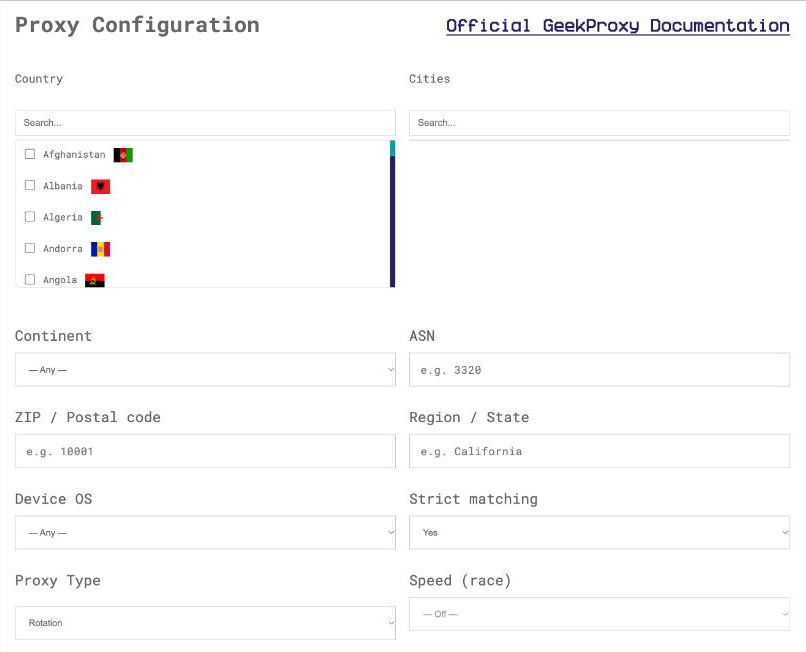
- For residential plans click Options. On Residential Flex the Proxy Configuration panel sets the exit OS, the proxy type and the session TTL and builds the login string for you. Copy the finished line from the Proxy List
3 Add a proxy to a profile
Click New Profile in the left menu. In the form, find the Proxy row with two buttons, Without Proxy and With Proxy. Pick With Proxy. Three type buttons show up: HTTP, SOCKS5 and SSH. Below them sit a host field and a port field side by side, then Username (Optional) and Password (Optional), and a Test Proxy button. The form closes with Cancel, Save or Save & Start.
You could fill the four fields by hand. The faster way is the one connection string the docs document. Paste it into the host field and Kameleo splits it into host, port, username and password on its own:
LOGIN:PASSWORD@IP:PORT
Three small rules come with it. A password with special characters may need URL encoding. An IPv6 host goes in square brackets. And Kameleo guesses the proxy type from the port, so glance at the type buttons after the paste and click the right one if the guess is off.
Want every new profile to start with the same proxy? Settings in the left menu, then Default Profile Settings. Bulk assignment has no screen of its own. The Local API on port 5050 takes a proxy object with the type plus host, port, id and secret; a null value means a direct connection.
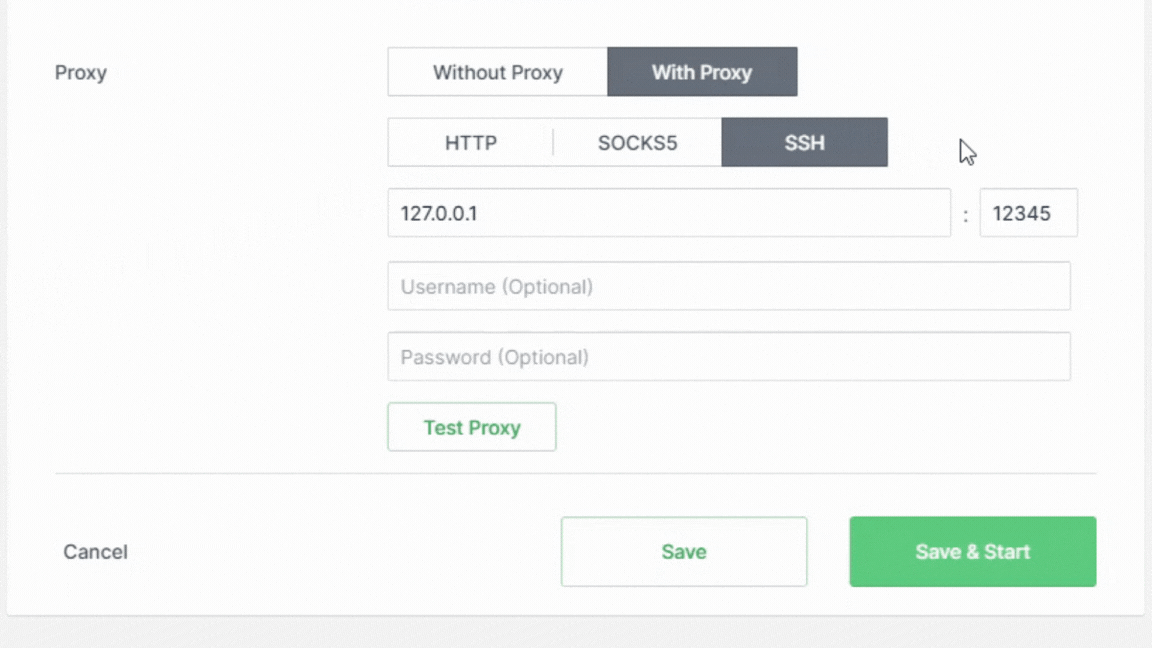
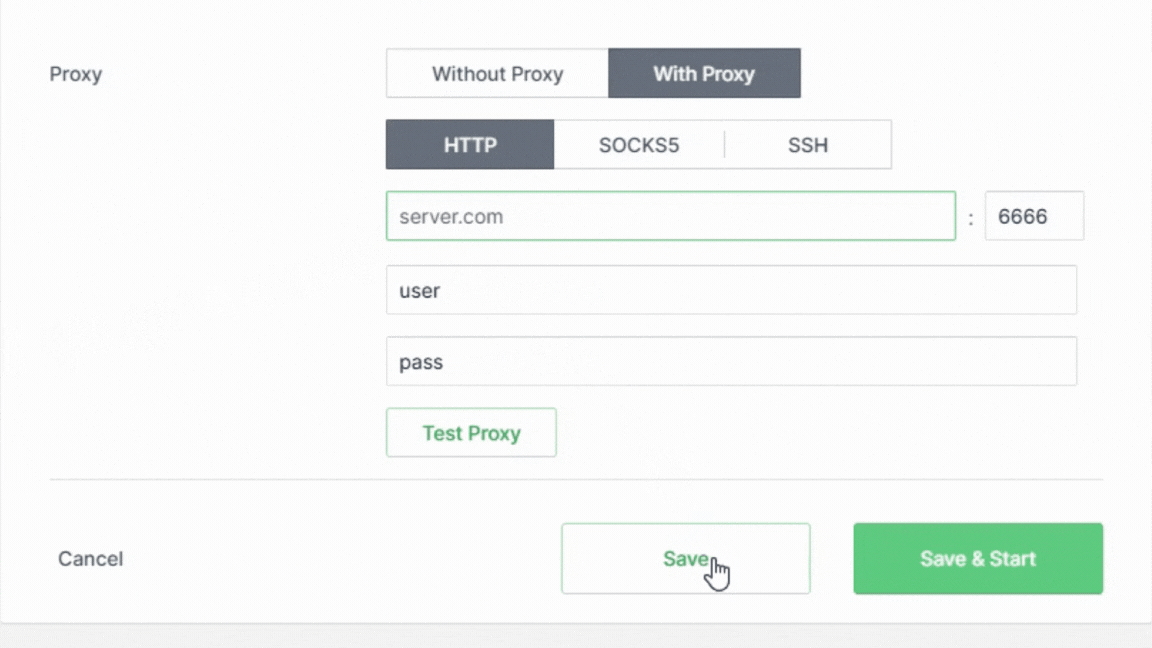
Username and password are marked Optional. If your GeekProxy plan authenticates by IP whitelist, leave them empty and add the IP of the Kameleo machine to the whitelist in the dashboard. Test Proxy will tell you whether the connection went through.
4 Run Test Proxy
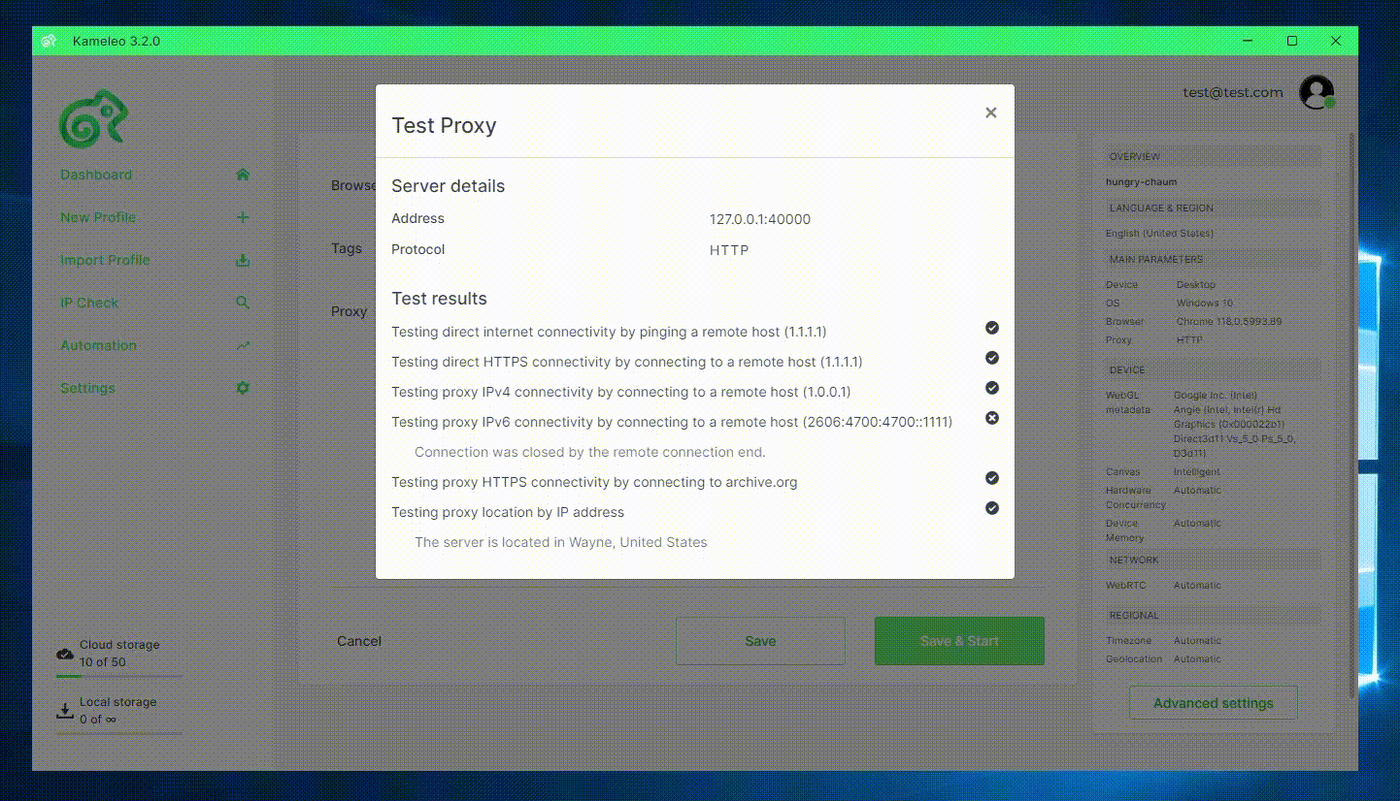
Test Proxy opens a dialog with two parts. Server details repeats the Address and Protocol. Test results is a step list. In app version 3.2.0 it checks direct connectivity by pinging 1.1.1.1 and direct HTTPS to the same host. Then come proxy IPv4 connectivity to 1.0.0.1, proxy IPv6 connectivity to 2606:4700:4700::1111, and proxy HTTPS connectivity to archive.org. The docs add that the tool tries Google, Archive.org and Wikipedia and counts the test as passed if any of them answers.
The outcome is one of three: success, partial success or failure. All ticks green is the goal. The dialog is a connectivity test, so for the exit IP and its country you still go to ipinfo.io inside the profile, see section 6.
Two warnings from the vendor are worth repeating. Some providers block the test sites, so a test can fail while the proxy itself works. And "we highly recommend that you do not switch proxies mid session", which also means stopping the profile before you change its proxy.
5 Location, language and WebRTC
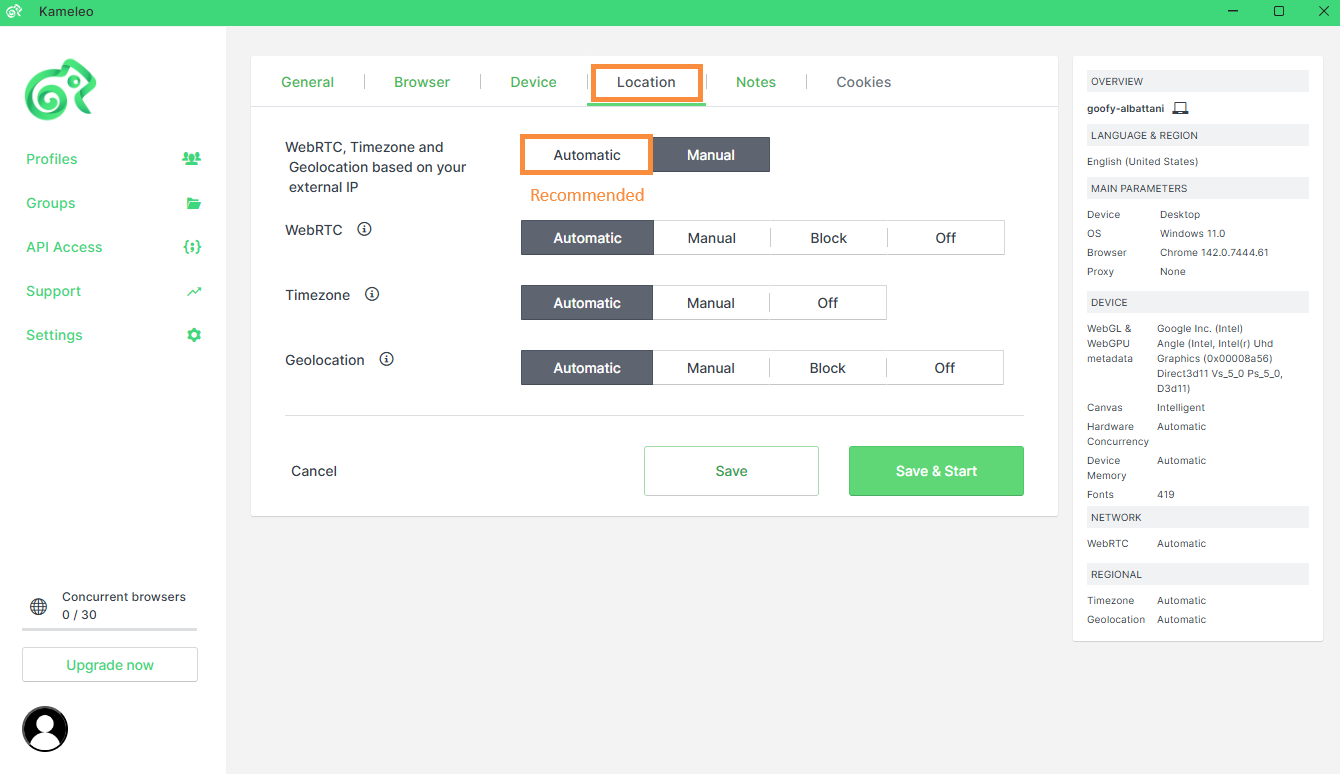
Open Advanced Settings and find the Location section, titled WebRTC, Timezone and Geolocation based on your external IP. Each item has four modes, Automatic (Recommended), Manual, Block and Off. The recommended-settings page says to leave all three on Automatic, which sets them from the proxy IP, and we agree. In Automatic the WebRTC address is masked to the proxy IP.
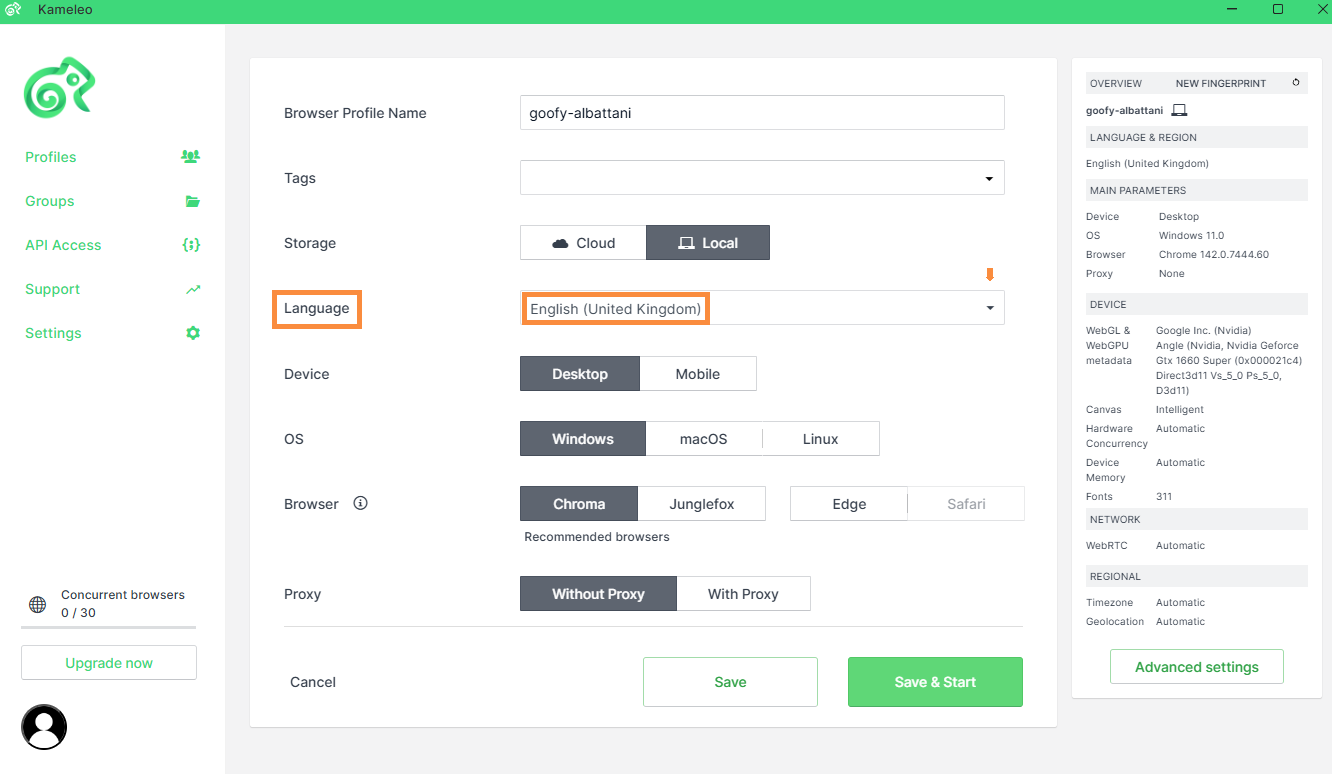
Language is the exception. Kameleo does not derive it from the IP. The docs say it plainly: with a proxy, make sure the profile's language matches the proxy's country. That lives in Language & Region in the profile sidebar, and it is the setting people forget most often.
DNS resolution is handled by the proxy, per the docs, and there is no DNS field to set. UDP is a different story. The browser engines leave UDP outside the proxy, so the developer docs suggest the Chromium policy disable_non_proxied_udp for Chroma and the Firefox preference media.peerconnection.ice.proxy_only for Junglefox. On a TCP-only proxy plan that is the right posture anyway.
6 Verify it works
Save & Start the profile and open https://ipinfo.io/json inside it. The ip field must show the proxy address, not your own. On an ISP or datacenter plan that is the address from your dashboard, on Residential Flex or Turbo it is an address from the pool in the country you picked. Check that the country field matches the language you set by hand in section 5.
On a Flex session, reload a few times within the TTL you chose. The IP should stay put until the session expires.
7 Which GeekProxy product fits
Kameleo is TCP only and resolves DNS through the proxy, so there is no point paying for UDP. Residential Flex matches that shape exactly: TCP only, a Windows or Android exit filter you set to the Device choice of the profile, and a session TTL in minutes. For a profile that must look the same next month, ISP static gives one IP for the whole rental period. Residential Turbo sticky sessions work as well, but the UDP side of Turbo brings nothing to Kameleo. Mobile is for emulated Android or iOS profiles that have to show a carrier IP. Whatever you pick, paste it as LOGIN:PASSWORD@IP:PORT and click HTTP or SOCKS5.
8 Common issues
Test Proxy fails, but the proxy works elsewhere
The test needs Google, Archive.org or Wikipedia to answer through the proxy. If a target is blocked somewhere along the path, the step fails while the tunnel is fine. Start the profile and check ipinfo.io. If the IP is right, ignore the red tick.
Password with special characters is rejected
The docs warn that such passwords may need URL encoding inside the connection string. Either encode them or type the password into its own field, where no encoding is needed.
Wrong type after the paste
Kameleo picks the type by port convention. A GeekProxy HTTP port and SOCKS5 port can look alike to that heuristic, so click the button that matches the dashboard before you save.
Timezone is right, language is wrong
Expected. Timezone follows the IP, language does not. Set it in Language & Region to the country of the proxy.
Proxy change does not apply
A running profile keeps its old proxy. Stop it, change the proxy, start again.
Get proxies for Kameleo
TCP-only residential sessions or static ISP IPs, HTTP and SOCKS5, one per profile.
Place an order