
Set up GeekProxy in Linux
Linux has no single proxy switch. The GNOME Settings panel serves desktop apps, environment variables serve curl and most command-line tools, and apt has a config file of its own. This guide covers all three and tells you which one each program actually reads.
You'll need: an active GeekProxy plan and the proxy credentials from your dashboard. The terminal part takes a minute, the panel another two.
Get proxies1 Before you start
Three mechanisms, three audiences. Mixing them up is the number one reason a proxy "doesn't work" on Linux, so here is the map before any clicking:
- The GNOME Network proxy panel writes GSettings keys under
org.gnome.system.proxy. GNOME and GTK apps read them, GNOME Web included - Environment variables such as
https_proxyare read by curl and by many other CLI tools. The panel doesn't export them, and they don't change the panel - apt reads
http_proxytoo, and on top of that has its ownAcquire::http::Proxyoption
Authentication differs as well. curl and apt accept login and password in the proxy URL, SOCKS5 included. The GNOME schema has credential keys for the HTTP proxy only, and none at all for SOCKS. For desktop apps the safer route is the IP whitelist mode of your plan.
Password characters matter in URLs. An @ inside the password becomes %40 and a colon becomes %3a, because curl URL-decodes the user and password part of the proxy string.
What you'll need
- Active GeekProxy plan (datacenter, ISP or residential)
- Proxy credentials from your dashboard: Host, Port, Username, Password
- A GNOME desktop (Ubuntu, Fedora, Debian) for section 3, any shell for the rest. curl 7.86 or newer if you want CIDR ranges in NO_PROXY
- FieldWhere it comes from
- ProtocolHTTP / SOCKS5
- HostIP or gateway hostname from the dashboard
- Portfrom the dashboard
- Usernamefrom the dashboard
- Passwordfrom the dashboard
2 Where to get your credentials
- Log in to your GeekProxy dashboard
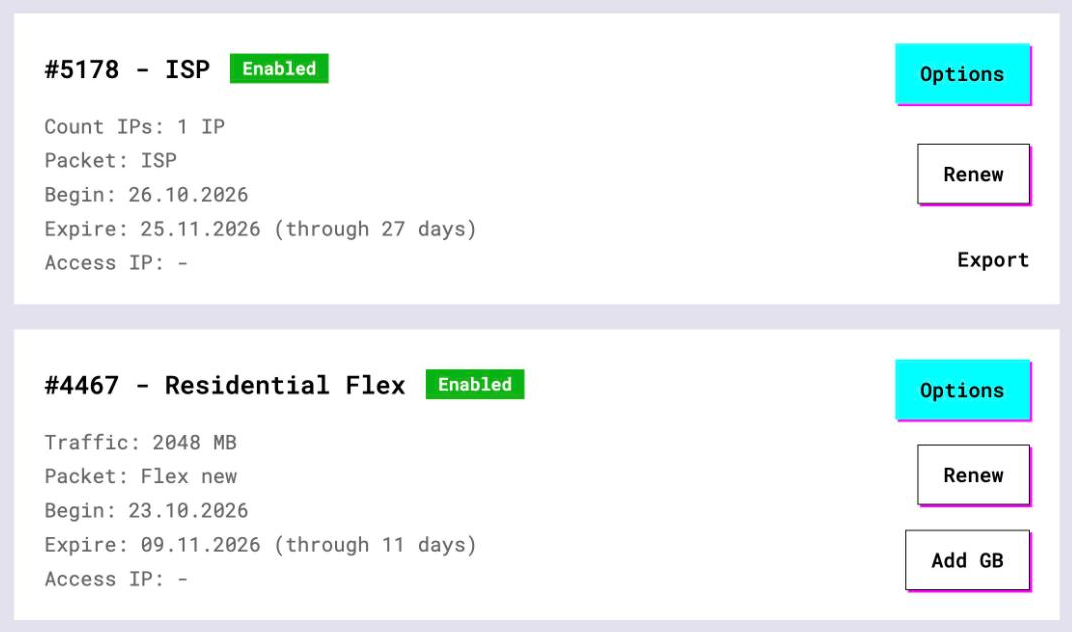
- Open the plan. For per-IP plans (datacenter, ISP) the address, port, login and password are on the card, and Export gives you the whole list as text
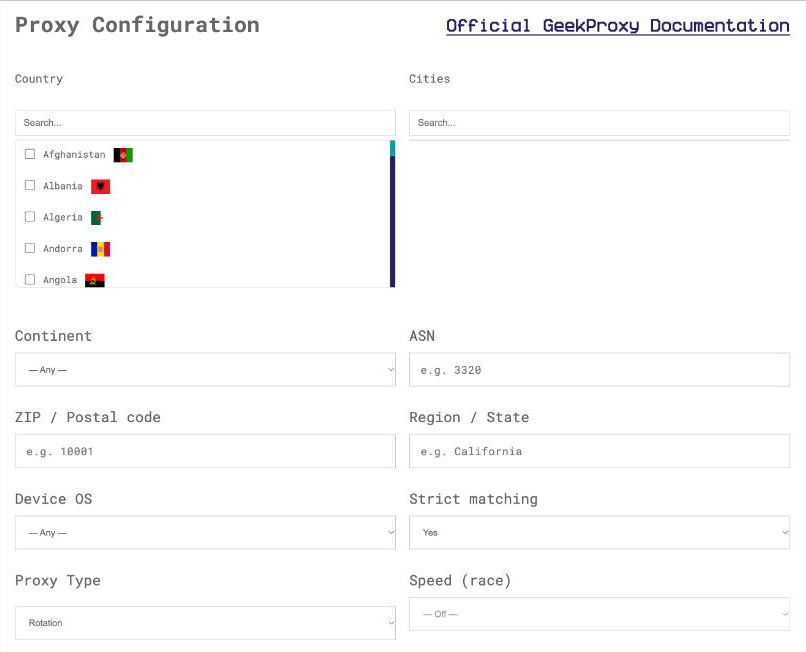
- For residential plans click Options. The Proxy Configuration panel builds a login string with your country and session settings and shows a ready curl line. Copy host, port and the login from the Proxy List
3 GNOME Settings panel
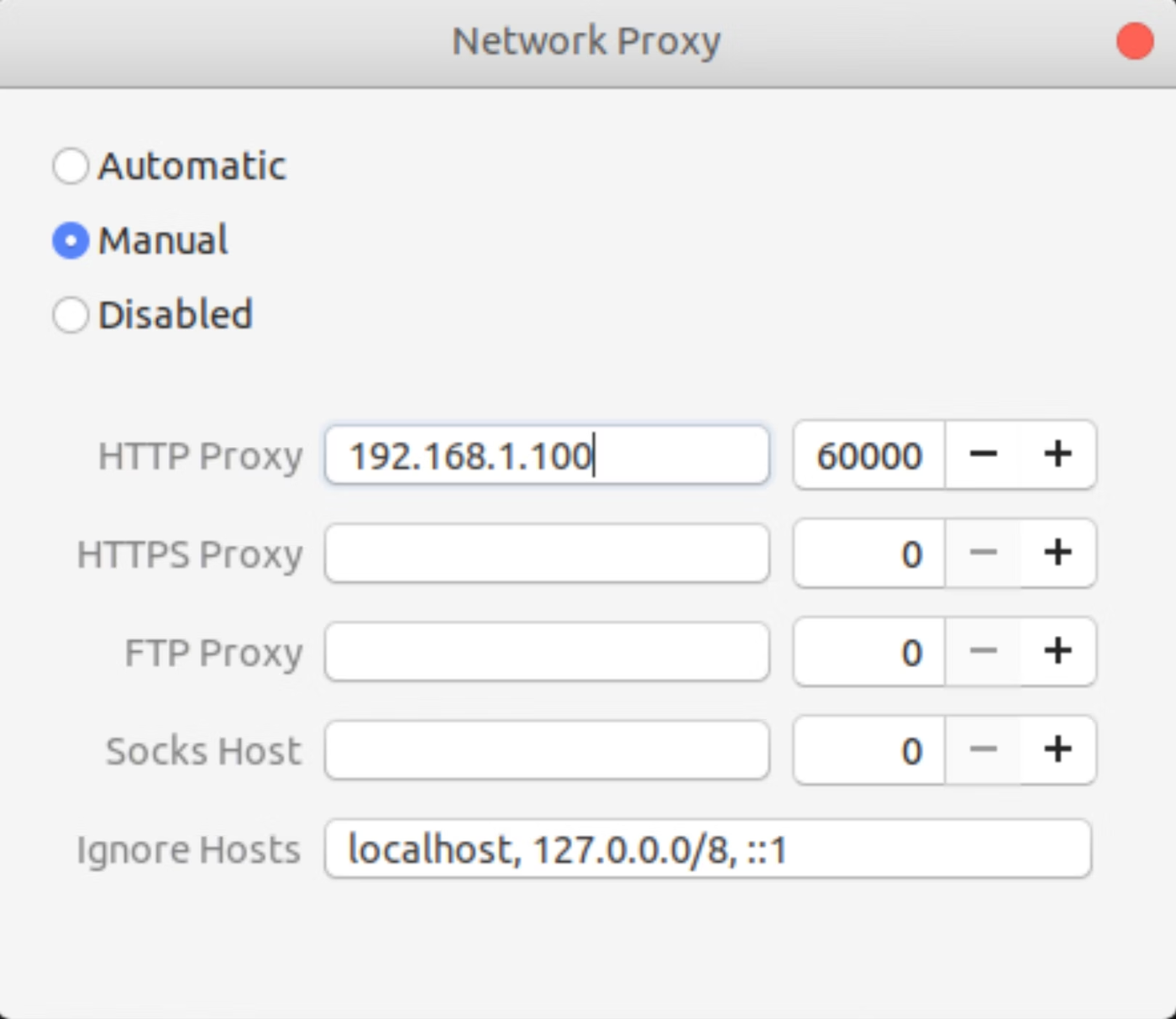
Open the Activities overview and start typing Network. Click Network to open the panel, then pick Network proxy in the list on the left. GNOME Help gives three methods. None is a direct connection. Manual is where you define an address and a port for each proxied protocol. Automatic takes a URL that points at a configuration file.
Choose Manual. The protocols on offer are HTTP, HTTPS, FTP and SOCKS. For a GeekProxy HTTP port fill the HTTP and HTTPS rows with the same host and port. In the schema, a protocol's proxy is used only when its host is set and its port is not zero, so an empty row is simply off.
Behind the panel sit the GSettings keys. org.gnome.system.proxy mode is none, manual or auto. ignore-hosts defaults to localhost, 127.0.0.0/8 and ::1. use-same-proxy, on by default, means "use the HTTP proxy for all protocols". The HTTP proxy alone has use-authentication, authentication-user and authentication-password. Whether your version of the panel shows those login fields on screen is something we can't promise, so if they're missing, switch the plan to IP whitelist mode instead.
4 Environment variables and curl
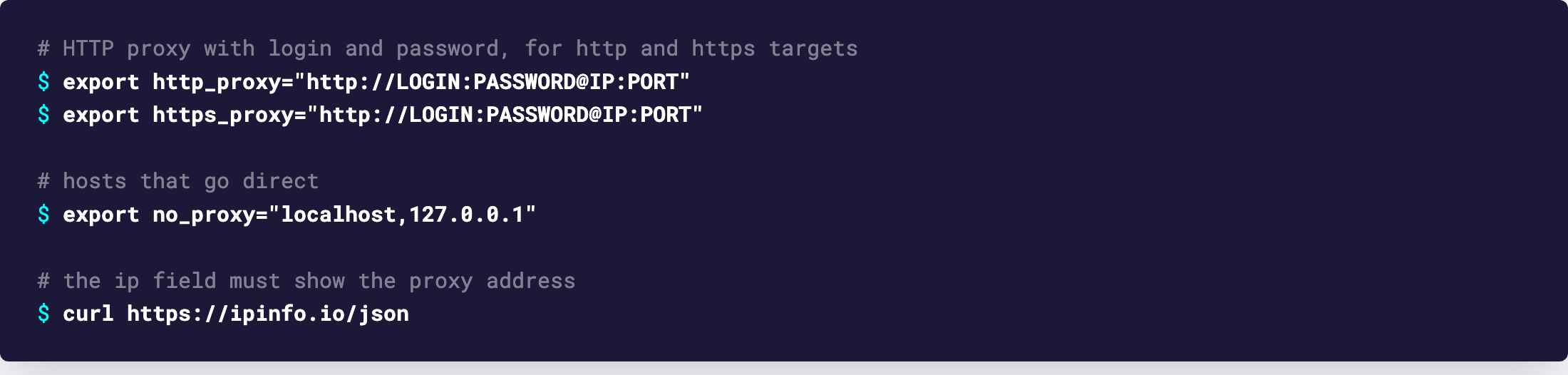
The curl manual documents the variables, and the rules are stricter than people expect. http_proxy exists only in lowercase. The others, HTTPS_PROXY, ALL_PROXY, NO_PROXY and the per-protocol ones like FTP_PROXY, may be upper or lower case, and the lowercase version wins if both are set. The value format is [protocol://]<host>[:port], and setting a variable has the same effect as passing --proxy.
# HTTP proxy with login and password, for http and https targets
export http_proxy="http://LOGIN:PASSWORD@IP:PORT"
export https_proxy="http://LOGIN:PASSWORD@IP:PORT"

# or SOCKS5 as the fallback for every protocol, DNS resolved by the proxy
export all_proxy="socks5h://LOGIN:PASSWORD@IP:PORT"

# hosts that go direct; "*" alone matches everything, CIDR works since curl 7.86.0
export no_proxy="localhost,127.0.0.1,10.0.0.0/8"

curl https://ipinfo.io/json
These exports live in the current shell only. Where to keep them permanently depends on your distribution and shell, and this guide stays in the terminal.
For a one-off request, skip the variables and pass the proxy to curl directly:
# HTTP proxy (no scheme means http://)
curl -x http://LOGIN:PASSWORD@IP:PORT https://ipinfo.io/json

# SOCKS5 with the hostname resolved on the proxy side
curl -x socks5h://LOGIN:PASSWORD@IP:PORT https://ipinfo.io/json

# the same, credentials passed separately
curl --proxy-user LOGIN:PASSWORD --socks5-hostname IP:PORT https://ipinfo.io/json

# skip the proxy for some hosts (only * as a wildcard, CIDR allowed)
curl -x http://LOGIN:PASSWORD@IP:PORT --noproxy "localhost,10.0.0.0/8" https://ipinfo.io/json
Schemes curl understands in -x: none or http:// for an HTTP proxy, https:// for TLS to the proxy itself, then socks4://, socks4a://, socks5:// and socks5h://. Leave the port out and curl assumes 1080. The difference between the last two is DNS. socks5:// resolves names on your machine, socks5h:// lets the proxy do it. Pick the h.

5 apt
The apt-transport-http manual says it in one line: the environment variable http_proxy is supported for system-wide configuration, and no_proxy is honoured for the same purpose. So the exports from section 4 already cover a sudo apt update run in the same shell, as long as sudo passes the variables through.
The cleaner way is apt's own option. Create a file in /etc/apt/apt.conf.d/ with:
Acquire::http::Proxy "http://LOGIN:PASSWORD@IP:PORT/";

# one mirror straight, no proxy
Acquire::http::Proxy::archive.example.org "DIRECT";
The URI format is scheme://[[user][:pass]@]host[:port]/, and the supported schemes are http, https and socks5h, the last one being SOCKS5 with remote DNS resolution. The special value DIRECT means no proxy for that host. If you'd rather not keep the password in the config file, apt reads credentials from apt_auth.conf instead. There is also Acquire::http::Proxy-Auto-Detect, which runs an external command to pick the proxy, for setups that move between networks.

A password with @ or : breaks the URI in the apt option and in curl alike. Percent-encode it, or move the credentials to apt_auth.conf.
6 Verify it works
Run curl https://ipinfo.io/json with the variables exported, or with -x. The ip field must show the proxy address, not your own. On an ISP or datacenter plan that is the address from your dashboard, on Residential or Turbo it is an address from the pool in the country you picked. For the GNOME panel open the same URL in GNOME Web or another GTK app, since curl won't tell you anything about the panel.
Run curl twice on a Turbo rotating login and you get two different addresses. On a sticky login or Flex within its session TTL the address stays.
7 Which GeekProxy product fits
Scripts and CLI work are where datacenter IPv4 and ISP static shine, exported as https_proxy or as a socks5h:// value in all_proxy, since curl handles SOCKS5 with login and password fully. Residential Turbo goes through its gateway hostname with a session username when you need a sticky exit. Residential Flex is reached as http://LOGIN:[email protected]:8888 (or usf, asf), and TCP only is no problem for curl or apt. For a desktop user on the GNOME panel, an ISP or datacenter HTTP port with IP whitelist is the plain choice. UDP tools are out of scope for environment variables altogether.
8 Common issues
The panel is set, curl still shows my IP
Expected. The panel writes GSettings, curl reads environment variables. Export https_proxy in the shell, or pass -x.
HTTP_PROXY in uppercase is ignored
Per the curl manual, http_proxy is lowercase only. The other variables accept both cases, and lowercase takes precedence when both exist.
curl: couldn't connect, or a 407 after a password change
Check the password for @ and :. Encode them as %40 and %3a, or use --proxy-user, which takes the pair separately.
Sites see the proxy IP but DNS goes out locally
You used socks5://. Switch to socks5h:// or --socks5-hostname so the proxy resolves names.
apt works through the proxy but one mirror must not
Add a per-host line Acquire::http::Proxy::hostname "DIRECT"; below the general one. The per-host option wins for that host.
Desktop apps ask for a proxy login I can't enter
The GNOME schema stores credentials only for the HTTP proxy, and the SOCKS row has no credential keys. Switch the plan to IP whitelist mode in the dashboard and leave the login fields empty.
Get proxies for Linux
Datacenter and ISP IPs with HTTP and SOCKS5 on the same credentials, residential sessions by gateway, ready in seconds.
Place an order