
Set up GeekProxy in MoreLogin
MoreLogin keeps proxies in a library of its own, attaches one to each browser profile, and checks every proxy against the IP geolocation database you choose. This guide covers the New proxy form inside a profile, the Batch Add page, and the Match IP settings that keep the fingerprint in step with the proxy.
You'll need: an active GeekProxy plan and the proxy credentials from your dashboard. First profile takes about three minutes.
Get proxies1 Before you start
MoreLogin supports Windows 10 64-bit and above and macOS 12.6.1 and above. No Linux build. A profile can present Windows, MacOS, Android or iOS on a Chrome or Firefox engine, and there are Cloud Phone profiles on top. The free package is permanent and gives 2 members and 2 profiles; paid packages start at 10 profiles for $9 per 30 days.
Proxy types are HTTP, HTTPS and SOCKS5, plus SSH on the batch page. SOCKS4 is out. Login and password work on every type, so a SOCKS5 line from your dashboard goes in as is.
One habit matters from the start. The browser opens an IP check page when a profile launches, so the first thing you see is the exit IP. Useful, and a little slower.
What you'll need
- Active GeekProxy plan (ISP, datacenter, residential or mobile)
- Proxy credentials from your dashboard: Host, Port, Username, Password
- MoreLogin installed and signed in, free package is fine
- FieldWhere it comes from
- ProtocolHTTP / SOCKS5
- HostIP or gateway hostname from the dashboard
- Portfrom the dashboard
- Usernamefrom the dashboard
- Passwordfrom the dashboard
2 Where to get your credentials
- Log in to your GeekProxy dashboard
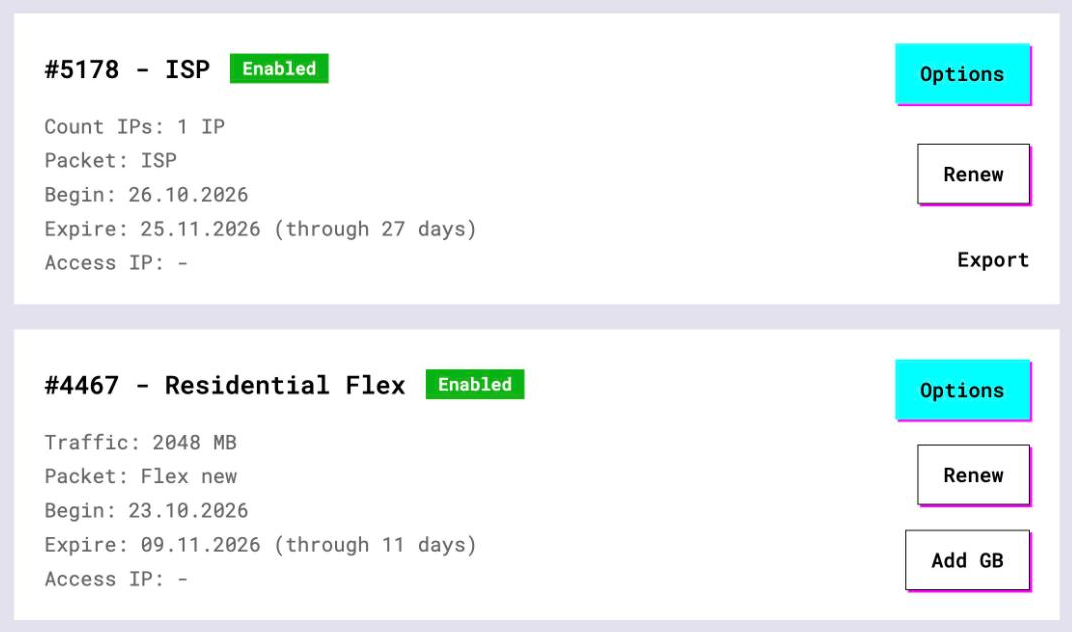
- Open the plan. For per-IP plans (ISP, datacenter) the IPs, ports, login and password are listed right there, and Export gives you the whole list as text. That list is what Batch Add wants
- For residential and mobile plans click Options. The Proxy Configuration panel builds the login string with your country, city and a sticky session name. Copy the finished line from the Proxy List, one session per profile
3 Add a proxy inside a profile
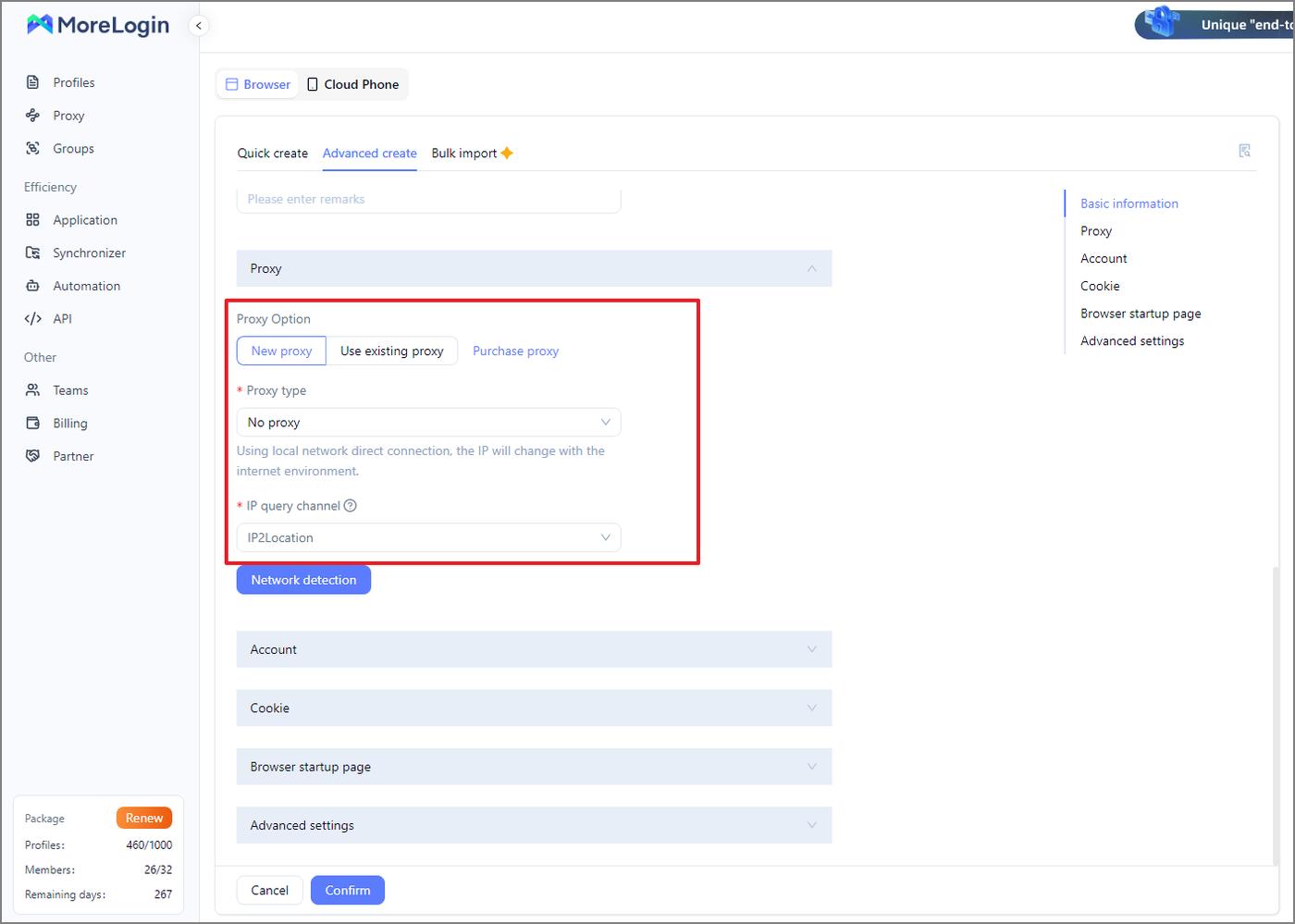
Click +New Profile, then Browser Profile, then Advanced create. Scroll to Network setup. Proxy Option has three choices: New proxy, Use existing proxy and Purchase proxy. Take New proxy.
The fields with an asterisk are required. Proxy type is a dropdown; pick HTTP or Socks5 to match the port from your dashboard. IP query channel picks the geolocation database for the check, with IP2Location, MaxMind, DB-IP and IP-API on offer. Proxy server has a host box and a port box separated by a colon. Then come Proxy account and Proxy password, both without the asterisk. Refresh URL stays empty; the help text says it is for mobile dynamic proxies only.
Fill the boxes one by one from the dashboard; one-string paste belongs to the batch page in section 4. Click Network detection. A green line says Pass detection! with the Export IP and a Location. Then Confirm.
For an existing profile, go to Profiles, Browser, open the row and click Edit Proxy. You get Saved Proxies, which lists the library, or New Proxy.
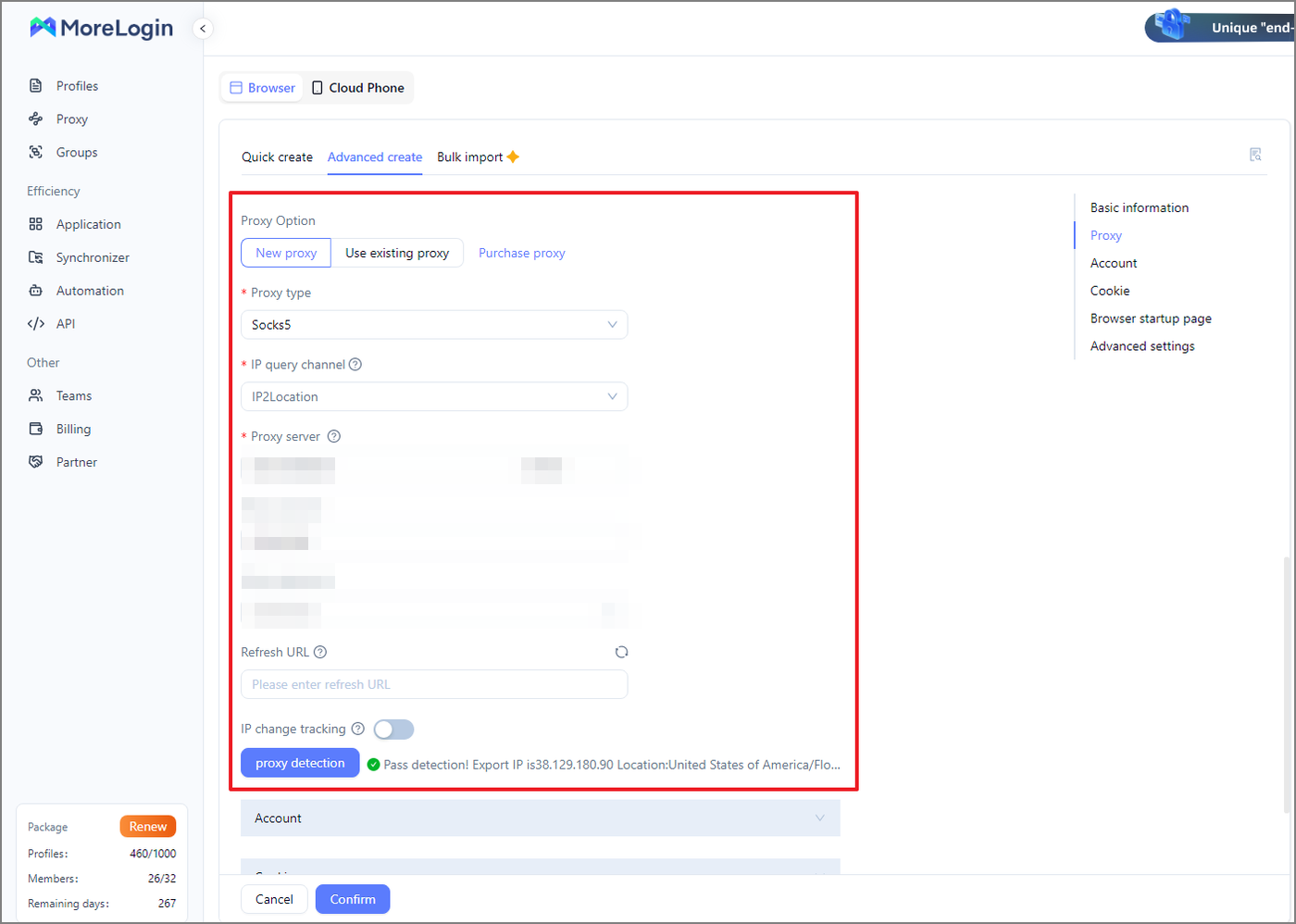
Proxy account and Proxy password carry no asterisk. On a GeekProxy plan in IP whitelist mode, leave them empty and add the IP of the MoreLogin machine to the whitelist in the dashboard. Network detection will confirm the connection.
4 The Proxy library and Batch Add
The left menu has a Proxy page with two tabs, Self-owned proxy and Platform proxy. Yours go under Self-owned. The Add proxy button at the top right offers Add Individually, which is the same modal as in section 3 with a proxy detection button, and Batch Add.
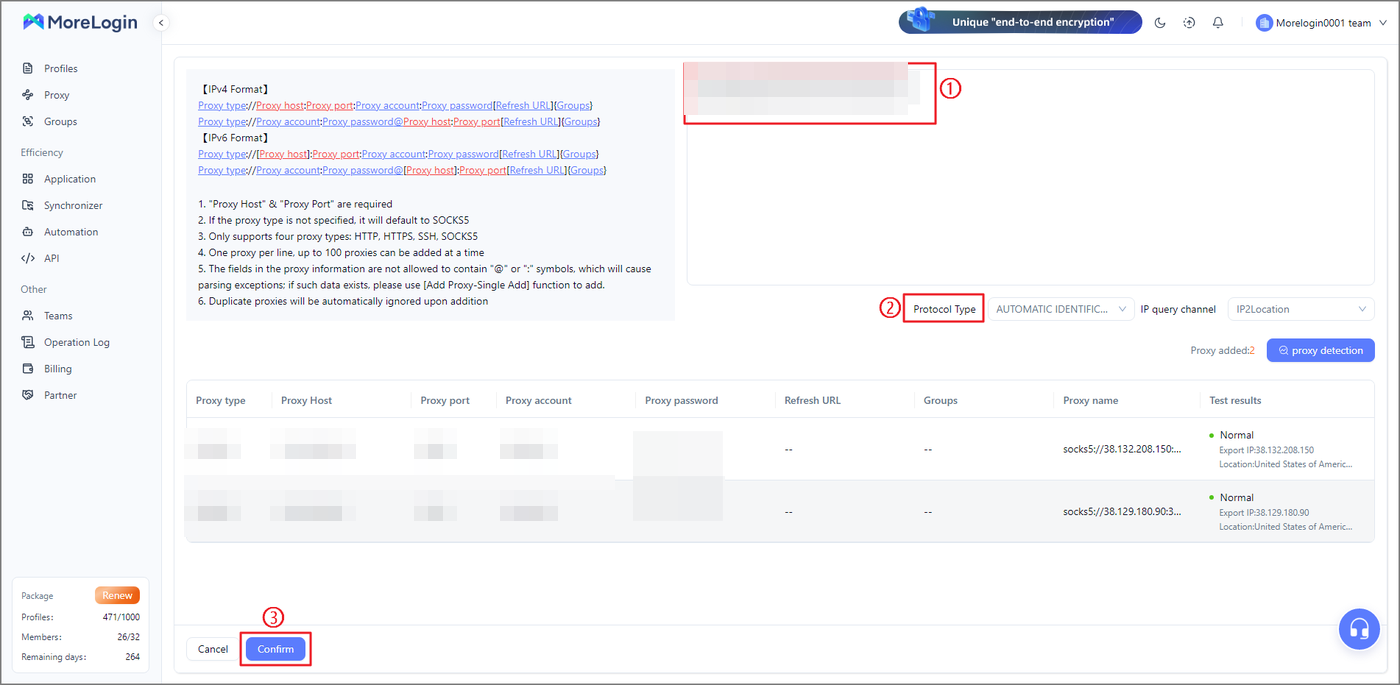
Batch Add is a text area, one proxy per line. The rules are explicit. Only HTTP, HTTPS, SSH and SOCKS5 are accepted. A line without a type defaults to SOCKS5. Up to 100 proxies per import. Duplicates are ignored. A line whose fields contain @ or a colon must go through Add Individually instead. Two shapes are documented:
socks5://IP:PORT:LOGIN:PASSWORD
http://LOGIN:PASSWORD@IP:PORT
Above the text area sit Protocol Type, set to automatic identification by default, and IP query channel. Click proxy detection and the parsed lines land in a table with Proxy type, Proxy Host, Proxy port, Proxy account, Proxy password, Refresh URL, Groups, Proxy name and Test results. Normal in the last column is what you want. Confirm saves them.
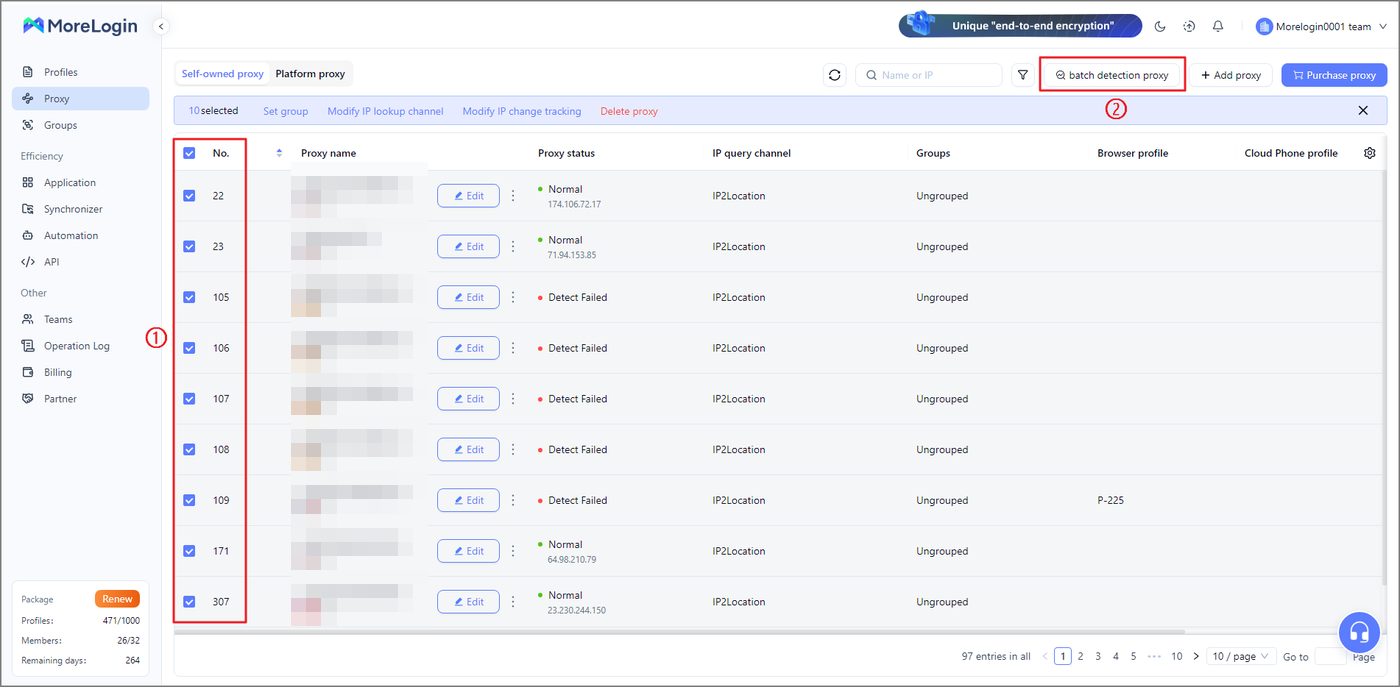
Back on the Proxy page, Quick Editing renames and groups rows. Batch Detection Proxy re-checks a selection, and Batch Modify IP Query Channels switches the database for many rows at once. Proxy Status reads Normal or Detection Failed.
Assigning in bulk works from the profile list. Select the profiles, then click Bulk detection (green or magenta per profile) or Modify Proxy, which offers Same Proxy from the library or New Proxy with the usual form.
5 Match IP settings and WebRTC
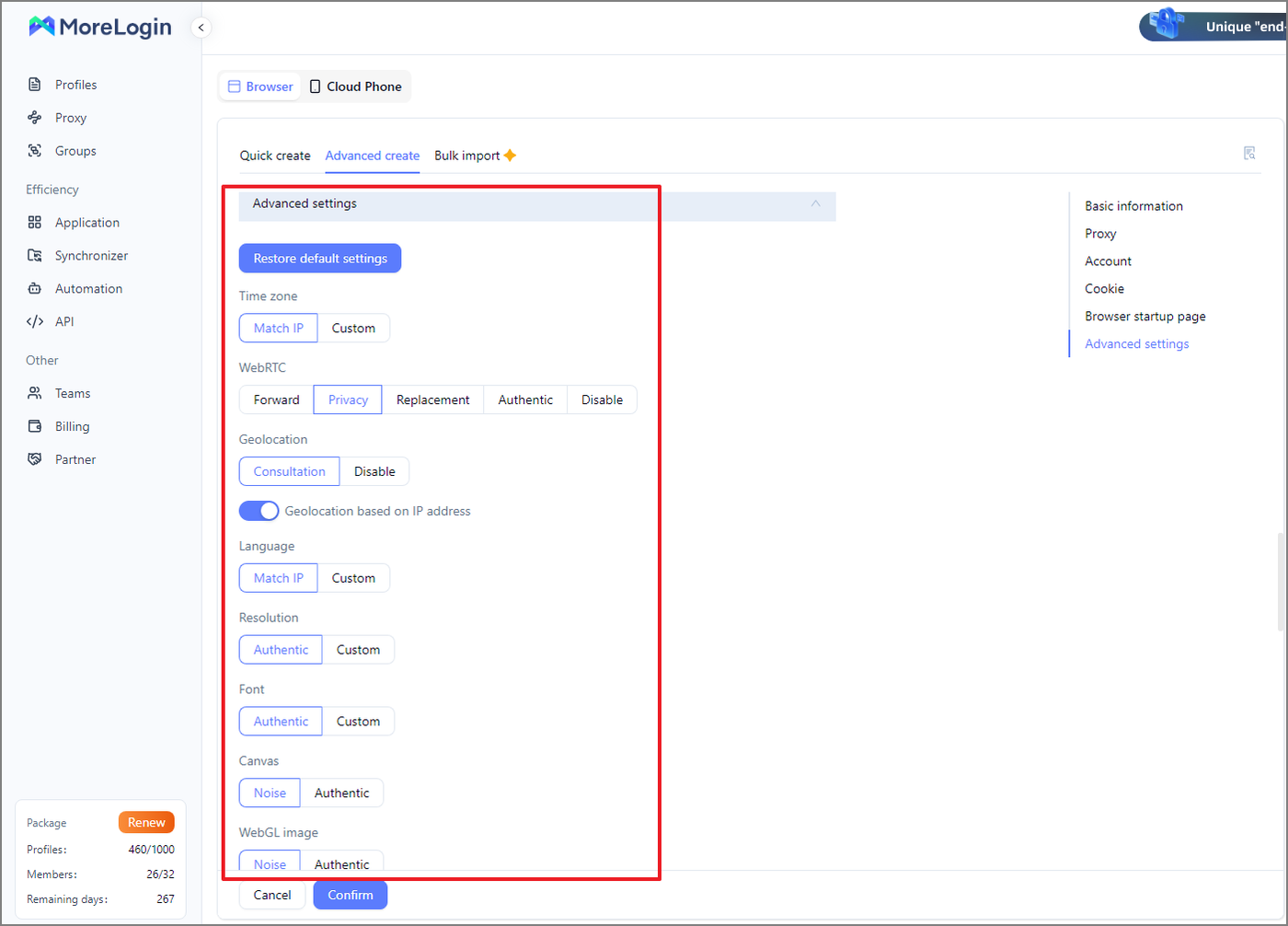
Open Advanced settings in the profile editor. Time Zone offers Match IP or Custom. Language offers the same pair. Geolocation is either Consultation or Disable, and under Consultation you can Generate geolocation based on IP or type latitude, longitude and accuracy yourself. Leave all three on the IP-based choice and the profile follows the proxy wherever it exits.
WebRTC has five modes: Forward, Privacy, Replace, Authentic and Disable. The fingerprint article warns that WebRTC may reveal your real public and local IP addresses even with a proxy. Replace is the sensible pick with a proxy, Authentic is the one to avoid. UDP itself is not proxied by MoreLogin, so there is nothing to gain from a UDP-capable plan here.
One more thing on location. The IP query channel decides which database answers, and the help page admits that different channels may give slightly different results. If Location in the check disagrees with your plan's country, switch the channel before you blame the proxy. MoreLogin documents no DNS setting at all; if leaks matter to you, test from inside the profile.
6 Verify it works
Start the profile. The IP check page MoreLogin opens by itself is a first hint. For a second opinion open https://ipinfo.io/json in the same window. The ip field must show the proxy address, not your own. On an ISP or datacenter plan that is the address from your dashboard, on Residential or Turbo it is an address from the pool in the country you picked. The country should agree with the Location line from Network detection.
For a Residential Turbo sticky session, reload the page a few times. Same IP every time means the session holds. A new IP on every reload means the login string has no session part, go back to Options in the dashboard.
7 Which GeekProxy product fits
MoreLogin wants one proxy per profile. For profiles that live for months, ISP static gives one IP for the whole rental period; set Proxy type to HTTP or Socks5 and leave Time Zone and Language on Match IP. For many profiles with different residential exits, Residential Turbo sticky strings go into Batch Add as socks5:// lines, up to 100 per import. Residential Flex works over HTTP, HTTPS or SOCKS5 as well. It is TCP only, which costs nothing here since MoreLogin does not proxy UDP; match its Windows or Android exit filter to the OS of the profile. Mobile is the only case where Refresh URL comes into play. Datacenter IPv4 covers cheap checks. Whichever you choose, pick the IP query channel whose Location agrees with the plan.
8 Common issues
Detection Failed on a batch line
A line without a scheme is treated as SOCKS5. If you pasted an HTTP port without http:// in front, the check knocks on the wrong door. Add the scheme or set Protocol Type by hand.
Location shows the wrong country
Four databases, four opinions. Change IP query channel in the proxy row and run detection again. Compare with ipinfo.io inside the profile when two sources disagree.
Batch Add rejects a line
Fields with @ or a colon inside them break the line parser. The help page's answer is Add Individually. Also check the 100-line ceiling per import.
Refresh URL confusion
It is only for mobile dynamic proxies, and calling it changes the IP for every profile that shares the proxy. Leave it empty on ISP, datacenter and sticky residential lines.
Get proxies for MoreLogin
Static ISP IPs or sticky residential sessions, pasted one per line into Batch Add, HTTP and SOCKS5.
Place an order