
Set up GeekProxy in Multilogin X
Multilogin X attaches a proxy to every browser profile, checks it with one click, and masks the timezone, geolocation and WebRTC address to match the proxy IP. This guide covers the Custom proxy option, the built-in check, quick profiles with a proxy list, and proxy templates.
You'll need: an active GeekProxy plan and the proxy credentials from your dashboard. First profile takes about three minutes.
Get proxies1 Before you start
Multilogin X runs on 64-bit Windows 10 or later, macOS 14 Sonoma or later, and Ubuntu 22 or later. Apple M1 to M4 chips are supported. Intel Macs stuck on Ventura are not, and neither is Windows on ARM. The vendor asks for 4 GB of RAM and 1 GB of free disk. You can work in the desktop app or in the web interface; the vendor recommends the app for speed.
The Free Forever plan gives you 5 cloud profiles with no card and no time limit. That covers everything in this guide except proxy templates, which start at Pro 20.
On the proxy side, X speaks HTTP, HTTPS and SOCKS5. No SOCKS4. Login and password work on all three inside both profile browsers, Mimic (Chromium) and Stealthfox (Firefox). The proxy is pasted as one line in the IP:port:login:password shape, and a hostname is accepted in place of the IP.
What you'll need
- Active GeekProxy plan (ISP, datacenter, residential or mobile)
- Proxy credentials from your dashboard: Host, Port, Username, Password
- Multilogin X installed and signed in, any plan
- FieldWhere it comes from
- ProtocolHTTP / SOCKS5
- HostIP or gateway hostname from the dashboard
- Portfrom the dashboard
- Usernamefrom the dashboard
- Passwordfrom the dashboard
2 Where to get your credentials
- Log in to your GeekProxy dashboard
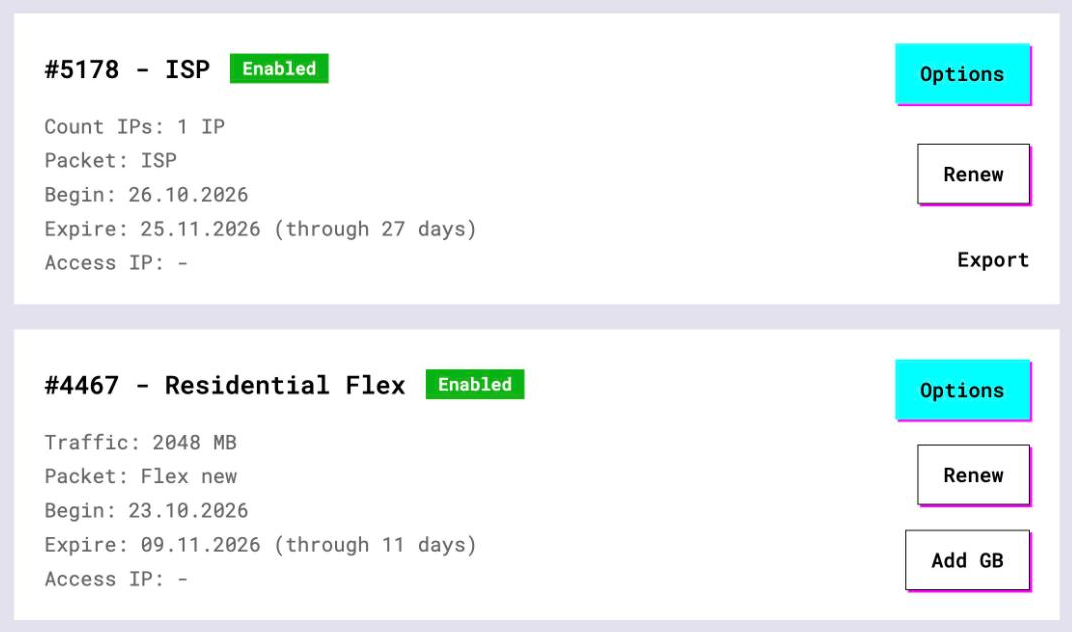
- Open the plan. For per-IP plans (ISP, datacenter) the IPs, ports, login and password are listed right there, and Export gives you the whole list as text. One line per profile, or the whole list for a quick profile
- For residential and mobile plans click Options. The Proxy Configuration panel builds the login string with your country, city and a sticky session name. Copy the finished line from the Proxy List
3 Add a custom proxy to a profile
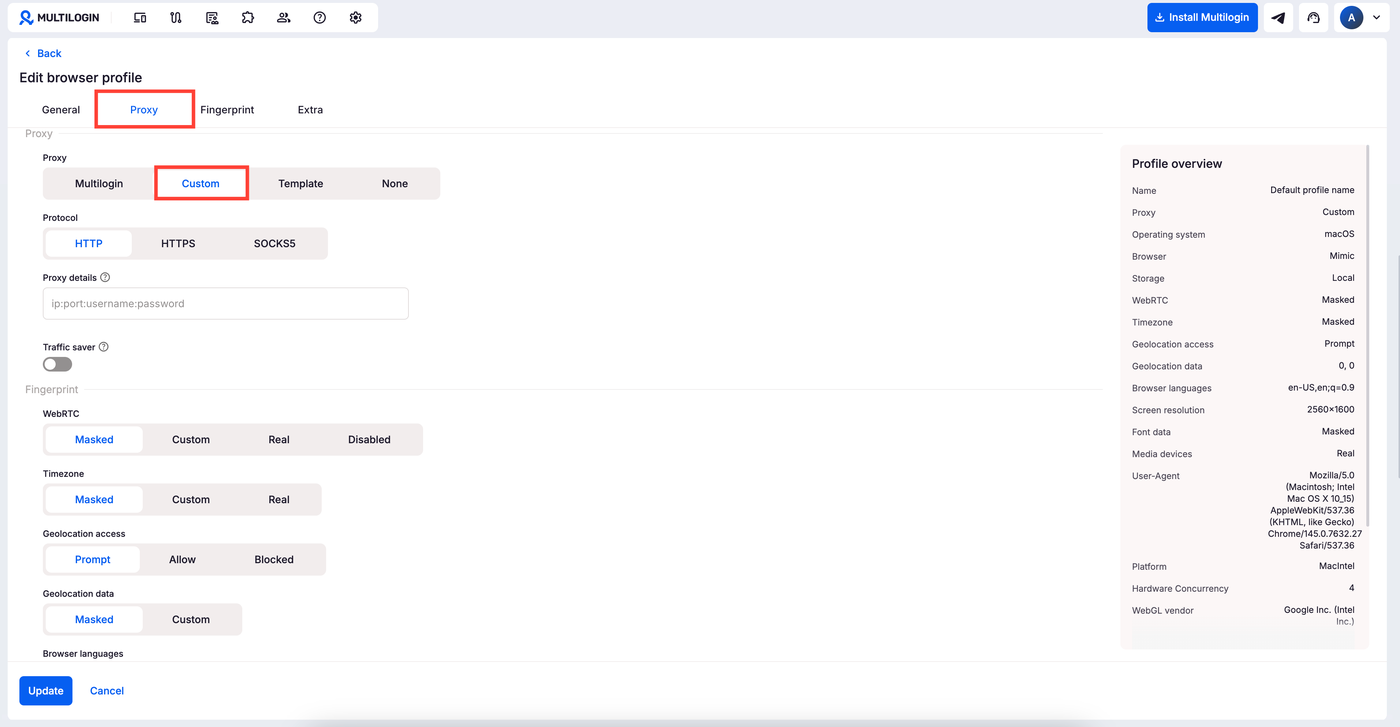
Open Profiles, pick Browser on the left and click Create. The form has three sections: General, Proxy and Fingerprint. The Proxy section offers four options, Multilogin (the built-in proxy), Custom, Template and None. Pick Custom.
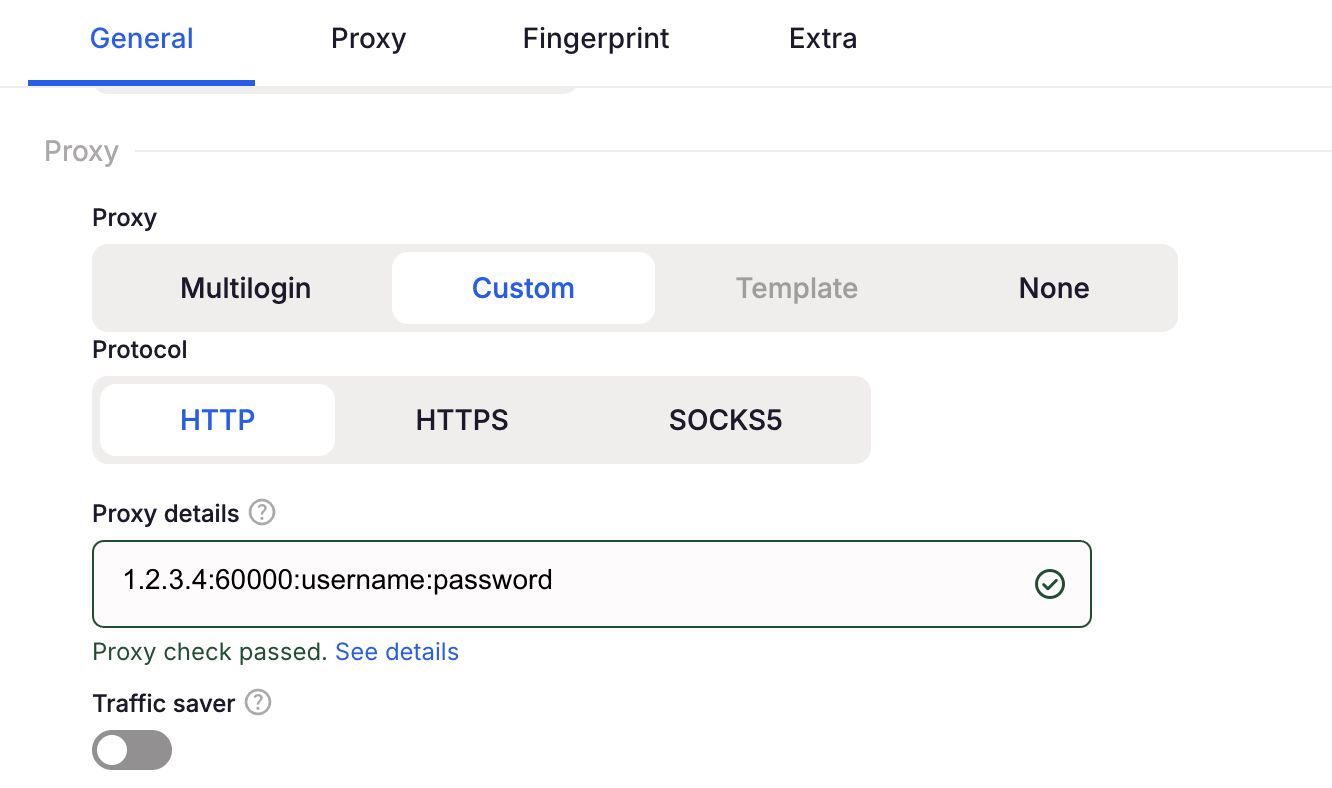
A protocol control appears with HTTP, HTTPS and SOCKS5. Choose the one that matches the port in your GeekProxy dashboard. Below it sits a single field called Proxy details with the placeholder ip:port:username:password. Paste your line there, in exactly that order:
IP:PORT:LOGIN:PASSWORD
The first slot takes a hostname just as happily as an IP, so a residential gateway such as rs.geekproxy.io goes in without changes. The documented format has no scheme prefix. The protocol control already carries that information, so paste the bare line.
Under the field there is a Traffic saver toggle. It blocks images and video inside the profile. On a traffic-billed residential plan that is a real saving; on a per-IP ISP plan it only makes pages uglier.
Click Create, then Start. Done.
Plan in IP whitelist mode? The docs call this IP-authenticated: paste IP:PORT only, and add the IP of the machine running Multilogin to the whitelist in the GeekProxy dashboard first.
4 Check the proxy and the fingerprint defaults
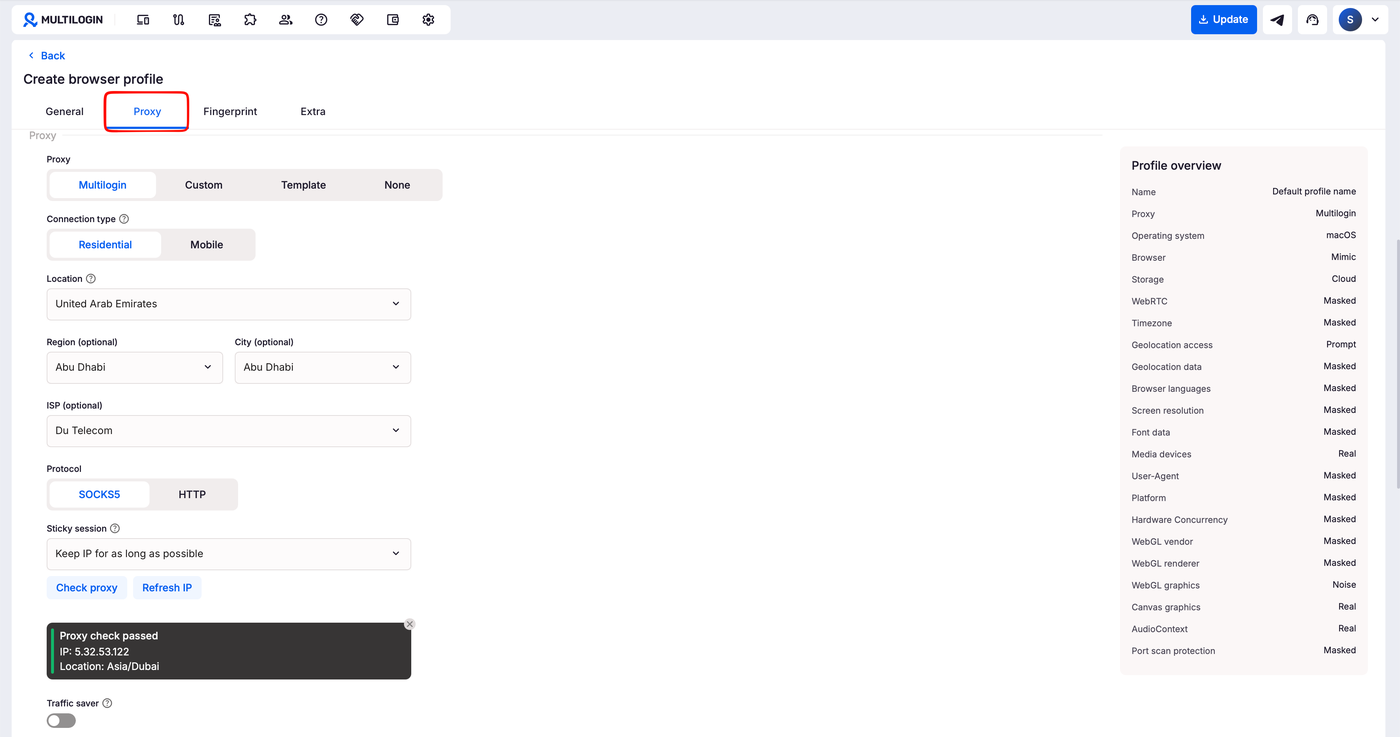
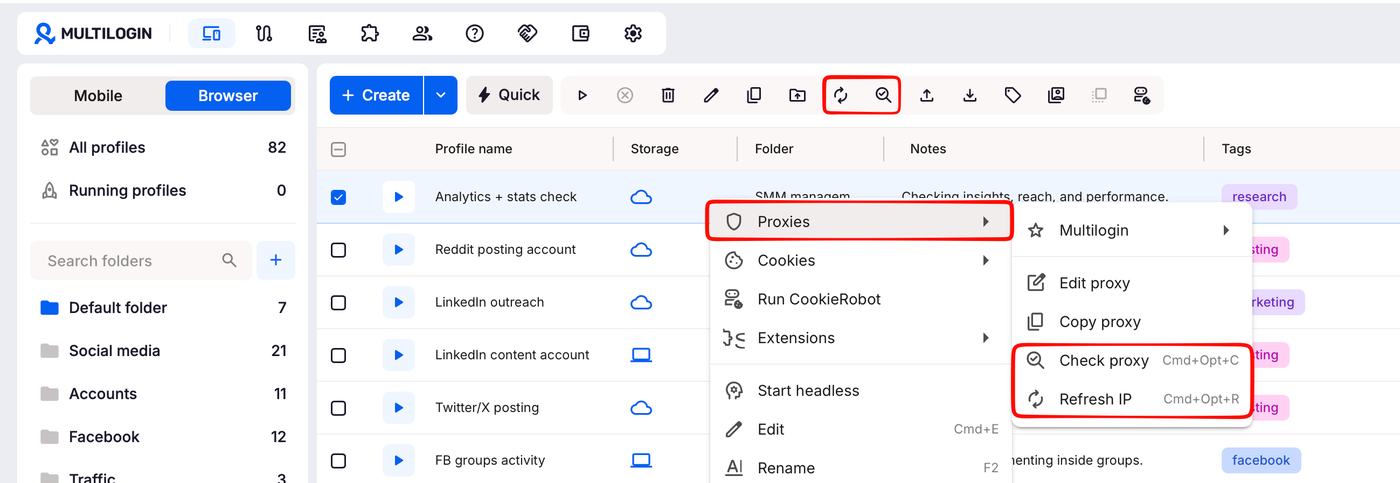
Before the first Start, hit Check proxy. Multilogin connects through the proxy and fetches the IP-dependent data. A green box reads Proxy check passed and lists the exit IP plus a Location in the Asia/Dubai style, which is a timezone name rather than a city. Proxy check failed means it could not connect at all.
The same check lives in two more places. There is a Check proxy icon in the top menu, and a right-click on any profile opens Proxies with Edit proxy, Copy proxy and Check proxy. Copy proxy puts hostname:port:username:password on the clipboard, handy when a line has to travel to another tool. Refresh IP in that menu only works with the built-in proxy.
What does the check feed? The Fingerprint section. Its defaults are WebRTC Masked, Timezone Masked, Geolocation data Masked and Browser languages Masked, with Custom and Real as the alternatives. WebRTC also has Disabled. Masked timezone and geolocation follow the proxy location, and the masked WebRTC address is the proxy IP. Leave these alone unless you have a reason. DNS requests go through the proxy as well, per the vendor's page on what websites see. X has no custom DNS field.
5 Quick profiles and proxy templates
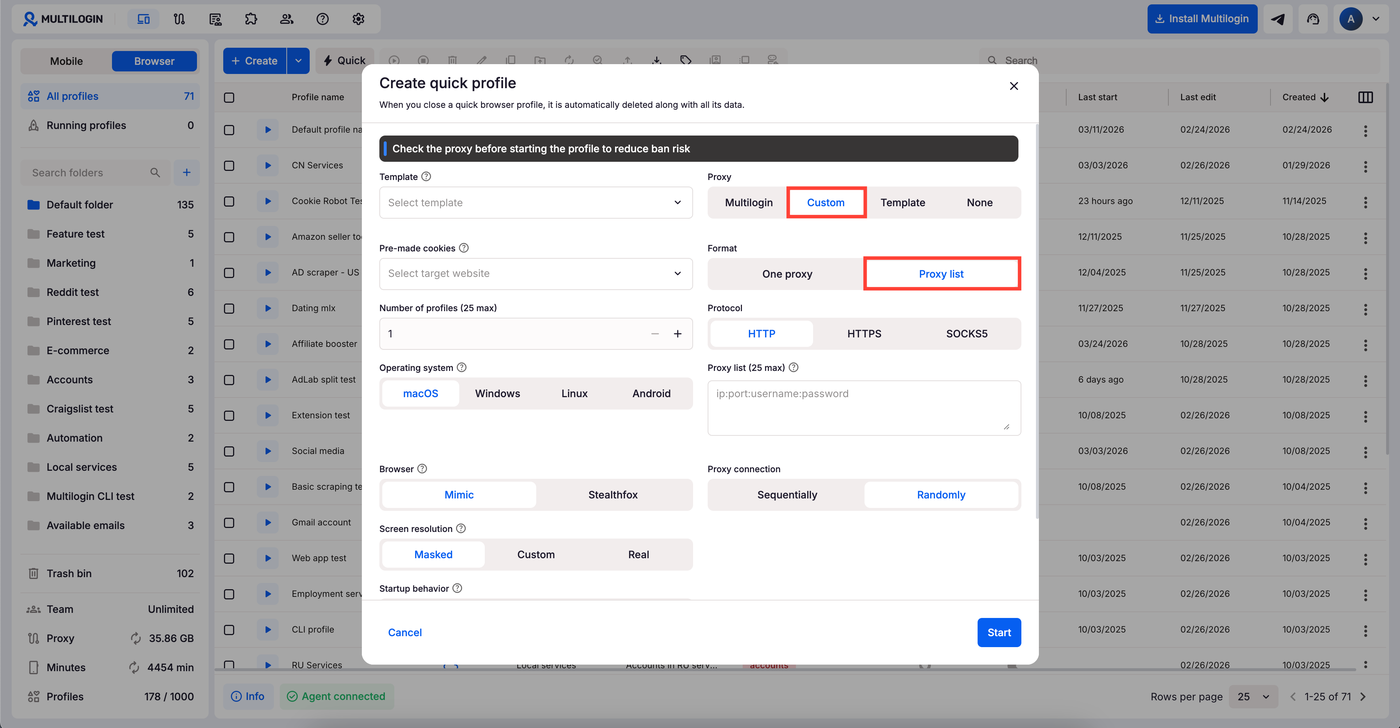
Quick profiles are throwaway sessions. Under Profiles choose Browser, then Quick, and set Proxy to Custom. A Format section appears with One proxy and Proxy list. The list holds up to 25 lines in the IP:port or IP:port:login:password shape. Sequentially hands them out from top to bottom, Randomly in random order without repetition. Export in the GeekProxy dashboard produces exactly such a list for ISP and datacenter plans.
Proxy templates are the reusable version. They start at Pro 20 and are open to the owner and manager roles. Open Proxy templates in the left menu and click Create. Name it, choose Custom, then One proxy or Proxy list (25 lines again), pick the protocol, run Check proxy and click Create. Manage assigned profiles followed by Confirm attaches the template to profiles. Inside a profile you can also pick Template in the Proxy section. The template count equals the profile count of your plan, and deletion goes through Move to trash bin, then Move.
6 Verify it works
The green box already proves the tunnel. Still, start the profile once and open https://ipinfo.io/json inside it. The ip field must show the proxy address, not your own. On an ISP or datacenter plan that is the address from your dashboard, on Residential or Turbo it is an address from the pool in the country you picked. The timezone field should agree with the Location line from the check.
For a Residential Turbo sticky session, reload the page a few times. Same IP every time means the session holds. A new IP on every reload means the login string has no session part, go back to Options in the dashboard.
7 Which GeekProxy product fits
Think in profile lifetimes. A profile you will open for months wants ISP static: one IP for the whole rental period, 25 countries, HTTP or SOCKS5. When many profiles need different residential exits, Residential Turbo gives each one a sticky session string that holds the IP for up to 1440 minutes, and its rotating mode suits quick profiles that live for a single task. Residential Flex works too. It is TCP only, a browser profile needs no UDP, and the Windows exit filter pairs well with a Windows fingerprint. Mobile is for profiles that must show a carrier IP, and datacenter IPv4 covers cheap checks. Since X has no custom DNS field, let the proxy resolve names; SOCKS5 does that remotely by design.
8 Common issues
Proxy check failed
First suspect the line itself: the order is IP, port, login, password, and the protocol control must match the port from the dashboard. The vendor's own list adds a clock out of sync with its timezone, antivirus software, a VPN, or an ISP that blocks the connection. Fix the system time, pause the VPN, try again.
"Wrong proxy data" error
Per the docs this means the traffic is used up or the IP is not working. For a GeekProxy line, check that the plan is active, that a residential plan still has traffic, and that a whitelist plan has your current IP on the list. A negative traffic value concerns the built-in proxy only.
The proxy list stops at 25 lines
That's the ceiling for quick profiles and templates alike. Split the export into chunks of 25.
No Template option in the Proxy section
Templates need Pro 20 or higher and an owner or manager role. On Free Forever, paste the line into each profile with Custom.
Location shows a timezone, not a city
That's how the check reports it. Compare the timezone with the country of your plan; for the city, look at ipinfo.io from inside the profile.
Get proxies for Multilogin X
Static ISP IPs or sticky residential sessions, one line per profile, HTTP and SOCKS5.
Place an order