
Set up GeekProxy in ParseHub
ParseHub is a desktop editor whose real runs happen in ParseHub's own cloud, so the proxy you add is used by their servers, not by your computer. Custom proxies are a paid-plan feature, take the form ip:port:username:password, and live in one textbox on the project Settings page. This guide covers that page, what actually travels through the proxy, and the traps around test runs.
You'll need: a paid ParseHub plan with custom proxies enabled, an active GeekProxy plan and the proxy credentials from your dashboard. Setup takes about 5 minutes plus one email to ParseHub.
Get proxies1 Before you start
The ParseHub client comes as ParseHub Setup.exe for Windows, ParseHub.dmg for Mac and ParseHub.AppImage for Linux. You build the project on your machine, but a real run executes in the cloud on ParseHub's servers using their IP addresses. The free plan gives 200 pages per run and 5 public projects. Standard and Professional both list IP Rotation, and custom proxies are a feature for all paid plans.
There is one more gate. The help center says custom proxies will need to be enabled on your account, and asks you to write to [email protected]. Send that email first; the box may not do anything until they flip the switch.
- Format is strict: IPAddress:Port:Username:Password, one proxy per line
- A username and password are mandatory. The help center asks you to make sure your proxies have them
- The article recommends static HTTP proxies. SOCKS is not mentioned anywhere, so don't plan on it
- Rotation across your lines is done by ParseHub. There is no interval field and no checker
What you'll need
- Active GeekProxy plan with login and password (ISP or datacenter IPv4)
- Proxy credentials from your dashboard: Host, Port, Username, Password
- ParseHub on a paid plan, custom proxies enabled by their support
- Field Where it comes from
- Protocol HTTP
- Host IP address from the dashboard
- Port from the dashboard
- Username from the dashboard
- Password from the dashboard
2 Where to get your credentials
- Log in to your GeekProxy dashboard
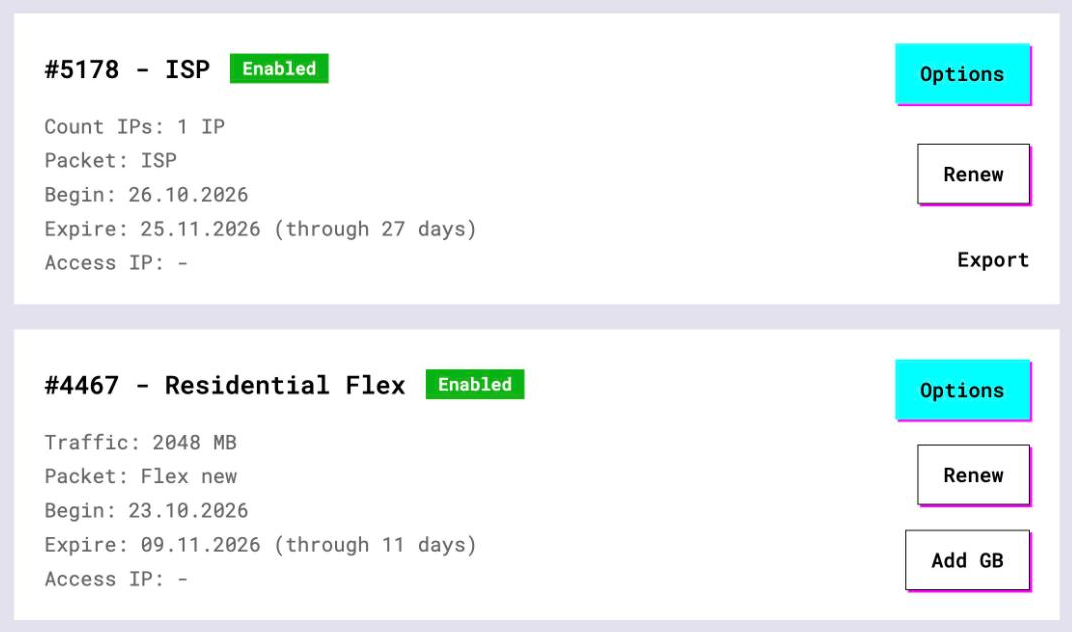
- Open the plan. For per-IP plans (datacenter, ISP) the IP list, ports, login and password sit right on the card, and Export hands you the whole list as text
- Keep the plan in login and password mode. IP whitelist is useless here, because the connecting side is a ParseHub server whose address you don't control
- For residential and mobile plans click Options. The Proxy Configuration panel builds a login string, but the result is a gateway hostname, and the ParseHub format example is an IP. Treat that combination as an experiment, not a plan
Reshape the export into the four-field form. GeekProxy gives you host, port, login and password separately; ParseHub wants them glued with colons in that order. A spreadsheet or a one-line script does it in seconds, and the order matters.
3 What goes through the proxy
This is the part people get wrong. ParseHub has two kinds of runs. A Test Run executes on your machine, in the desktop client. A real run executes in ParseHub's cloud, from their servers, with their IP addresses by default. The custom proxy list is a setting for cloud runs: the path becomes ParseHub server, then your GeekProxy address, then the target site.
Your desktop editor keeps loading pages from your own connection while you click through templates. The help center describes proxies for cloud runs only, so judge the setup by a real run, not by what the editor shows.
Without rotation, the help center says, their servers are all located in North America. With rotation on and no custom list, proxies come from many countries and are allocated to your runs at random. With your list, the random pick happens across your lines. How often ParseHub switches between them, per page or per request, is not documented, so expect either.
4 Open the project Settings
- Open the project in the ParseHub client
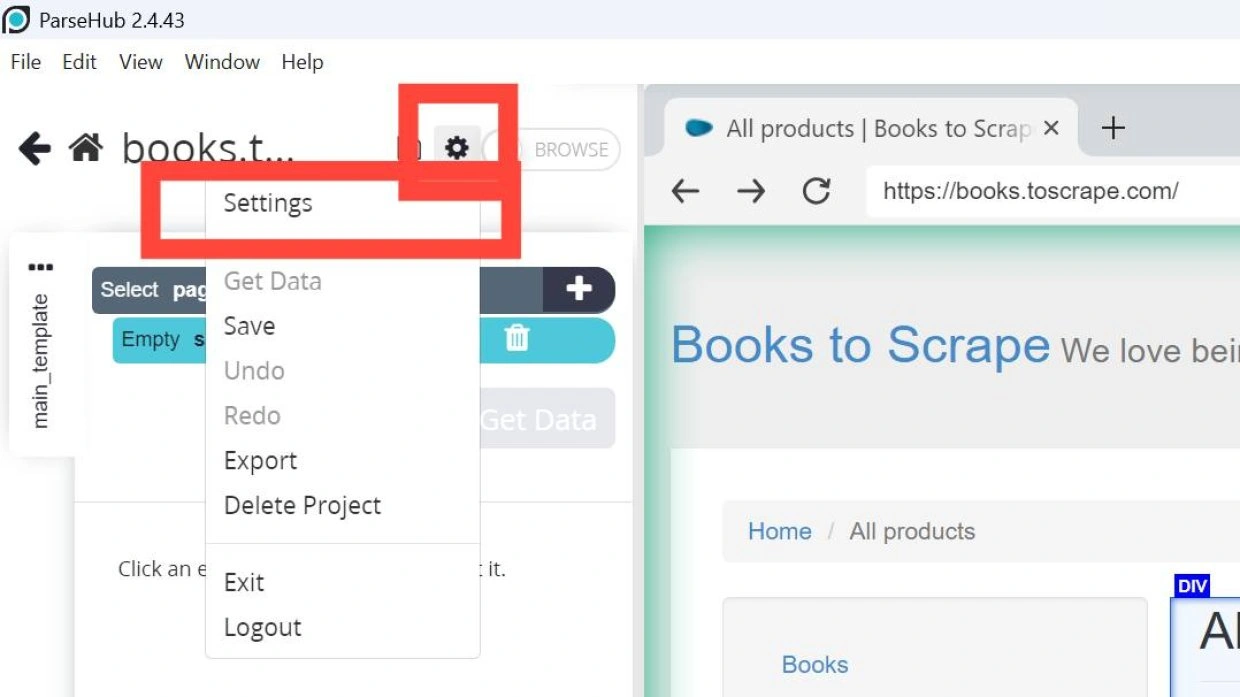
- Click the gear icon beside the magnifying glass at the top left-hand side
- Choose Settings
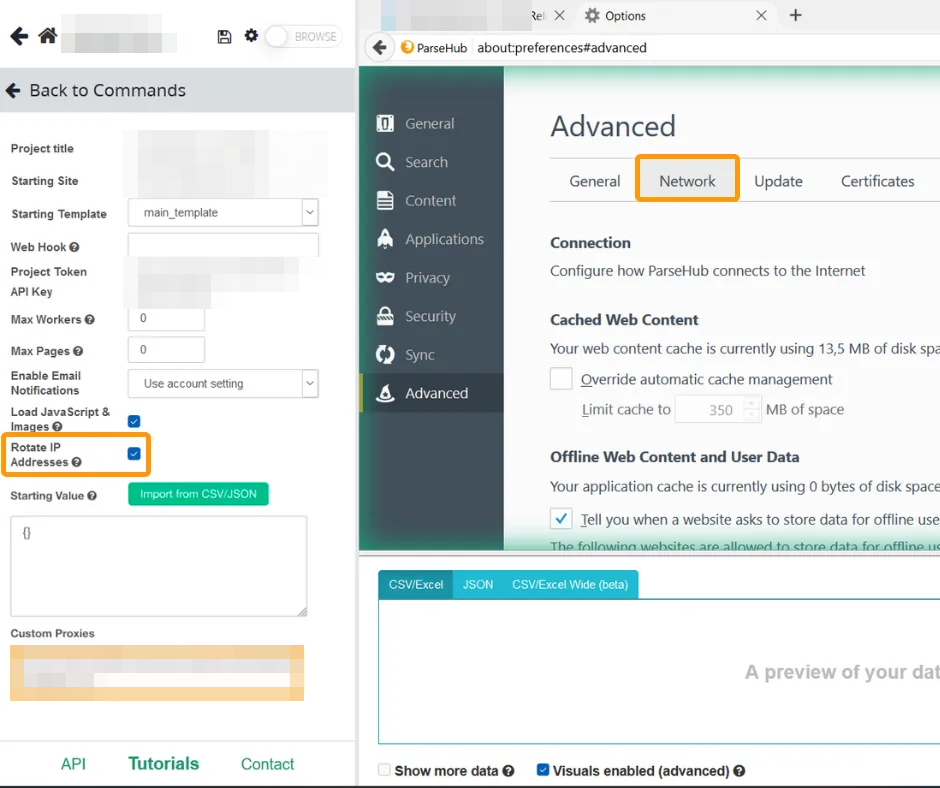
The settings page opens with a Back to Commands header. Down the page you'll find Project title, Starting Site, Starting Template, Web Hook, Project Token and API Key. Then Max Workers, Max Pages, Enable Email Notifications, Load JavaScript & Images, and the checkbox you came for, Rotate IP Addresses. A few more options follow, including Starting Value with Import from CSV/JSON. Exact rows vary a little by version.
5 Rotate IP Addresses and Custom Proxies
- Tick Rotate IP Addresses. A textbox labelled Custom Proxies appears at the bottom of the page
- Paste your lines, one per line, in the form
IP:PORT:LOGIN:PASSWORD - Leave the page the way you leave any other ParseHub setting, and run the project in the cloud
Every line needs all four fields. If you have a single address, one line is fine; rotation then has nothing to rotate, which is what you want for login-bound scraping. With several addresses ParseHub spreads the run across them.
ParseHub's own advice on rotation is unusually honest: unless you have a reason, don't turn it on, because in most cases it slows runs without any benefit. The reason to turn it on is a site that blocks their servers. Check with a Server Snapshot command before you pay for proxies.
The help center notes that some residential providers are not compatible with ParseHub because of the authentication realm they use. It does not say which realms, or why. Test a GeekProxy line on a small run before you build a month of scraping on it.
6 Verify it works
Make a tiny project with https://ipinfo.io/json as the Starting Site, select the page text as the only extraction, and run it in the cloud, not as a Test Run. The ip field in the result must show a GeekProxy address. On an ISP or datacenter plan that is exactly the address from your dashboard, not a North American ParseHub server. A Server Snapshot of the same run shows what their server saw.
Before that, prove the line itself from your terminal, with the same four values:
curl -x http://LOGIN:PASSWORD@IP:PORT https://ipinfo.io/json
If curl works and the cloud run still comes from a ParseHub address, the feature is probably not enabled on your account yet. That email again.
7 Which GeekProxy product fits
A static list of HTTP proxies with login and password, rotated by the vendor, connecting from a cloud you don't own. ISP proxies are the first choice: stable, clean addresses that sites treat like a home connection, which matters when the target already blocks ParseHub's own ranges. Datacenter IPv4 does the same job cheaper on sites that don't care. Both export as per-IP lines with credentials, which is exactly the four-field form. A Residential Turbo gateway would be elegant here, but it is a hostname with a login, and ParseHub's example is an IP. Until it is tested on a paid account we won't promise it.
8 Common issues
The Custom Proxies box doesn't appear
Rotate IP Addresses must be ticked first, and the feature has to be enabled on a paid account by ParseHub support. Both conditions, not either.
My Test Run still shows my own IP
Test runs happen on your computer. The help center documents proxies for cloud runs, so start a real run and look at its results instead.
Runs got slower after I turned rotation on
ParseHub warned you. If the site wasn't blocking their servers, rotation adds hops for nothing. Turn it off, or use fewer, faster lines.
I pasted login:password@ip:port
Wrong shape. ParseHub wants ip:port:username:password with colons and no @. Fix every line.
Authentication errors on a residential line
Could be the realm problem from the help center. Switch to an ISP or datacenter line with plain login and password and retest.
Get proxies for ParseHub
Static ISP or datacenter IPv4 lists, HTTP with login and password, exported per IP in seconds.
Place an order