
Set up GeekProxy in Proxifier
Proxifier sits between your applications and the network and pushes their TCP connections through a proxy, even for programs that have no proxy setting at all. This guide covers the proxy list, rules for one application, name resolution, the Proxy Checker and the one thing Proxifier cannot do, which is UDP.
You'll need: an active GeekProxy plan and the proxy credentials from your dashboard. First proxied connection in about five minutes.
Get proxies1 Before you start
Two current editions matter. Proxifier for Windows is version 4.14 from April 2025 and runs on Windows 7 through 11 and Server 2008 through 2022. It comes as a Standard build with an installer and a Portable build that runs from a folder. Proxifier for Mac is version 3.15 from September 2025 and wants macOS 12 or newer. Both download as a fully working copy with a free 31-day trial, counted per user account, and the only trial limitation is an information window at startup.
After that it costs $39.95 per copy, and Windows and Mac are separate products. The licence is perpetual with free minor updates, 30 days money back. Honest opinion: for a tool you run all day, that is cheap.
On the protocol side Proxifier does login and password natively. SOCKS5 with username and password, HTTPS (a CONNECT proxy) with Basic, NTLM or Kerberos, SOCKS4 with a user ID, and plain HTTP with Basic. None of the Chromium pain here. What it cannot do is UDP: the features page says it processes all outgoing TCP connections, and since version 4.11 it can log and block UDP, but never forward it.
What you'll need
- Active GeekProxy plan (ISP, datacenter or residential)
- Proxy credentials from your dashboard: Host, Port, Username, Password
- Proxifier 4.x on Windows or 3.x on macOS, trial or licensed. The Standard edition needs administrator rights to install
- FieldWhere it comes from
- ProtocolSOCKS version 5 (or HTTPS for the HTTP port)
- AddressIP or gateway hostname from the dashboard
- Portfrom the dashboard
- Usernamefrom the dashboard
- Passwordfrom the dashboard
2 Where to get your credentials
- Log in to your GeekProxy dashboard
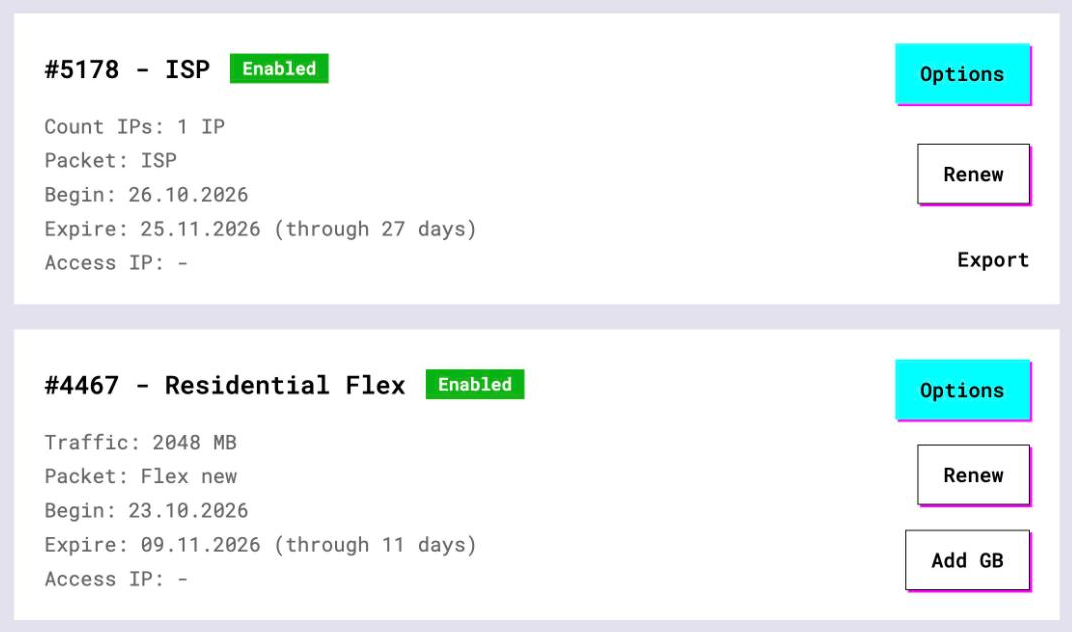
- Open the plan. For per-IP plans (ISP, datacenter) the address, port, login and password are on the card, and Export gives you the whole list as text
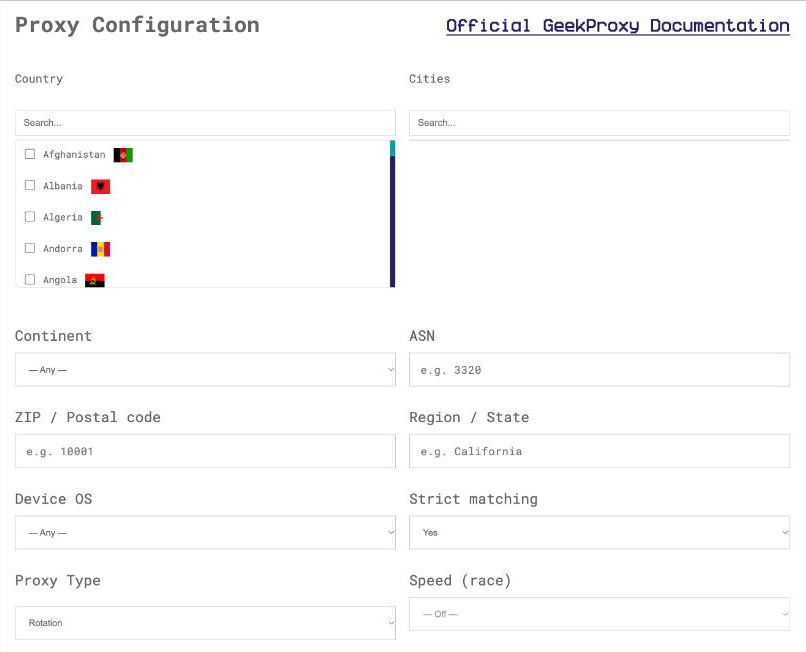
- For residential plans click Options. The Proxy Configuration panel builds a login string with your country and session settings. Copy host, port and the login from the Proxy List
Proxifier has separate fields for address, port, username and password. There is no paste-a-URL box, so keep the four values handy rather than the combined line.
3 Add the proxy server
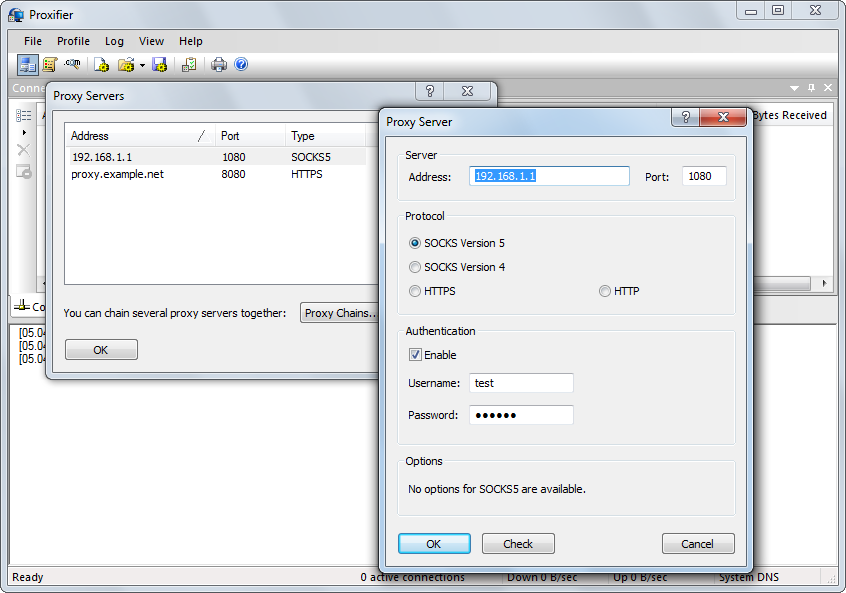
- Open Profile > Proxy Servers (there is a toolbar button for it too) and click Add
- Address: the IP or the gateway hostname from your dashboard. Port: the port
- Protocol: choose SOCKS version 5. For a GeekProxy HTTP port pick HTTPS, which in Proxifier means a proxy that accepts CONNECT
- Fill in Username and Password. On a plan in IP whitelist mode leave both empty
- Press Check to open the Proxy Checker, then OK
When you add the first proxy, Proxifier asks whether to use it by default. Yes makes it the action of the Default Proxification Rule, so every application goes through it from now on. Say No if you only want one program proxied; section 4 handles that. A proxy that serves the Default rule is shown in bold in the list.
One trap in the protocol list. The entry called HTTP is for proxies that only process plain HTTP connections on port 80. It stays hidden until you enable it under Profile > Advanced > HTTP Proxy Servers. Don't go there. HTTPS or SOCKS version 5 is what you want.
The Advanced button on the same dialog holds a custom label and the authentication prompt. Leave a credential field empty and Proxifier asks for it when the proxy rejects the connection, with a "Save to Profile" option. Useful for a shared machine where you don't want the password stored.
4 Proxification rules for one application
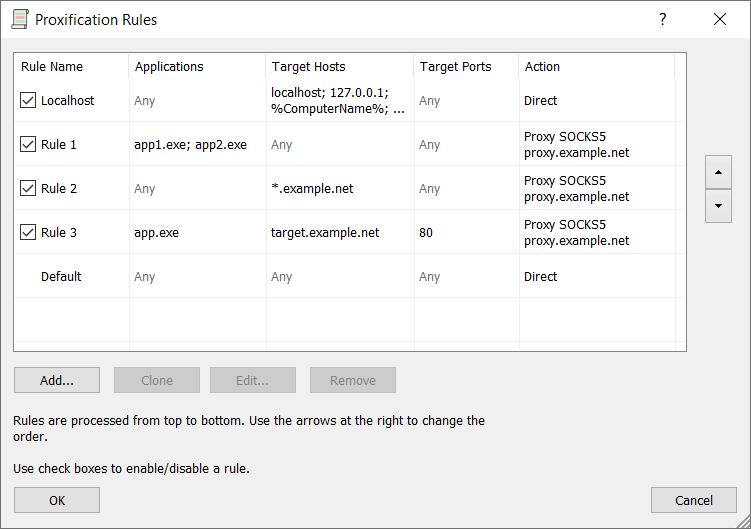
Rules decide which connections go where. They are checked top to bottom, the first match wins, and the Default rule at the bottom catches the rest. A Localhost rule is on from the start and keeps 127.0.0.1 out of the proxy. Keep it.
To route a single program and leave everything else direct:
- Open Profile > Proxification Rules, click Add
- Name: anything, say the program's name. Tick Enable
- Applications: the executable name, with or without path. Several names go separated by semicolons, names with spaces in double quotes. Wildcards work:
?for one character,*for any substring, andpid=1234targets one running process - Target hosts and Target ports: leave as Any for a whole-program rule. Otherwise host names, IPv4 or IPv6 addresses, ranges with a hyphen, CIDR for IPv4, and ports from 1 to 65535
- Action: Proxy and your GeekProxy server. The other actions are Chain, Direct and Block
- Move the rule above Default with the arrows, and set the Default rule's action to Direct
A Windows example: Discord's process is Discord.exe, so a rule with that name and the action Proxy sends its chat, text and API traffic through the proxy. Voice is UDP and stays outside, see section 7. Other programs have their own process names, and a launcher that starts a child process may need the child listed too.
The Standard edition on Windows adds manual proxification: right-click an .exe or a shortcut, and the Proxifier submenu starts that one instance through a chosen proxy, Direct or Block. It applies to that PID only, and for browsers that spawn helper processes only the first program is handled.
5 Name resolution
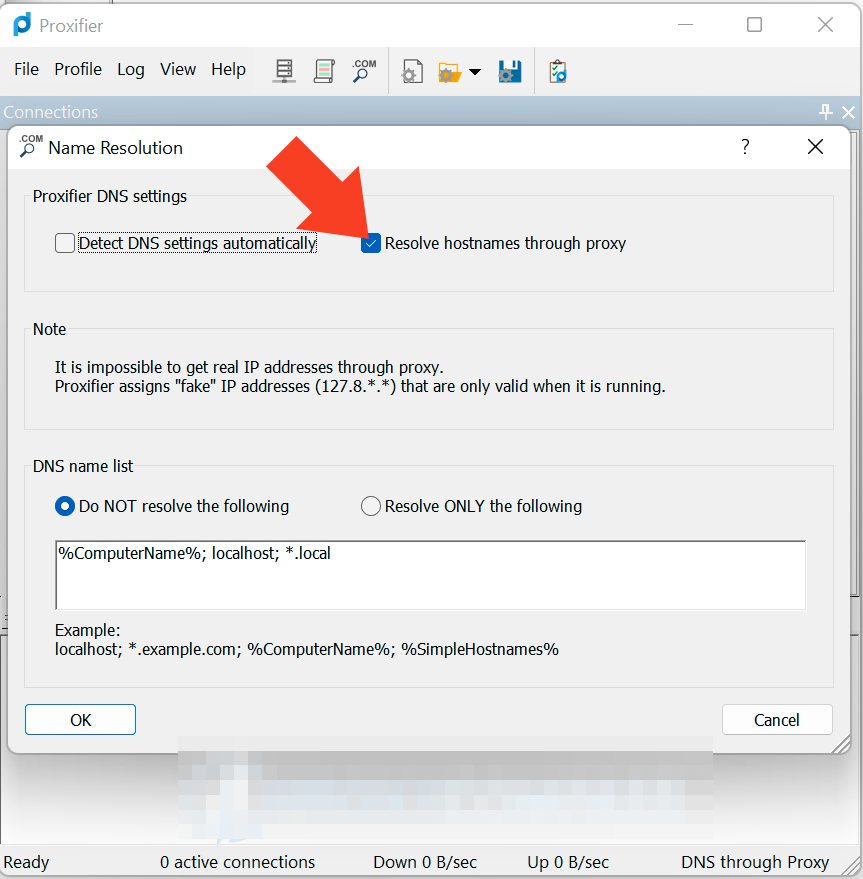
Open Profile > Name Resolution. The default, Detect DNS settings automatically, watches the network and switches to resolving through the proxy only if the system DNS becomes unavailable. For a proxied application you usually want more than that: tick Resolve hostnames through proxy, and the DNS lookup travels inside the tunnel with the connection. The feature works with every proxy protocol Proxifier supports.
The exclusion list below it has two modes, "Do NOT resolve the following" and "Resolve ONLY the following". It takes the same ? and * wildcards, plus the constants %ComputerName% and %SimpleHostnames% for local names.
Names resolved through the proxy get placeholder addresses such as 127.8.*.* that exist only on your machine. Proxifier's docs say rules based on IP addresses won't match such names. Write rules by host name, or by application, when remote resolution is on.
6 Verify it works
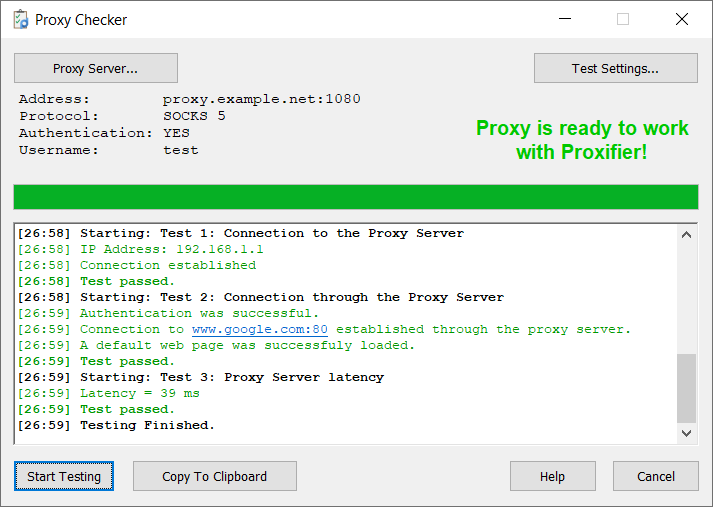
Start with the built-in Proxy Checker: the Check button in the proxy dialog, or View > Proxy Checker. It tests SOCKS v4, SOCKS v5, HTTPS and HTTP, shows latency and prints a recommendation. Under Test Settings you can choose the target host and port, load a default web page from it, and run the test through Proxifier itself. Press Start Testing. Green means the proxy answers and accepts your login.
Then the real check. Open https://ipinfo.io/json in a browser that your rules cover. The ip field must show the proxy address, not your own. On an ISP or datacenter plan that is the address from your dashboard, on Residential or Turbo it is an address from the pool in the country you picked. The main window lists every connection with the rule that matched it, so a program going direct by mistake is easy to spot.
7 Which GeekProxy product fits
Proxifier is a per-application tool on one desktop, so one steady identity suits it. ISP static or datacenter IPv4 as SOCKS version 5 with username and password uses the full authentication support and never changes address. For a residential exit add the Residential Turbo gateway hostname with the session login and tick "Resolve hostnames through proxy" so DNS stays in the tunnel. Residential Flex is TCP only, which is exactly what Proxifier forwards, so nothing is lost there. The UDP that Turbo, ISP and datacenter plans offer over SOCKS5 brings nothing inside Proxifier: game and voice UDP goes direct, or is blocked if a Block rule matches it.
8 Common issues
Everything is proxied, not just the one program
You answered Yes to the question after adding the first proxy, so the Default rule points at it. Open Proxification Rules and set Default back to Direct.
The rule never matches
The executable name is off, or a launcher spawns the real process under another name. Watch the main window: it shows the process name of every connection, and that name goes into the Applications field.
Voice chat or a game still shows my IP
That traffic is UDP, and Proxifier forwards TCP only. Since 4.11 it can log and block UDP, nothing more. Pick a client with a TUN mode for UDP-heavy software.
IP-based rules stopped working after enabling remote DNS
Names resolved through the proxy get 127.8.*.* placeholders, so an IP rule can't match them. Use host-name rules or disable "Resolve hostnames through proxy" for that profile.
The HTTP protocol entry is missing or the HTTP proxy fails
Proxifier's HTTP type handles port-80 traffic only and must be switched on under Profile > Advanced. Select HTTPS for a GeekProxy HTTP port instead, with the same login and password.
Get proxies for Proxifier
Static ISP and datacenter IPs with SOCKS5 login, or a residential gateway for the apps you choose.
Place an order