
Set up GeekProxy in Vision
Vision stores proxies per folder, binds one to each profile and is the one anti-detect in this batch whose docs promise UDP through the proxy. This guide covers the four places where a proxy can be added and the paste formats from the Russian docs page. It also walks through the Settings switches that touch UDP and names the GeekProxy product that uses that path.
You'll need: an active GeekProxy plan and the proxy credentials from your dashboard. One profile takes about two minutes.
Get proxies1 Before you start
Vision runs on Windows 10 or later (Windows Server 2016 too) and on macOS 12 Monterey or later, Intel or Apple Silicon. Linux is covered as well: 64-bit Ubuntu 18.04, Debian 10, openSUSE 15.2 or Fedora 32 and up. There is no free plan. A 4-day trial covers every feature and is activated in the personal area on the website. Paid plans start at Micro with 50 profiles and go up to Ultra with 1,500.
Protocols on the About proxy page: HTTP/HTTPS, SOCKS4 and SOCKS5. SSH is listed as coming in a future update. Login and password go either into the fields or into the pasted string. A line with host and port only is the shape for a plan in IP whitelist mode.
One thing to know before the first click. A proxy belongs to a folder, so a proxy added in folder A is invisible in folder B.
What you'll need
- Active GeekProxy plan (ISP, datacenter, residential or mobile)
- Proxy credentials from your dashboard: Host, Port, Username, Password
- Vision with an active trial or plan
- FieldWhere it comes from
- ProtocolHTTP / SOCKS5
- HostIP or gateway hostname from the dashboard
- Portfrom the dashboard
- Usernamefrom the dashboard
- Passwordfrom the dashboard
2 Where to get your credentials
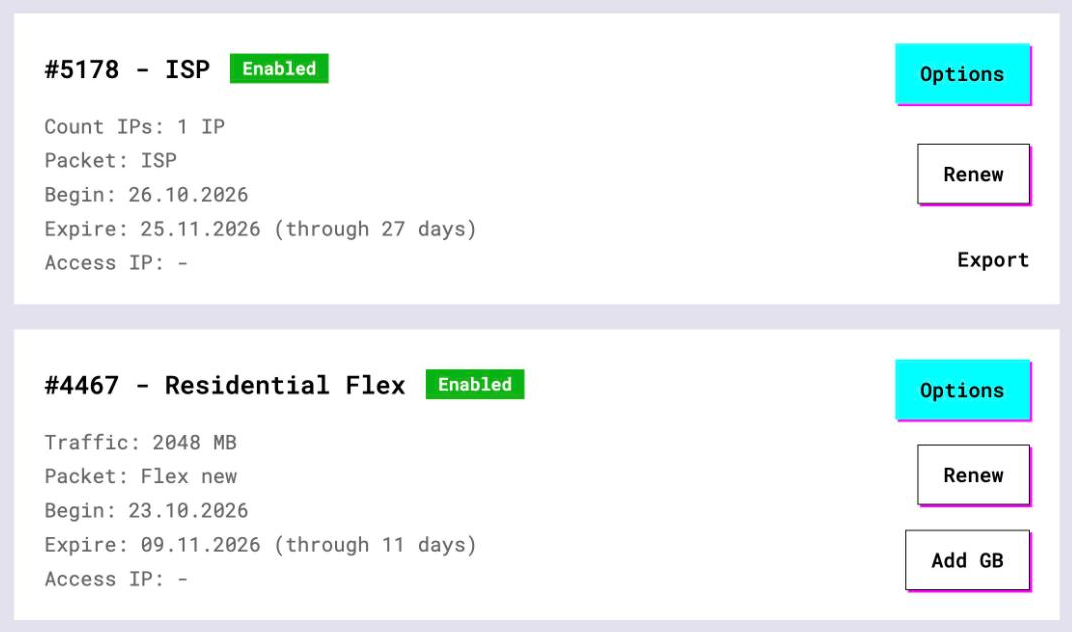
- Log in to your GeekProxy dashboard and open Subscriptions
- Open the plan. For per-IP plans (ISP, datacenter) the IPs, ports, login and password are listed right there. Export gives you the whole list as text, ready for Mass Proxy Creation
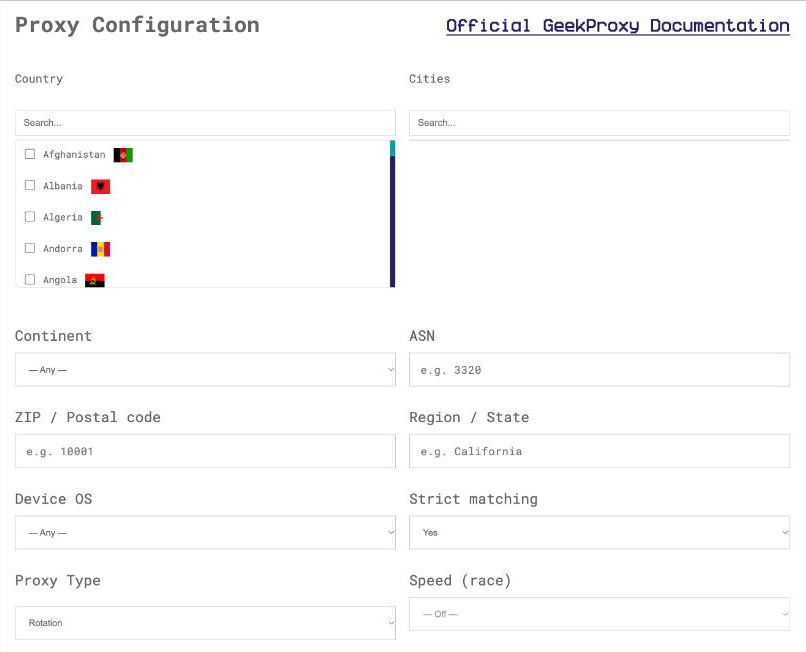
- For residential and mobile plans click Options. The Proxy Configuration panel builds the login string with your country, city and sticky session. Copy one line per profile from the Proxy List
3 Proxies live in folders
Every folder has its own Proxy tab, and the proxies on it are the ones a profile in that folder can pick. Need the same GeekProxy line in two folders? Open the Proxy tab, select the rows, click the transfer icon in the bulk-actions menu, choose the target in the sidebar and press Move. The docs are careful to say this is a copy, the original stays.
Editing works from the same tab: the pencil icon opens the editing sidebar, and Edit saves. Under Settings, Additional, there is Remember proxy settings, which reuses the proxy of the previous profile when you create the next one. Handy for a batch of similar profiles, dangerous when each one must have its own exit.
4 Four ways to add a proxy
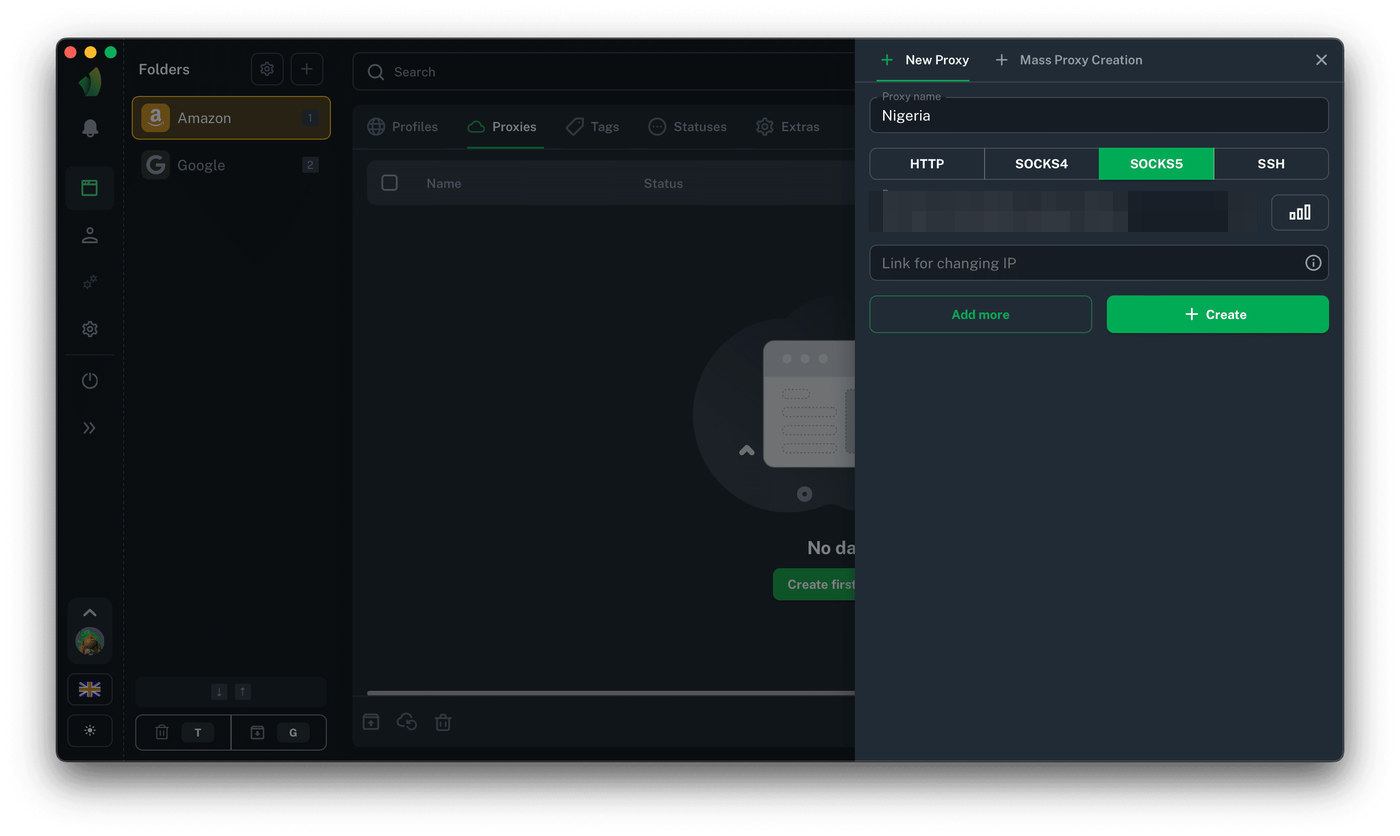
The Create proxy page lists four entry points, all leading to the same form with protocol, IP, port, login, password and a link to change IP. Proxy Name and IP Change Link are optional, and a blank name is generated for you.
- Folder, Proxy tab, Create Proxy button. Fill in the sidebar, press Save
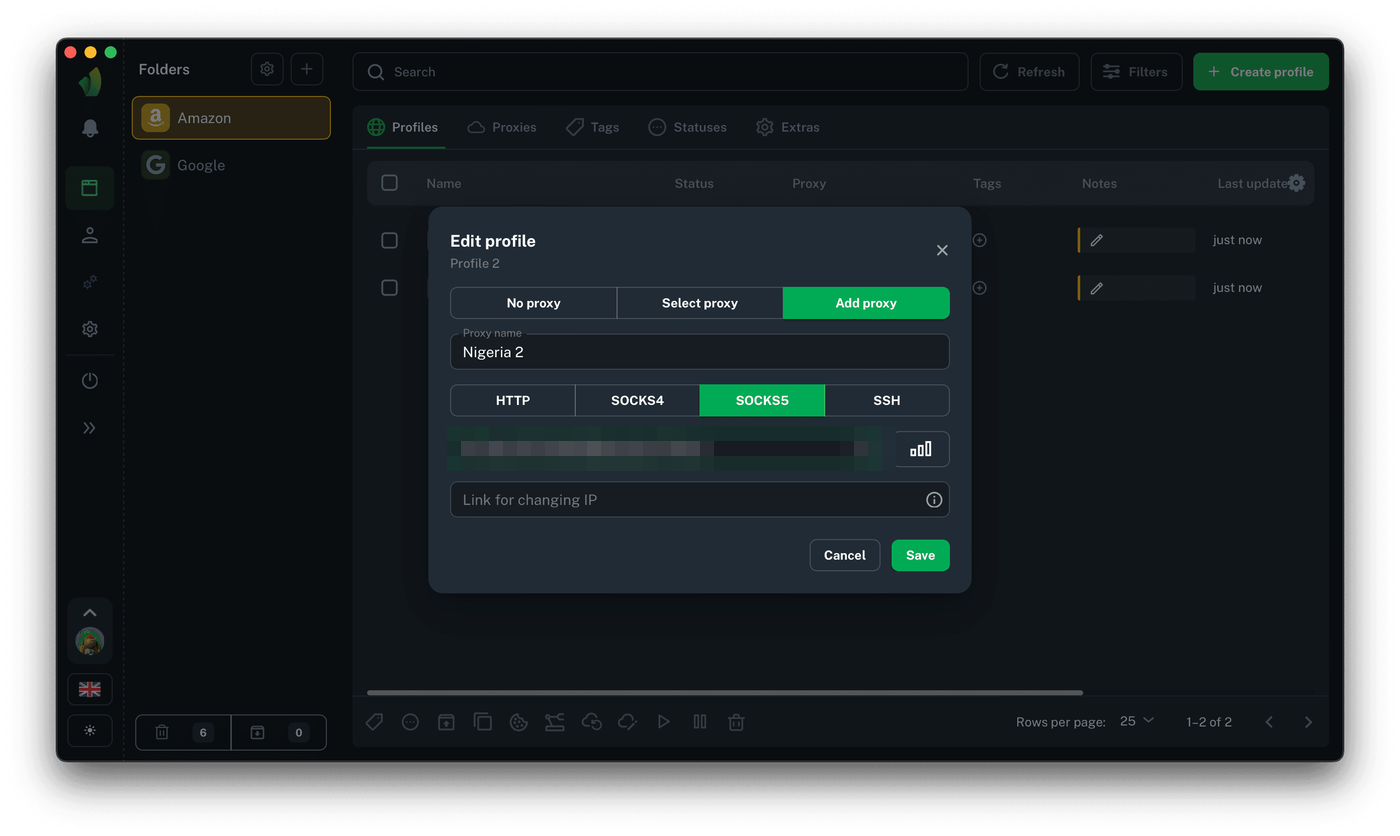
- Profiles tab, Create Profile, then Add Proxy inside the profile sidebar. Adjust the fingerprint if you want and press Create Profile
- In the profiles table turn on the Proxy column, click the plus or the current proxy name, then Add Proxy in the modal and Save. The new proxy is bound to that profile
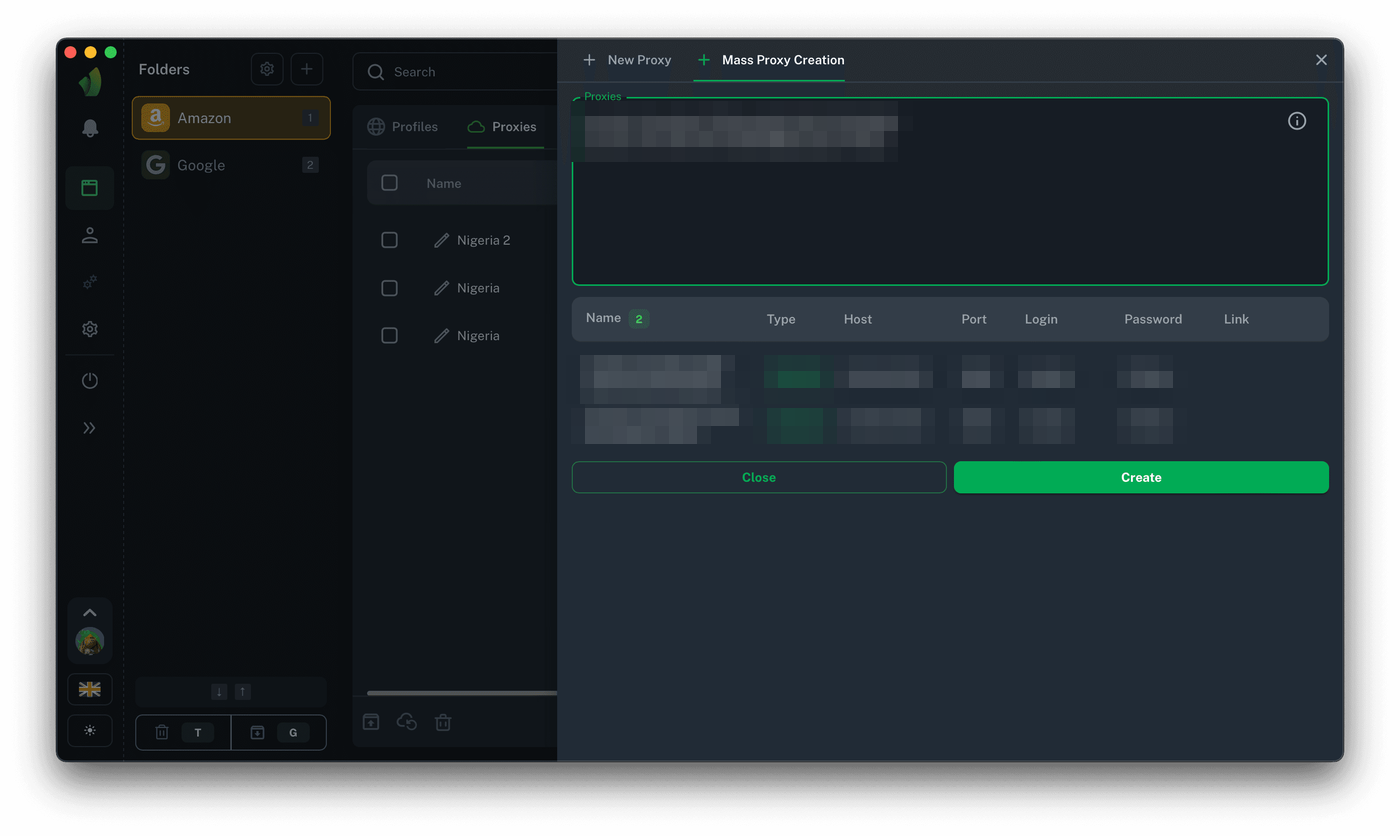
- Bulk: in the Create Proxy sidebar open the Mass Proxy Creation tab, paste one proxy per line and press Create. A text file dropped onto the window is parsed the same way
The Russian docs page spells out the formats Vision recognises. With placeholders they look like this:
IP:PORT
IP:PORT:LOGIN:PASSWORD
socks5://IP:PORT:LOGIN:PASSWORD
socks5://LOGIN:PASSWORD@IP:PORT
http://IP:PORT:LOGIN:PASSWORD
Two extras ride on these lines. A name can follow the password after one more colon, and an IP-change link can sit at the end in square brackets. Neither is needed for ISP addresses or sticky sessions. Put the scheme in front whenever you can, it saves a trip to the protocol dropdown.
Mass actions on the profiles table include Mass Proxy CustomCheck and Mass Proxy Change on Profiles. A fresh list from the GeekProxy Export can replace the proxies of many profiles in one go.
5 UDP, QUIC and the Settings page
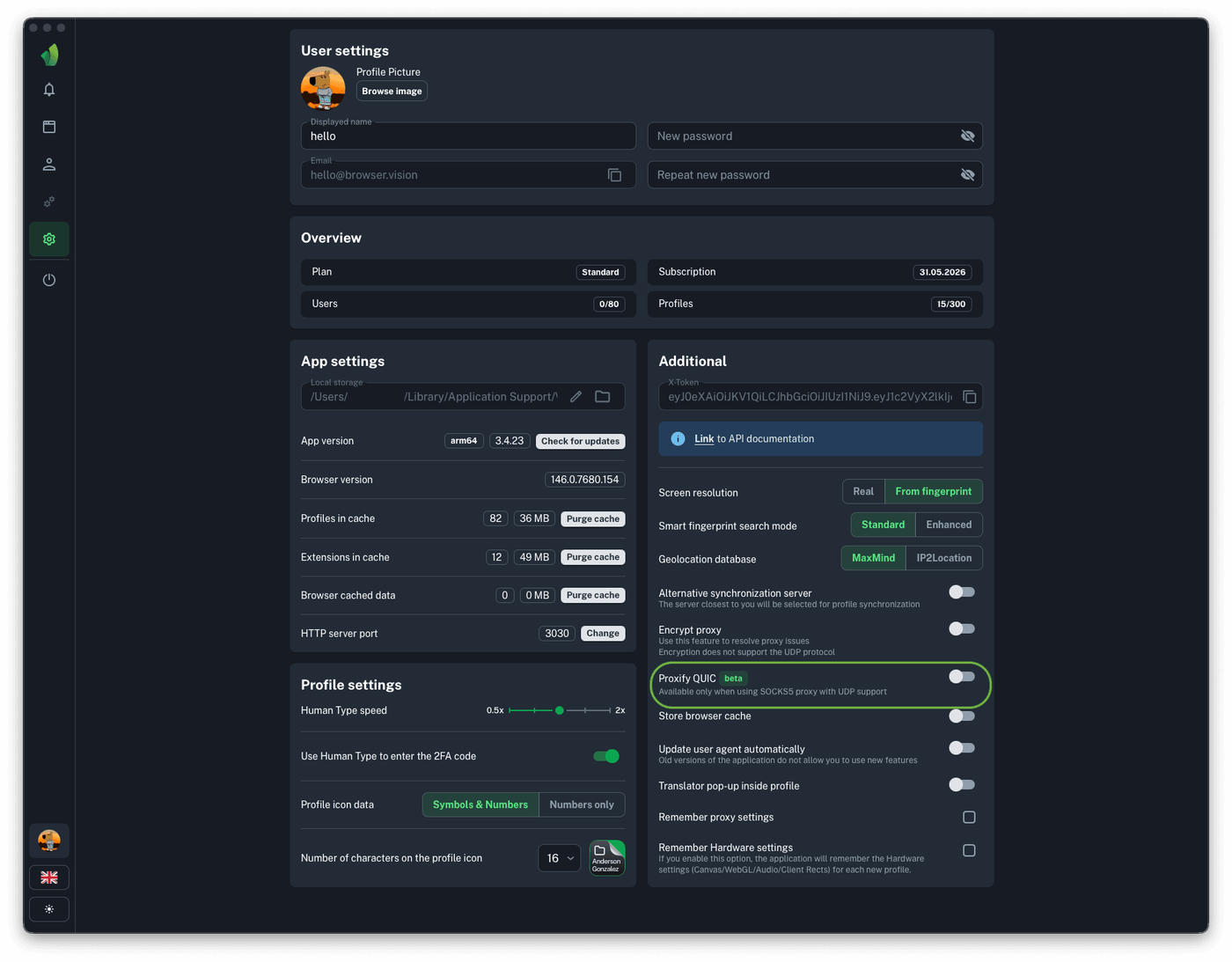
Vision's docs say all traffic goes through the proxy, UDP included, when the proxy is SOCKS5 with UDP support. That covers WebRTC and QUIC, which most anti-detects leave outside the tunnel. Three switches on the Settings page interact with it.
Proxify QUIC lets Google's QUIC protocol run through the proxy, provided the proxy fully supports UDP. The docs mark it as still in development. Turn it on with a UDP-capable SOCKS5 proxy, leave it off with anything else.
Encrypt proxy obfuscates the proxy connection for regions where proxies are blocked. Two warnings from the vendor: don't use it without such restrictions, and UDP is not supported while it's on. So it cancels the whole point of a Turbo session.
Geolocation database switches between MaxMind and IP2Location for the proxy check. If the location after a check looks wrong, switch to the other base and check again. The docs say this fixes it most of the time.
Also worth knowing: Store browser cache keeps page assets locally and the docs claim about 80% savings on mobile or residential traffic. And the folder's launch arguments accept --proxy-bypass-list, for instance *.example.com;localhost;127.0.0.1, for addresses that should skip the proxy.
6 Verify it works
Start the profile and open https://ipinfo.io/json. The ip field must show the proxy address, not your own. On an ISP or datacenter plan that is the address from your dashboard, on Residential or Turbo it is an address from the pool in the country you picked. For a sticky residential session reload a few times. The IP should hold. If you rely on the UDP path, open a WebRTC leak test in the same profile: the address it reports should be the proxy's, not yours.
7 Which GeekProxy product fits
Vision is built around UDP through SOCKS5, so give it a proxy that has UDP. Residential Turbo carries UDP over SOCKS5, opens all ports and holds a sticky session for up to 1440 minutes, which makes it the match for WebRTC and QUIC-sensitive sites. Paste it as socks5://IP:PORT:LOGIN:PASSWORD, one session per profile. For accounts that must keep one address for months, ISP static gives each profile a fixed IP with no traffic counter. Mobile is the pick when a carrier IP is the point, and it's where the IP-change link in square brackets earns its place. Residential Flex works for TCP-only browsing but adds nothing to the UDP path, so keep Proxify QUIC off with it.
8 Common issues
The proxy isn't in the dropdown of a profile
Wrong folder. Proxies are per folder. Copy it over with the transfer icon and Move, then pick it again.
Location after the check looks wrong
Switch Geolocation database from MaxMind to IP2Location or back, then re-check. The country from https://ipinfo.io/json is the tie-breaker.
WebRTC or QUIC don't go through the proxy
The proxy has no UDP, or Encrypt proxy is on. Datacenter, ISP and Flex ports are TCP only. Use a Residential Turbo SOCKS5 port and switch Encrypt proxy off.
Mass Proxy Creation skipped some lines
They don't match the recognised formats. Check for a missing port or a password with a colon, and put the scheme in front of the line.
Every new profile gets the same proxy
Remember proxy settings is on under Settings, Additional. Turn it off when each profile needs its own exit.
Get proxies for Vision
Sticky residential sessions with UDP over SOCKS5, static ISP IPs, login and password on every port.
Place an order