
Set up GeekProxy in WebHarvy
WebHarvy keeps a proxy list of its own, rotates it by the minute, skips dead entries while mining and applies the setting to its configuration browser too. One Settings window, one tab, five fields. This guide covers that tab, the import format for whole lists, the rotation checkbox and the few things the docs leave unsaid.
You'll need: an active GeekProxy plan and the proxy credentials from your dashboard. Setup takes about 3 minutes.
Get proxies1 Before you start
WebHarvy is Windows only. The download page says it outright and suggests installing Windows on a Mac if you must. Version 8.2.0.257 is current as this is written, and the 15-day trial needs no account, so the whole guide can be followed before you pay.
- The proxy setting is global. It applies to mining and to the configuration browser where you point and click, and to nothing else on the PC. The release notes put it as: proxies are set only within WebHarvy and not system wide
- Supported types, per the user guide: HTTP, HTTPS, SOCKS4, SOCKS4a and SOCKS5
- Authentication is a checkbox, Requires Authentication, plus Username and Password per entry
- Rotation is a checkbox with a minute value. Off, and the first proxy in the list is used for everything
- The vendor's own advice: use paid proxies, because free ones are slow and end mining early. We agree, for obvious reasons
What you'll need
- Active GeekProxy plan (ISP, datacenter or Residential Flex)
- Proxy credentials from your dashboard: Host, Port, Username, Password
- WebHarvy 8.x on Windows, trial or licensed
- Field Where it comes from
- Protocol HTTP, or SOCKS5 with IP whitelist
- Host IP or gateway hostname from the dashboard
- Port from the dashboard
- Username from the dashboard
- Password from the dashboard
2 Where to get your credentials
- Log in to your GeekProxy dashboard
- Open the plan. For per-IP plans (datacenter, ISP) the IP list, ports, login and password sit right on the card, and Export hands you the whole list as text. That export is what you'll import in section 5
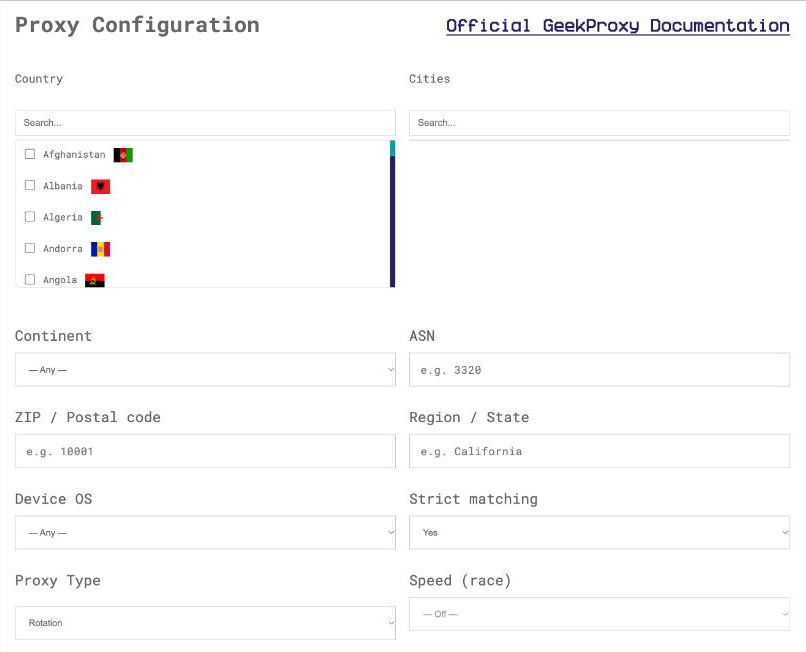
- For residential and mobile plans click Options. The Proxy Configuration panel builds the login string with your country, session type and OS filter. Copy host, port, username and password from the Proxy List
A note on the residential gateway. Its host is a name, not an IP. The WebHarvy field is called Address and every example in the docs is an IP, so whether a hostname is accepted is not something we can quote from the vendor. Try it on a single entry first. If it fails, stay with per-IP plans, which fit the list model anyway.
3 Open the Proxy Settings tab
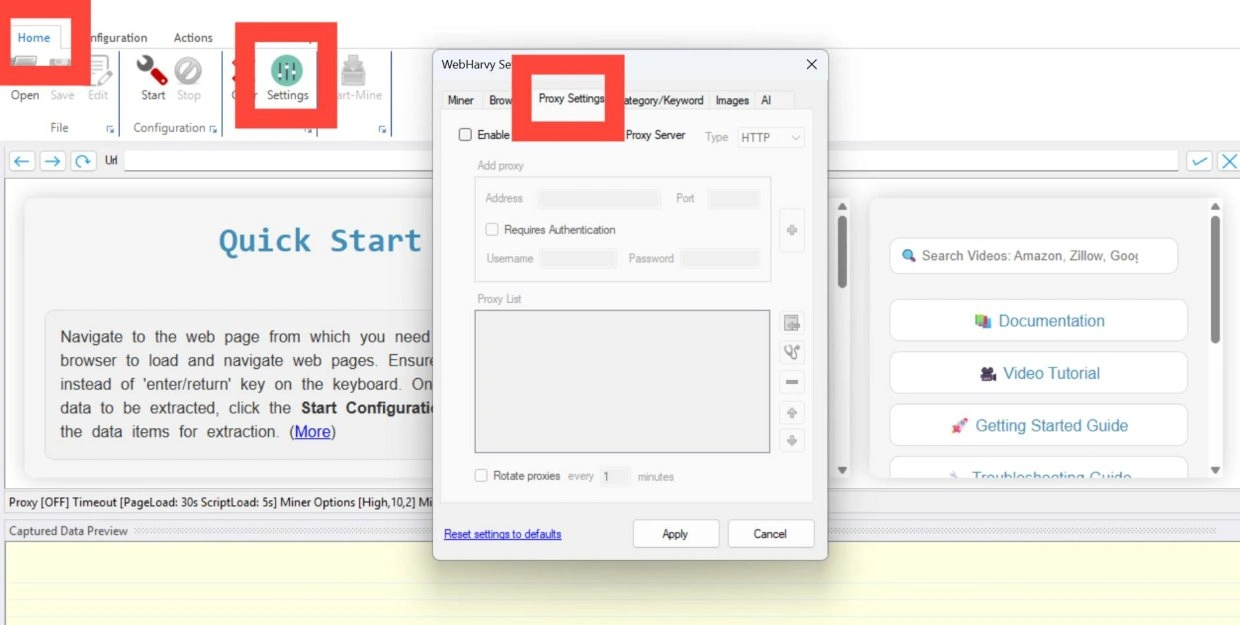
The ribbon has five tabs: Home, Configuration, Actions, Tools, Help. On Home, next to Clear, sits the Settings button. Click it. A window titled WebHarvy Settings opens with tabs Miner, Browser, Proxy Settings, Category/Keyword and Images. Pick Proxy Settings.
Top of the tab: a checkbox, Enable network connection via Proxy Server. Nothing below it does anything until this is ticked. Under it a Type dropdown, then a group called Add proxy, then the Proxy List with its side buttons. Below that the rotation line, Reset settings to defaults, Apply and Cancel.
4 Add a proxy by hand
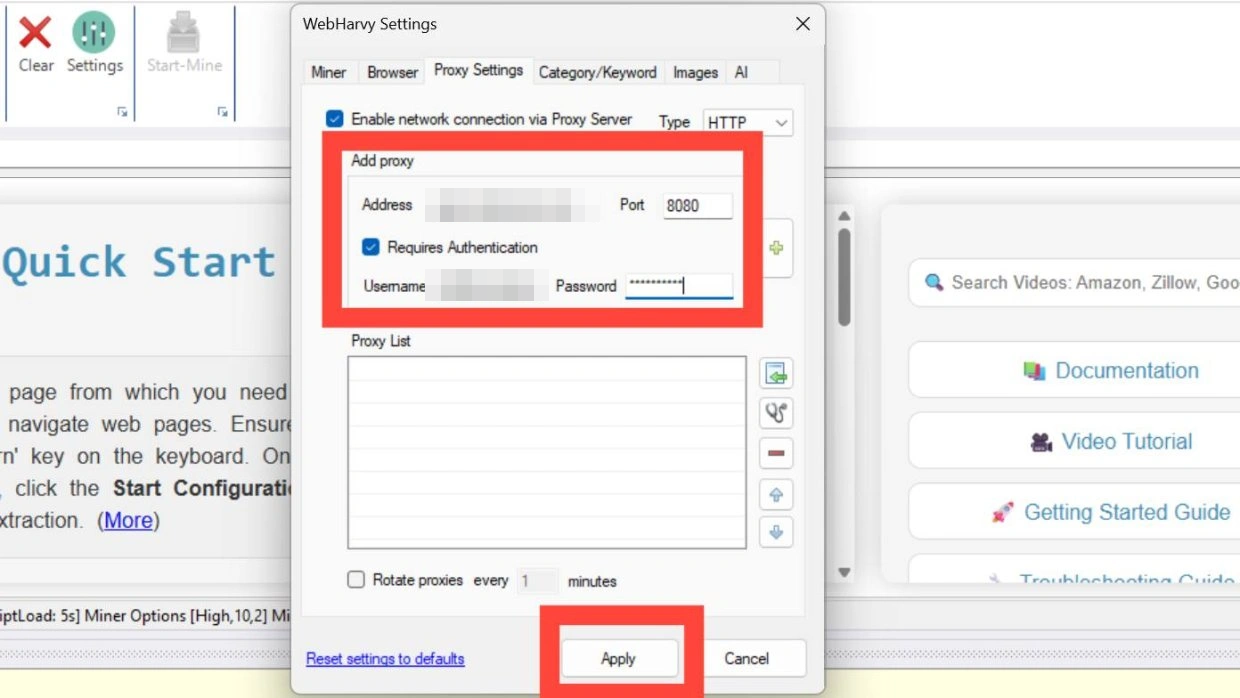
- Tick Enable network connection via Proxy Server
- Set Type. The official screenshot shows HTTPS; for a GeekProxy plan with login and password pick HTTP or HTTPS. There is one Type selector for the whole list, so keep all entries on one protocol
- In Add proxy fill Address with the host and Port with
PORT - Tick Requires Authentication and enter Username
LOGINand PasswordPASSWORD. For a plan in IP-whitelist mode leave the box unticked - Click the + button. The entry appears in the Proxy List as address:port
- Press Apply
To change a saved entry, double click it in the Proxy List. Its values come back into the Add proxy group, you edit them, and the tick button applies the change. The minus button removes an entry, the arrows reorder, and order matters when rotation is off, because the first entry is the one that gets used.
SOCKS5 with a username and password is listed as supported, but WebHarvy drives an embedded Chromium, and Chromium-based engines are known to ignore SOCKS credentials. Safe path: HTTP with login and password, or SOCKS5 with the GeekProxy plan switched to IP whitelist and the authentication box unticked.
5 Import a list and rotate it
Typing twenty addresses by hand is nobody's idea of fun. The import icon beside the Proxy List takes a CSV or text file. Each line describes one proxy as IP:PORT:LOGIN:PASSWORD; the username and password are optional, so a whitelist plan imports as plain IP:PORT. Entries can also be separated by commas or semicolons. The GeekProxy Export gives you the four values per address, so reshaping it is a minute of work.
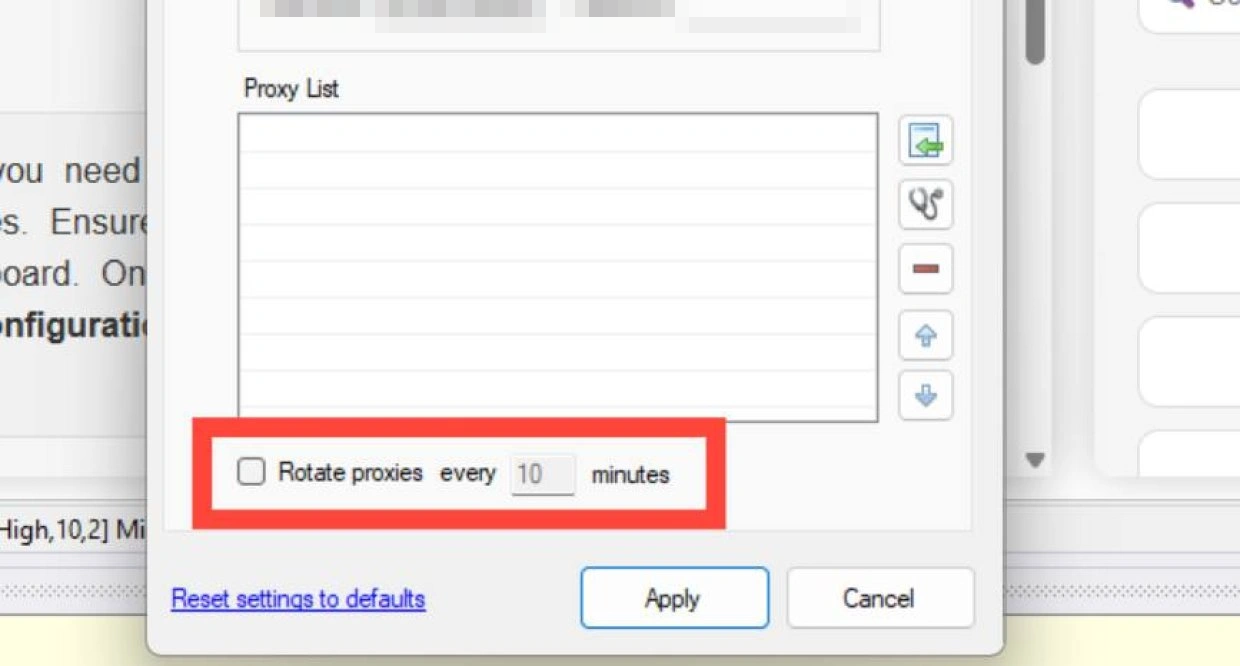
Then the rotation line: Rotate proxies every [N] minutes. Tick it and set the number. WebHarvy will go through the list periodically, starting from a random entry, and skip proxies that don't respond without stopping the mining. Leave it unticked and only the first entry works.
One companion setting lives on the Browser tab of the same window: Disable cookies while mining. With it on, WebHarvy periodically deletes browser cookies during mining, which pairs well with an IP that changes every few minutes.
6 Verify it works
Because the setting also covers the configuration browser, the check is quick. Press Apply, load https://ipinfo.io/json in WebHarvy's own browser and read the ip field. It must show the proxy address, not yours. On an ISP or datacenter plan that is the address from your dashboard, on Residential Flex or Turbo any address from the pool in the country you picked. With rotation on, reload a few minutes later and see it change.
To separate a proxy problem from a WebHarvy problem, run the same check from a terminal:
curl -x http://LOGIN:PASSWORD@IP:PORT https://ipinfo.io/json
7 Which GeekProxy product fits
A list of entries with optional login and password, rotated every few minutes by the app, each entry holding a page session for that long. That is the shape of a static list. ISP proxies are the natural pick for shops, directories and marketplaces: a clean address stays on one listing for the whole rotation interval and looks like a home line. Datacenter IPv4 fills a long list cheaply for sites that don't fight back. Residential Flex is interesting here for a different reason: its Windows exit filter matches the Windows user agent WebHarvy sends, and TCP-only is no limit for page loads. It arrives as a gateway hostname, so test it on one entry before building a list around it.
8 Common issues
Nothing changed after I added the proxy
Either the top checkbox is off or you closed the window with Cancel. Tick Enable network connection via Proxy Server and press Apply.
Only the first proxy is ever used
Rotation is off. That is the documented behaviour: without Rotate proxies, the first entry in the list handles everything.
Mining runs but pages come back empty or blocked
Dead entries are skipped silently, so a list full of expired addresses keeps mining and yields nothing. Check the plan status in the dashboard and run the curl line above on a couple of entries.
SOCKS5 entry with login fails to connect
Chromium under the hood. Switch the plan to IP whitelist and untick Requires Authentication, or use the HTTP port with login and password.
A mixed list of HTTP and SOCKS entries half works
Type is one dropdown for the whole list. Keep every entry on the same protocol.
Get proxies for WebHarvy
Static ISP and datacenter lists for minute-by-minute rotation, HTTP or SOCKS5, exported in seconds.
Place an order