
Set up GeekProxy in ZeroOmega
ZeroOmega is the maintained fork of Proxy SwitchyOmega, rebuilt for Manifest V3. It does what the original did: proxy profiles you switch from the toolbar, plus rules that pick a profile per site. This guide covers where to install it from, a profile with login and password, auto switch, and the SOCKS5 limit that Chrome imposes on every extension.
You'll need: an active GeekProxy plan and the proxy credentials from your dashboard. Install and first profile take about three minutes.
Get proxies1 Before you start
A bit of history, because it explains the odd name. SwitchyOmega was the proxy switcher for Chrome for a decade. On 13 January 2025 its author pinned an issue saying the project is no longer maintained. The extension was disabled and removed from the Chrome Web Store, because Chrome stopped accepting extensions that had not moved to Manifest V3. The Firefox build, he wrote, still worked to a certain degree. He named no successor and left the thread open for forks.
ZeroOmega is that fork, GPLv3, with the same profile model. Version 3.5.2 came out on 9 September 2026. The project has no homepage of its own; the GitHub repository and its wiki are the official source.
Two rules it inherits from Chrome. An HTTP or HTTPS proxy with login and password works. SOCKS5 with login and password does not, in any Chrome extension: the SwitchyOmega FAQ says SOCKS authentication is not implemented in Chrome and no extension can add it. For SOCKS5 your GeekProxy plan has to be in IP whitelist mode.
And one line the ZeroOmega README asks every proxy provider to repeat, so here it is. ZeroOmega is an independent project that does not cooperate with any proxy or VPN provider, GeekProxy included, and its developers cannot support our connections. Questions about the proxy go to us, questions about the extension go to its GitHub.
What you'll need
- Active GeekProxy plan (ISP, datacenter or residential)
- Proxy credentials from your dashboard: Host, Port, Username, Password
- Chrome, Edge or Firefox. The Firefox listing also works on Firefox for Android
- FieldWhere it comes from
- ProtocolHTTP (SOCKS5 only with IP whitelist)
- ServerIP or gateway hostname from the dashboard
- Portfrom the dashboard
- Usernamefrom the dashboard
- Passwordfrom the dashboard
2 Where to get your credentials
- Log in to your GeekProxy dashboard
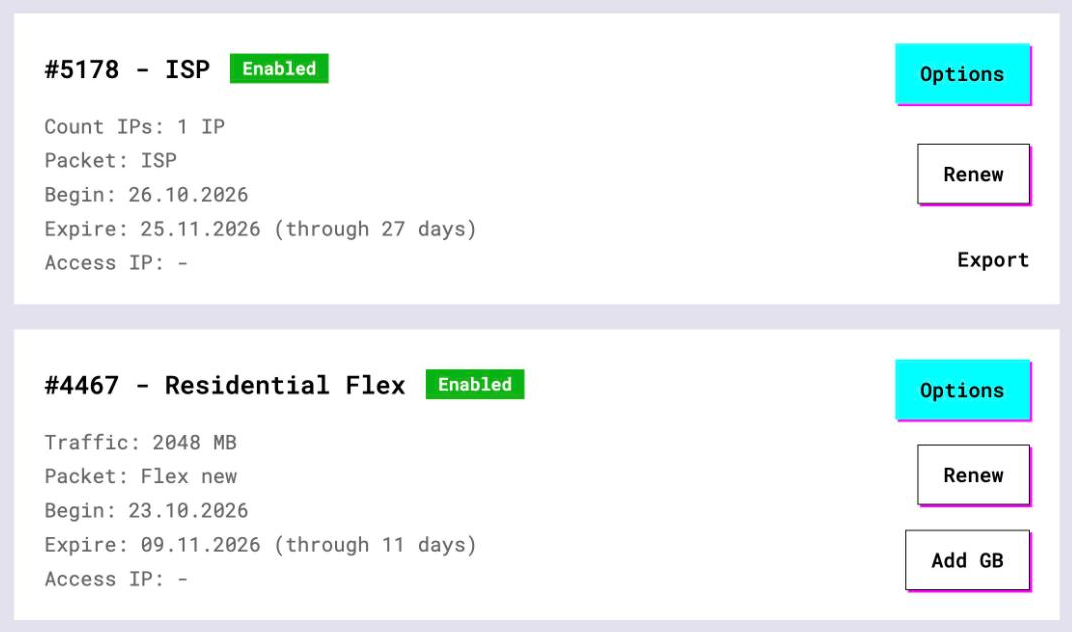
- Open the plan. For per-IP plans (ISP, datacenter) the address, port, login and password are on the card, and Export gives you the whole list as text. One line per profile is the idea here
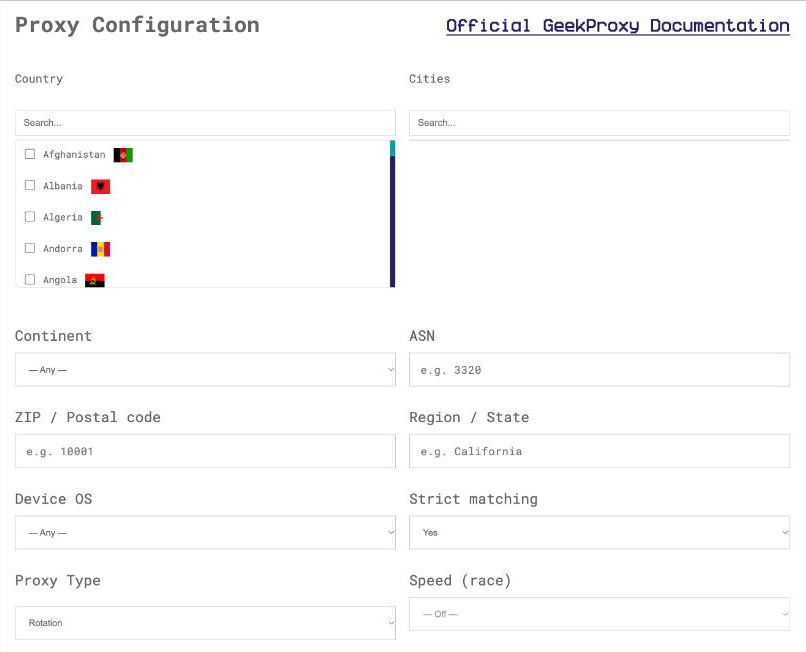
- For residential plans click Options. The Proxy Configuration panel builds a login string with your country and session settings. Copy host, port and the login from the Proxy List
3 Install from the right place
The README lists three store pages and a release page. Use those and nothing else.
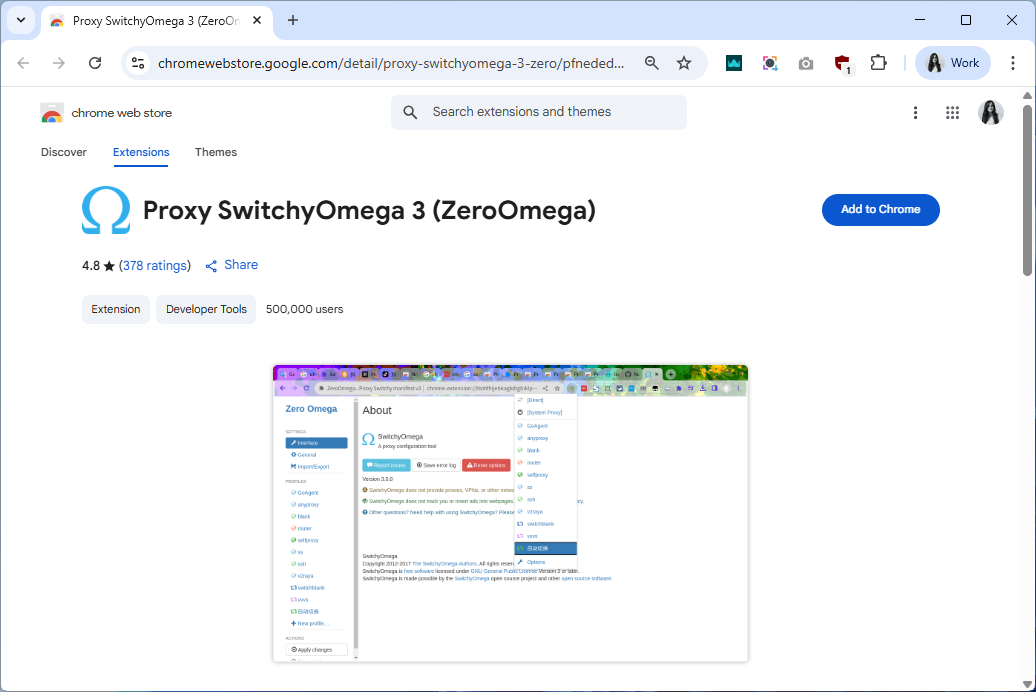
- Chrome Web Store: the listing is called Proxy SwitchyOmega 3 (ZeroOmega), developer suziwen1, extension ID
pfnededegaaopdmhkdmcofjmoldfiped. About 900,000 users at the time of writing - Microsoft Edge Add-ons: ID
dmaldhchmoafliphkijbfhaomcgglmgd - Firefox Add-ons: listed as ZeroOmega with the subtitle Proxy SwitchyOmega V3, by zero-peak
- Offline: the GitHub Releases page of zero-peak/ZeroOmega ships a .crx for Chromium browsers and an .xpi for Firefox, each with a .sha256 file next to it
Match the ID in the store URL, not the name. The original name is free for anyone to reuse, and a store search returns more than one listing that looks like it. The real one has the ID above and shows version 3.5.2 or newer.
4 A proxy profile with login and password
ZeroOmega keeps the SwitchyOmega profile types. A fixed server profile holds one proxy per protocol (HTTP, HTTPS, FTP and a fallback). There are also direct, system, auto-detect and PAC profiles, and the switch profile from section 5. For GeekProxy you need one fixed server profile per IP or per session string.
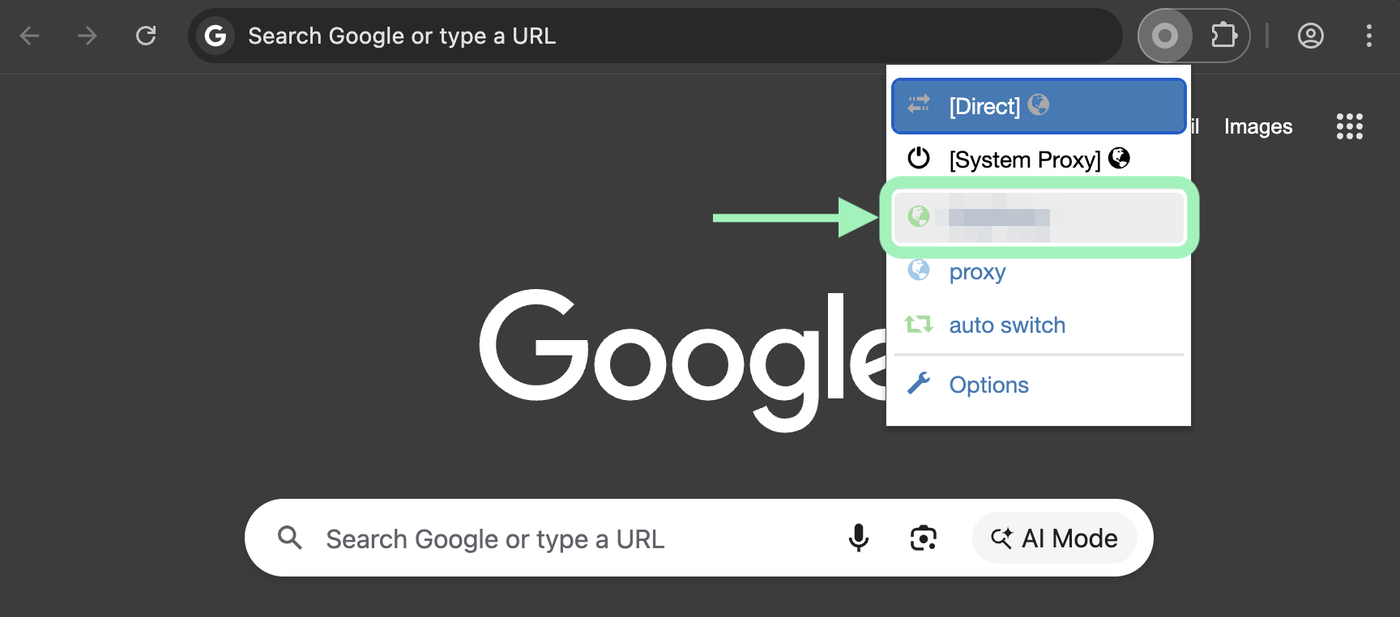
- Open the extension's options page from the toolbar icon and create a new profile of the proxy type. Name it after the plan, for instance by country
- Set the protocol to HTTP, the server to the IP or gateway hostname from your dashboard, and the port
- Open the authentication fields next to the server row and enter the username and password. This is the step SwitchyOmega users remember as the lock icon
- Leave the bypass list as it is. It already excludes local addresses
- Save the changes, then pick the profile from the toolbar popup
Each GeekProxy IP gets its own profile, so three ISP addresses mean three profiles. The popup becomes a one-click switch between them, which is the whole point of the extension.
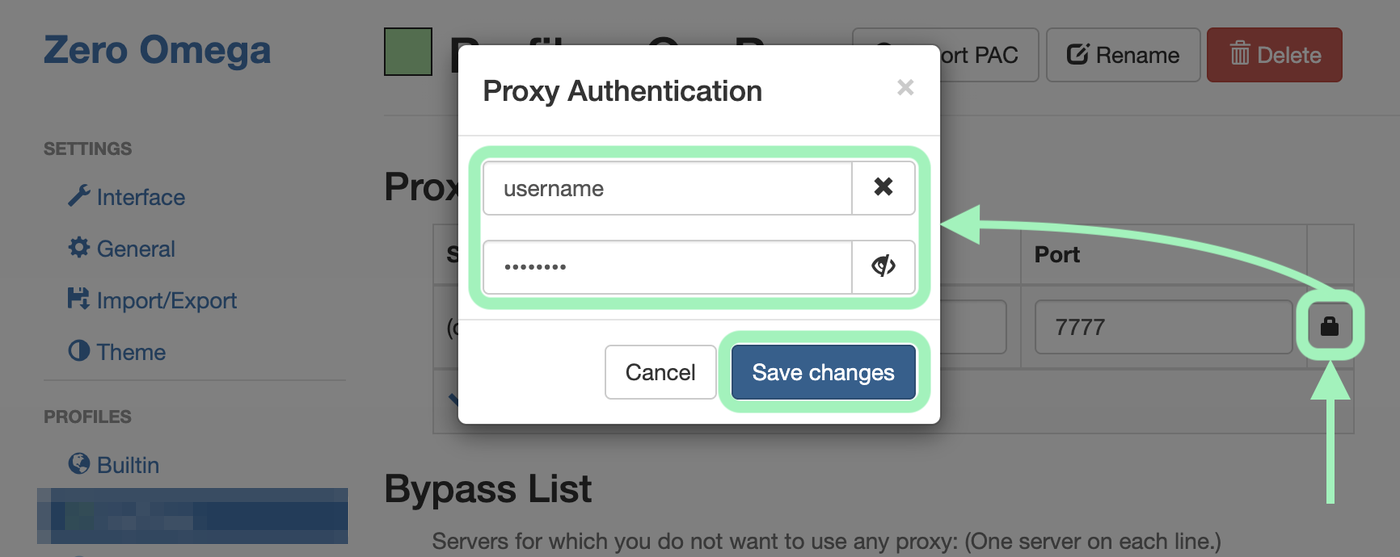
A SOCKS5 profile with a username and password will fail on every page. Chrome has no SOCKS authentication and no extension can add it. Switch the GeekProxy plan to IP whitelist mode and leave the fields empty, or use the HTTP port with login and password.
5 Auto switch by site
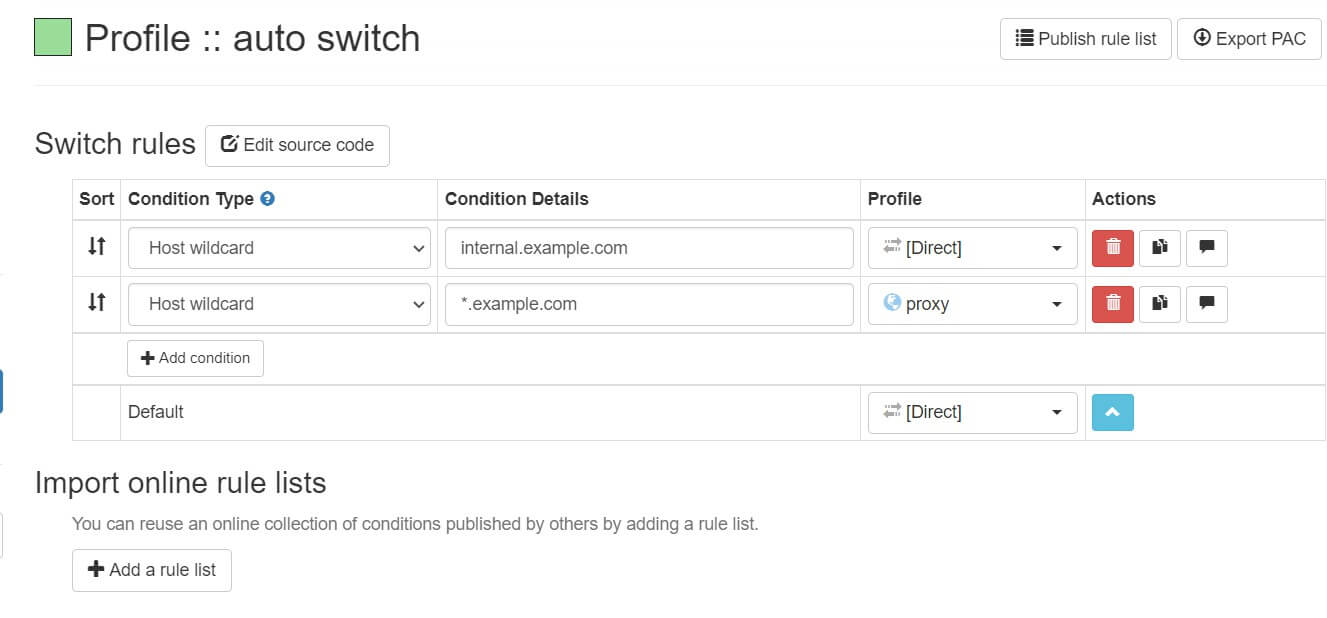
A switch profile selects the result profile with the first condition that matches the current request, and falls back to a default when nothing matches. Conditions come in six types: host wildcard, host regex, host levels, URL wildcard, URL regex and keyword.
A typical layout for account work: one rule with the host wildcard *.example.com pointing at a GeekProxy profile, and the default set to Direct. Everything else leaves through your own connection, and only that site sees the proxy. Add a second rule with another site and another profile, and two accounts on two sites live on two IPs in the same browser window.
One limit from the FAQ: the system profile can't be used inside a switch profile, because a PAC script has no way to say "use whatever the OS says". If your OS proxy is a fixed address, re-create it as a proxy profile and use that in the rule.
6 Verify it works
Select the proxy profile in the popup and open https://ipinfo.io/json. The ip field must show the proxy address, not your own. On an ISP or datacenter plan that is the address from your dashboard, on Residential or Turbo it is an address from the pool in the country you picked. The country and org fields describe the proxy network.
For a switch profile, open the IP page twice. Once as it is, which should show your own address under a Direct default, and once from a host that your rule matches. Different answers mean the rule works.
7 Which GeekProxy product fits
Per-site switching with login and password is a job for HTTP profiles. ISP static or datacenter IPv4 for accounts that must keep one address, one profile per IP. For sites that want a home connection, a Residential Turbo sticky session string or Residential Flex as an HTTP profile, assigned by a switch rule. SOCKS5 profiles only with the plan in IP whitelist mode. Shadowsocks does not apply to a browser switcher; the Flawless plan needs a local client first, and then that client's local SOCKS port on 127.0.0.1 can be a ZeroOmega profile.
8 Common issues
SOCKS5 profile fails on every page
Login and password are filled in on a SOCKS5 profile. Chrome ignores them. Whitelist your IP in the GeekProxy dashboard and leave the fields empty, or use HTTP.
The browser keeps asking for a proxy login
The credentials in the profile don't match the dashboard, or the plan is in IP whitelist mode and your current address isn't listed. Check both, and watch out for a residential login string copied without its last characters.
The extension's settings have no effect
An enterprise ProxySettings policy is active in Chrome or Edge, and policies override extensions. Look at chrome://policy or edge://policy. A managed machine needs its administrator.
Other programs still use my own IP
Expected. An extension proxies the browser and nothing else. For other applications see the Proxifier guide.
Something is off in Firefox
The README itself warns that the Firefox port can have browser-specific bugs. Report them on the project's GitHub. Firefox has its own built-in proxy dialog as a fallback.
Get proxies for ZeroOmega
Static ISP and datacenter IPs with HTTP login, one per profile, or residential sessions for the sites that need them.
Place an order